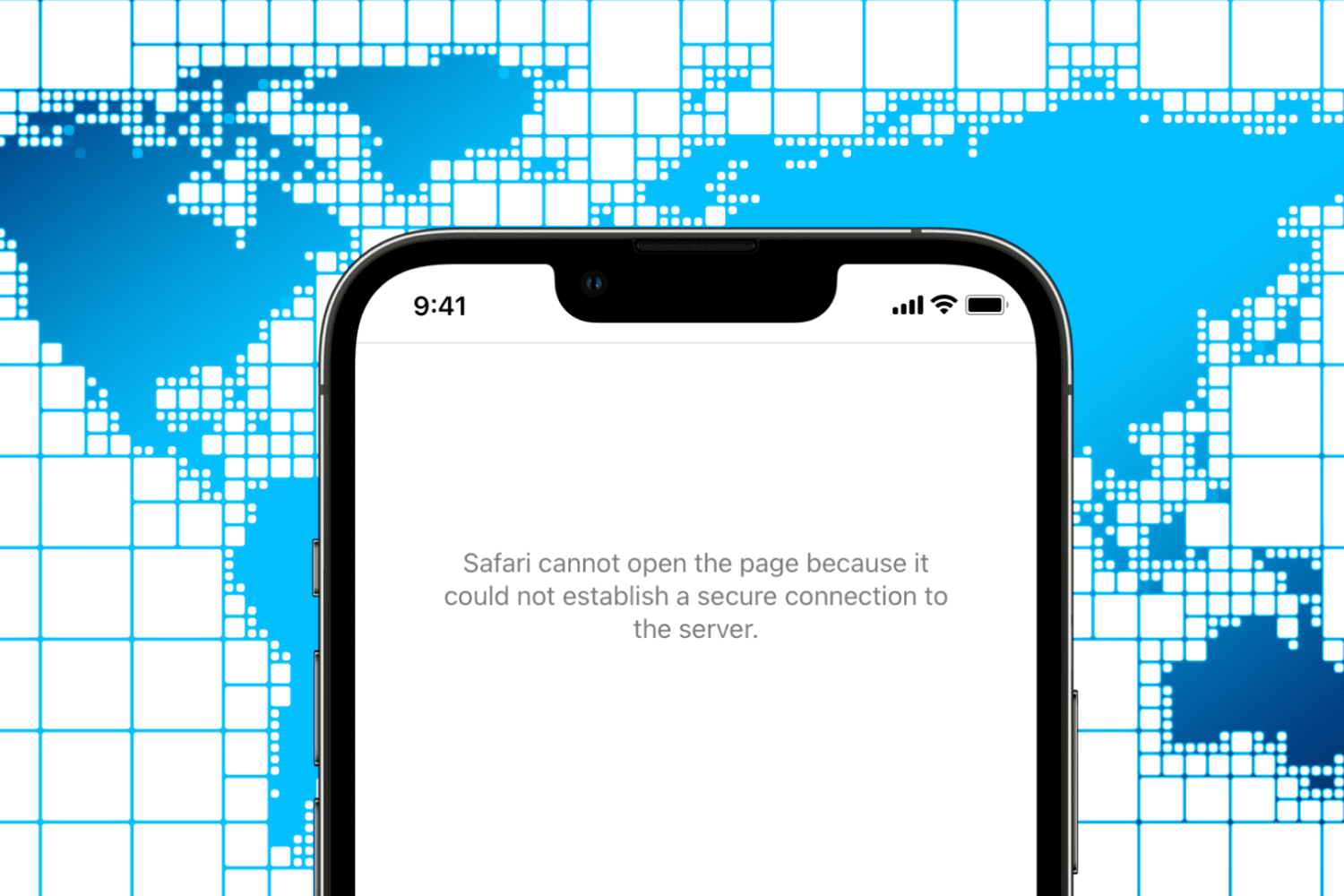
Check out these four free and easy ways to open blocked or geo-restricted websites on your iPhone, iPad, Mac, and other devices.
How to visit a blocked or geo-restricted website on iPhone and Mac
Learn how to master your Apple devices with our comprehensive tutorials. From iPhone and iPad to Mac, Apple Watch, AirPods, and more, our expert guides will help you unlock the full potential of your Apple products. Discover new features, tips, and tricks each day to enhance your user experience.
Check out these four free and easy ways to open blocked or geo-restricted websites on your iPhone, iPad, Mac, and other devices.
Learn how to permanently delete everything from your iPhone, iPad, or iPod directly from the device or using a computer.
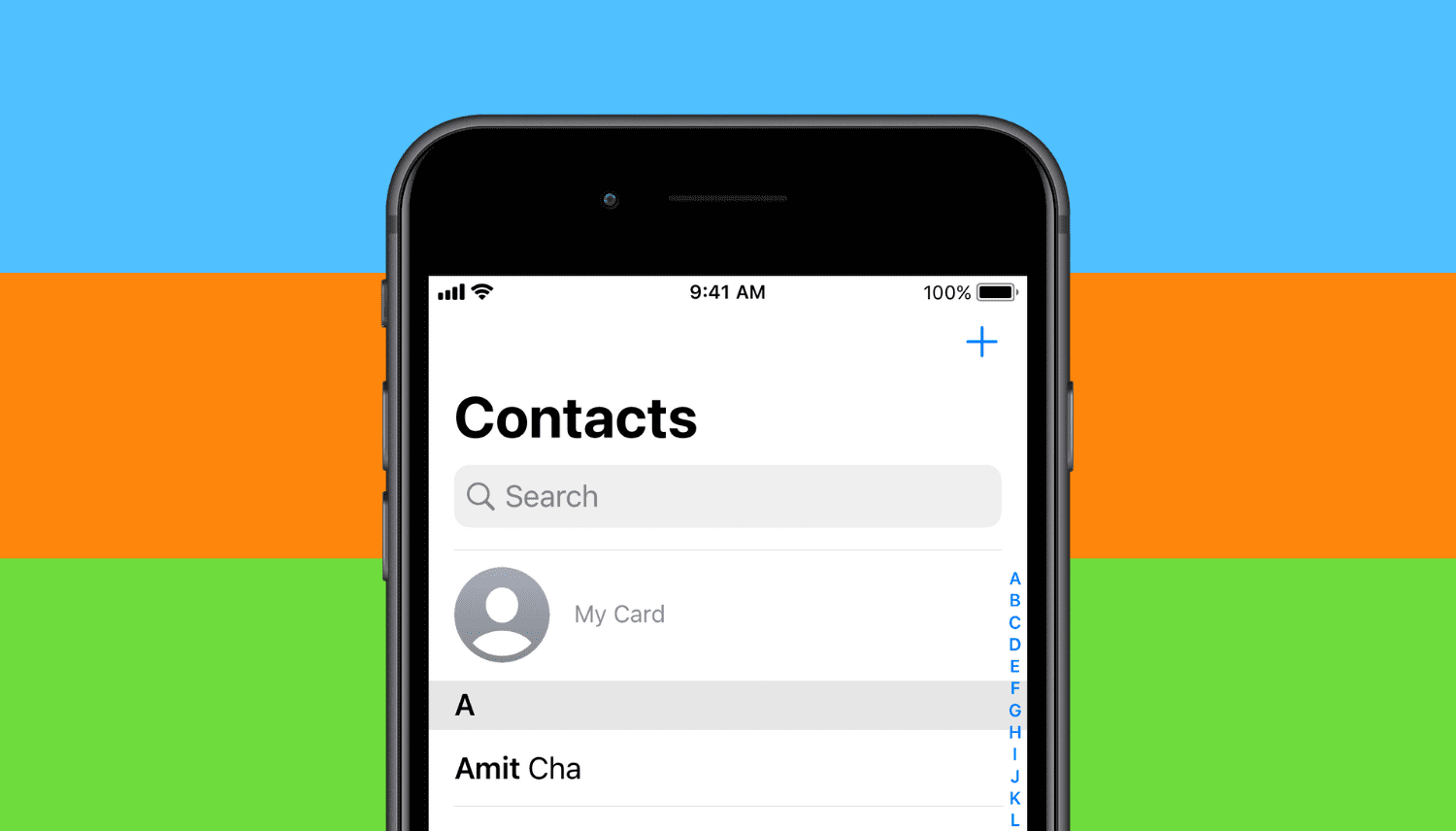
Learn how to add the “My Card” or “My Info” details in your iPhone’s Phone or Contacts app, or fix it if an incorrect contact is added here.
Follow these essential steps before selling, giving away, or trading your old iPhone, iPad, or iPod touch to ensure a safe experience.

Learn how to create a full iCloud backup of your iPhone or iPad if you’re switching to a new device but don’t have enough iCloud storage space on your Apple Account.

If you jailbroke your iOS or iPadOS 13 device with the Odyssey tool and decided that it’s time to remove your jailbreak, either to revert to a vanilla installation of the operating system or for the purpose of starting over with a fresh jailbreak installation, then the Odyssey app’s built-in Restore RoofFS feature will come in handy.
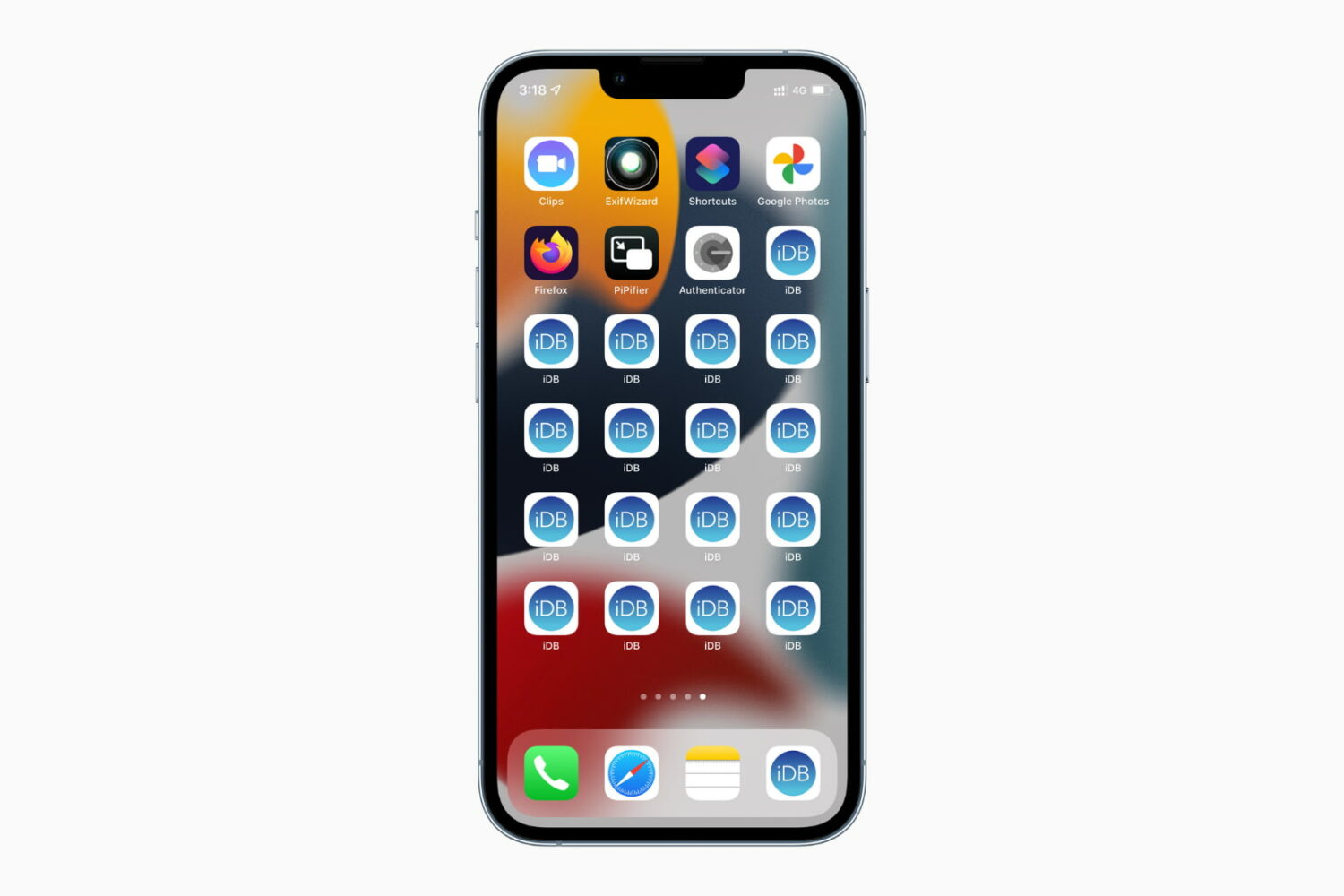
In this tutorial, we will show you how to add duplicate icons of the same app on multiple Home Screens on your iPhone or iPad -- without needing a third-party app or a Jailbreak tweak.

In this quick guide, we’ll show you five ways to delete invisible apps from your iPhone or iPad to declutter things and free up local storage.
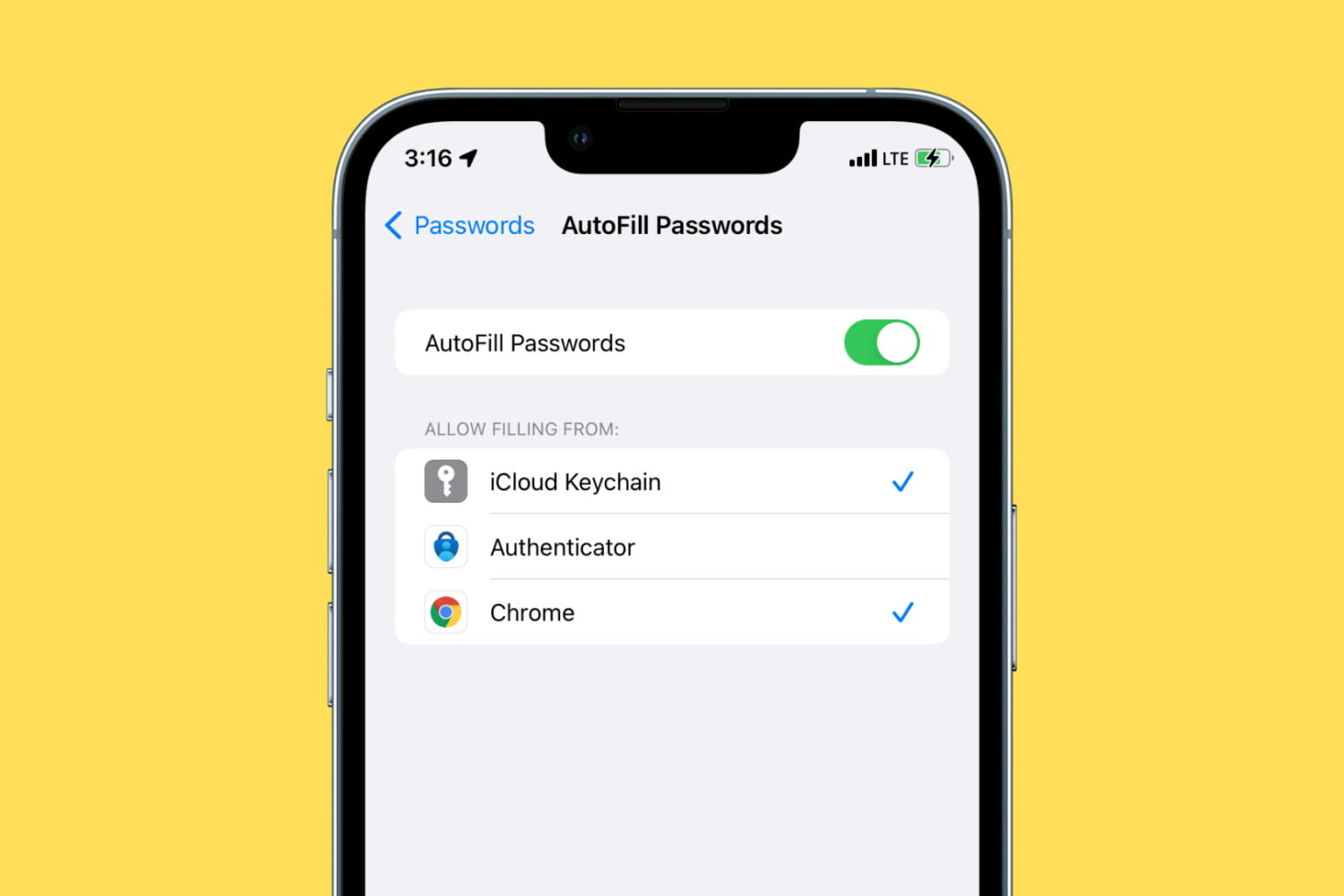
Learn how to use Google Chrome as a password manager on your iPhone to autofill passwords saved in Chrome across various iOS apps and websites.
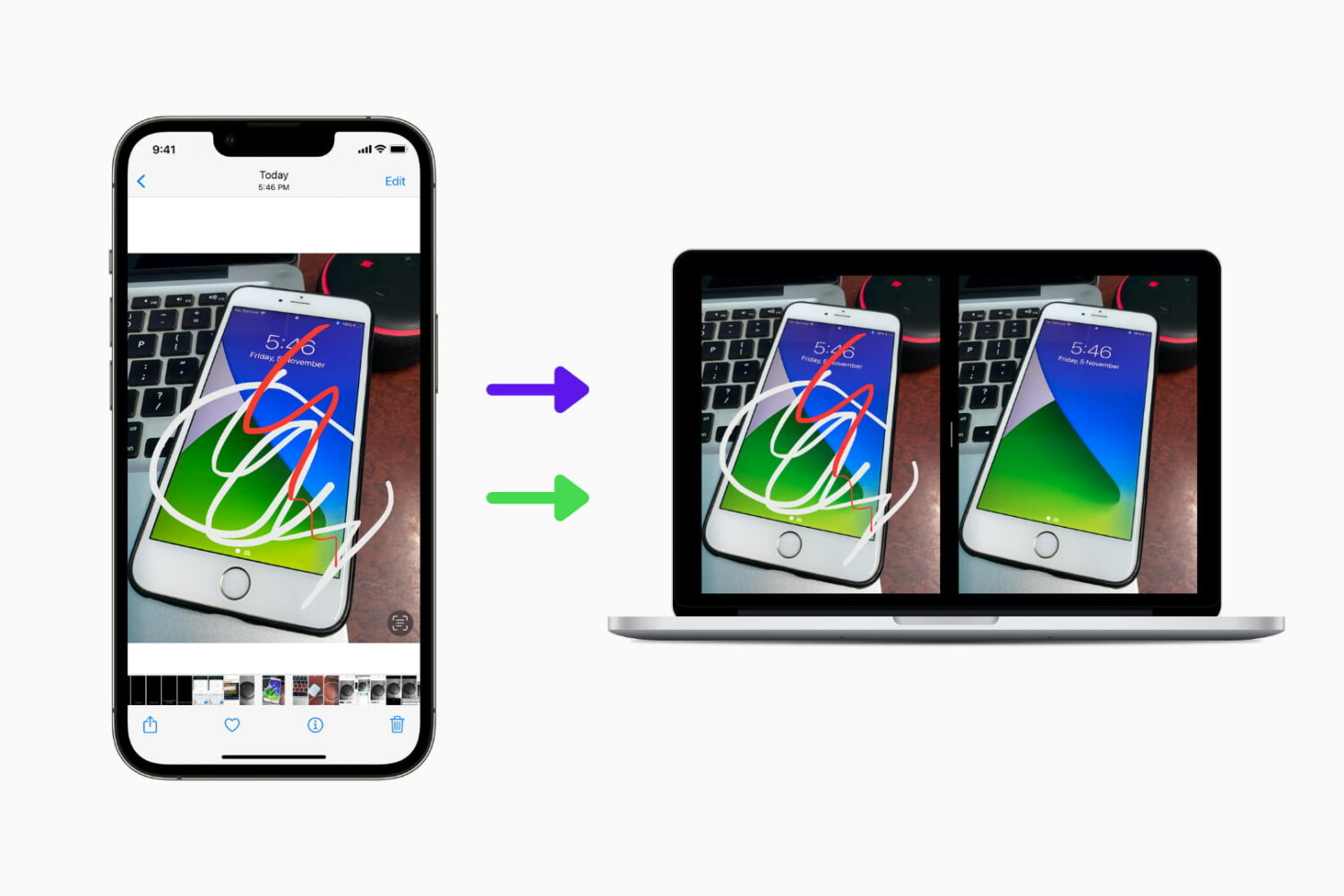
Did you edit a photo on your iPhone or iPad but now want to get its original version back? In this guide, we show you two ways to have both the edited and non-edited variants of the same image.

Many Taurine jailbreak users are content with how their iPhones and iPads turn out post-jailbreak. But if for any reason you decide to revert to a vanilla version of iOS or iPadOS 14 or perhaps even develop the urge to try a different jailbreak tool instead, it’s important to remember that you can use the Taurine jailbreak’s rootFS restore feature to roll your handset back to a pre-jailbroken state.
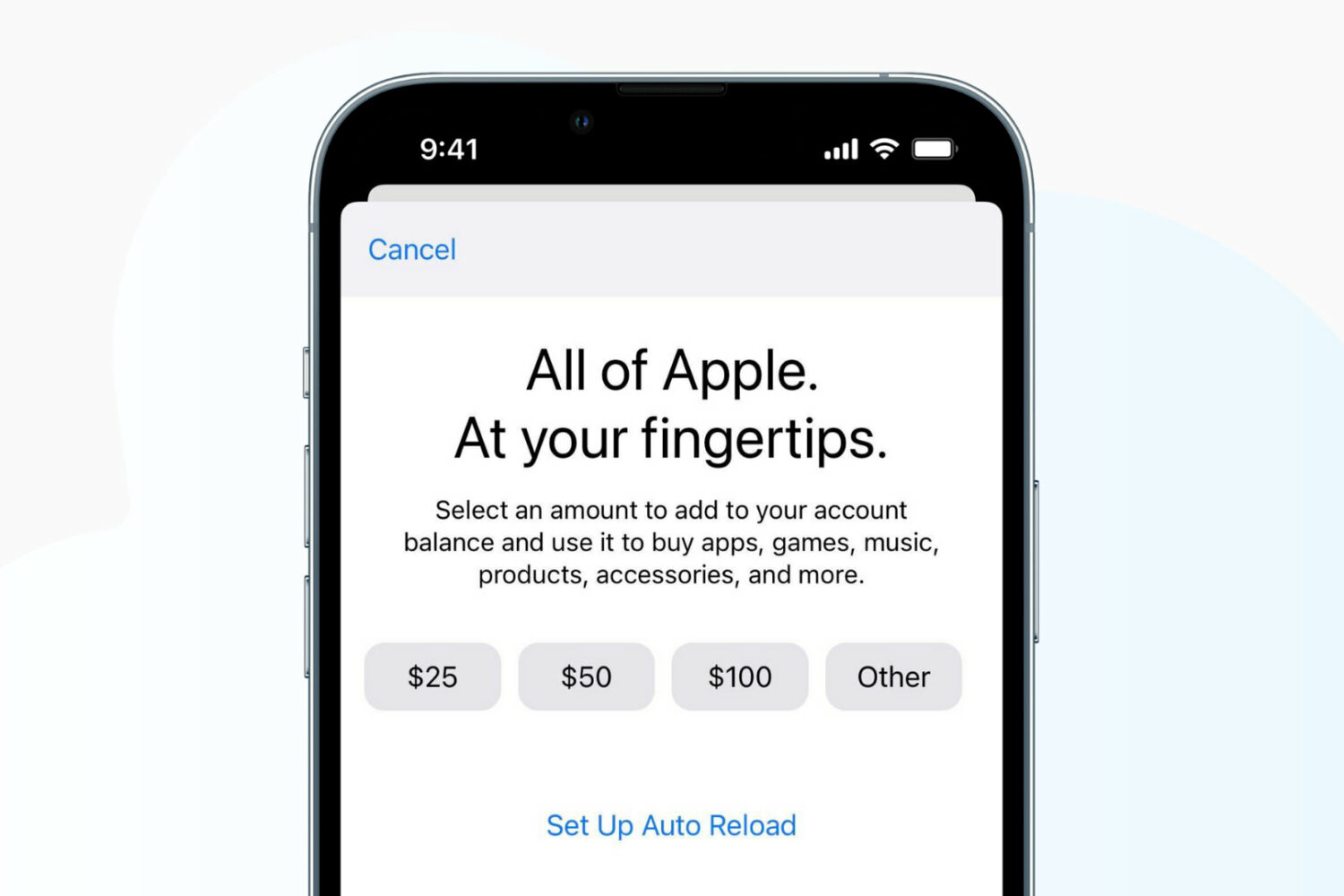
Learn how to add money to your Apple Account balance on your iPhone, iPad, or Mac, see the remaining funds, and know everything else about it.