Messages

MessageBubbles brings a new look and feel to your messaging notifications

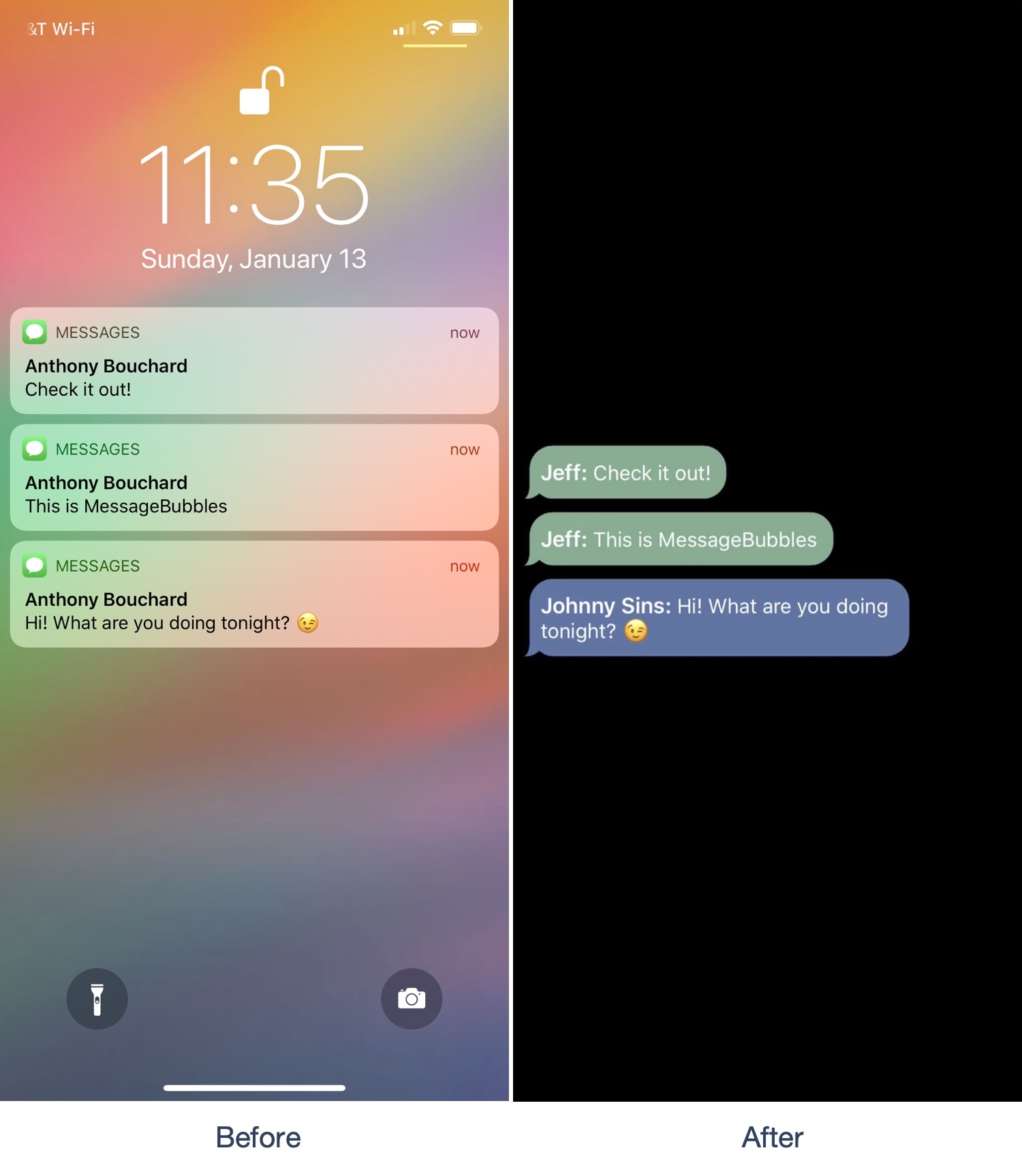
If you own an iPhone, then a significant percentage of your usage likely comprises of text messaging. Notifications for incoming messages typically stack up on the Lock screen until you acknowledge them, but if you fancy something that looks nicer, then you might appreciate a new jailbreak tweak called MessageBubbles by iOS developer Kurrt.

As the name implies, MessageBubbles replaces the Lock screen’s standard notification system with a unique message bubble-centric animation. In the screenshot example above, you’ll see how the background stays black as message bubbles from various apps roll into view. You’ll also notice how the message bubbles are color-matched to the app they originate from. This particular combination looks great on OLED displays, but also works on LCD displays.

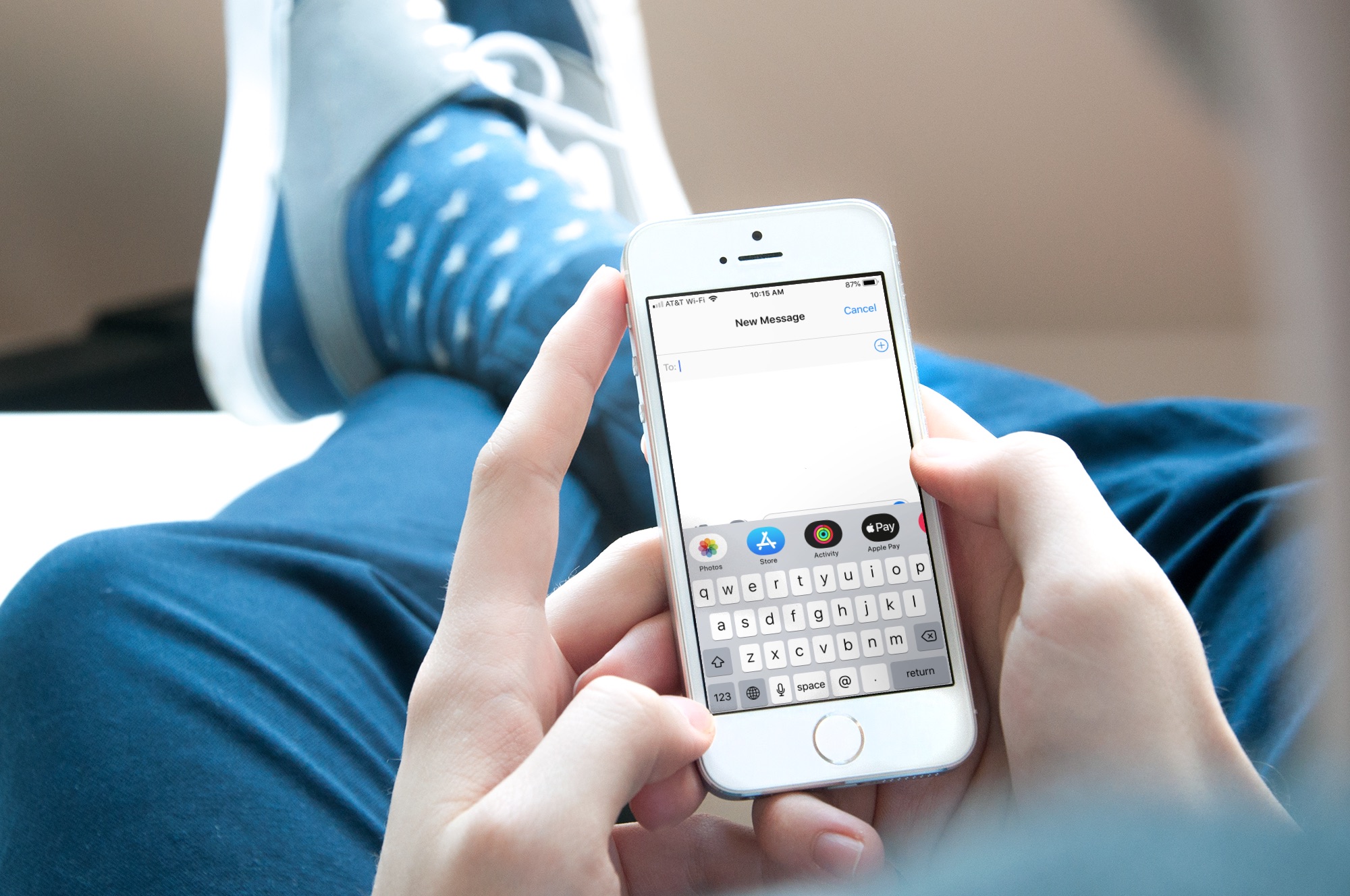
How to quickly hide the App Drawer in the Messages app

Messages App Drawer iPhone

The App Drawer at the bottom of your conversations in the Messages app can be quite convenient. You can share stickers from your favorite apps, send money with Apple Pay, send Digital Touch messages, and so much more.

But, if you would rather have the full view of the conversation screen and keyboard without the App Drawer, you can simply put it away.

Here’s how to hide the App Drawer for your conversations in the Messages app.

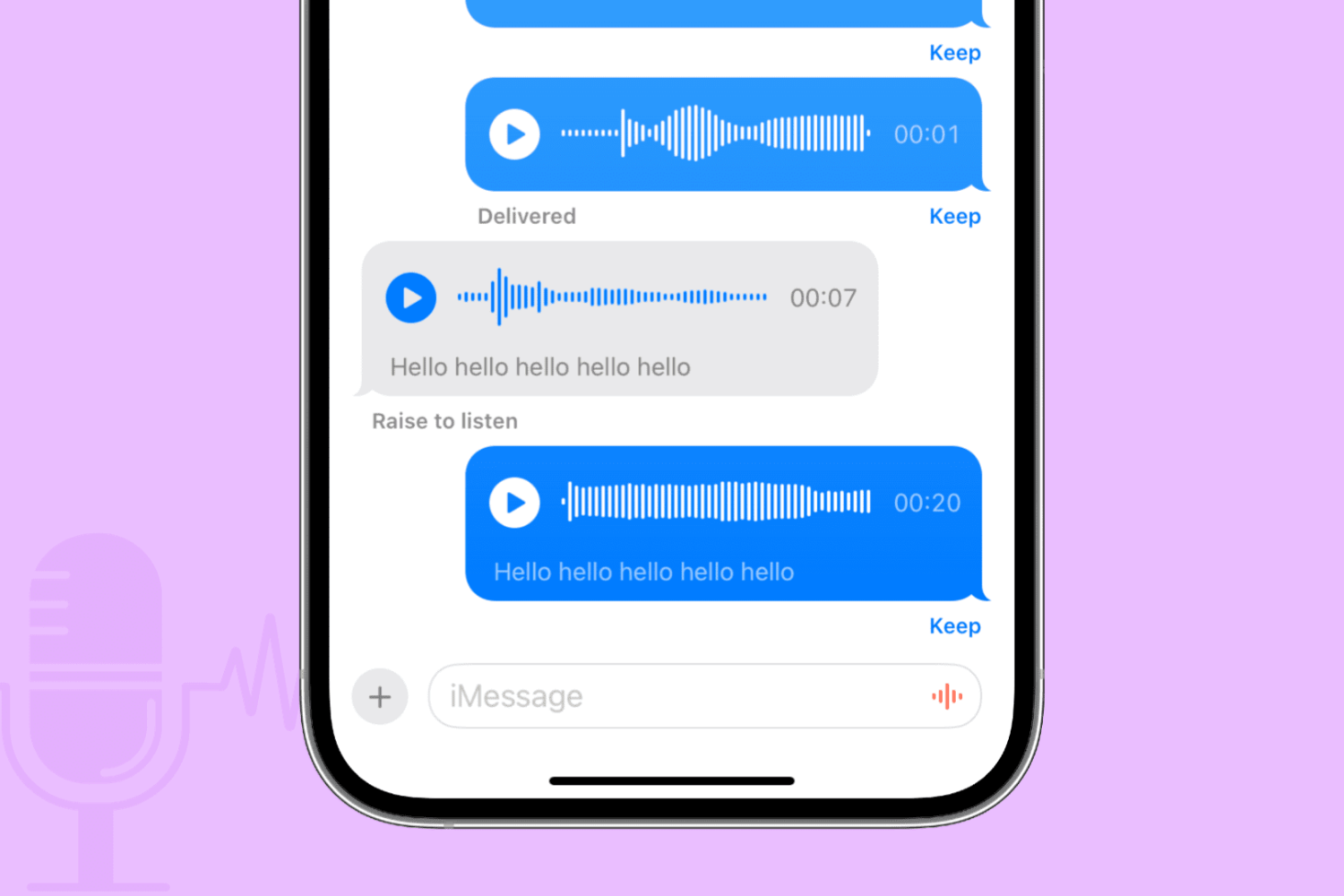
How to send voice messages from iPhone, iPad, and Mac

Audio messages on iPhone

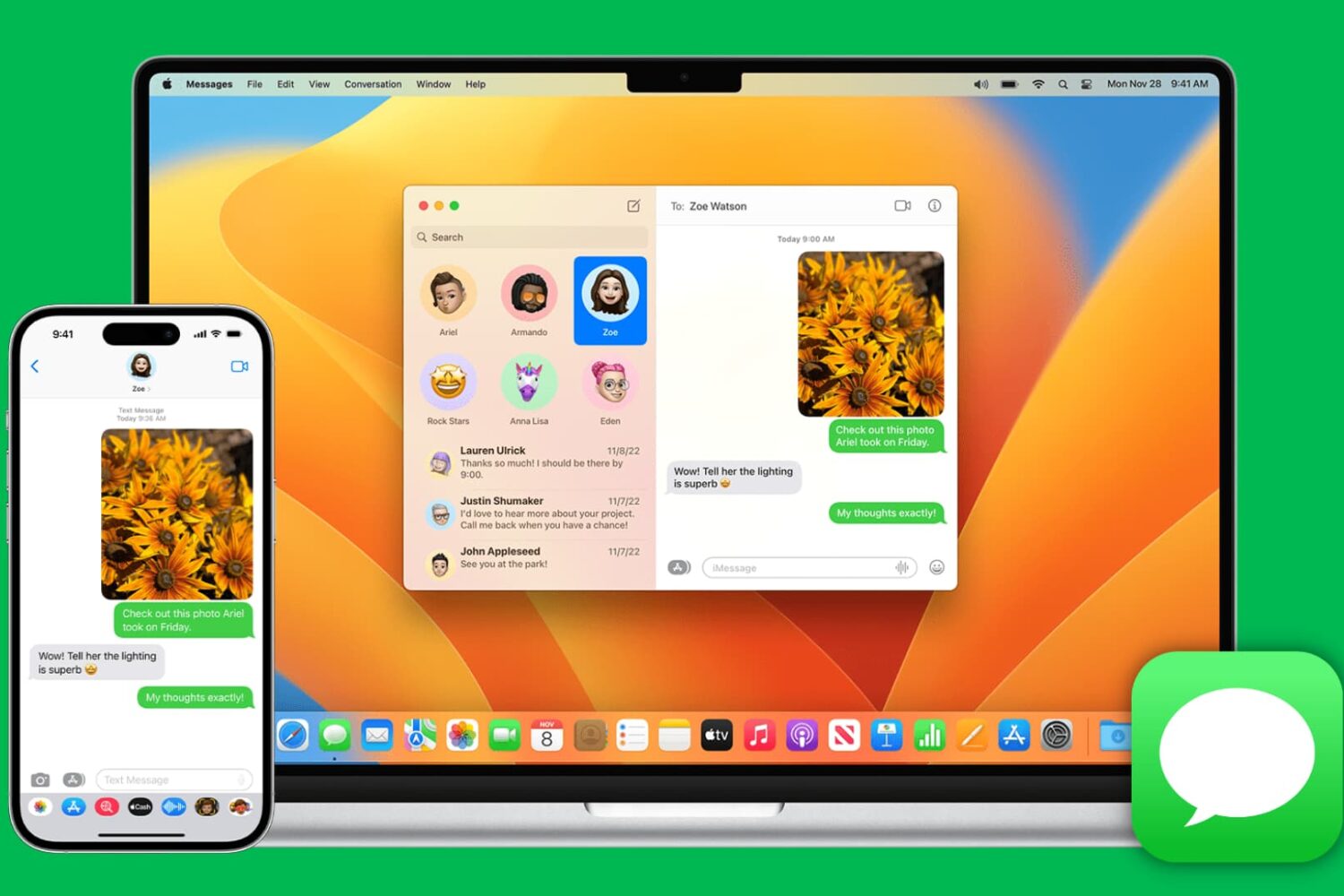
Apple Messages on iPhone, iPad, Mac, Apple Watch, and Vision Pro lets you send and receive audio messages via iMessage that recipients can optionally keep in the app. Audio messages bring that unmistakable personal touch.

Maybe your toddler just uttered his first words. Perhaps you want to send a business colleague a soundbite from an important meeting. Or maybe you’d like that special person in your life to hear a heartfelt message spoken aloud with your own voice.

Learn how to send audio messages to your iMessage friends when you don’t have the time for typing or want to tell them something in your own voice.

How to text multiple people at once in separate messages on iPhone

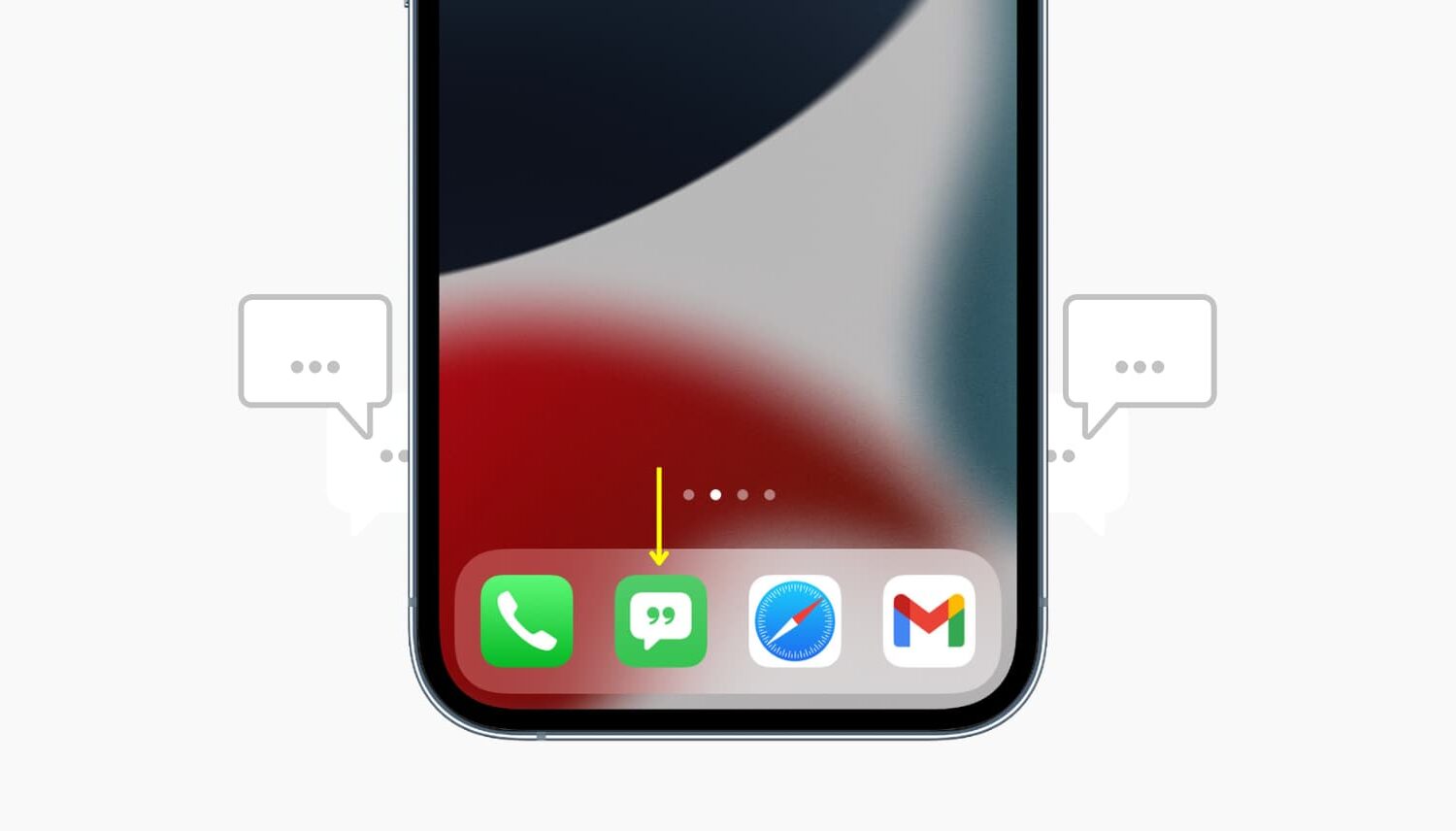
Text multiple people at once in separate messages with the Mass Message shortcut

The Mass Message shortcut sends your custom text message to multiple recipients through the Messages app - but individually, in separate messages. This solves one of the biggest complaints about the stock Messages app, which supports group chatting but won't let you text multiple recipients simultaneously via individual messages.

Here's how to individually text several recipients at once from your iPhone or iPad.

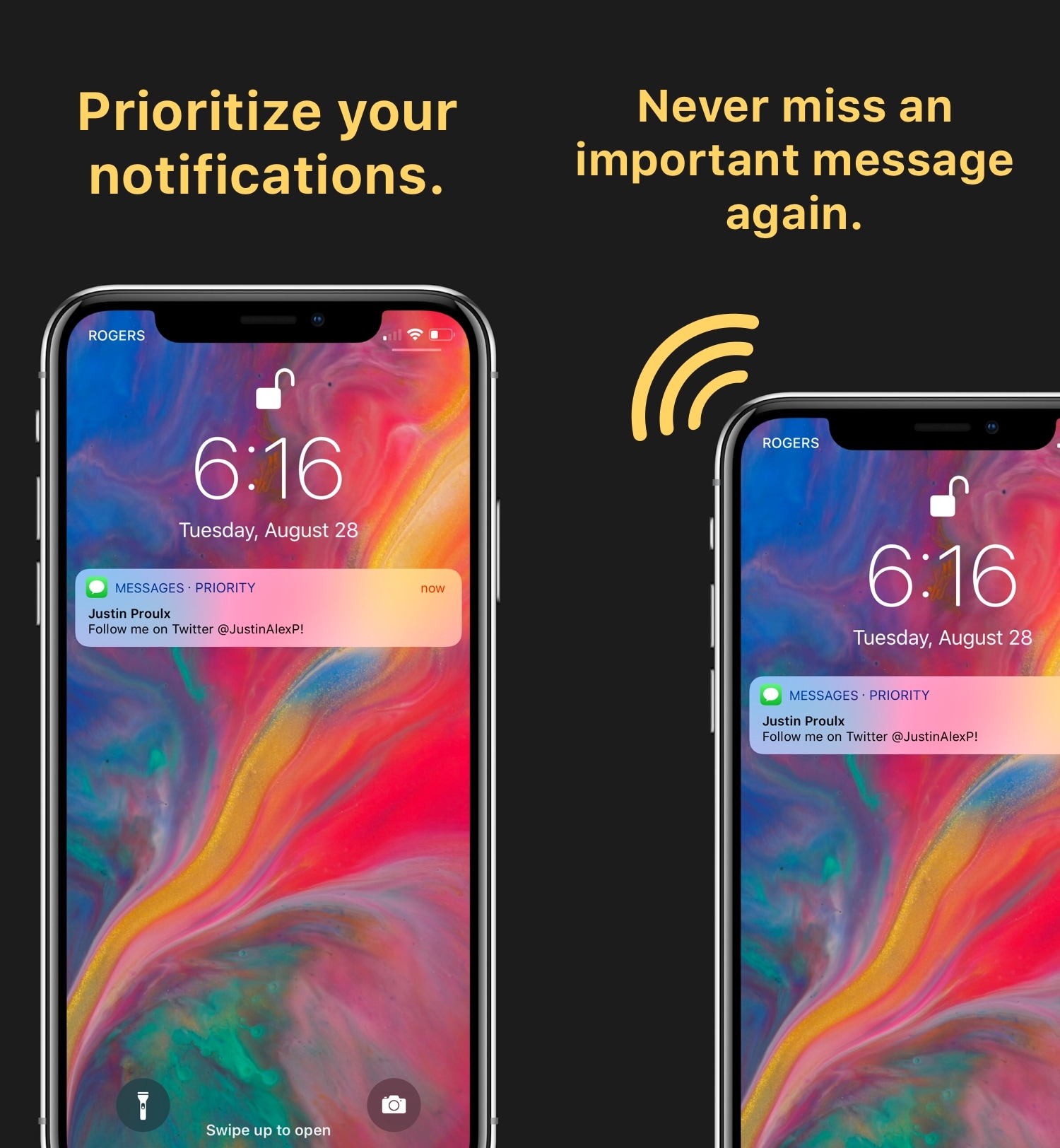
Make critical notifications stand out from the rest with Priority

If you’re like me, then you might consider some of your notifications to be more important than others. But because of how iOS handles them, it’s easy for the most important notifications to get buried underneath all the noise from the rest of your apps.

Although Apple’s notification system isn’t perfect, a new jailbreak tweak called Priority by iOS developers Justin Proulx and Ayden Panhuyzen brings it one step closer. It can help you discern critical notifications at a glance without compromising those from other apps.