Mac Tip

How to quickly get your answers from a website you’ve searched before in Safari

In addition to finding all occurrences of a word within any webpage, Apple's Safari browser for the iPhone, iPod touch, iPad and Mac includes a nifty little feature called Quick Website Search which lets you get your answers from within a specific website as long as you've used its search box before.

Safari keeps tracks of the webpages as you surf the web so you can later find anything within a previously visited website, right from the Smart Search field.

In this tutorial, you'll learn how to leverage Safari's Quick Website Search feature to search within a website.

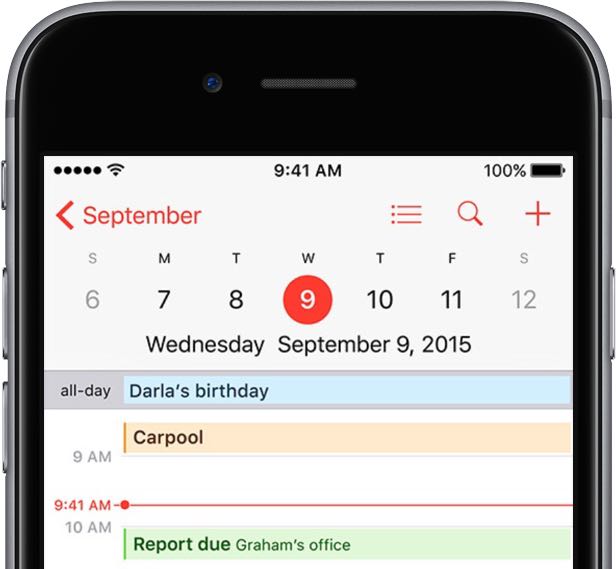
How to share iCloud calendars

Apple's Calendar application for the iPhone, iPod touch, iPad, Mac and iCloud.com makes it simple to share events and to-dos with select people, or let anyone with a link subscribe to a read-only calendar.

For example, you could share a “To Do” calendar with your significant other, create a calendar for your entire family so every member can put errands on it, invite your wife to a shared “Kids” calendar to keep parents in the loop about school activities and more.

Not only do shared calendars increase your productivity in the workplace, they help those who use them become more organized in everyday life. You can assign edit privileges to invitees, adjust how participants access the calendar and more.

Invitees have a myriad of options at their disposal to view shared calendars, including the iCloud Calendar web app, the stock Calendar app on the iPhone, iPad, iPod touch and Mac or Microsoft Outlook on a Windows computer.

In this tutorial, you will learn how to share a calendar privately or publicly on iPhone, iPad, Mac and iCloud.com. You will also learn how to manage calendar sharing by adding or removing participants, changing privileges, adjusting calendar notifications, and more.


How to disable suggested search terms in Safari

Google Suggestions while typing in Safari address bar

Safari Smart Search Field lets you type in either an URL to visit or a search query to send to the default search engine. It's also a place where search suggestions automatically pop up as you type. With this cool feature, you can type just the first few letters of a query and rely on the search engine (Google, Bing, Yahoo, etc.) to help you complete the search term without needing to type out the rest of your query. But, certain users may not be fond of this feature for privacy reasons.

If you're among them, use the step-by-step instructions provided in this tutorial to turn off suggested search terms in Safari for iPhone, iPad, and Mac.

How to delete your old iPhoto library

After upgrading your Mac to OS X Yosemite or later, the new Photos app gets installed automatically.

On first launch, Photos will auto-upgrade your default iPhoto library to its new library format. People with multiple iPhoto libraries must manually convert them to the new format by holding the Option (⌥) key when clicking the Photos icon in the Dock.

Upon completing migration, you'll have two sets of photo libraries on your machine: the original iPhoto libraries and their Photos counterpart.

In order to free up a significant amount of storage space on your Mac, you can safely delete any iPhoto library that has been migrated to the new Photos app.

How to move Photos library to an external drive

In addition to moving your multi-gigabyte iTunes library to an external drive, a significant amount of Mac storage space can be freed up by moving your photo libraries onto a separate drive.

If you take a lot of pictures with a DSLR camera or your iOS devices and import them in Photos, you'll fairly quickly run out of free space on most Macs.

This tutorial will guide you through the process of moving an entire library of photos to an external drive, preferably to a much larger external hard drive, in a way that won't disrupt your photography workflow.

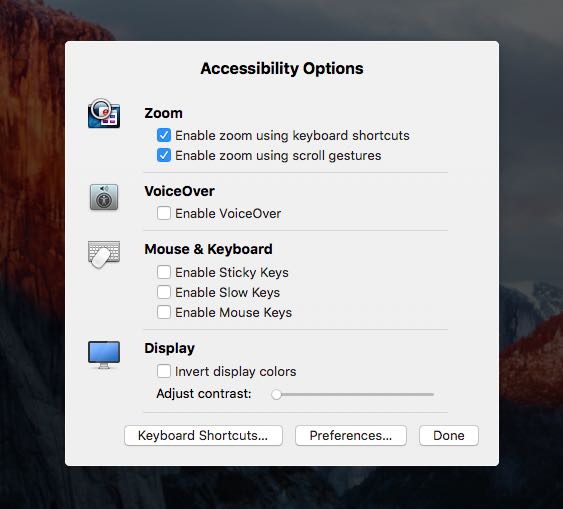
With this time-saving shortcut, you can quickly set some Mac display options

In addition to adjusting the screen resolution and choosing between the available display modes on your Mac, the macOS System Preferences application gives you additional display options to play with.

If you use display zoom, a great feature for people with less than perfect eyesight who find themselves squinting at the screen all the time, or you want to quickly access common features related to making items on the screen easier to see and the display easier to read, use the following time-saving shortcut to quickly adjust these options.

How to use bookmark folders in Safari

In Safari, you can save websites you visit frequently so you can quickly revisit them later without having to remember their URLs. Saved webpages are accessible in Safari's Bookmarks menu on the iPhone, iPod touch, iPad or Mac.

If you save a lot of bookmarks, they will clutter the Bookmarks menu over time so locating that favorite website of yours will begin to feel like finding a needle in the haystack. You can avoid this by creating themed folders for organizing your bookmarks.

This tutorial provides step by step instructions for creating new Safari bookmark folders for iOS and macOS. You will also learn how to rename, reposition and delete these folders and file websites into them, all of which will help you organize your favorite websites to your liking.

How to measure Mac frame rates and enable HiDPI display modes on older models with Quartz Debug

Have you ever wanted to benchmark the graphics performance of your favorite Mac apps and games, or measure the refresh rates of macOS's user interface?

If so, you'll be delighted to learn that Apple provides a free application, called Quartz Debug, which has a built-in live frame rate monitoring tool that can measure the refresh rate of the graphics subsystem in frames per second (FPS).

Here's how you can download Quartz Debug to your Mac and use it to display the number of screen updates per second, see the FPS and CPU gauges changing as you perform different actions on your Mac, enable HiDPI display modes on non-Retina Macs and adjust other settings related to the computer's GPU.

How to disable transparency effects on your Mac

The release of OS X Yosemite in 2014 gave the Mac's user interface a fresh coat of paint in part through adopting much of the transparency effects that Apple added to iOS 7 in prior year.

Transparency is used throughout macOS and can be observed on the desktop and seen in drop-down menus, title bars, sidebars and toolbars.

This post will teach you how to disable transparency for all user interface elements that have a translucent appearance on your Mac.

How to hide device icons on your Mac desktop

If you're a minimalist type of person, then you might prefer to keep your Mac's desktop free of any icons.

Yes, you can easily drag documents and other files that have been cluttering your desktop and put them in a folder on your Mac. However, that doesn't change the fact that icons for external hard drives, USB thumb drives and other hardware devices will still pop up on the desktop as soon as they're connected to your Mac.

Wouldn't it be nice if you could do something about that? Thankfully, Apple's engineers though of that, too, because macOS makes it easy to optionally remove desktop icons for different types of devices with just a few clicks.