Learn how to display week numbers in your calendar views across iPhone, iPad, and Mac so you can have an additional piece of useful information while working inside this app.
How to show week numbers in Calendar on iPhone, iPad, and Mac

Learn how to display week numbers in your calendar views across iPhone, iPad, and Mac so you can have an additional piece of useful information while working inside this app.

Apple gives you a number of options if you need to troubleshoot software and hardware issues that might be plaguing your Mac. If you cannot determine the root cause of your problem by isolating issues in macOS, your first port of call should be macOS' built-in recovery tools.
But that may not be necessarily enough and Recovery Mode may be unable to help you get your Mac back to working order.
As the last option, you can boot your Mac in a hardware diagnostics mode, which on newer Macs is called Apple Diagnostics or Apple Hardware Test on older models. In this tutorial, we'll show you how to enter Apple Diagnostics or Apple Hardware Test mode to identify the potential source of a hardware issue.

Learn how to set a photo, album, folder, or your entire photo library as your Mac’s screen saver to keep your favorite images cycling through the screen periodically.

Learn about a small, easy-to-remember tip that lets you increase or decrease the screen brightness and volume in even smaller, fine-tuned increments than normal.

This tutorial shows you how to set a firmware password on your Intel Mac to further increase the security of your computer.
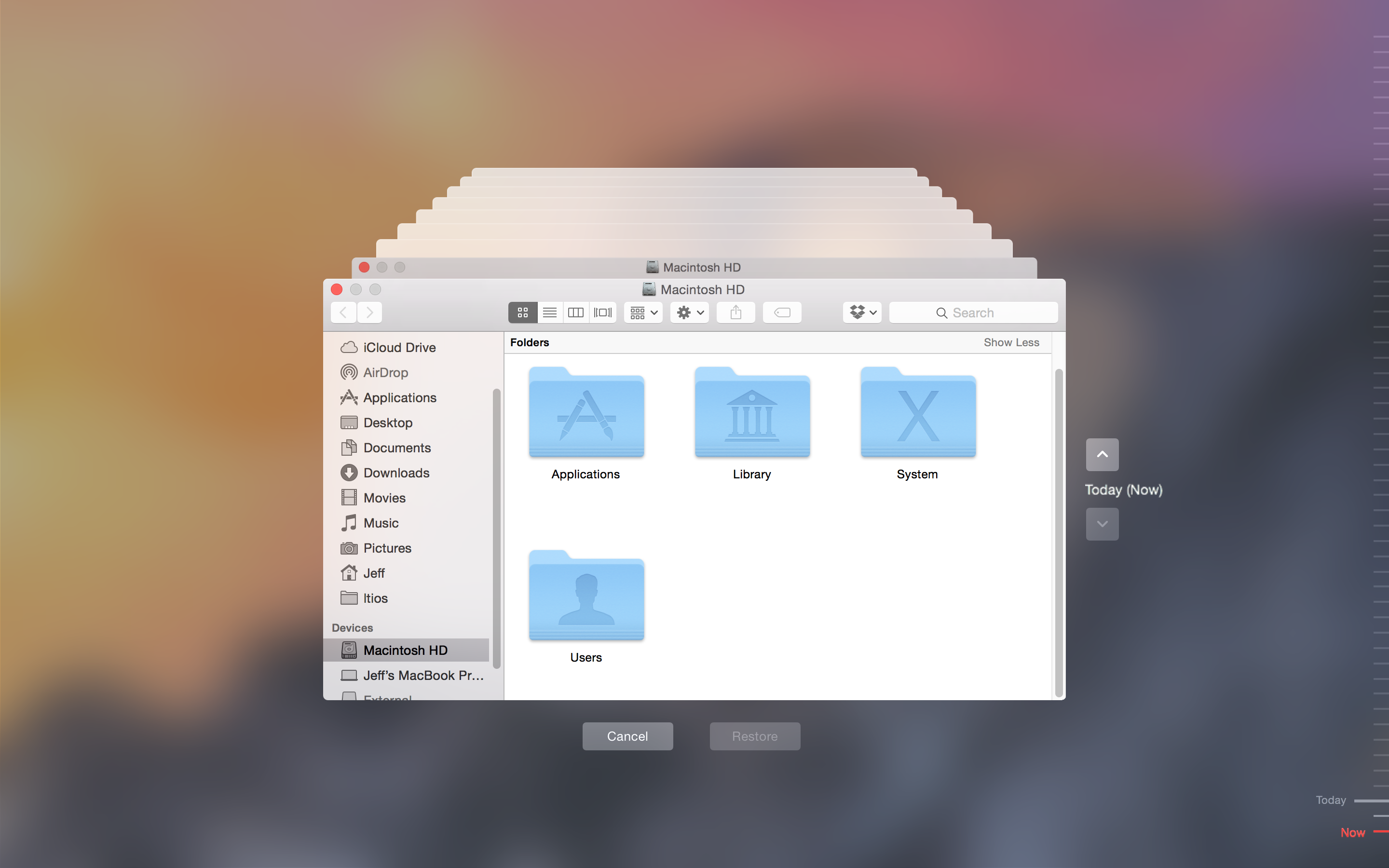
Suppose a software update or an app you installed has corrupted system files and as a result your Mac refuses to start up properly, what do you do?
Those who have planned ahead and created a bootable USB install disk for El Capitan can do a clean install of macOS, and then restore their Mac from the most recent Time Machine backup.
But there's a better way to deal with such situations. In this tutorial, we'll educate you on booting into macOS' Recovery Mode and using the built-in recovery tools to restore your Mac from a Time Machine backup.

From accessing online resources to resolving network issues, this guide will show you how to use Safari when you enter macOS Recovery or Internet Recovery Mode on your Mac.

macOS on your Mac includes a disk-repairing app, called Disk Utility, which you can use to scan your connected drives for errors, erase a disk, repair disk permissions, check the disk's structure for physical errors and more.
But what can you do, if anything, should your Mac experience issues preventing it from starting up properly? Not to worry, our friends, because macOS lets you launch a standalone version of Disk Utility from your Mac's built in recovery partition.
In other words, macOS' Recovery Mode gives you a chance to repair a malfunctioning startup disk that prevents your Mac from booting properly.

In addition to the startup volume, which holds a bootable copy of the operating system along with your applications and data, your Mac's disk contains a hidden recovery partition that you can boot from in order to reinstall macOS, perform a quick check of connected disks, and more.
But what if the built-in recovery partition gets damaged, for instance? Enter Internet Recovery Mode (or macOS Recovery over the Internet), an Internet-based version of Recovery Mode found on Macs, which loads recovery tools from Apple's servers.
With Internet Recovery Mode, you can reinstall macOS and troubleshoot issues in the unfortunate scenario of your Mac's startup disk having become corrupted or completely unreadable.
In this tutorial, you'll learn everything about Internet Recovery Mode on Intel-based Macs and Macs with Apple silicon. You'll also see how to use it to your advantage if your disk encounters an issue or the startup drive has been replaced or erased.

Starting your Intel or Apple silicon Mac in Recovery Mode provides the tools you need to solve various problems. It is typically your last chance to repair the startup disk, reinstall macOS or restore from a backup after a fatal failure that prevents your Mac from starting up properly. In this tutorial, you'll learn how to enter Recovery Mode at boot time and use the built-in recovery tools to bring your Mac in perfect working condition.

In this tutorial, you will learn about the most important System Settings (previously called System Preferences) shortcuts and see how to leverage them to make the most of this essential app on your Mac.

You can free up a significant amount of storage space on your Mac if you clean up your Downloads folder on a regular basis, remove your old iPhoto library, erase Safari's browsing data and move both your iTunes library and the Photos library to an external hard drive, among other things.
But what about other files on your computer? With Daisy Disk by Software Ambience, one of Apple's Best of 2015 Mac apps, it's easy to identify the biggest storage hogs on your Mac.
The app makes the mundane takes of cleaning up the Mac's storage easy and fun by giving your a nice visual breakdown on your disk space in the form of an interactive heat map. In this tutorial, you'll learn how to reveal the biggest space wasters with DaisyDisk so you can remove them and free up some additional storage on your Mac.