Learn how to hide the Favorites section in Safari for more privacy and a cleaner Start Page without these website bookmarks.
Marking websites as favorites in Safari lets you revisit them in an instant.
Your favorites appear on the Start Page and are also displayed when you open a new tab.
On the Mac, you can even show them as a separate bar below the toolbar by clicking View > Show Favorites Bar from the top menu bar.
On the downside, people peering over your shoulder may spot your favorites whenever you open a new tab or type in Safari’s address field. If you don’t care about this feature or simply want a more private Start Page, consider hiding your favorites on new Safari tabs and windows.
iPhone or iPad
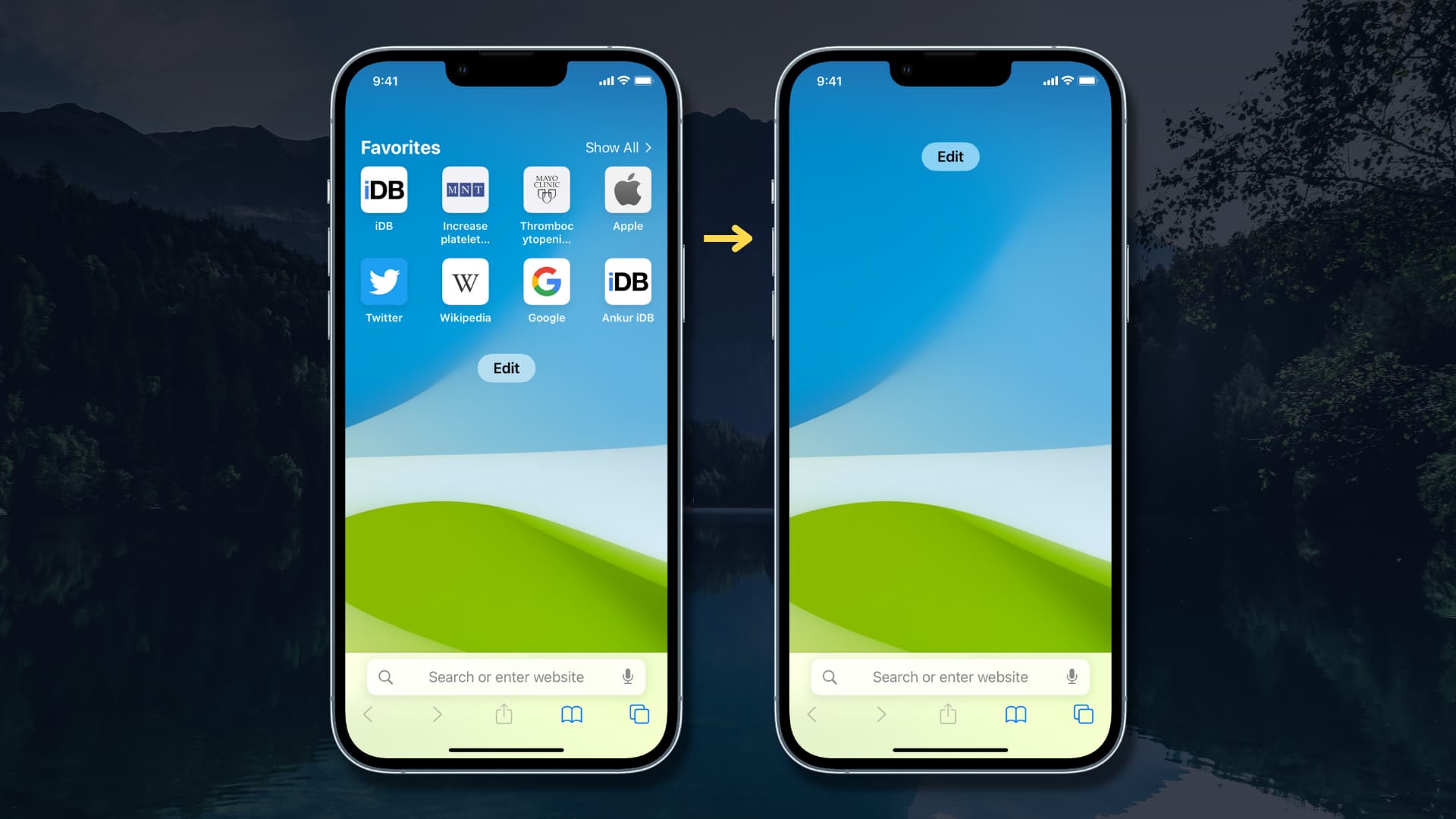
- Open Safari and create a new tab to display your Start Page if not already.
- Tap the Edit button at the bottom.
- Turn off the Favorites switch to instantly hide this section on the Start Page.
- To apply this change across devices, turn on “Use Start Page on All Devices.” To manage this setting separately on each device, turn it off.
- Return to the Start Page or tap Safari’s address bar, and you won’t see any favorites. Don’t worry, they’re hidden, not deleted; you can still find them inside the Favorites folder within the Bookmarks section.

iPad
Just like Mac, your favorite websites can also appear under the address bar on iPadOS.

Here’s how to hide them:
- Open the Settings app.
- Tap Apps at the bottom.
- Select Safari.
- Turn off ‘Show Favorites Bar.’

Mac
Safari for Mac displays your favorites in several places, including the toolbar, on new windows and tabs (Start Page), in private browsing mode, and more. You also get more customization options for controlling where favorites are shown than on iOS.
Hide Favorites on Safari’s Start Page and address bar
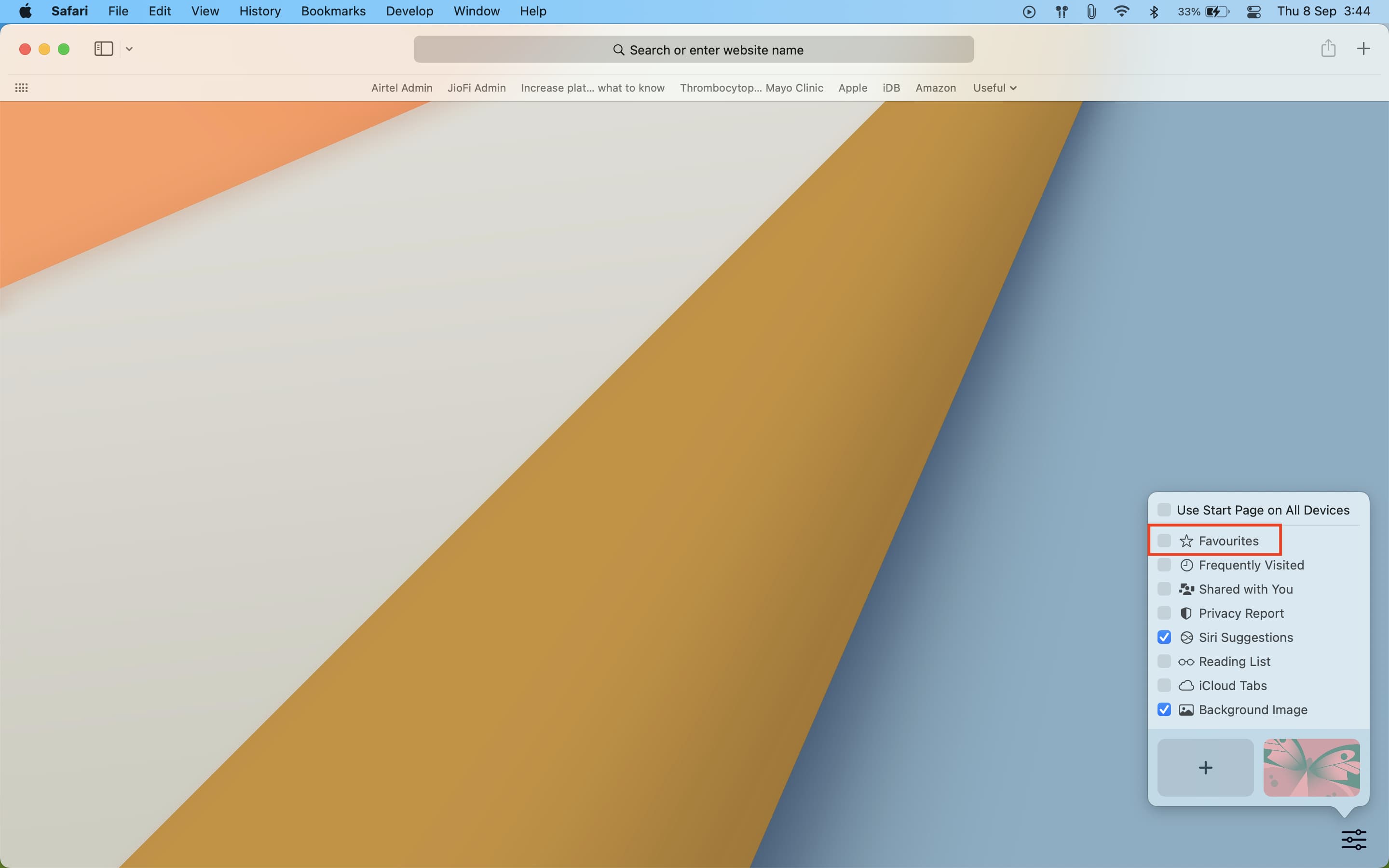
- Open a new Safari tab or window to display your Start Page.
- Click the Edit (formerly settings icon) in the bottom-right corner.
- Untick Favorites to instantly hide your favorite websites on the Start Page and below the address bar when clicked.
Other places you can hide favorites in Safari for Mac
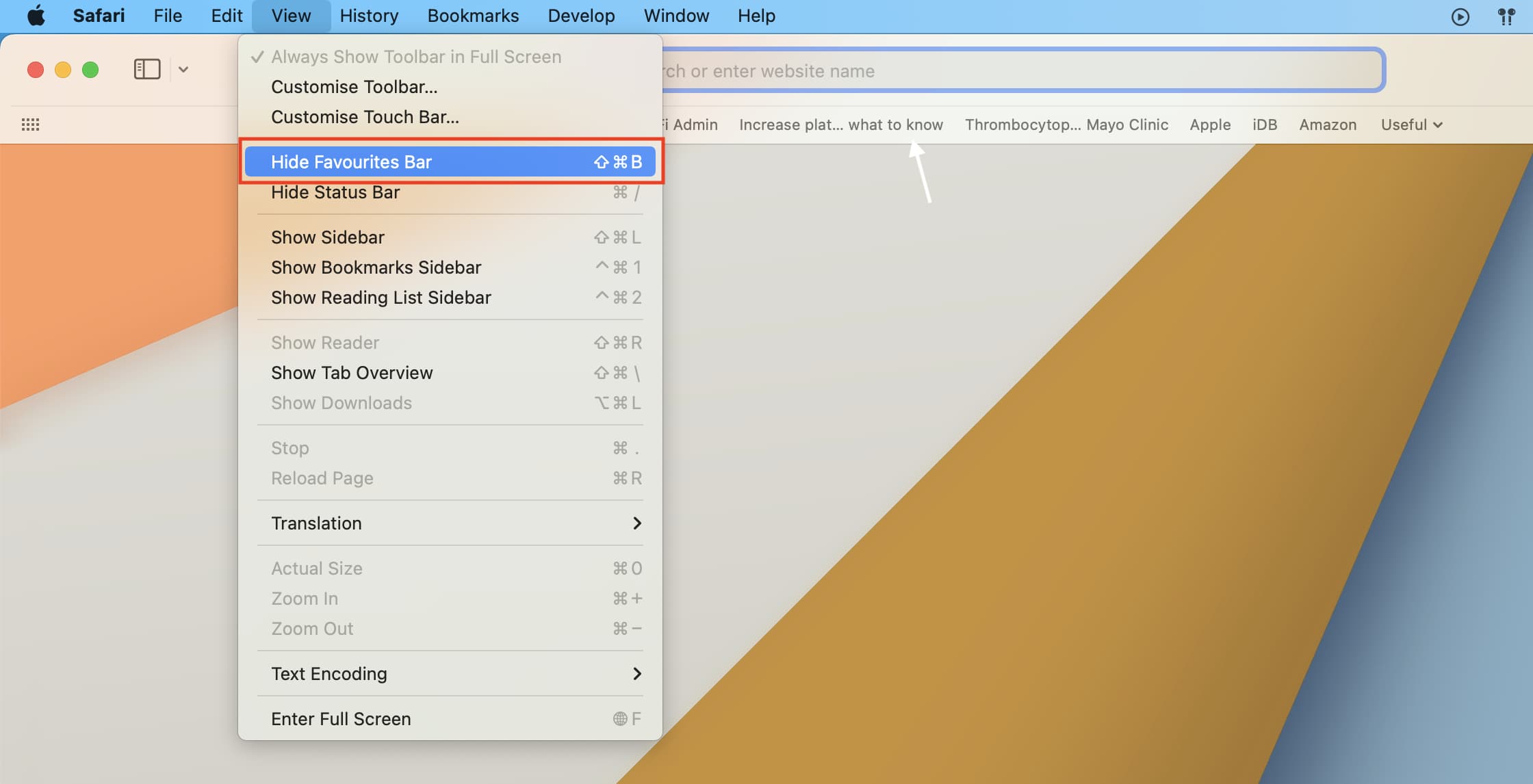
1) To hide the dedicated favorites bar below the address field in Safari for Mac, click the View > Hide Favorites Bar menu or press the Command (⌘) + Shift (⇧) + B keys.
2) To stop your favorites from being displayed below Safari’s Smart Search field (address bar), go to Safari > Settings > Search and untick the box next to Show Start Page (formerly called Show Favorites).

3) To prevent your favorites from showing up when you create a new tab, go to Safari > Settings > General, click the menu next to “New tabs open with,” and choose Homepage, Empty Page, or Same Page. To stop them from appearing on new Safari windows, use the menu next to “New windows open with.”

Safari provides other customizations related to favorites. For example, you can also change the bookmarks folder where favorites are saved, toggle website icons in Safari’s favorites bar, and more.