Apple TV

Stay up-to-date on the latest Apple TV news and learn how to get the most out of your device with our comprehensive tutorials and guides. Discover new features, troubleshoot issues, and explore the best apps and games for your Apple TV.

How to force-quit apps on Apple TV

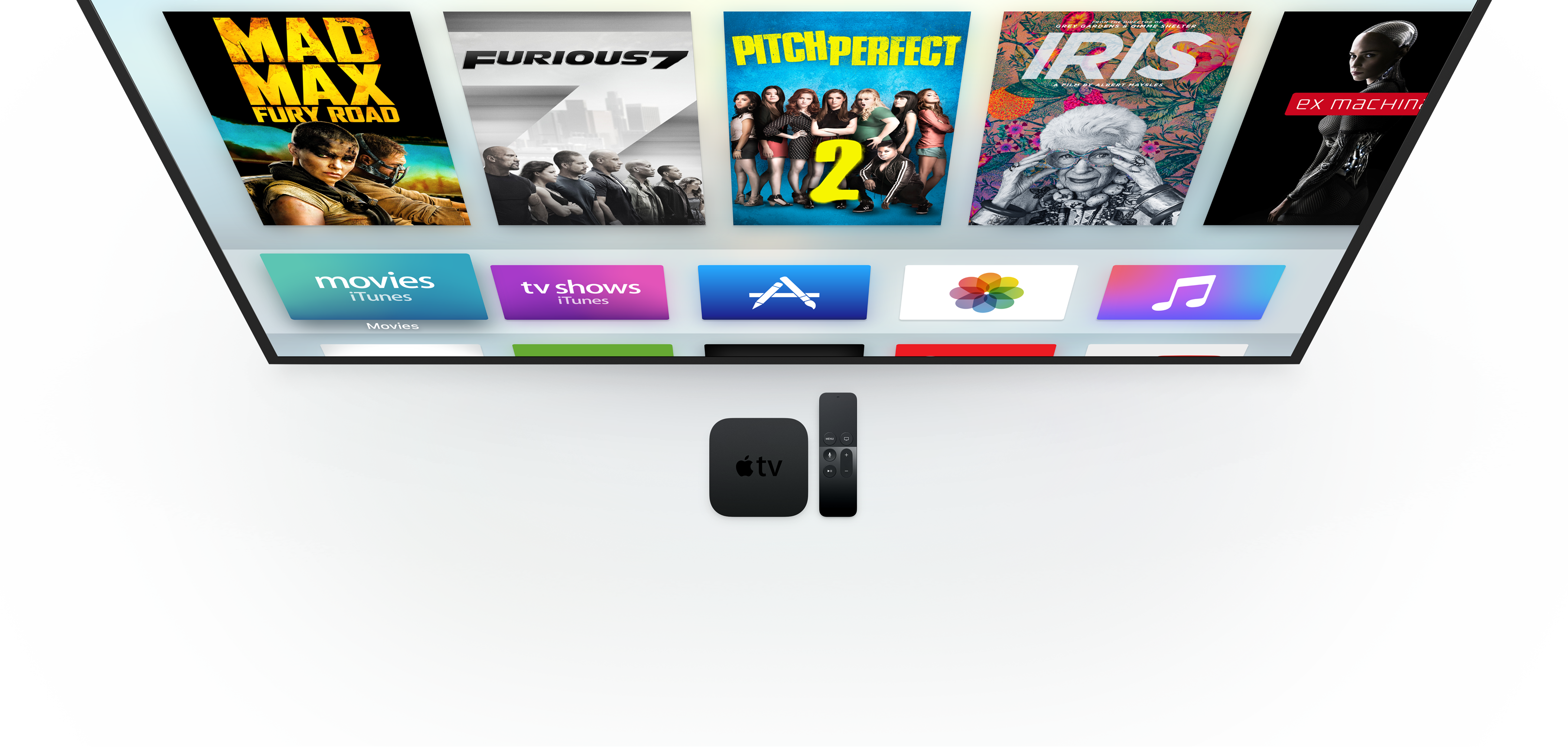
Apps on Apple TV screen with Apple TV box and remote in front of the screen

Although Apple TV is designed to just work, there are instances when a misbehaving app needs to be purged from the memory. And with the device's ability to download third-party apps and games, more things can now go wrong than ever before.

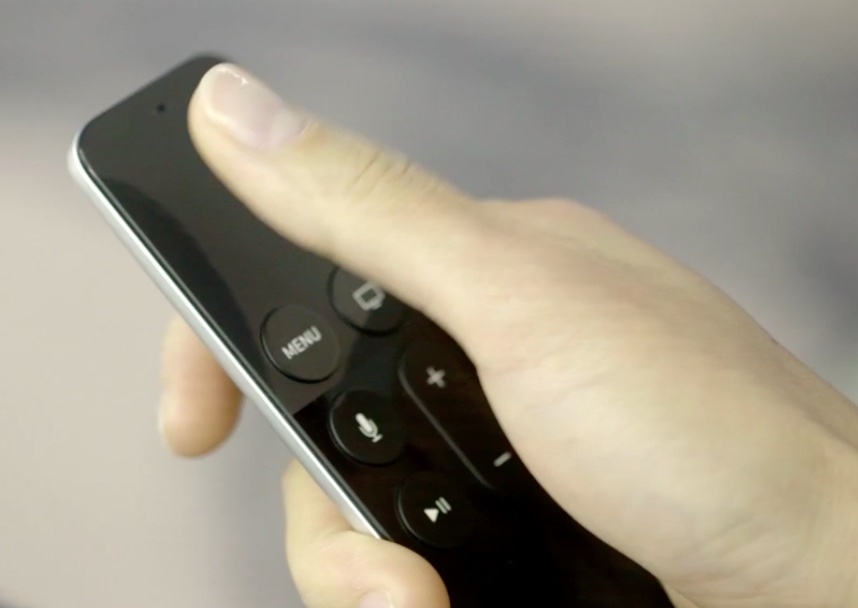
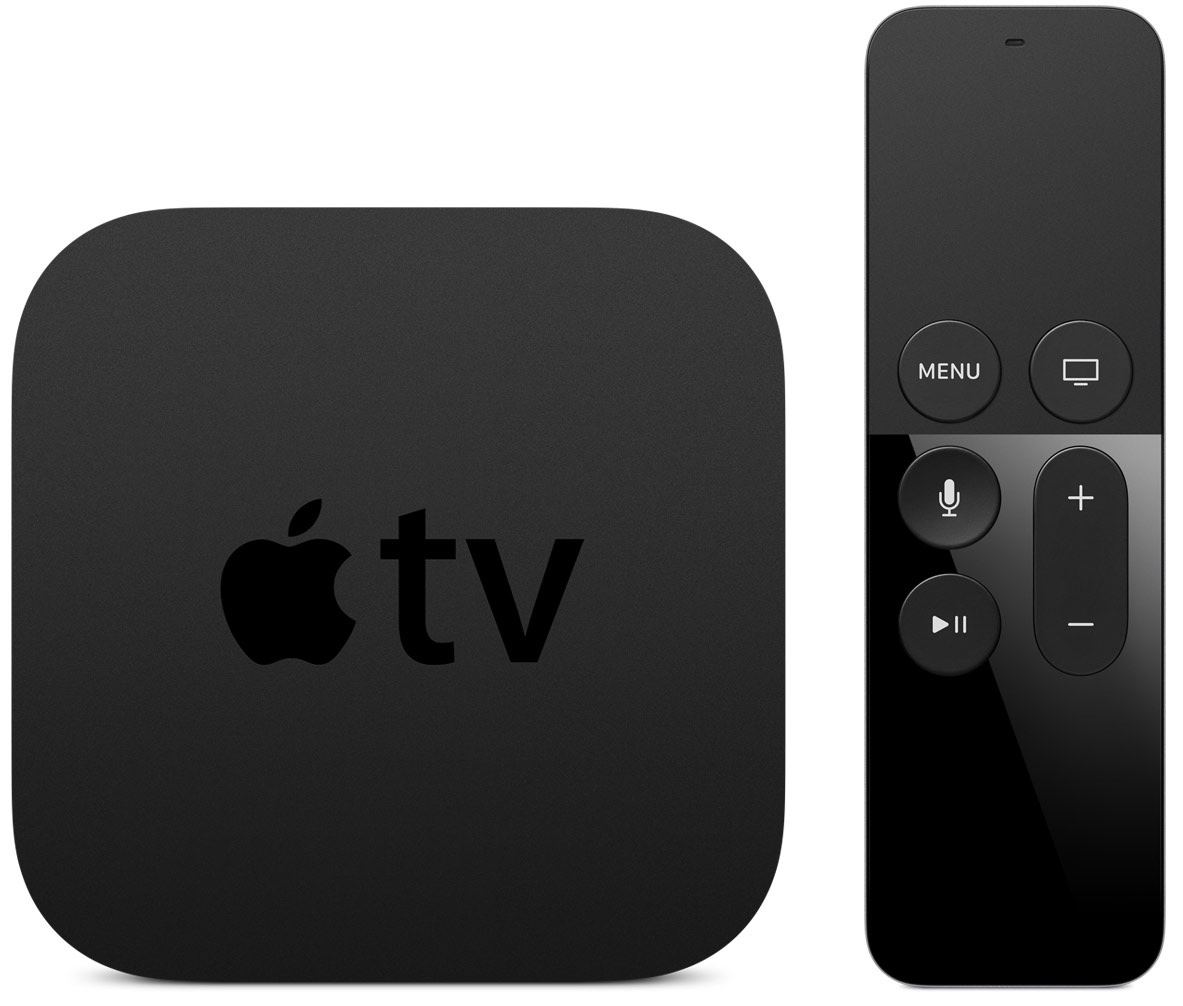
Like your iPhone, iPod touch, iPad and Mac, your Apple TV also lets you easily close a running app to free up system resources. In this brief tutorial, we show you how you can force quit an app on the Apple TV HD, 4K, or older models using your Siri Remote.

How to restart or put your Apple TV into sleep or standby mode

By now, you have learned how to use the new Apple TV's task switcher, rearrange and delete apps on the set-top box, take screenshots, disable password prompts for free and paid downloads and more.

Our coverage of the device continues with this tutorial which will teach you how to restart your Apple TV or put it into sleep or standby mode using either its remote or by selecting an option in the Settings menu.

How to pair a Bluetooth controller with the Apple TV

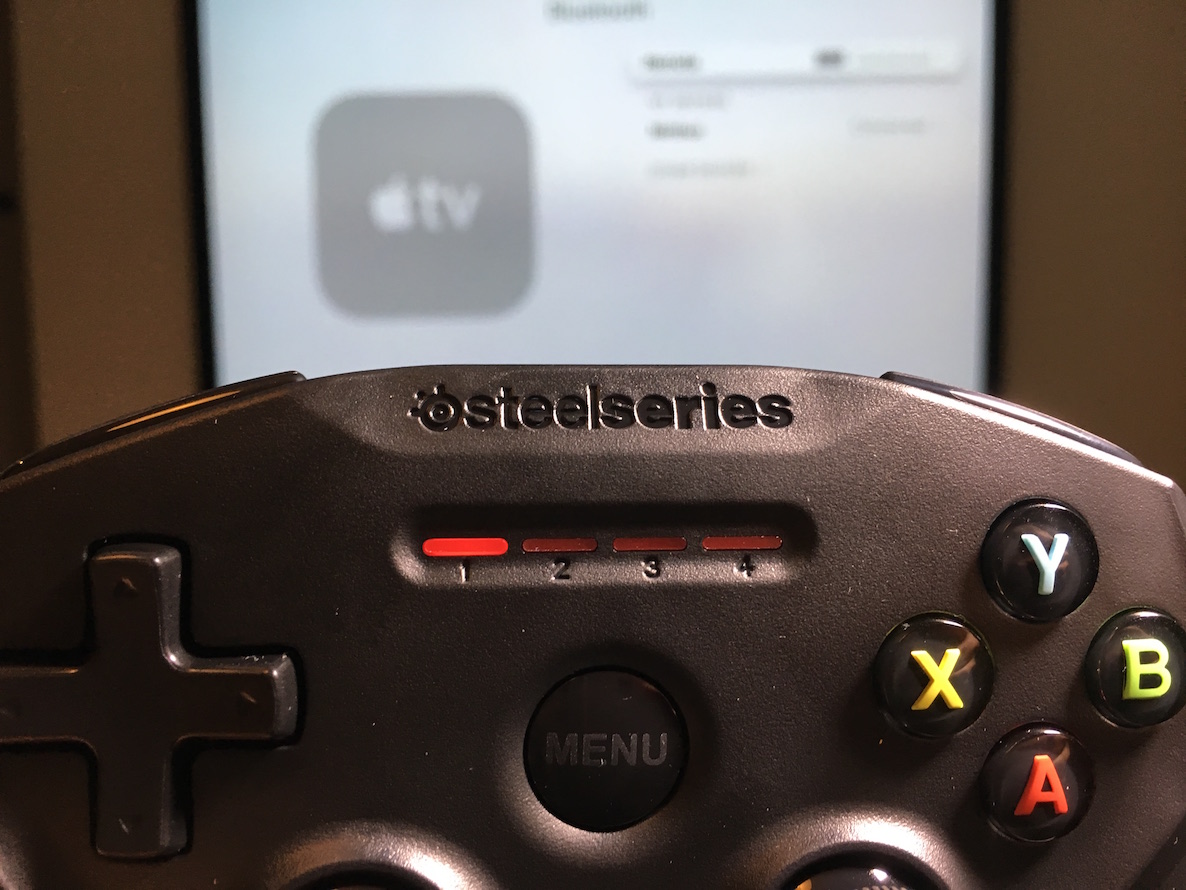
I finally got around to opening my SteelSeries Nimbus, and that gave me a good opportunity to check out the Apple TV pairing process for Bluetooth controllers. As you might imagine, the process is ridiculously easy and straightforward, especially if you have a device like the Nimbus, which was designed with the Apple TV in mind.

How to play classic Nintendo and Sega games on Apple TV

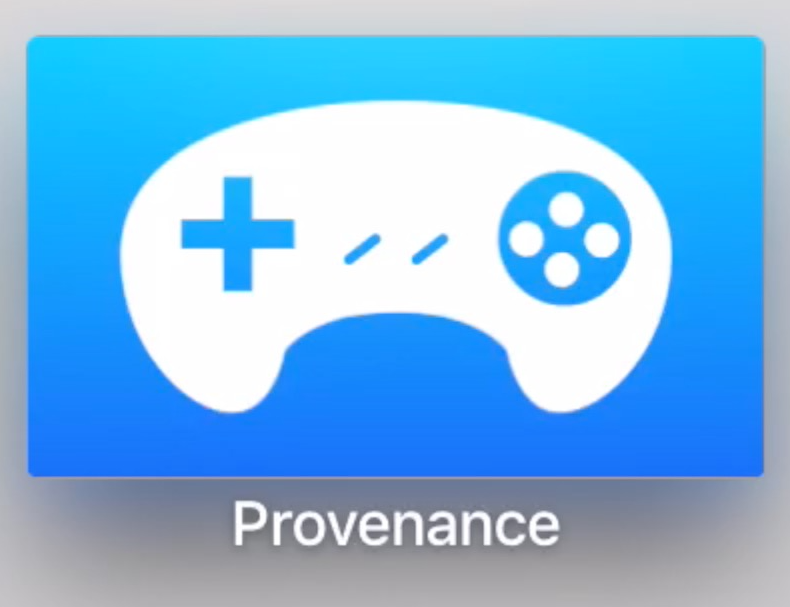
I've been playing Super Mario World on my Apple TV, and I absolutely love it. I'm able to do this by loading an emulator called Provenance on my Apple TV. You won't find Provenance in the App Store, but Apple has given us the ability to sideload apps ourselves, and Provenance is one such app that can be sideloaded.

In this tutorial, I'll show you how to sideload Provenance, and how to start playing old Nintendo and Sega Classics on your Apple TV, including the NES, SNES, GBA, Genesis, Game Gear, and more. If you like classic games, then you simply don't want to miss this.

How to disable password prompts for both free and paid downloads on Apple TV

You are probably aware that you can disable password prompts altogether for free downloads made on your iPhone, iPod touch, iPad and Mac. As an added layer of protection, iOS and macOS will either require your Apple ID password for each paid download or after fifteen minutes of making your last purchases in the iTunes Store, App Store, Books Store or Mac App Store, depending on your preference.

What you cannot do on iOS and macOS is disable password prompts for both free and paid downloads. On the Apple TV, however, it's possible to turn off password protection for both free and paid items and this tutorial will help you do just that.

How to quickly switch between apps on the Apple TV

Did you know that you don't have to go back to the Home screen every time you wish to switch between an app on the Apple TV? Unlike the Apple TV of old, the new version allows you to quickly switch between apps similar to how its done on iOS. In the brief video tutorial that follows, we'll show you how it's done.

Apple TV 4 supports stereoscopic 3DTV content

Your brand spanking new Apple TV does a lot of nice things pretty well, and some really cool ones Apple hasn't even mentioned officially.

As first discovered by developer Steve Stroughton-Smith, the set-top box can actually render stereoscopic 3D content provided an app has implemented the functionality and the customer owns a 3D-enabled TV set to enjoy it on.

Specifically, he has identified stereoscopic 3D support within Pangea Software’s Bugdom 2, which has been refreshed in the App Store to work on the new Apple TV.

How to rearrange apps on your Apple TV

Rearranging apps on Apple TV

Rearranging apps on the Apple TV works much as it does on iPhone or iPad. First, you enter into "jiggle mode," and then you move the user-installed apps to your preferred location. This written tutorial, along with a video, shows you how to change the position of installed apps on your Apple TV Home Screen.