Tutorials

How to create blank, empty, transparent app icons on your iPhone Home Screen, no jailbreak required

How to use blank, empty, and transparent app icons on iPhone Home Screen

Whether you want to show off your beautiful wallpaper or simply want your setup to look different from the millions of other iPhones out there, one of the best ways to do that is to use widgets, create a blank Home Screen with no app icons, or add blank icons to your Home Screen. In this tutorial, we will focus on the latter.

These invisible icons will allow you to create empty spaces on your Home Screen to either let the wallpaper shine or arrange your app icons in a very specific way. For example, you can place all the empty icons on the top, which will push your meaningful app icons down, making them easier to reach when using your iPhone in one-handed mode.

This tutorial will show you how to create blank, transparent iPhone icons with no jailbreak required.

Safari tip: quickly jump to the rightmost tab

If you’re going to make the most of Safari as your desktop browser, it might make sense to memorize some of the best keyboard shortcuts to supercharge your browsing workflow.

This is especially true for folks who have dozens of open tabs at any given time. Safari for Mac provides you with many productivity-infused keyboard shortcuts that save time, including a trio of essential keyboard combinations for quickly switching between your open tabs.

TUTORIAL: 11 must-know Safari keyboard shortcuts for Mac

The macOS High Sierra 10.13.4 software update brought out yet another powerful shortcut for quickly getting to the rightmost tab. This is a handy productivity feature for those times when you have more tabs than fit Safari's tab bar.

It's only available on Macs that run macOS High Sierra 10.13.4 or higher so be sure to update your copy of macOS to the latest version available by choosing App Store from the Apple menu, then click the Updates tab.

How to jump to rightmost Safari tab

To get to the rightmost open tab in Safari for Mac, press Command (⌘)-9 on the keyboard.

Again, this particular shortcut requires that macOS High Sierra 10.13.4 or later be installed on your Mac. If you have an older macOS edition, pressing the same shortcut will select your ninth tab from the left. In case you didn't know, you can jump quickly to any of your first eight tabs by pressing Command (⌘)-1 to Command (⌘)-8.

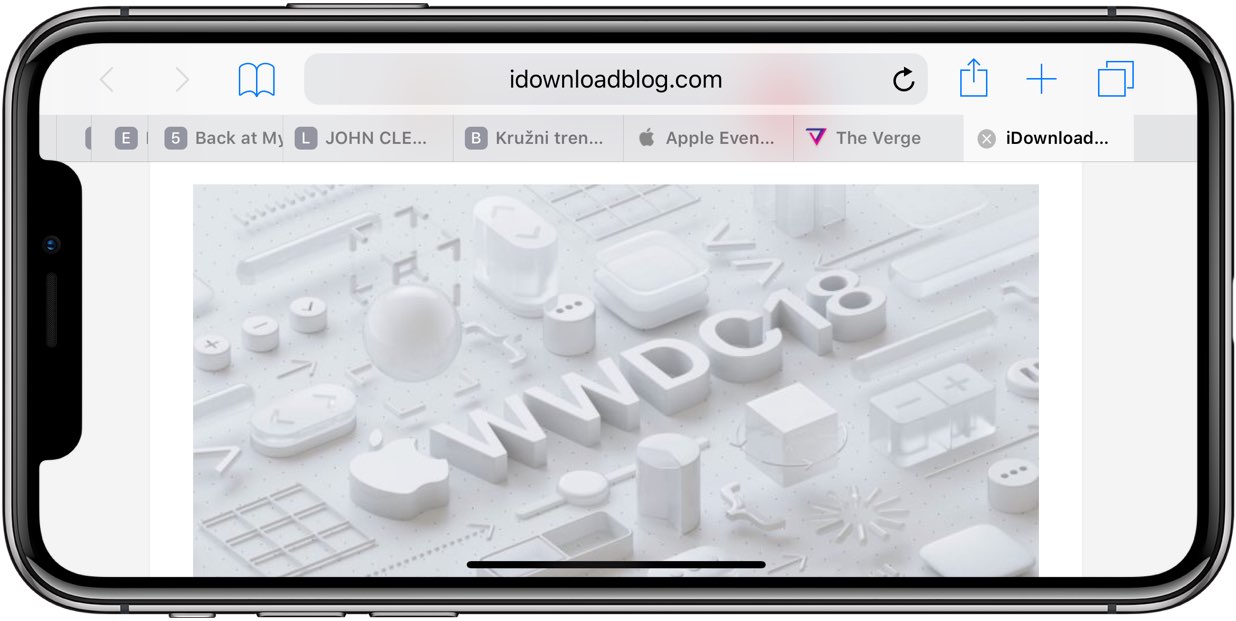
macOS High Sierra 10.13.4 and up allows jumping to the rightmost open tab using Command-9

You can cycle through your open tabs even faster with a trackpad gesture: when there are more tabs than fit in Safari's tab area, use your trackpad to swipe left or right over the tab bar to scroll through your open tabs like a pro.

TUTORIAL: 3 ways to reopen recently closed tabs in Safari for Mac

And if your Mac has the Touch Bar feature, you can touch an icon displayed on the Touch Bar to jump directly to the corresponding tab or scroll through all of your open tabs by swiping left or right over the Touch Bar area.

Need help? Ask iDB!

If you like this how-to, pass it along to your support folks and leave a comment below.

Got stuck? Not sure how to do certain things on your Apple device? Let us know via help@iDownloadBlog.com and a future tutorial might provide a solution.

Submit your how-to suggestions via tips@iDownloadBlog.com.

How to set and manage alarms on HomePod

Blue HomePod mini on a white table

Like other Apple devices, your HomePod permits you to set custom alarms.

You can create multiple alarms using just your voice, optionally add some context to them, if you like, and more. Your Siri speaker will signal you when one of your created alarms goes off.

Siri on HomePod allows you to create as many alarms as you want, manage them, remove ones you no longer need, turn specific alarms on or off, create recurring alarms, and more.

Alarms do not synchronize across multiple devices via iCloud. Any alarms created using your HomePod will not appear on your Mac, iPhone, or other devices, and vice versa.