Learn how to quickly get your model, OS version, serial number, IMEI, and warranty details of your other Apple devices via iCloud on your iPhone.
How to see your other Apple devices’ information on iPhone or iPad

Learn how to quickly get your model, OS version, serial number, IMEI, and warranty details of your other Apple devices via iCloud on your iPhone.

Your Apple Watch can remind you to start the correct workout or end the session if you forget. The wearable utilizes the built-in accelerometer and heart rate sensors to identify motion and increased heart rate, both tell-tale signs that you might be working out.
For many workout types, Apple Watch senses when you’re moving and can optionally alert you to start the Workout app. Aside from giving you credit for the exercise you’ve already done, it'll also remind you to end your workout should you get distracted when cooling down.
Follow along for the steps to turn off workout reminders on your Apple Watch.

You can easily activate Dark Mode on your Mac desktop and laptop to make the screen easier on your eyes, especially at night.
Here are three quick ways to turn on Dark Mode on your Mac running macOS Mojave or later.
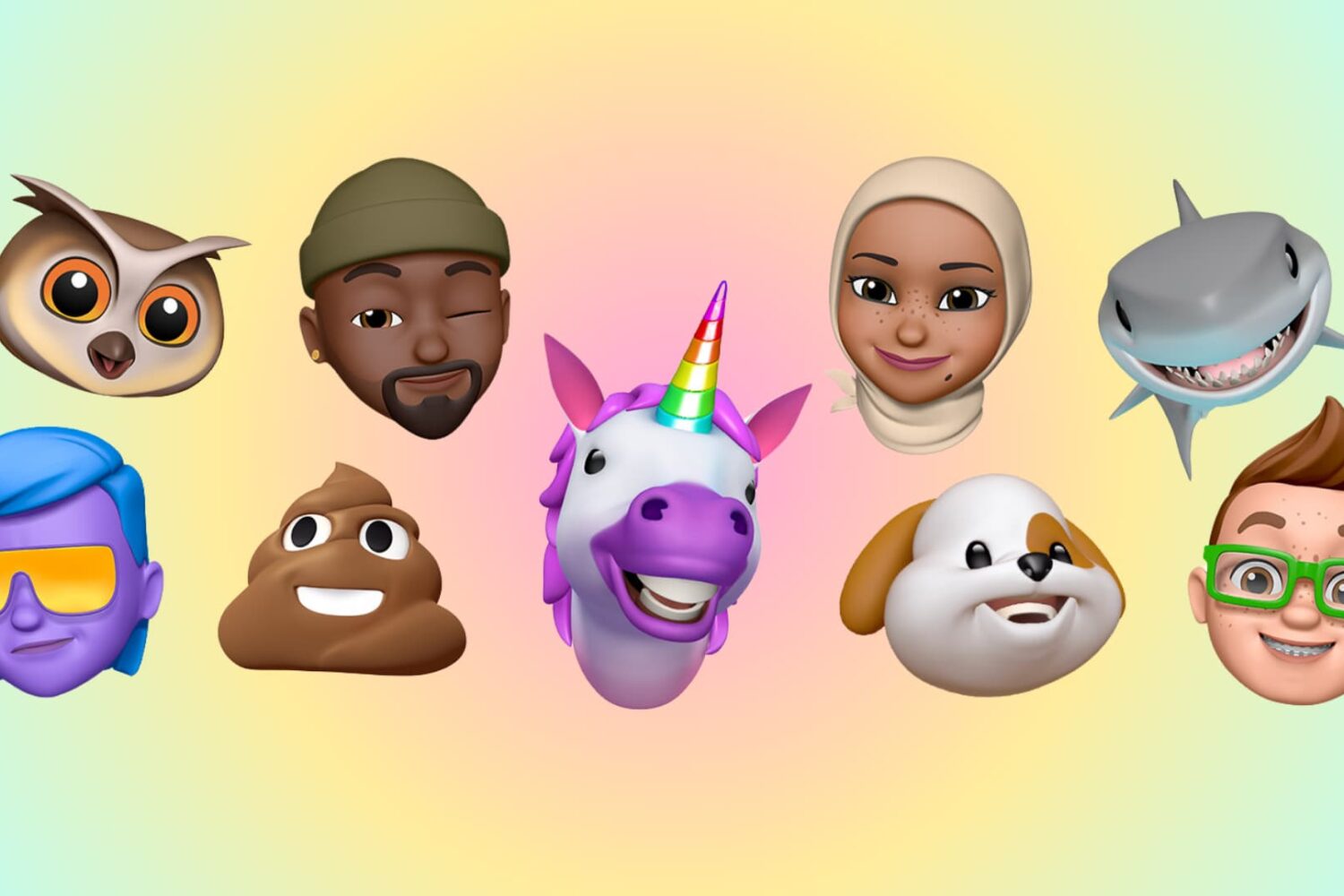
In this tutorial, we will show you how to create, use, and edit Memoji and Animoji on your iPhone or iPad to spice up your conversations.
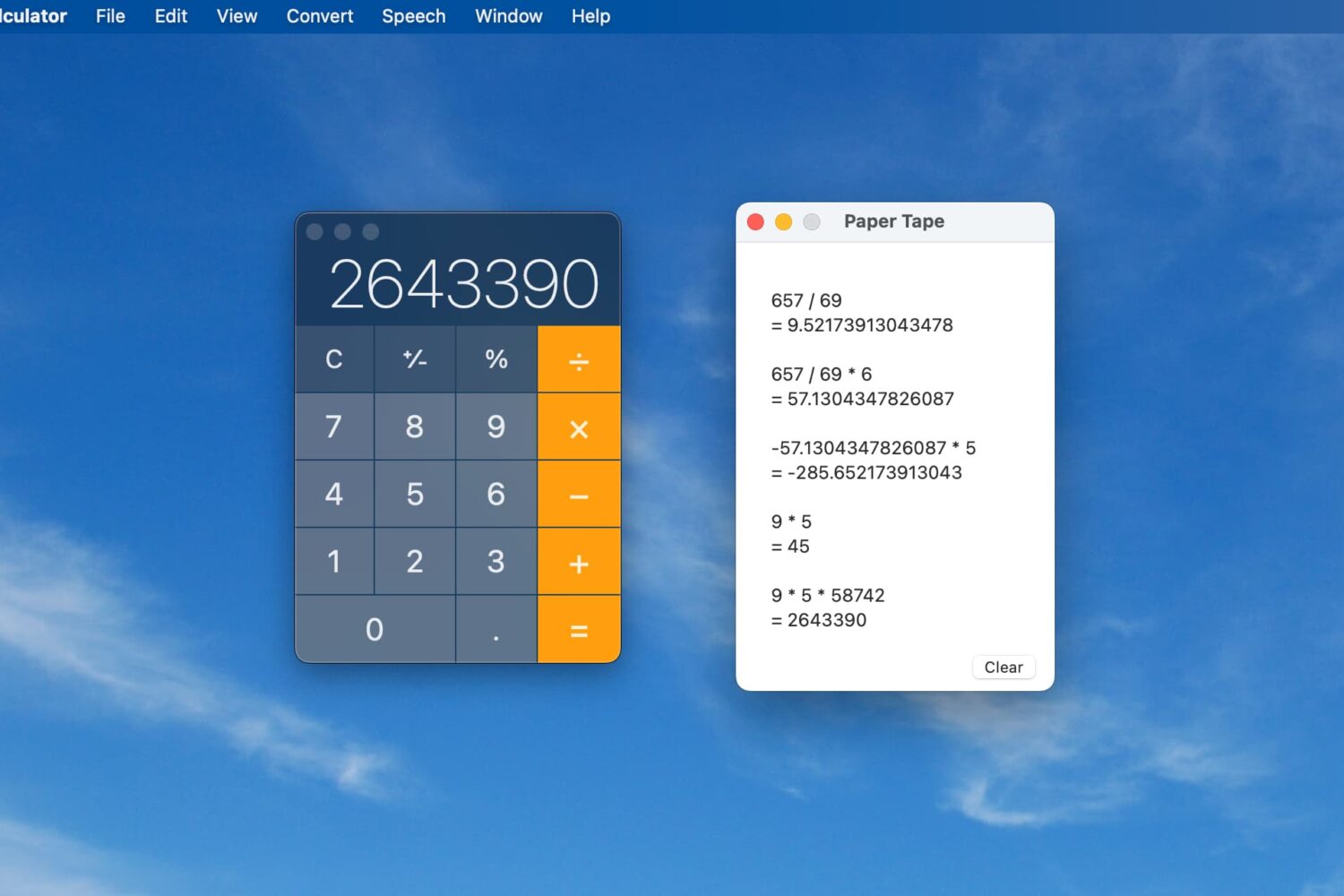
While having a Calculator app on your Mac makes it easy to perform quick calculations, it’s not always efficient. You may need to have that paper tape to see each equation listed out. Luckily, the Mac Calculator app gives you a way to view, save, and print that paper tape.
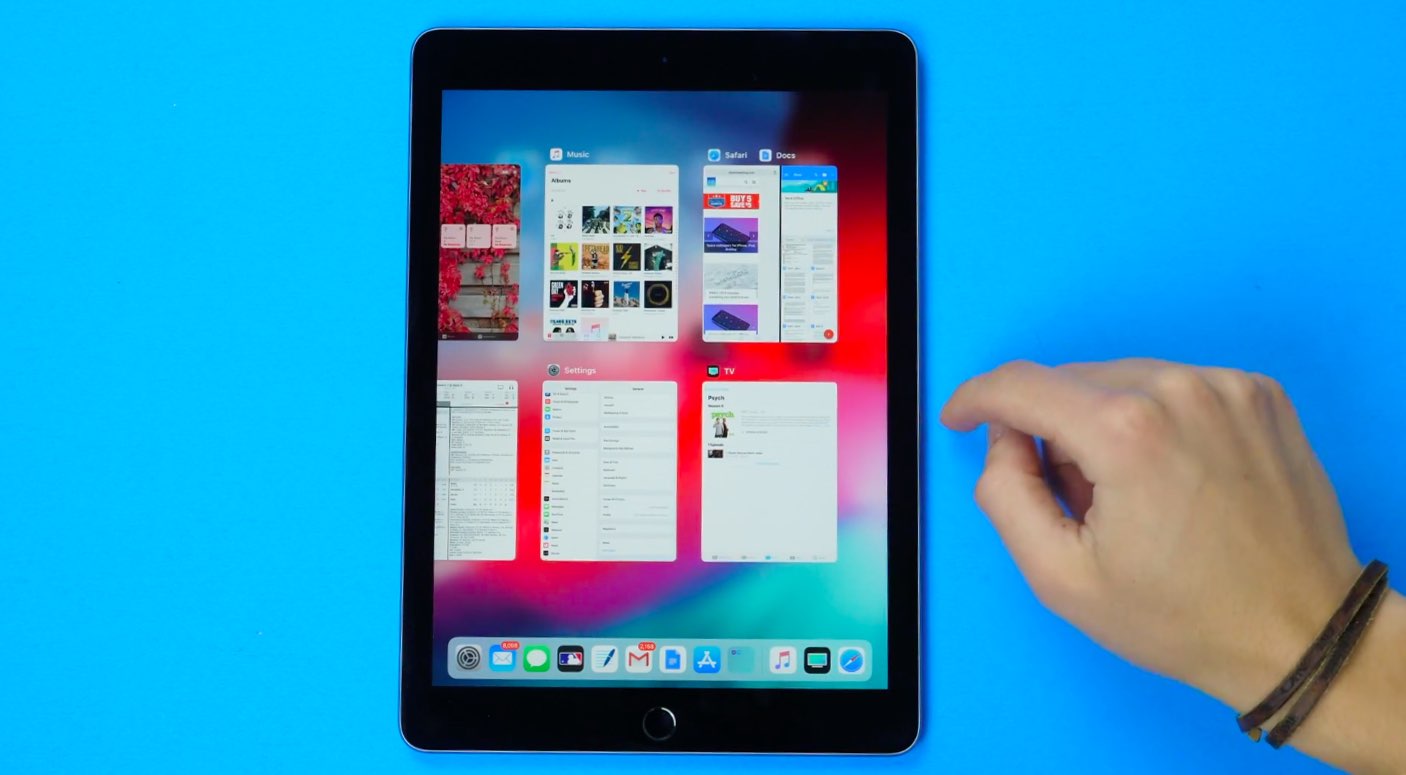
For the sake of consistency, iOS supports iPhone X-style multitasking gestures on iPad. With them, you can interact with multiple apps on the Apple tablet by using new gestures in iOS 12 designed to replace the key functions of the incredibly versatile Home button.
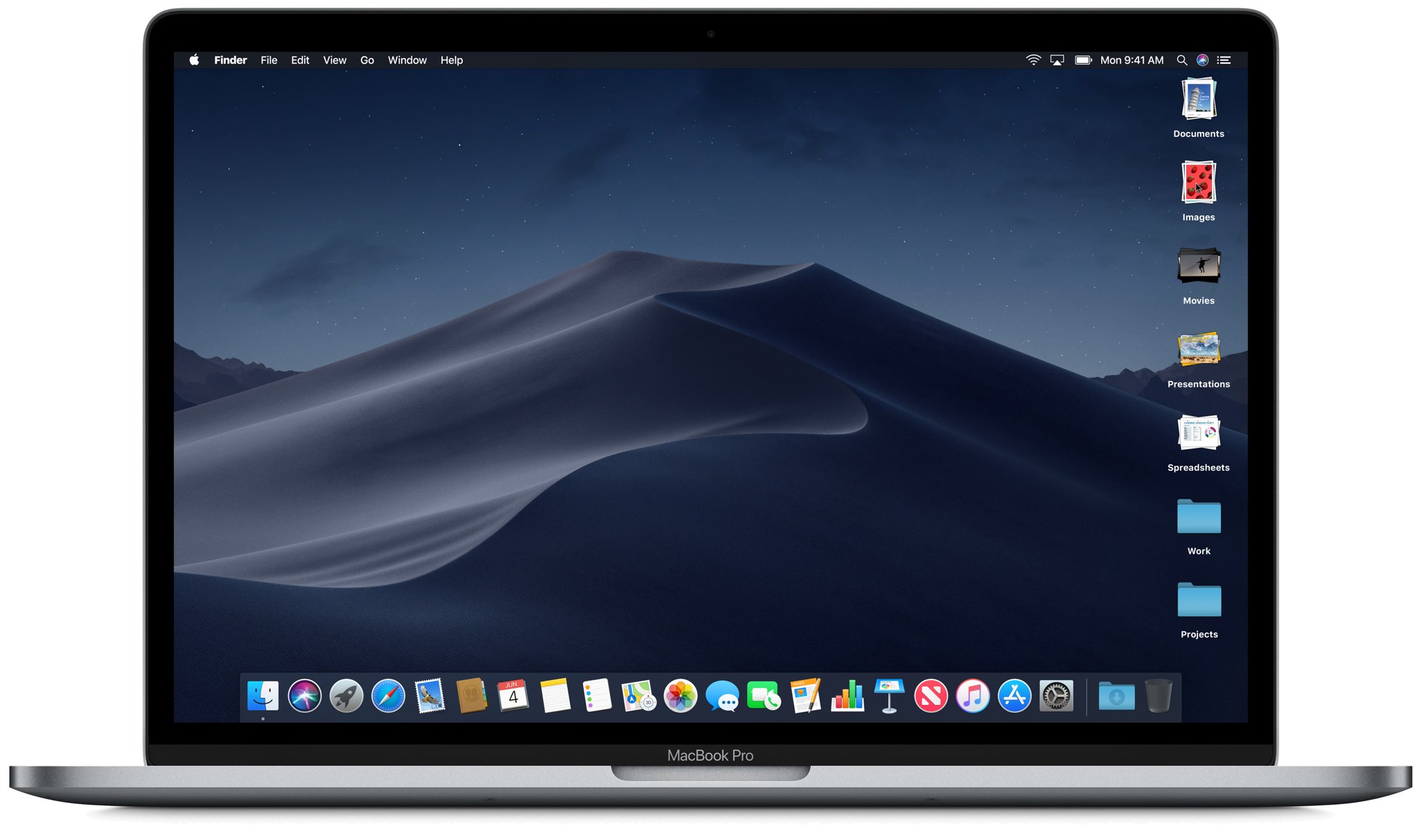
Use the Stacks feature to declutter and streamline your Mac desktop, simplifying your file organization and boosting productivity.
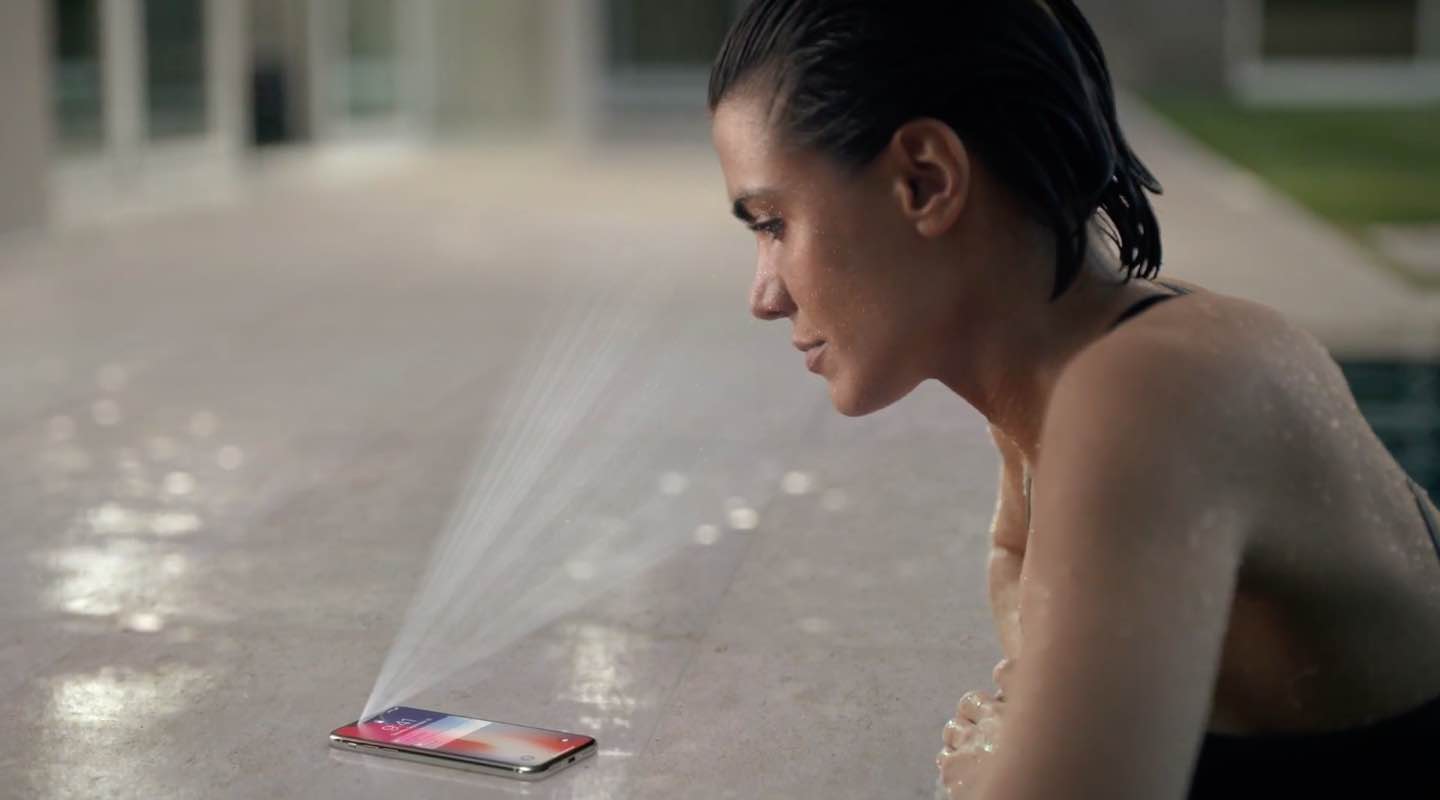
The September 2018 release of the iOS 12 software update brought an easier way for iPhone owners to retry Face ID following an unsuccessful unlock attempt on the Lock screen.

Learn everything there is to know about using the Siri watch face on your Apple Watch to automatically get timely and helpful information on your wrist.

Running the latest iOS edition helps protect your devices from malware and any known exploits that would put your private data at risk of being hijacked by malicious apps.
To ensure your iPhone, iPad, and iPod touch are up to date, turn on the Automatic Updates option to have the latest version of iOS download and install automatically when available.

The 2018 FIFA World Cup is set to begin on Thursday, June 14th with the opening game opposing the host country Russia to Saudi Arabia. The competition will see 32 teams fight for the most prestigious sport title over the course of an entire month. If you aren't sure how to follow the competition, we will show you several ways to stream the FIFA World Cup on iPhone, iPad, or Mac.
Similar to WWDCs of the last several years, today's keynote presentation will be live-streamed. The many Apple fans and enthusiasts from around the world who unfortunately are not in a position to attend Apple's developers conference can still tune in from the comfort of their own couch and see what’s new in the world of iOS, macOS, tvOS, watchOS and more.