In this step-by-step tutorial, we’ll show you how to split a panoramic picture into squares and post the entire image to an Instagram carousel from your iPhone or iPad.
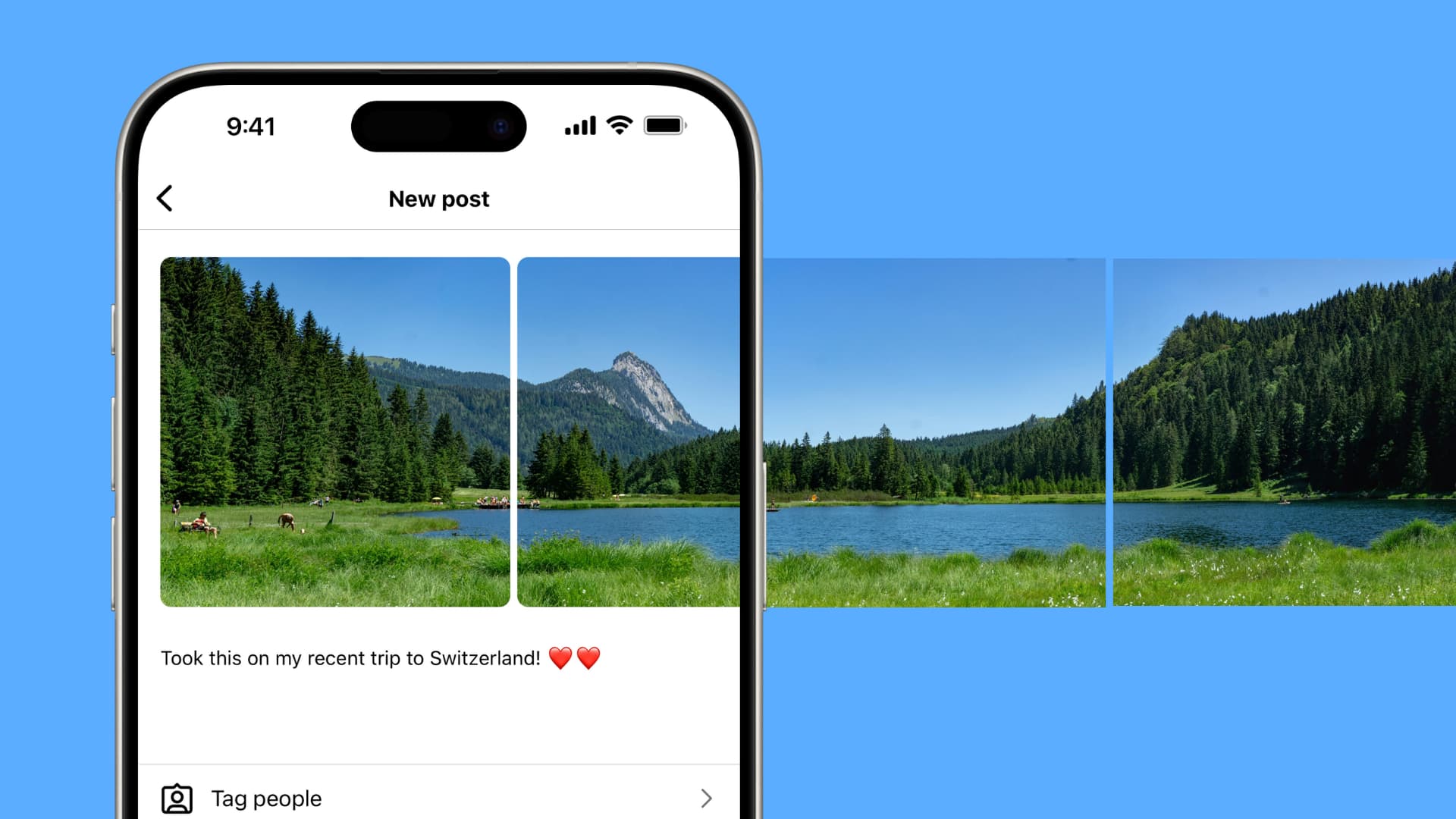
If you took a gorgeous panoramic photo, it’s natural to want to share it with your Instagram friends. Sadly, Instagram does not accept panoramic images.
However, you can chop the panoramic image into 3, 4, or more individual images and then take advantage of Instagram’s carousel feature, designed for sharing multiple photos and videos in a single post, to upload gorgeous panoramic images.
When viewed on the web or in the app, such a post results in a seamless, smoothly swipeable panoramic photo. As mentioned, the trick is to turn the source panoramic image into a trio of cropped photos that can be uploaded to Instagram to create a carousel post.
Split and post panoramic images to Instagram
1) Download and open the PanoCut app on your iPhone or iPad.
2) Go through the welcome splash screens, decline the paid upgrade if you don’t want it, and tap Panorama.
3) Now select a panoramic image from your photo library.
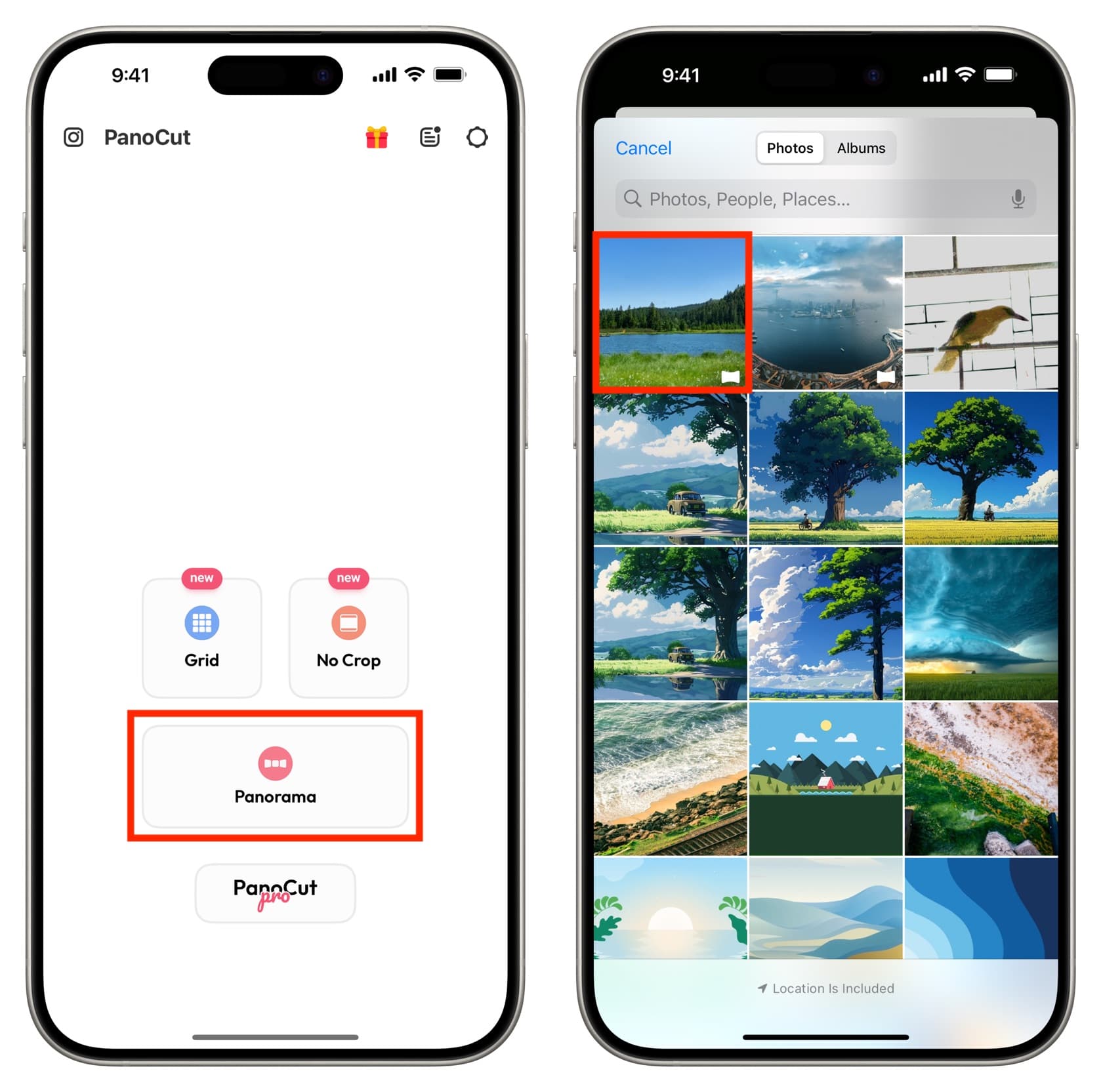
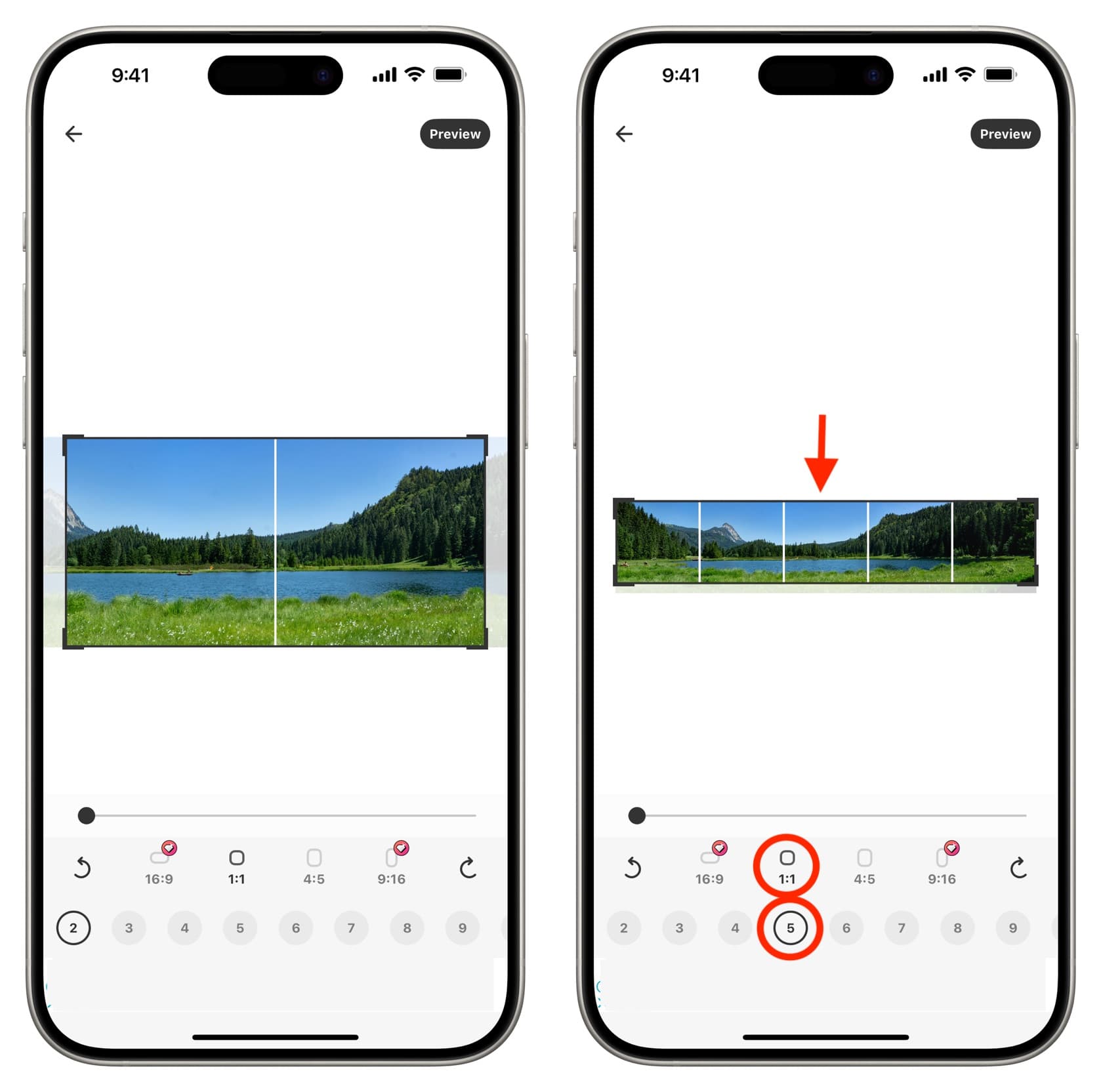
4) You’ll have access to a bunch of tools here. Tap 2, 3, 4, 5, up to 10 to split the panoramic image into that many parts. You’ll see a preview at the top to help you decide what’s suitable for your image. Also, remember to select the 1:1 (square) shape, as it works well when posting multiple images in an Instagram carousel.
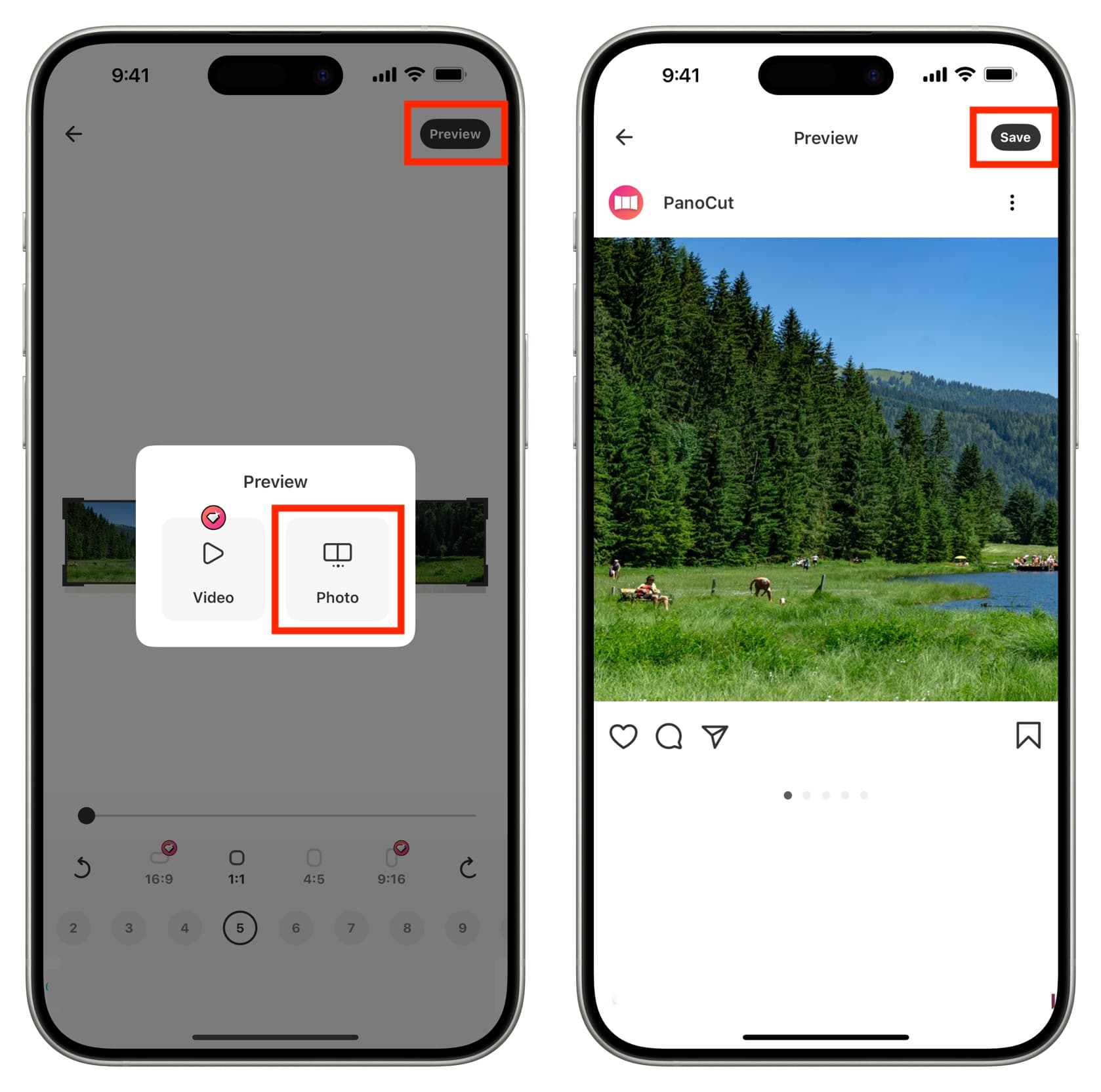
5) With the image adjusted to your liking, tap the Preview button at the top and choose Photo.
6) Swipe left to ensure your panoramic image is split properly. After that, tap Save to have these images in the iOS Photos app.
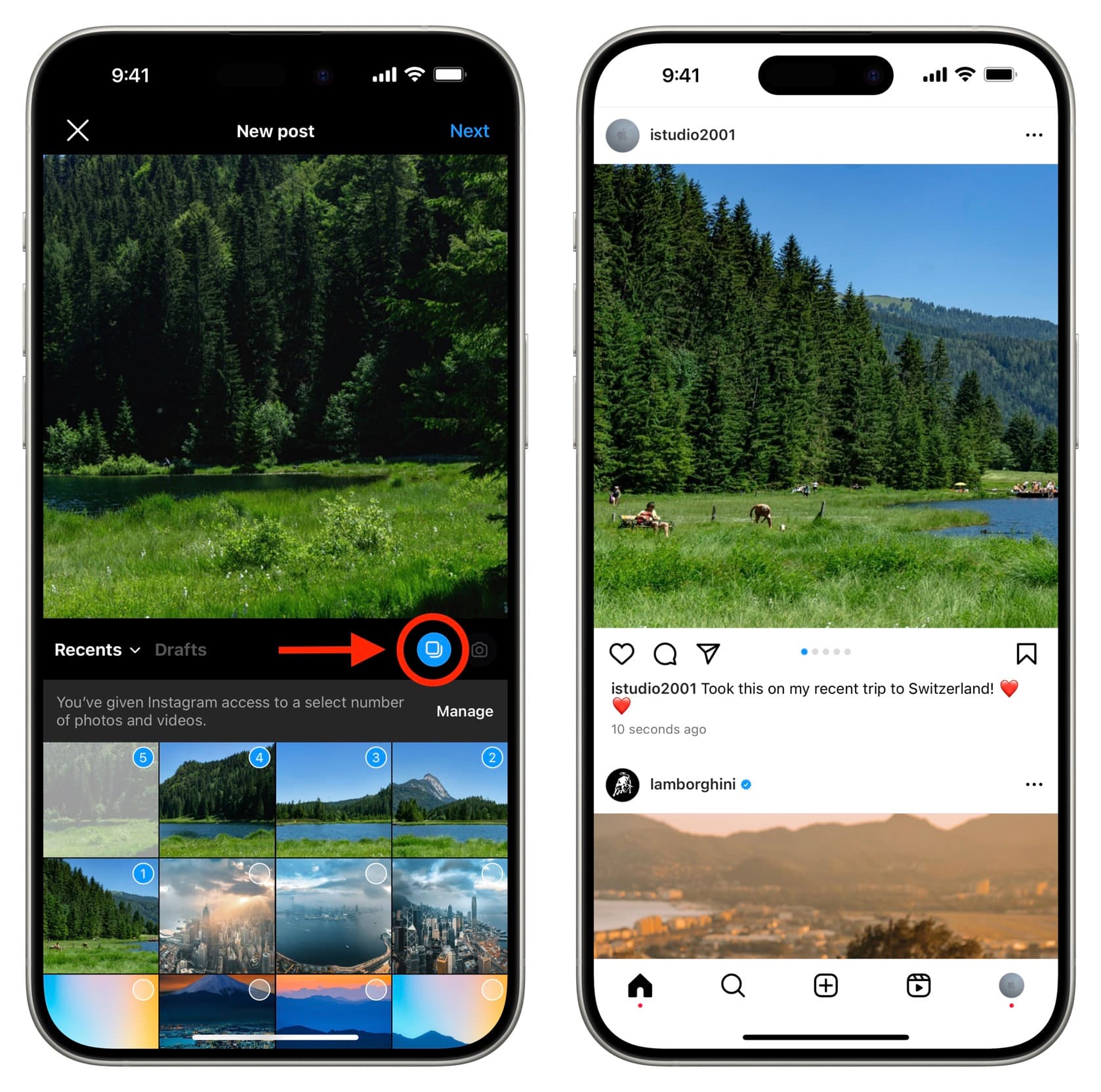
7) Now, open the Instagram app and post these split images as a carousel.
Other apps and services to try
After testing several apps, I settled on PanoCut as it is free and does not add a watermark. In addition, you can try these, but they may not offer the benefits of the above app.
- Panols ($1.99)
- PanoraSplit for Instagram
- STP Swipeable panorama & grid
- ImageSplitter website by Postcron
Do more on Instagram: