Learn about all the different ways to pause and resume music playback on your HomePod using your voice, its top touch surface, or your iPhone.
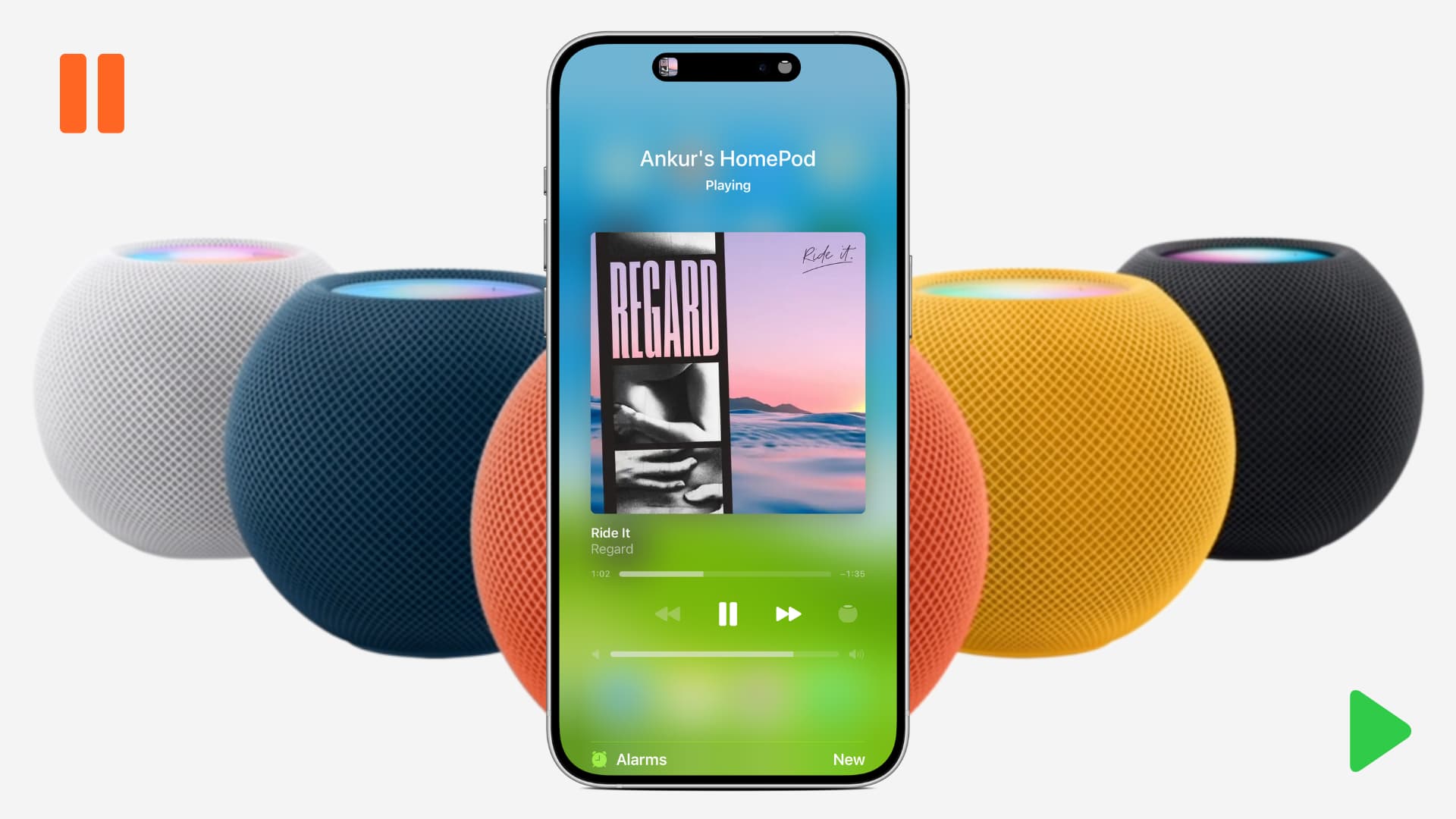
The steps mentioned below should work for Apple Music, YouTube Music, Spotify, Pandora, Podcasts, and other music services you have set up on your smart speaker.
Method 1. Use Siri
To pause or resume music on HomePod with Siri, just say:
- Hey Siri, pause
- Hey Siri, play
- Hey Siri, resume
…or something similar.
Method 2. Use the touch controls
Aside from using Siri, HomePod supports a variety of touch-based actions that you can use to control music playback on the device if Siri is unavailable, disconnected, or acting up.
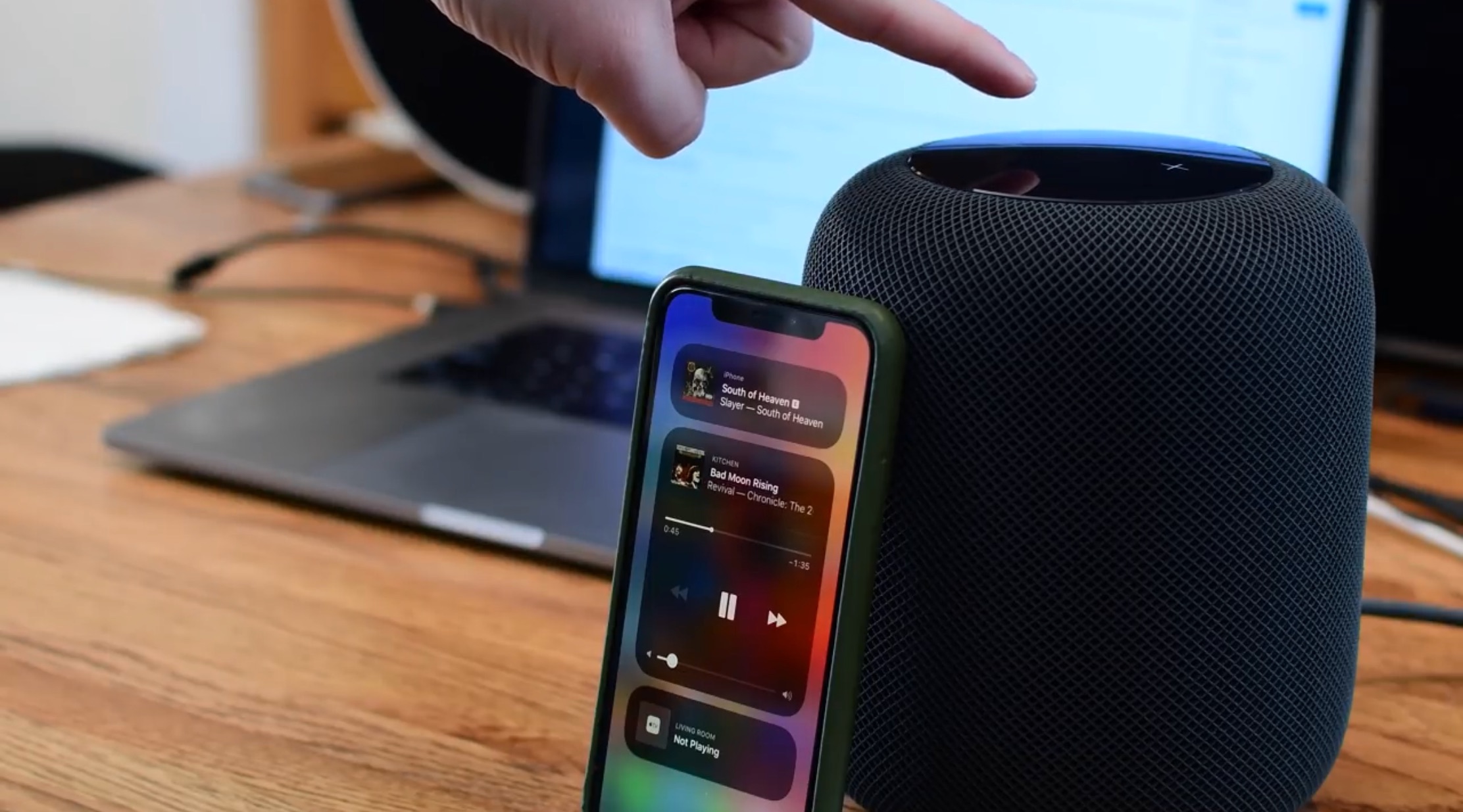
If the music is currently playing on your HomePod, pause it by tapping the top of the speaker once. To resume music playback, tap the HomePod top again.
Extra info:
- Double-tap: Touch the top of your HomePod twice to skip to the next track or podcast chapter.
- Triple-tap: Touch the top of your HomePod three times to go to the beginning of the track or play the previous track.
Method 3. Use the iOS Home app
This isn’t the most obvious solution, but it works and is only a tap away for heavy HomeKit users who happen to be spending a lot of time in the Home app.
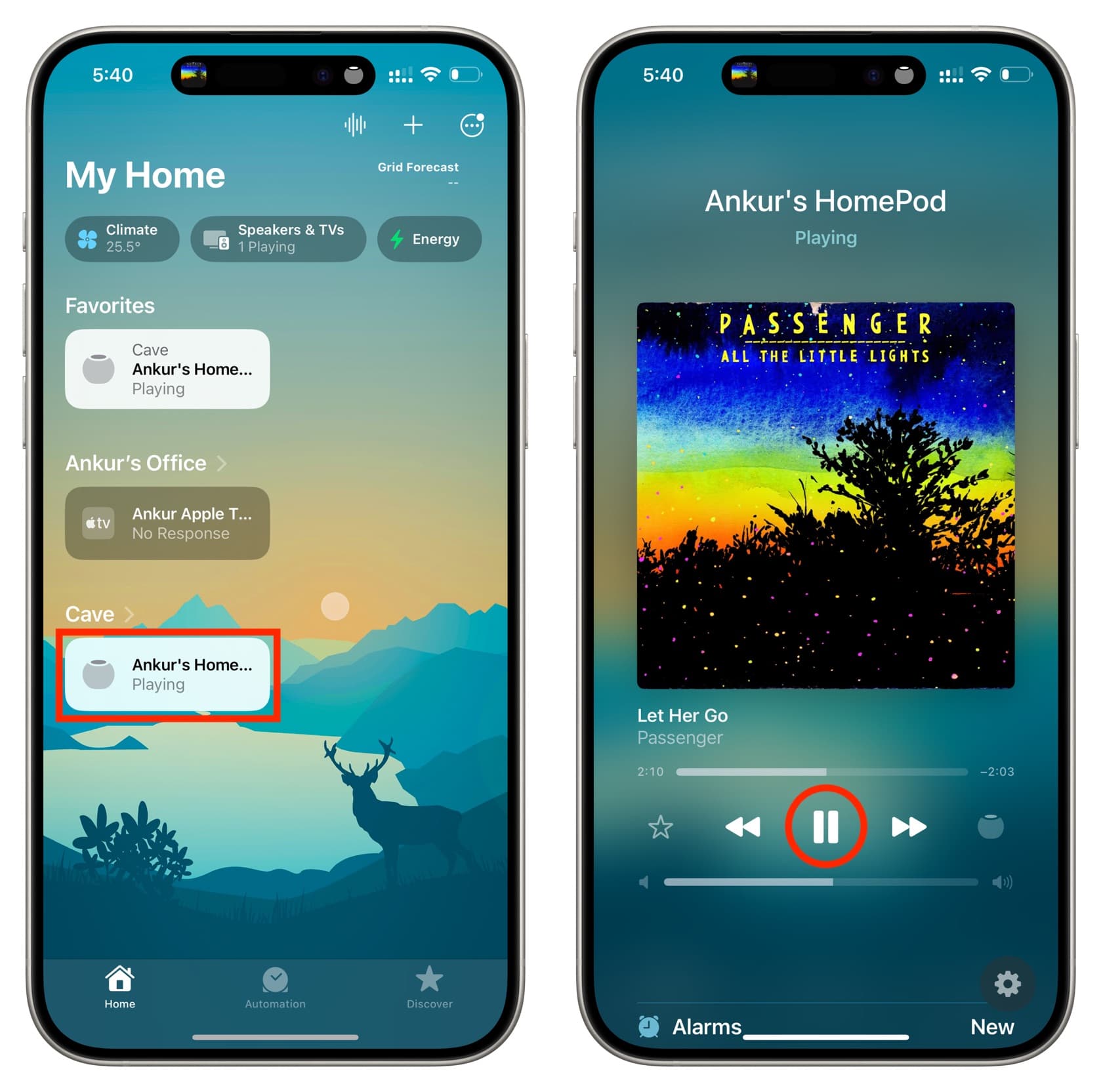
- Open the Home app on your iPhone or iPad.
- Select your HomePod from the Home tab.
- Tap the play and pause icon to send your HomePod the said command.
Method 4. Use iOS Home controls
The Home controls are shown by default in iOS Control Center. But if you have hidden them, customize your iPhone or iPad Control Center to add them. Then, go to iOS Control Center and tap the HomePod button to pause, resume, and control the playback on your smart speaker.

Method 5. Use the Now Playing widget
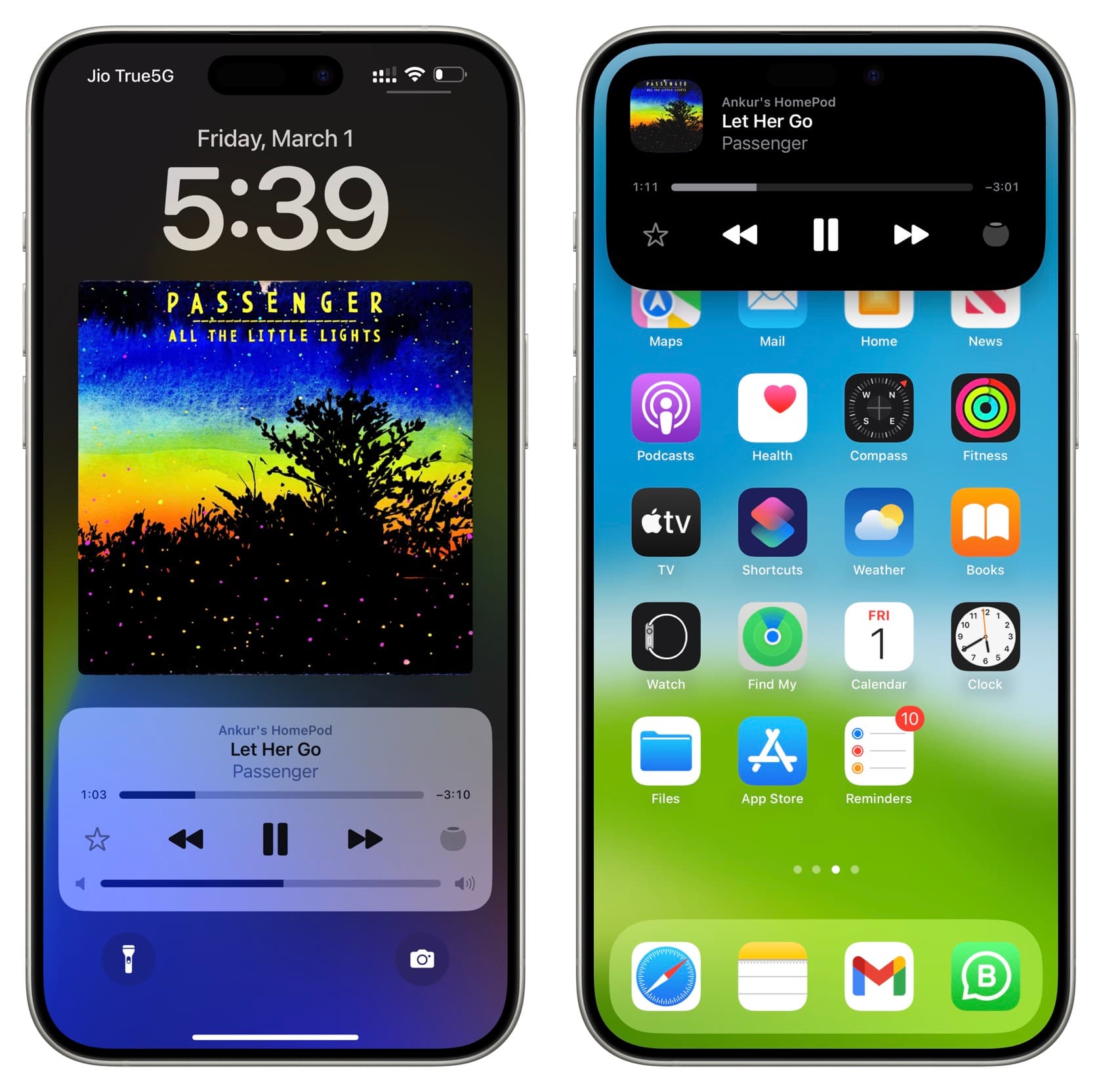
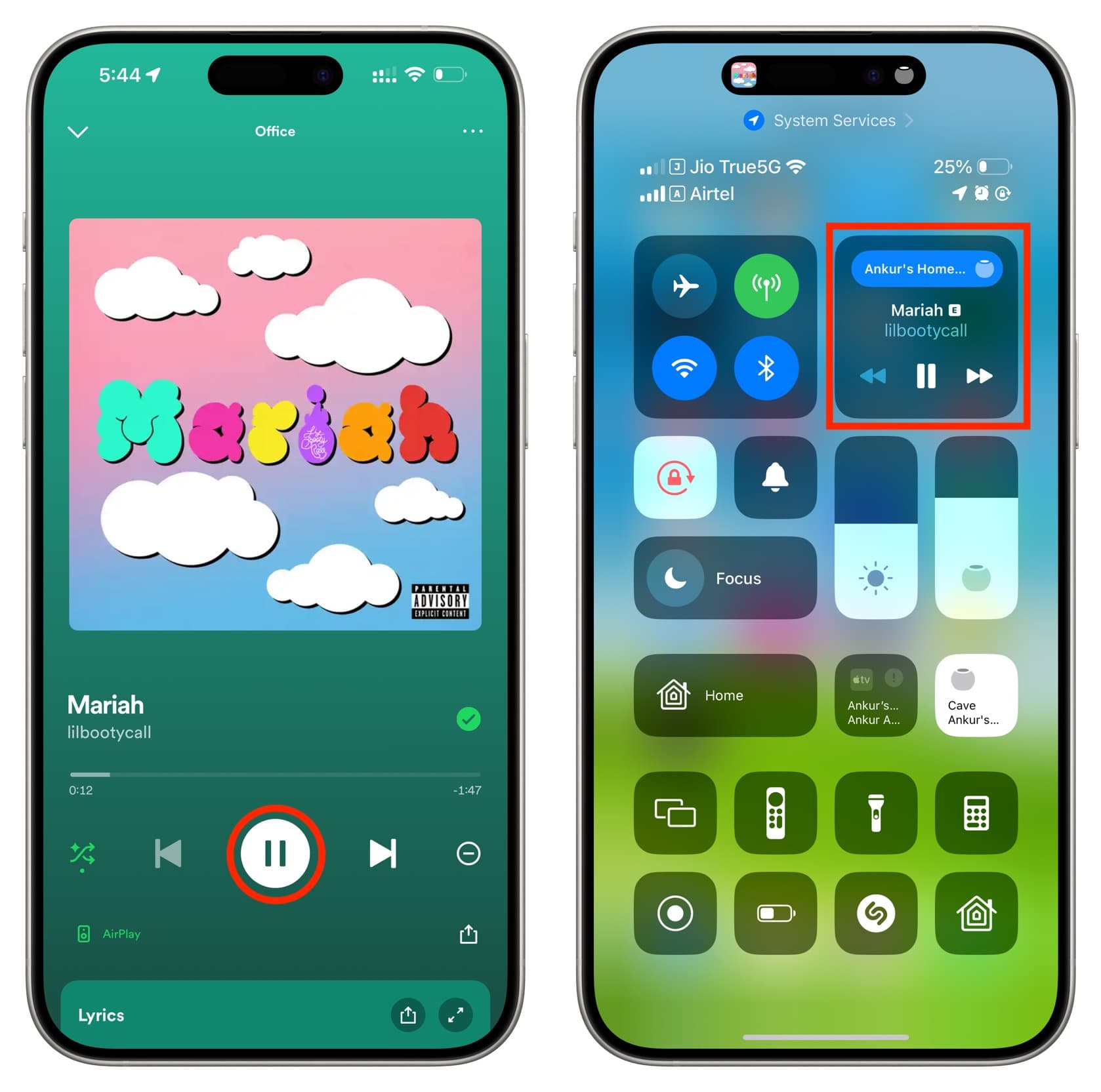
Even if you played music on your HomePod directly by asking Siri, a Now Playing tile should show on your iPhone Screen and the Dynamic Island if:
- Your iPhone (having your or a family member’s Apple ID) is connected to the same Wi-Fi as the HomePod.
- iPhone Bluetooth is turned on.
You can use these controls on your iPhone to pause and resume the playback on the HomePod.
Method 6. Use the respective app or AirPlay controls
If you’re AirPlaying content from your iPhone or iPad to your HomePod, go to that music streaming app (Apple Music, Spotify, YouTube Music, etc.) and use the play/pause button there. You can also open iPhone Control Center and use the media controls button there to pause and resume music on your HomePod.
Method 7. Use your Apple TV
If you’re playing media on your HomePod through Apple TV, press and hold the TV button to open tvOS Control Center. Then, switch to the Now Playing tab and use the pause/resume button there as shown in the screenshot below.

If your Apple TV is on an older version of tvOS, follow these steps instead:
1) Click the Home button on your Siri Remote to go to your Apple TV’s Home screen.
2) Click and hold the Play/Pause button on your Siri Remote until a menu pops up.
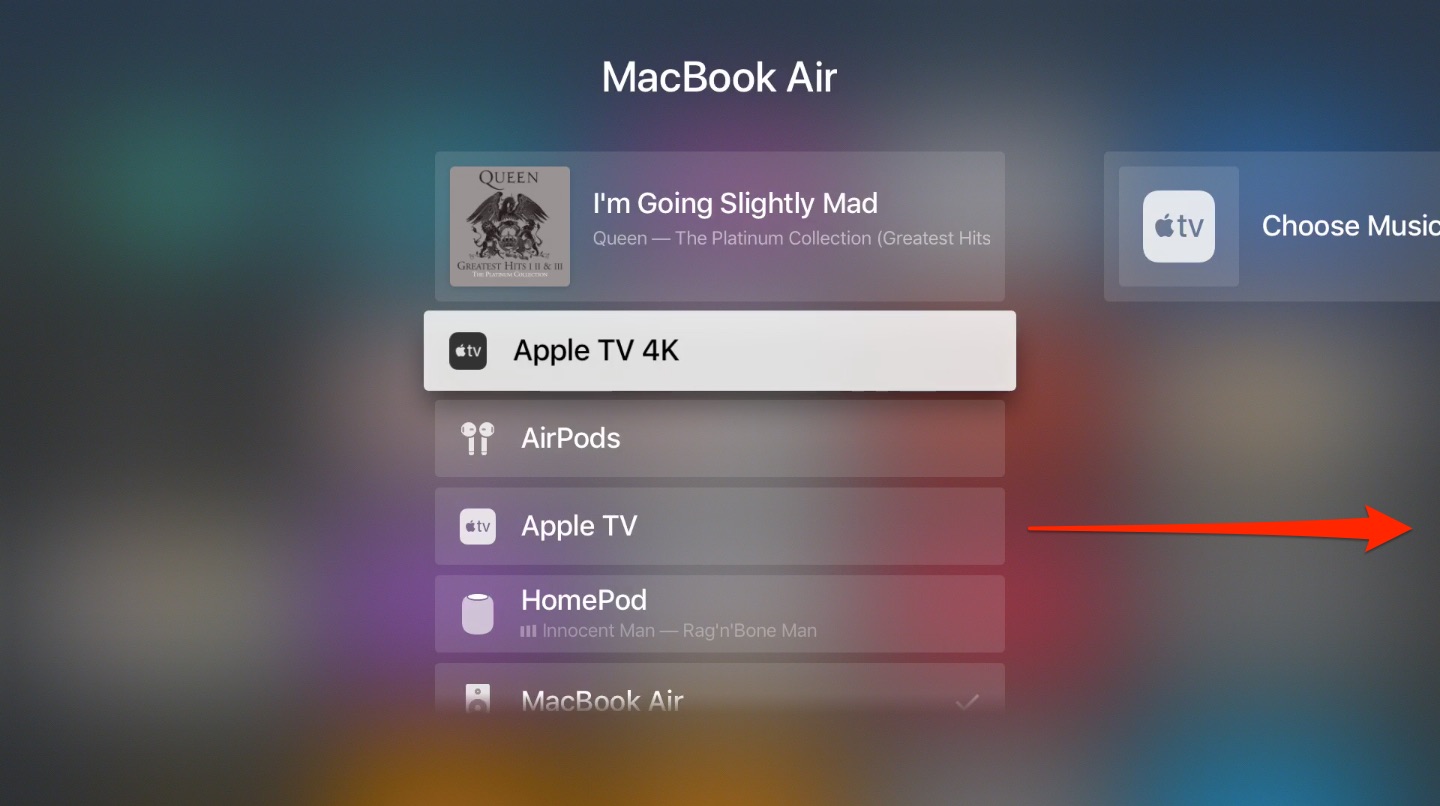
3) Now swipe left on the Touch surface of your Siri Remote until you see your HomePod.
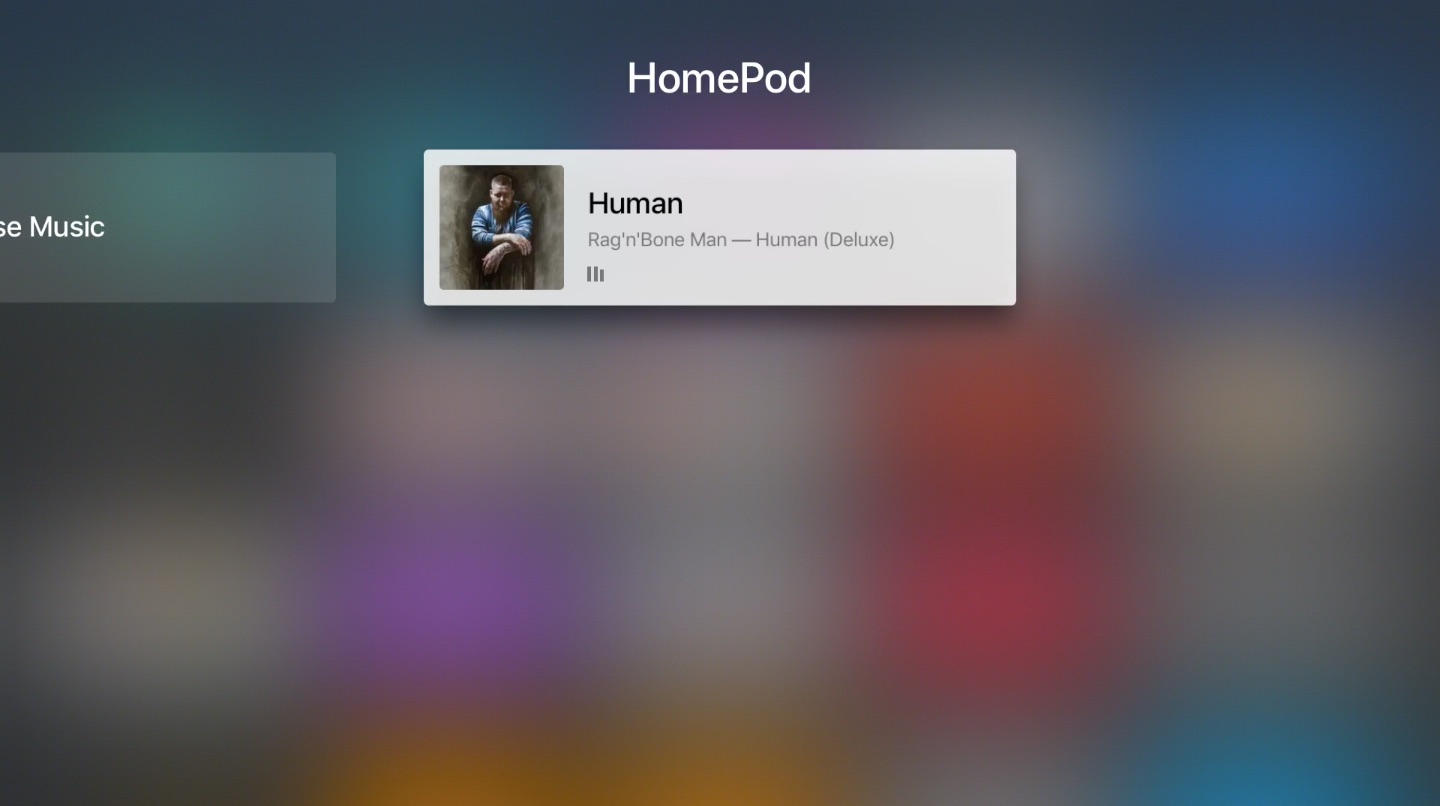
4) With your HomePod highlighted, click the Play/Pause button on the Siri Remote to pause whatever’s currently playing through the Siri speaker. Clicking the button again resumes your paused music.
On a related note: How to know what song is currently playing on HomePod