In this guide, we’ll show you how to stop receiving alerts for every upcoming turn on your Apple Watch when you’re navigating to a place in the Apple Maps app on your iPhone.
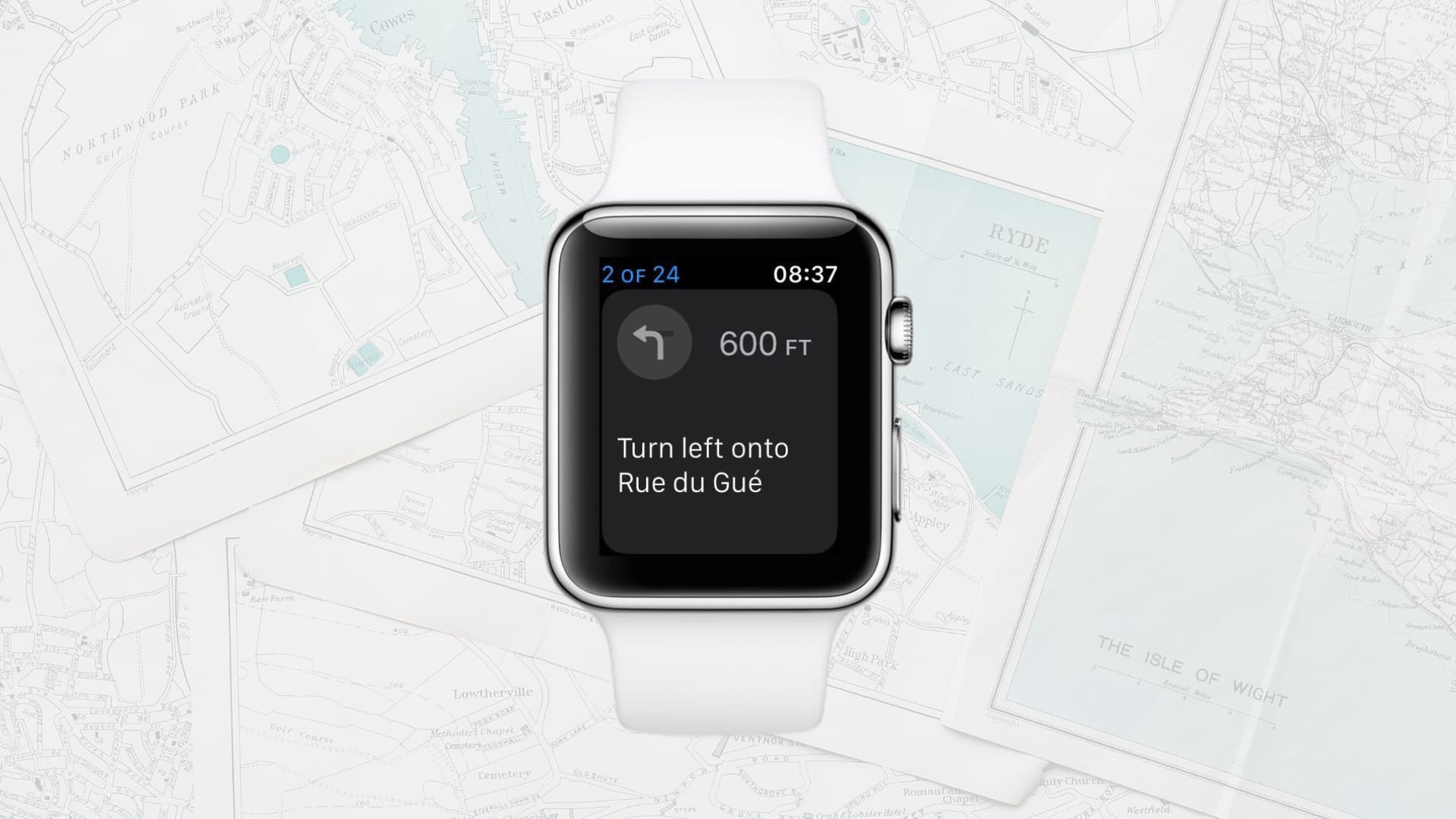
When you start turn-by-turn directions in the Maps app on your iPhone, these directions will be automatically sent to your Apple Watch, where you’ll be tapped gently to alert you of every incoming turn. I find this feature particularly helpful for walking or transit directions, but redundant and somewhat distracting when driving.
Fortunately, you can disable this to stop Maps directions and turn alerts from showing on your Apple Watch. You’ll still be able to get directions on your iPhone, but they won’t be pushed to your Apple Watch.
Stop iPhone Maps directions on Apple Watch
- Open the Watch app on your iPhone.
- Scroll to the bottom of the My Watch tab and tap Apps. Skip this step if your devices are not on iOS 27 and watchOS 27.
- Select Maps in the list of applications.
- Turn off ‘Turn Alerts’ for Driving, Driving with CarPlay, Walking, and Cycling, depending on your preference. I like to keep it enabled for walking and cycling, but turn it off while driving.
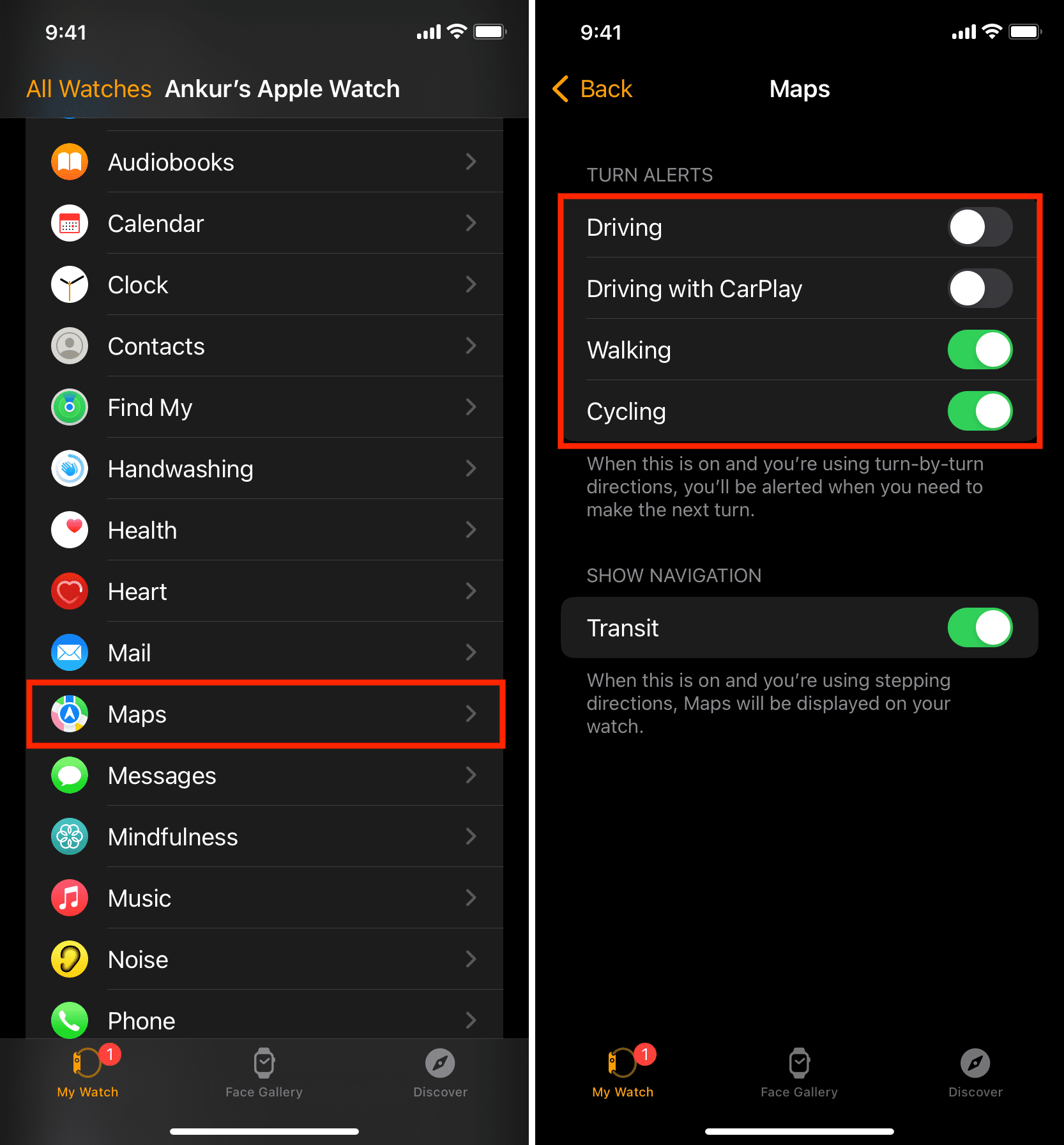
Going forward, you’ll only get directions on your iPhone unless you initiate turn-by-turn directions directly from your Apple Watch, in which case directions will appear on your Apple Watch only.
Living in a rural area where I don’t need directions to be pushed to my wrist, I always keep this feature turned off. However, I sometimes turn it back on when trying to find my way in a new city. Your use of this feature may vary, but now you know it can be easily disabled or re-enabled.
On a related note: