Learn how to create and use Presenter Notes in the Apple Keynote app on Mac, iPad, and iPhone to help you remember what you need to say or emphasize important points during your presentation.
How to work with Keynote Presenter Notes on Mac and iOS
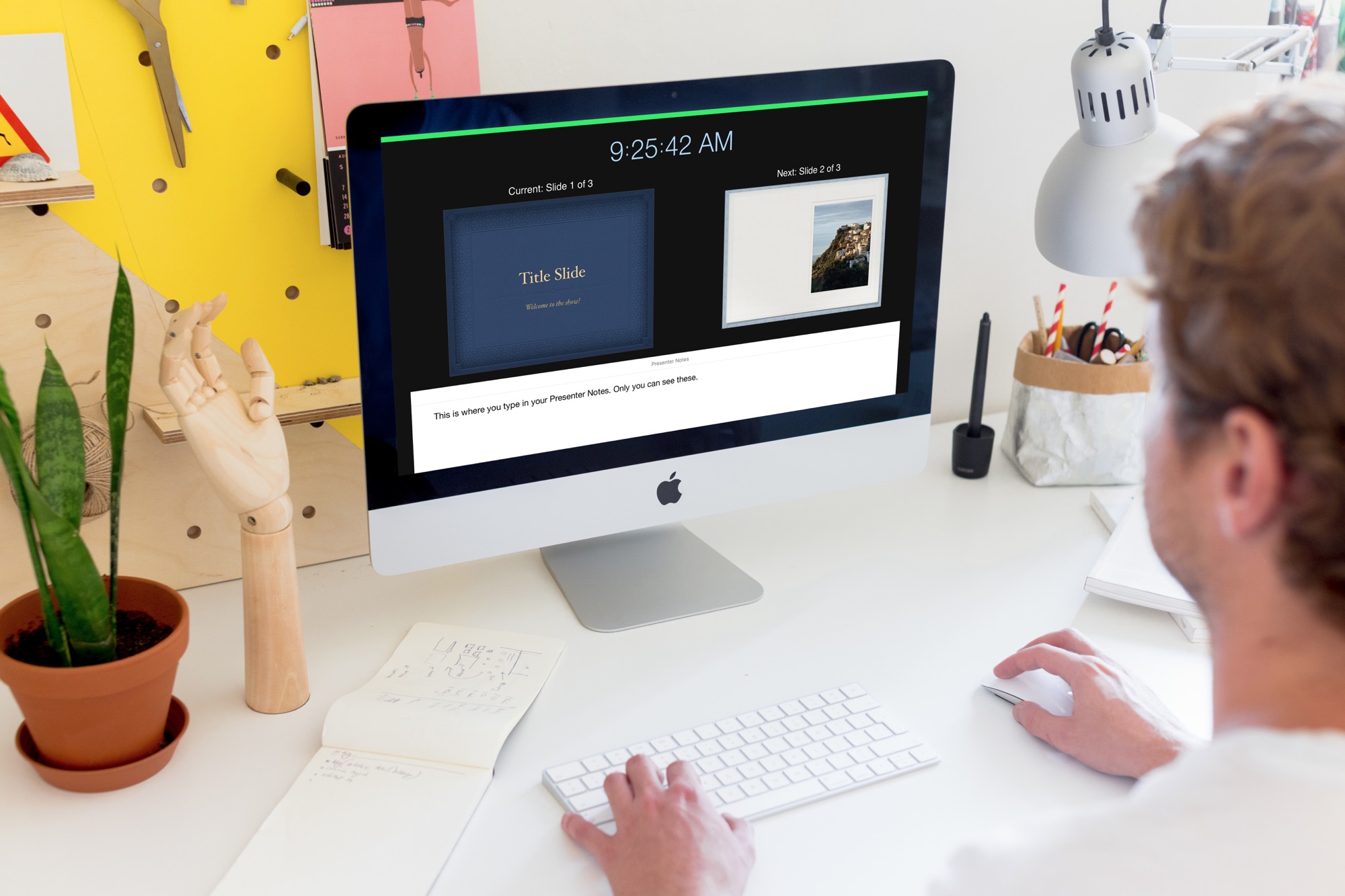
Learn how to create and use Presenter Notes in the Apple Keynote app on Mac, iPad, and iPhone to help you remember what you need to say or emphasize important points during your presentation.
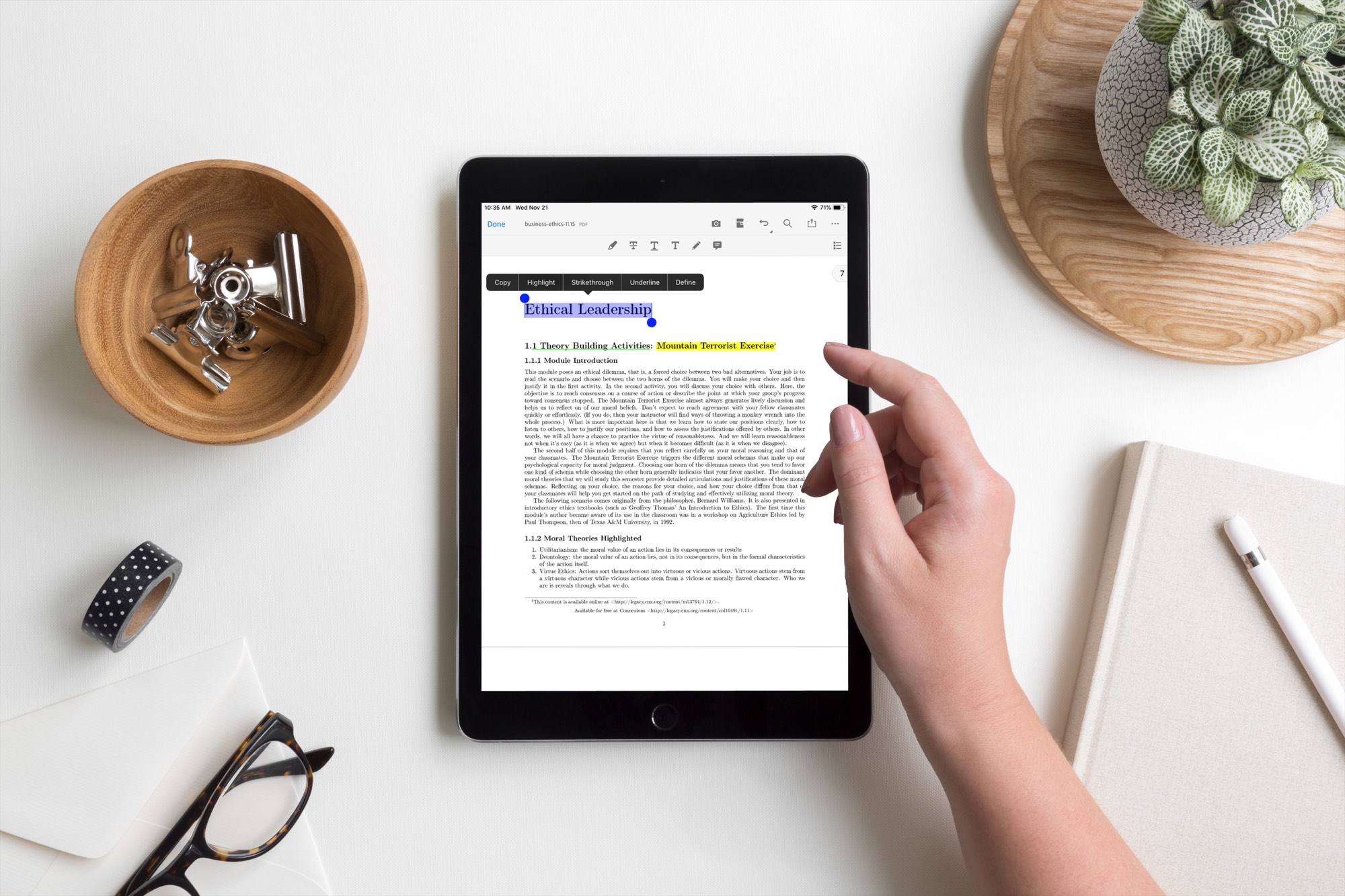
One of the best things about electronic books and textbooks is that you can mark them up. Rather than a physical book that you rent or buy and want to sell later, with books on your iPad, you can make notes and highlight important points. Plus, you can read wherever you go with your device.
Here are the best apps to read and annotate PDF books on iPad.

In this tutorial, we’ll go over three easy ways to record your iPhone or iPad screen, with either just the internal audio or both internal and external sounds captured by the microphone.
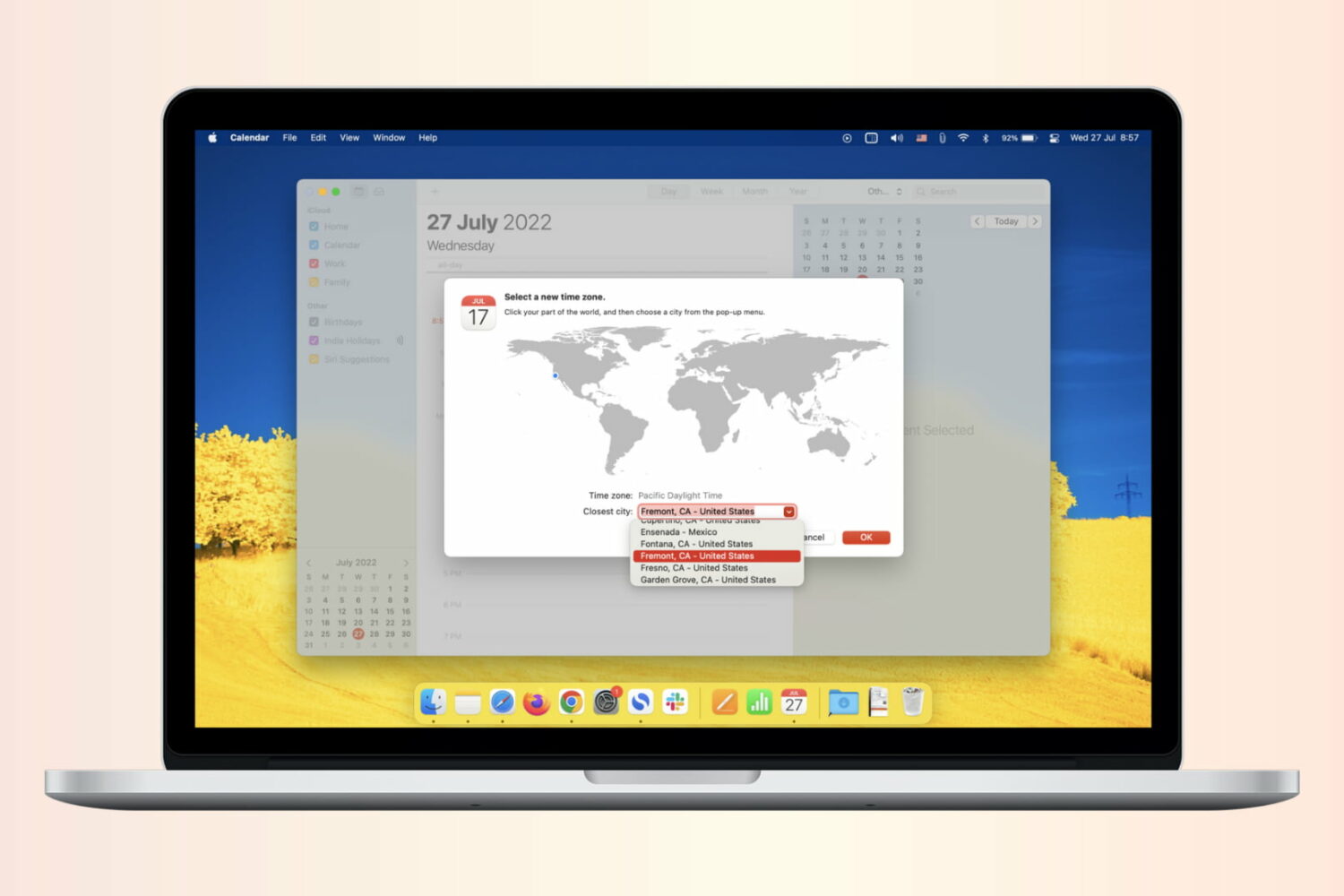
If you work with people in different time zones, scheduling remote meetings can get difficult. You may be in the eastern time zone, with others in the Pacific, European, or Asian time zones. To make this a bit easier, the Calendar app gives you a way to plan for various locations. Here’s how to add and use time zone support for Calendar events.
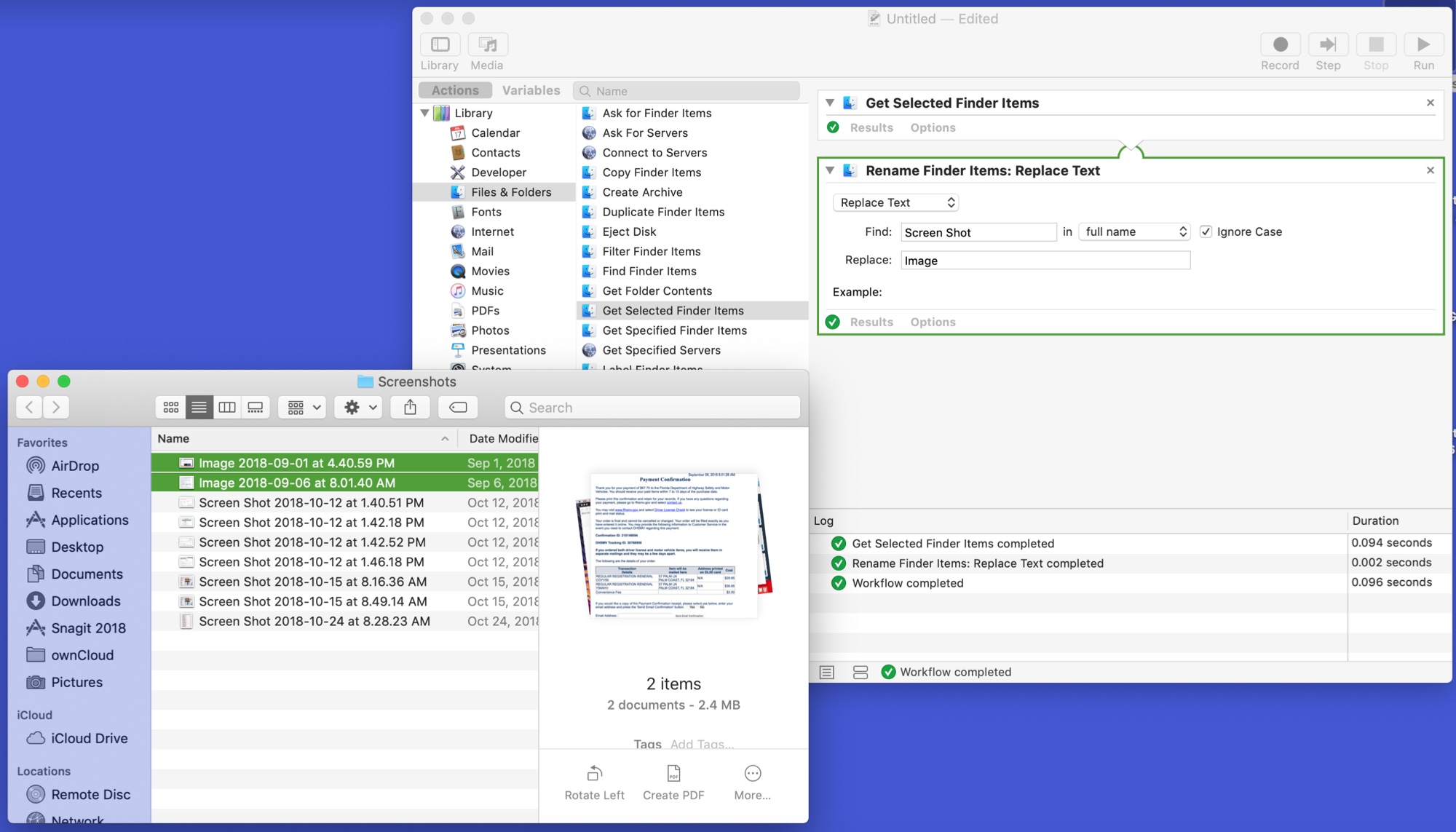
The Automator tool on Mac might be intimidating to some users, but it can be a very handy app. You can create automated workflows, actions, or applications that help you perform tedious tasks. Along with that, there are some tasks you can do with it that are just plain neat.
Here are 10 cool things you can do with Mac Automator.
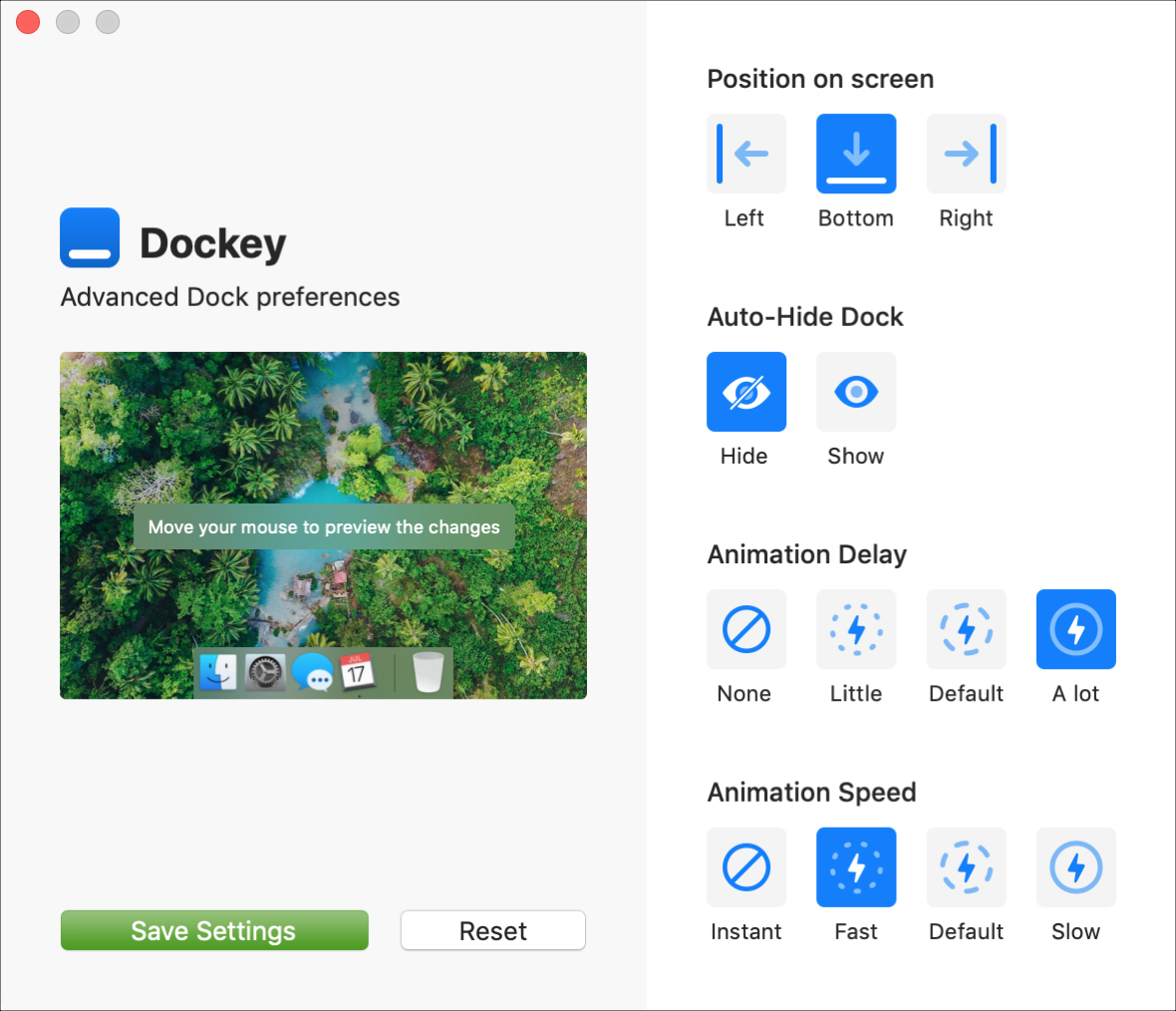
The Dock is an important part of your Mac. It holds the applications you use most often so that you can open them with a click. It can also contain those you currently have open, display badge icons for app notifications, and let you move things to the Trash easily.
So, configuring the Dock to your preference is a key piece to its effectiveness.
You can make some adjustments to the Dock in your System Preferences like location of the Dock, animations for minimizing windows, and changing the size of the icons.
But, if you would like to do just a little bit more with your Dock without having to toy with Terminal, then take a look at Dockey. Dockey is an application that lets you customize your Dock quickly and here’s what it has to offer.
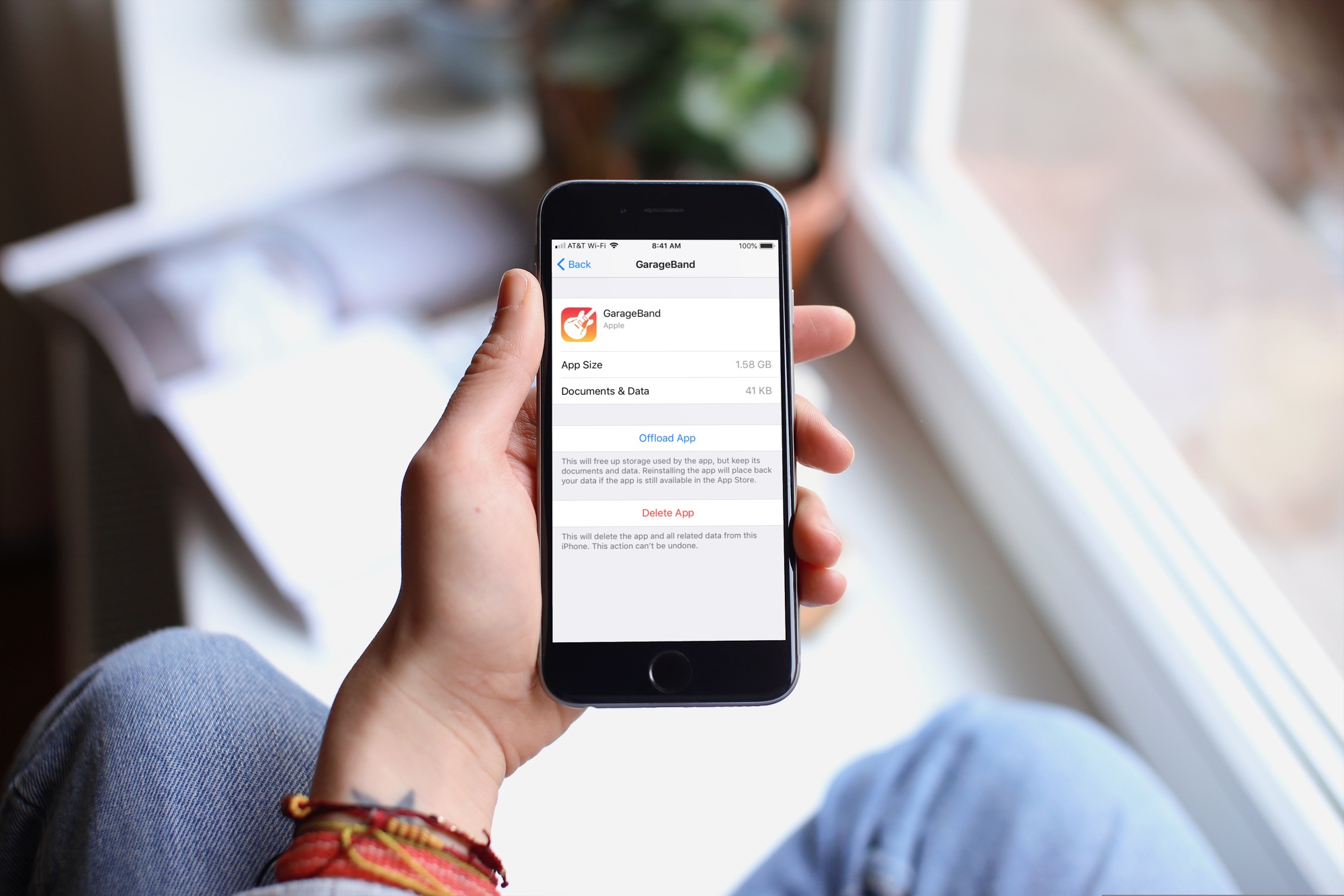
When you get that shiny new iPhone or iPad, you’re going to spend some time getting it just how you want it. One place you’ll likely begin is with the App Store. Whether it’s games or apps that tickle your fancy the most, you’re going to grab them. What comes with downloading the games and apps you want is enough space for them all.
So, why waste space on apps that you will never, ever use when you need it for those you want to use every day? Here’s how to quickly save over 2 GB of storage space on your new iPhone or iPad.

Learn how to merge all windows in Safari for Mac if you'd like to use tabbed browsing in a single window instead and instantly declutter your desktop.
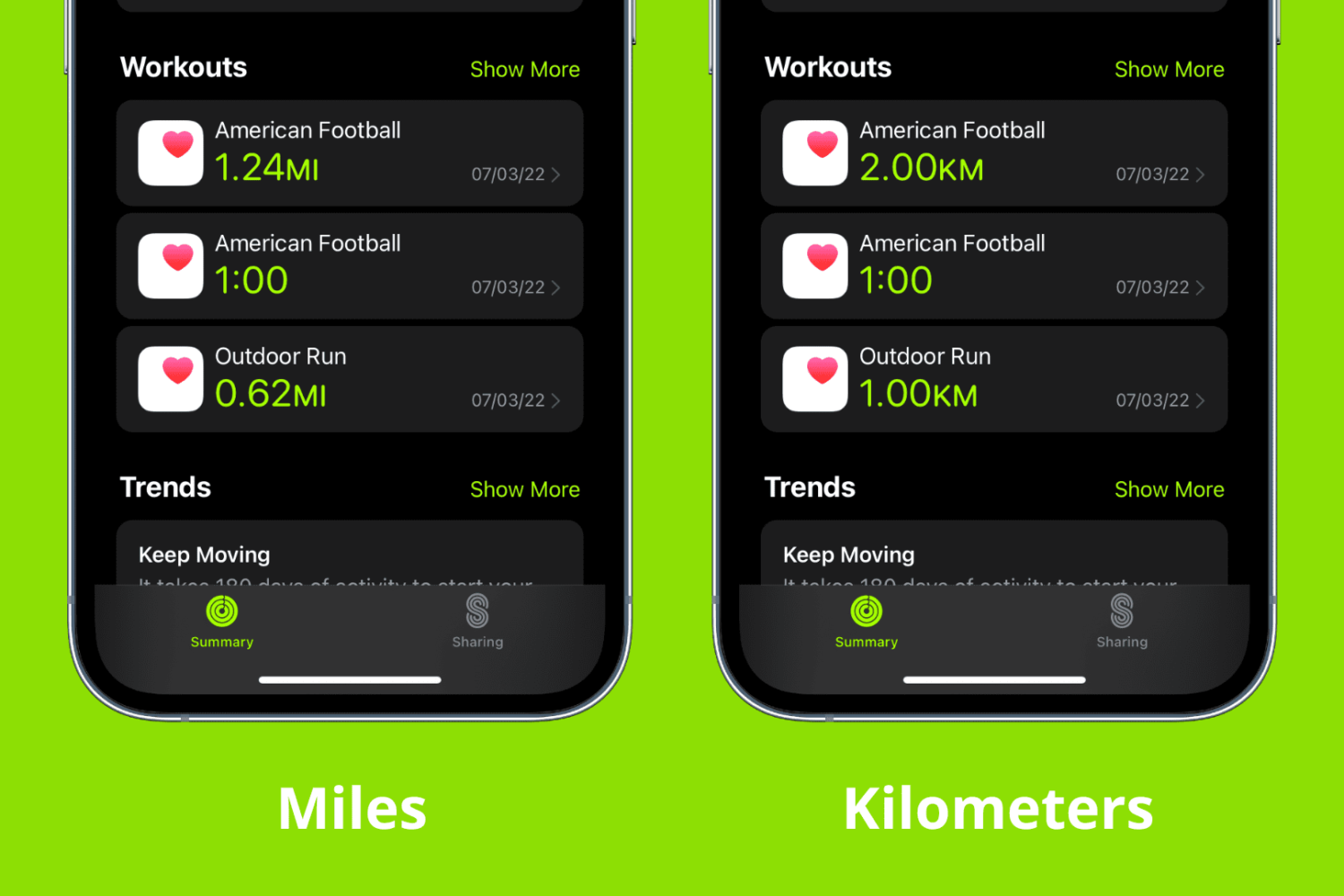
Some simple settings in the Health app can help you better keep track of your activity. For instance, if you prefer to use kilometers instead of miles for tracking your running and walking, you can make this change in just a few taps on your iPhone. The same reflects on your Apple Watch.
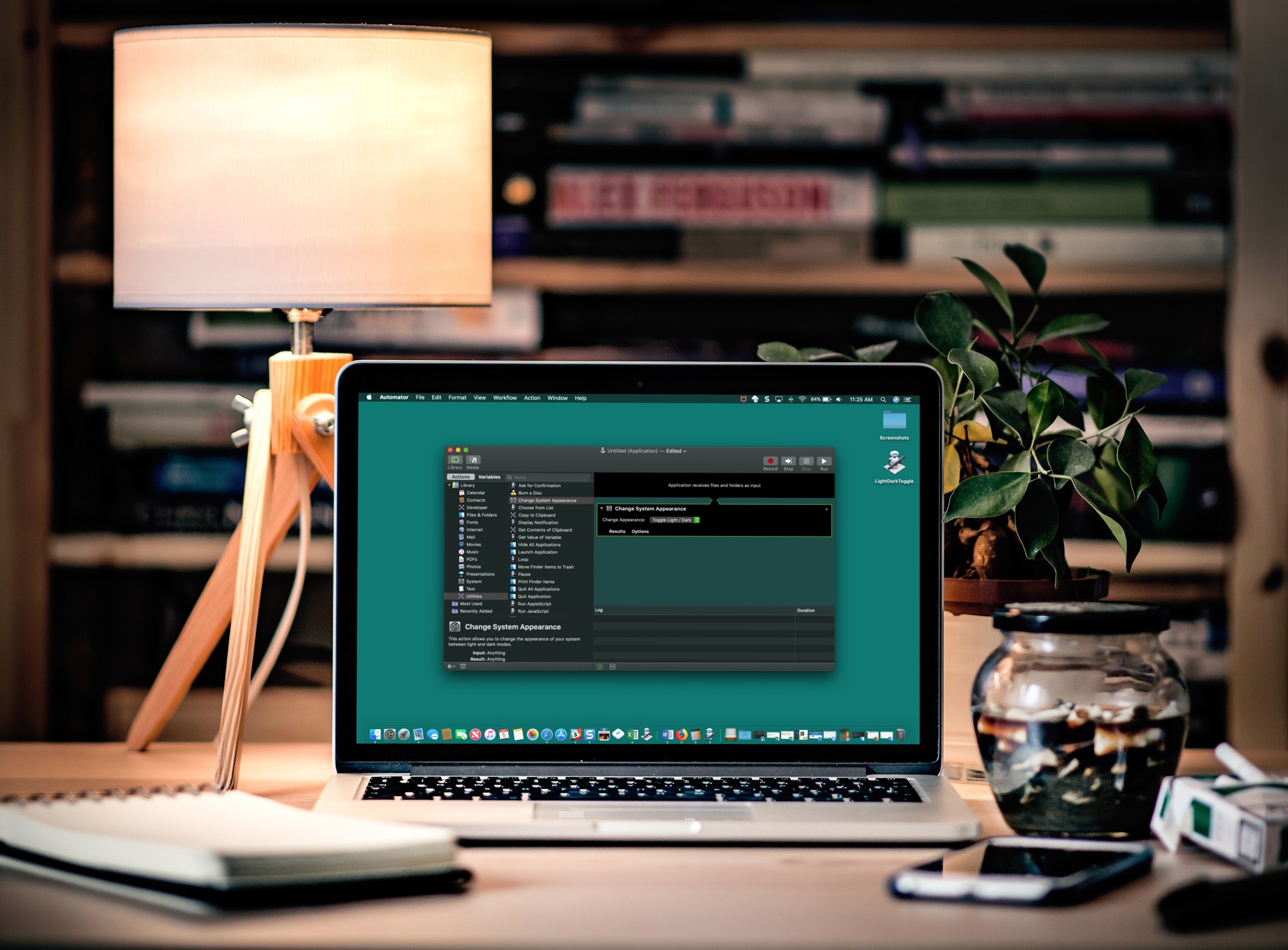
If you like switching back and forth between Light Mode and Dark Mode on your Mac but get tired of going through the process to do so, there’s an easier way.
In just a few minutes, you can create and add a Light/Dark Mode switch to your Mac Dock. It’s super simple, and here’s how.
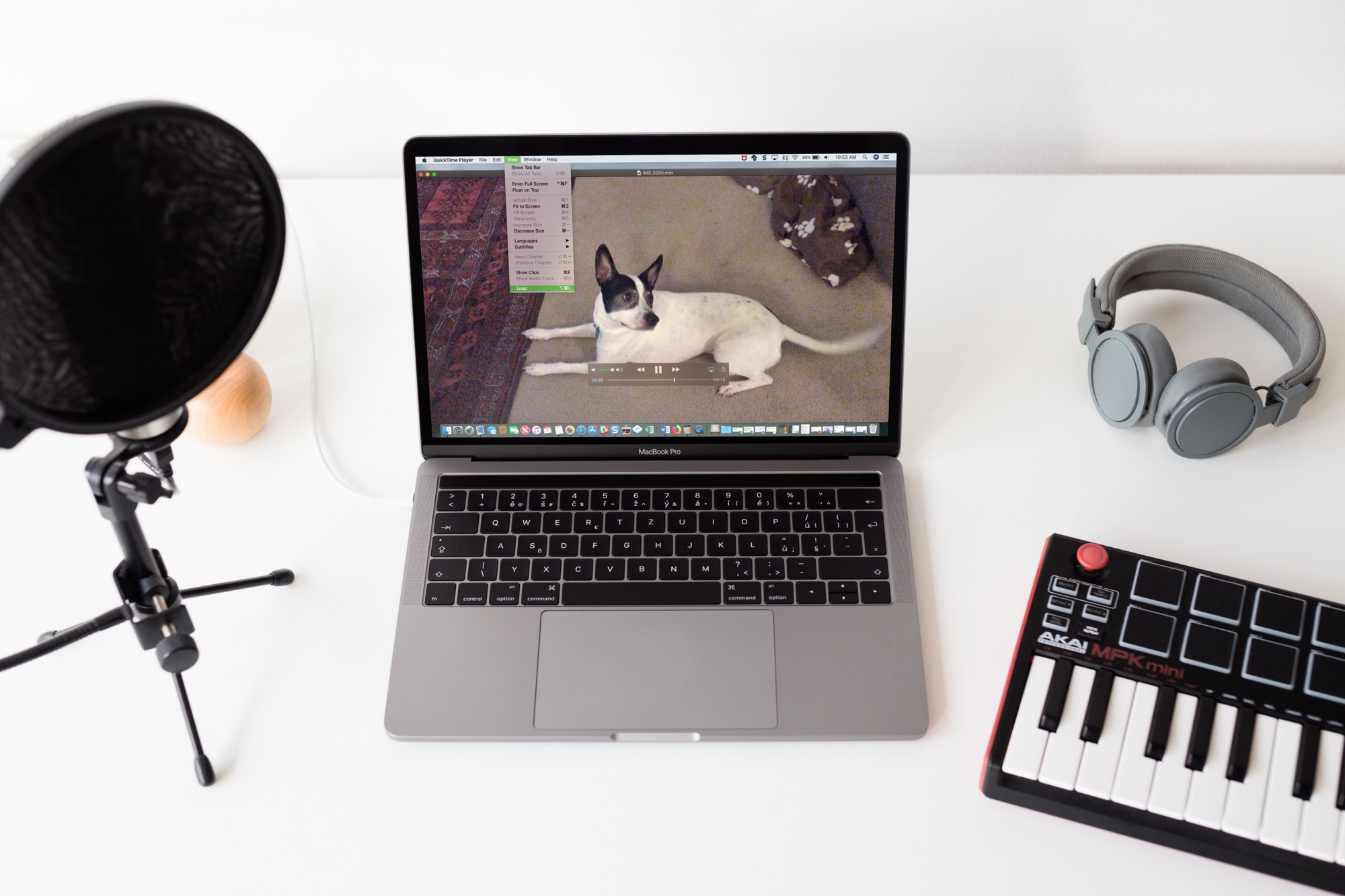
Sometimes you just can’t get enough of a video. Whether it’s one you created or one that someone shared with you, whether it's audio or visual, you can easily play it over and over without hitting a button. If it can be played in QuickTime, it can be looped in QuickTime. And you can do this in just a few clicks.
Here’s how to loop a video in QuickTime Player on Mac.
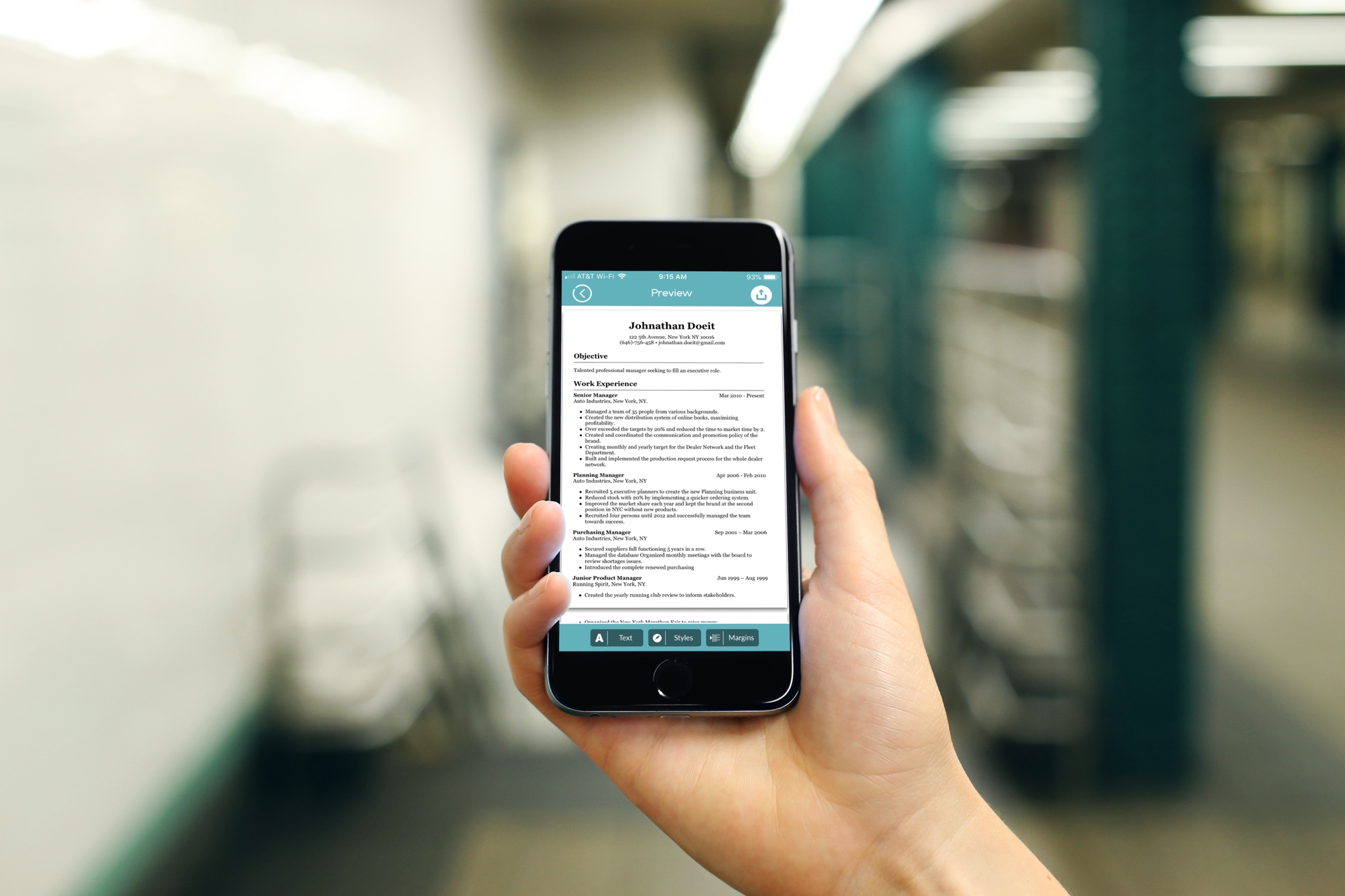
You don’t always have the time or opportunity to sit down at your computer to work on your resume. But these days, you don’t have to rely on your Mac. You can create and send attractive and professional resumes right from your iPhone or iPad. This lets you work on that all-important document anywhere, anytime.
These are the two best apps for creating resumes on iPhone and iPad.