Learn how to transfer your saved website login details, including email addresses, usernames, and passwords, from Google Chrome to Apple Safari on your iPhone, iPad, and Mac.
After following one of the methods below, your newly imported passwords will upload to iCloud and sync across all your devices, including iPhone, iPad, Mac, and Windows PC.
To avoid duplicates, import your Google Chrome passwords to Safari on just one of your Apple devices.
Also, note that your saved passwords will be copied (not moved) to Safari/Apple Passwords app. You’ll still find them in Google Password Manager in Chrome or on the web.
If you also use a third-party password manager like 1Password, LastPass, Bitwarden, Dashlane, etc., we have covered that in a separate tutorial: How to import passwords from other apps into Apple Passwords
Import Google Chrome passwords to Safari on iPhone or iPad
1) Download Google Chrome on your iOS device, open it, and sign in with your Google account, so all your passwords sync there.
2) Tap the three dots menu icon in the bottom right, followed by Password Manager.

3) Tap Settings and select Export data (formerly Export passwords).

4) By default, all your accounts should be selected and ready to be exported to the Apple Passwords app. You can uncheck the accounts you don’t want to import. Then tap Continue.
5) Tap Continue again on the Export Passwords screen.

6) Select Passwords under the Compatible Apps heading.
7) Tap Continue in “Passwords” on the ‘Export N items to Passwords?’ screen.

8) The Apple Passwords app will open now, and you’ll see an Import Finished confirmation. Just tap Done. Then, tap All to find your imported passwords.

Unfortunately, there isn’t a recently added section in the Apple Passwords app to help you quickly find the passwords that were copied from another browser. You can, however, manually check to see that the account emails, usernames, and passwords were actually imported.
If your iPhone is on iOS 18, follow the initial steps in Google Chrome to export the passwords as a CSV file to the Apple Files app and then import that file into Safari by going to Settings > Apps > Safari > Import > Choose File > Open > Import to Safari > Done. This will add all of those saved passwords to the Apple Passwords app.

Once the import is successful, delete the CSV file from the Apple Files app to prevent misuse, as it has all your login details in plain text.

Other options
Import your Chrome passwords to Safari using your Mac (explained below), and they will automatically sync to your iPhone and iPad via iCloud Keychain. It’s safe, easy, fast, and secure.
Alternatively, you can set Chrome to autofill passwords in Safari and other iOS apps. This is the go-to method if you use Chrome and Safari browsers simultaneously and don’t want to bother importing new passwords every few weeks.
Caution: Don’t try third-party apps! You may come across third-party services that claim to help copy your Chrome passwords to Safari. I strongly suggest you never use these apps and services because of the severe security risks attached to them. You don’t want an obscure third party coming between you and your sensitive passwords.
Import Chrome passwords to Safari on Mac
If you’ve set Google Chrome or Firefox as your Mac’s default browser, you’ll see options to import bookmarks, browsing history, and passwords when you open Safari for the first time. Just use the button there, and you should be good to go. If you missed it, follow these steps to manually bring your saved Google Chrome passwords to Apple’s Safari browser.
1) Quit the Google Chrome browser if it’s already open on your Mac.
2) Open Safari on your computer, and from the top menu bar, click File > Import From Browser and choose Google Chrome.
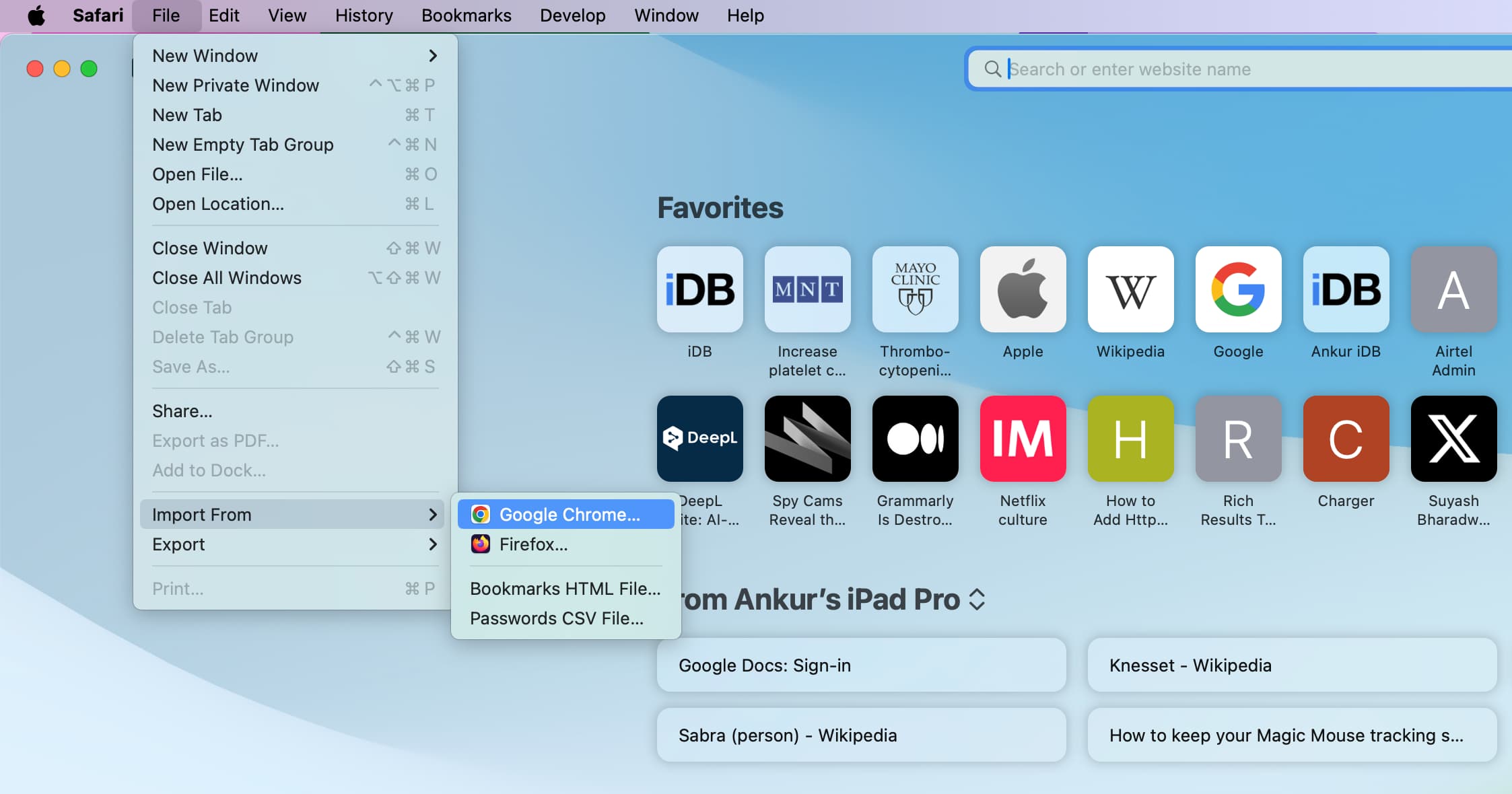
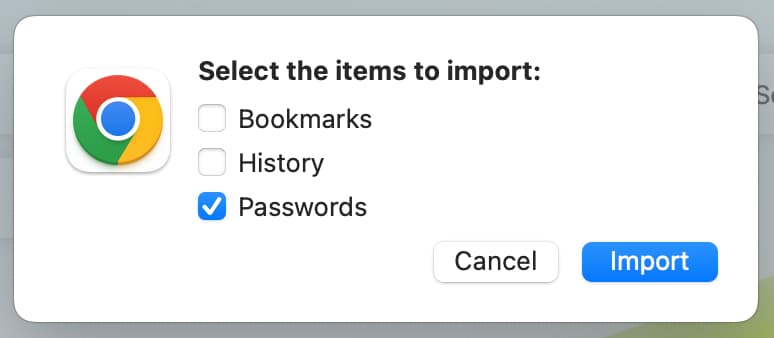
3) Make sure the Passwords box stays selected and hit the Import button.
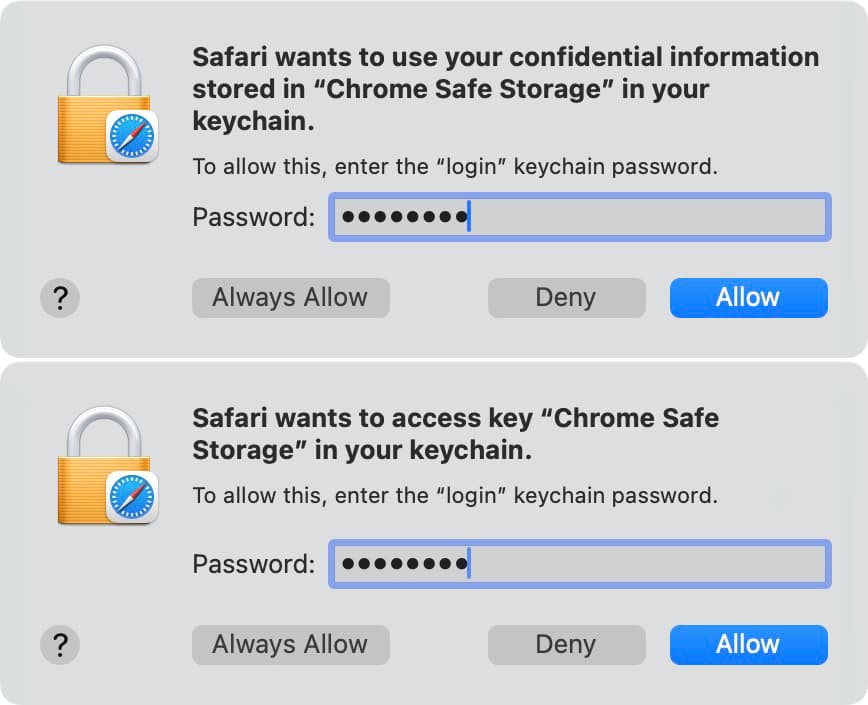
4) Enter your Mac’s password and Allow Safari to use your confidential information stored in “Chrome Safe Storage.” You may have to enter your Mac’s password a second time and click Allow again. After that, Safari will begin importing your Chrome passwords.
5) Once importing is done, click OK.
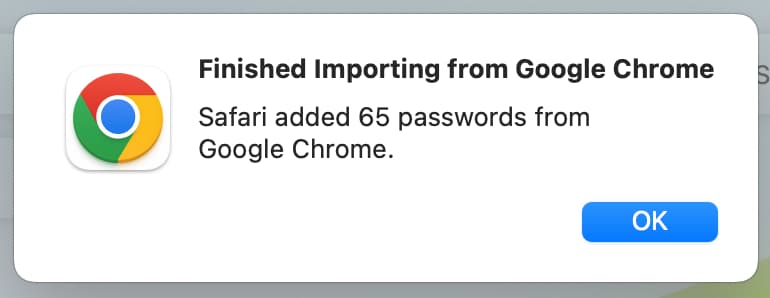
Once you’ve imported the account password from another browser to Safari, go to the Apple Passwords app, and you’ll find the imported passwords here.
If your computer is on an older version of macOS, head to Safari Settings > Passwords or System Settings > Passwords instead.
Import Google Passwords to Safari on Mac using a CSV file
Another method to get your Chrome passwords to Safari involves exporting your Chrome passwords as a CSV file and then importing that file into Safari.
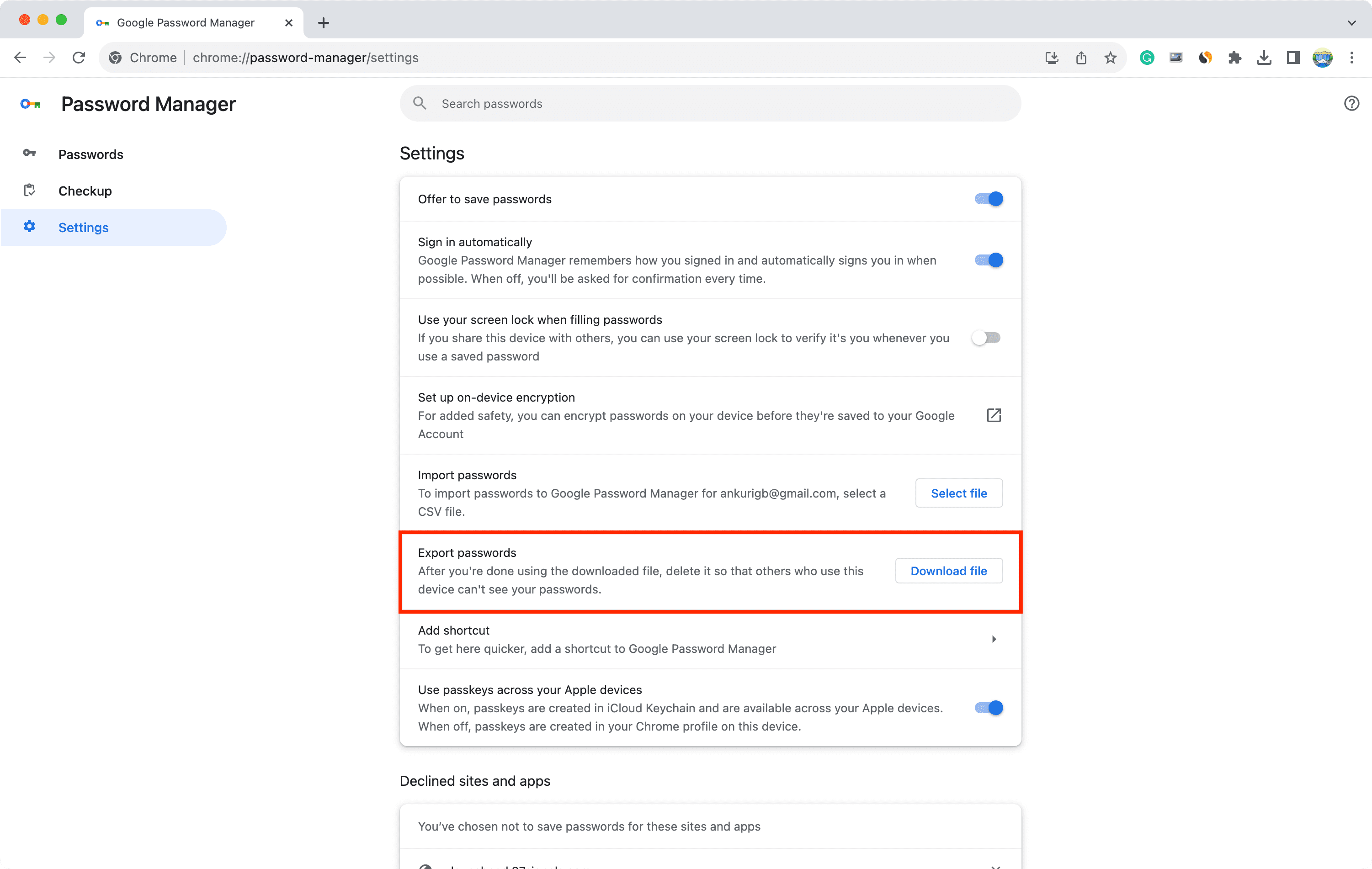
1) Open Chrome on your Mac and export its passwords as a CSV file by visiting this direct Chrome link (chrome://password-manager/settings) or navigating to Chrome Settings > Autofill and passwords > Google Password Manager > Settings.
Click the Download file button next to the Export passwords option and save the CSV file.
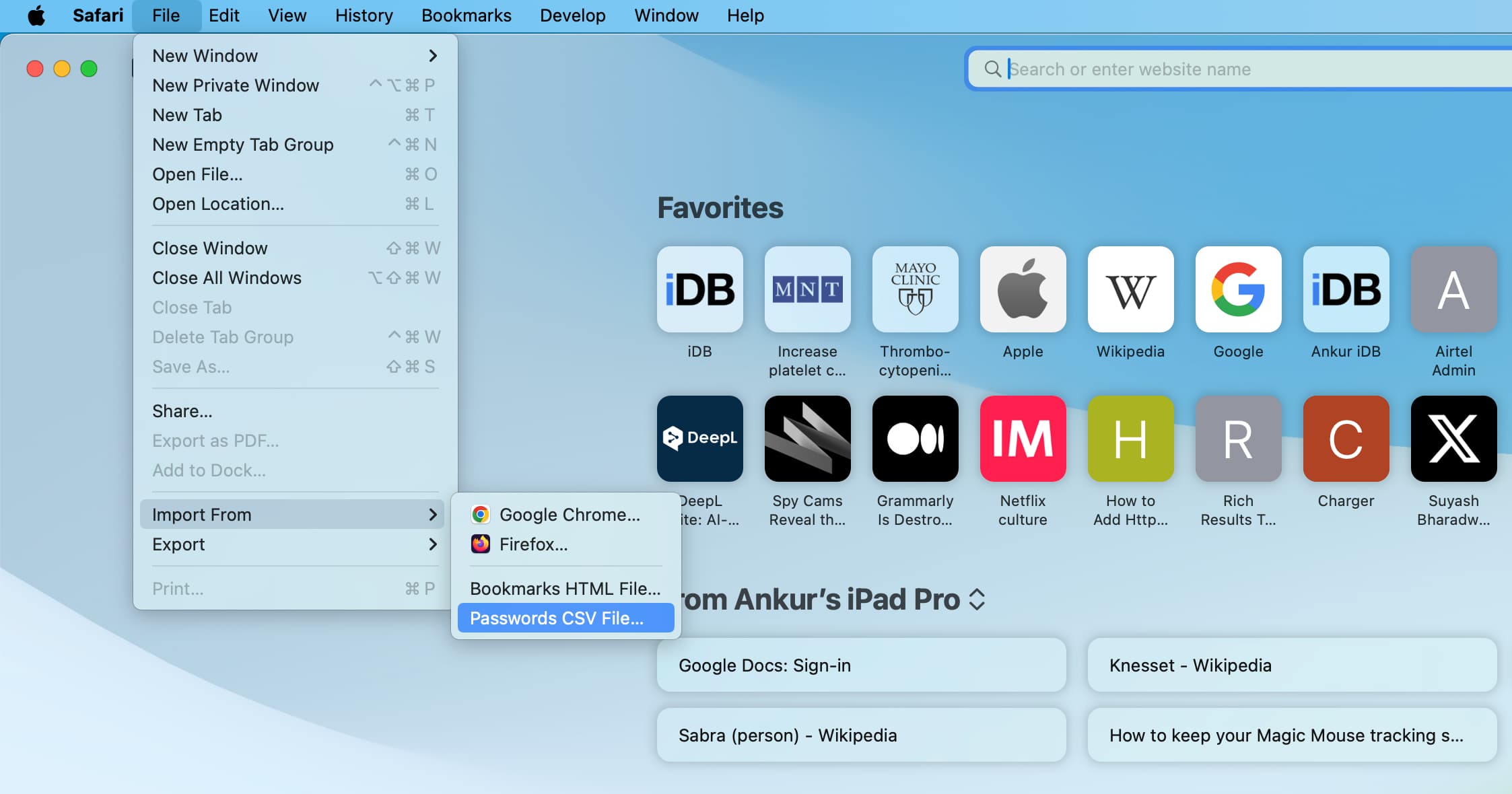
2) Open Safari, and in the top menu bar, click File > Import Browsing Data from File or Folder.
On older versions of macOS, click File > Import From > Passwords CSV File.
3) Click Choose File or Folder.
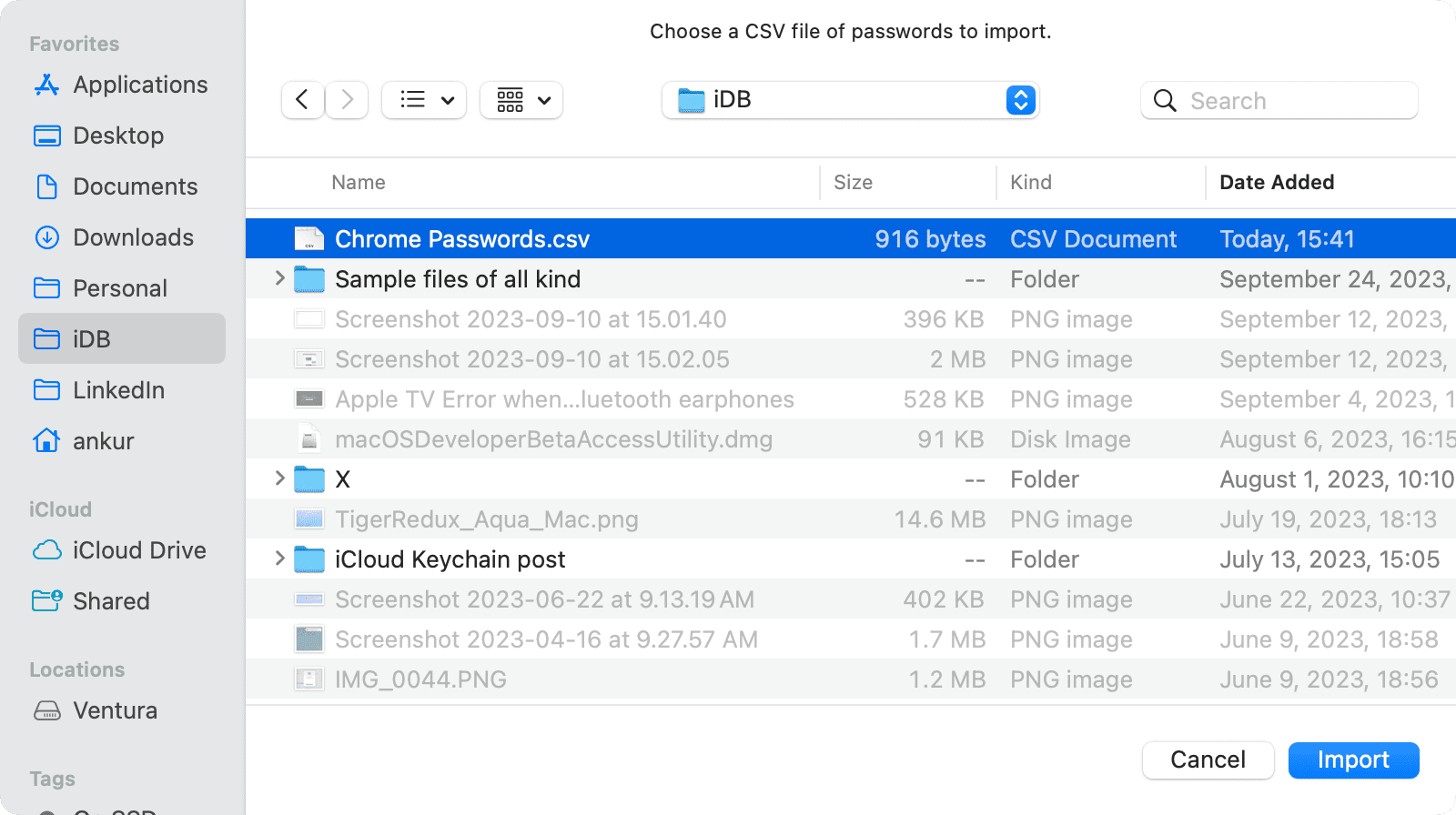
4) Select the Chrome Passwords CSV file you downloaded earlier and click Import. After that, use Touch ID or your Mac’s password to authenticate.
5) Once the passwords are imported, delete the CSV file from Finder and the Trash.
On a related note: