Learn how to use Apple’s NameDrop feature to send and receive contact information like phone numbers and email addresses between two iPhones.
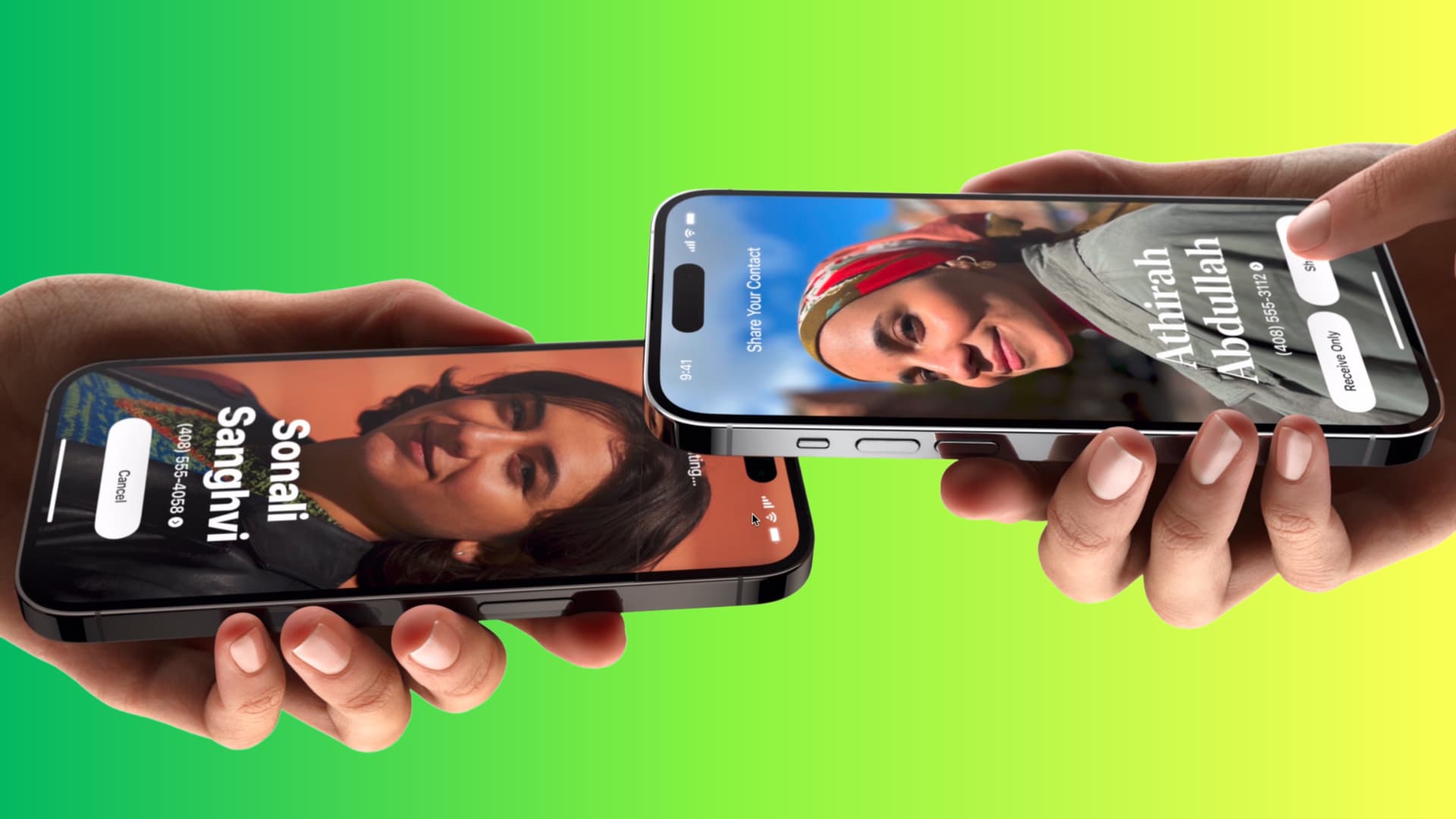
If you bump into an old friend or meet a distant relative, you may want to exchange contact information to stay in touch. Instead of typing their details, you can hold your iPhones on top of one another to exchange contact details via NameDrop.
It’s that simple, but there’s some stuff you need to know to exchange your private information correctly. Don’t worry, we’ll help you with that.
Compatible iPhones
You can use NameDrop on the iPhone XR and later running iOS 17 or later. The feature is also available on the Apple Watch Ultra, Apple Watch Series 7 and later, and second-generation Apple Watch SE with watchOS 10.1 or later. NameDrop doesn’t work on iPad or Mac.
How NameDrop works
- Bring two iPhones near one another to establish a connection via NFC.
- Choose whether to receive or share contact information.
Choices you have
You’re offered two options on the NameDrop screen:
- Receive Only: Receive their contact info without sharing yours.
- Share: Exchange each other’s contact information.
Enable NameDrop
NameDrop is switched on by default on all iPhones. If unsure, go to Settings > General > AirDrop and check that Bringing Devices Together is switched on.
How to use NameDrop
1) Make sure both iPhones have Wi-Fi and Bluetooth turned on.
2) Unlock both phones with Face ID or your passcode.
3) Hold the top of one iPhone near the top of another one. You can also place both together as a stack.
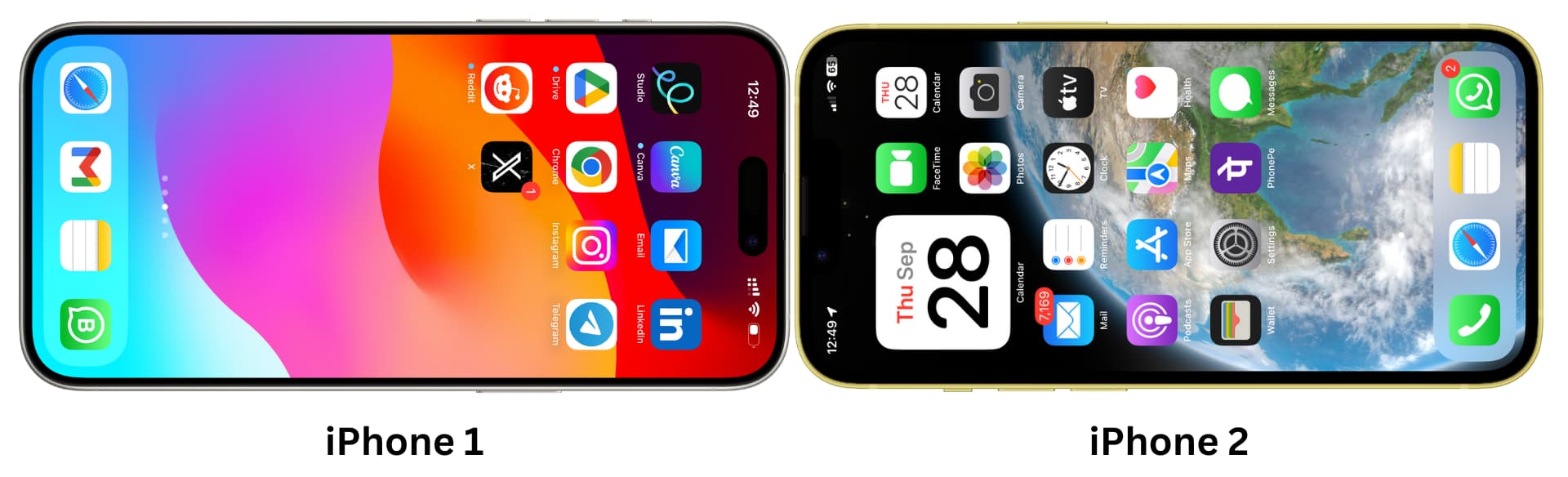
4) You’ll hear a tone, feel haptic feedback, and see a ripple animation, indicating NameDrop has established a connection. You don’t need to hold the devices near each other after the “Share Your Contact” screen appears.

5) You and/or the other person must tap the phone number or email address under your respective name to share those. My personal and business phone numbers are both saved in my contact card, but NameDrop allows me to only share my business number if that’s what I want.
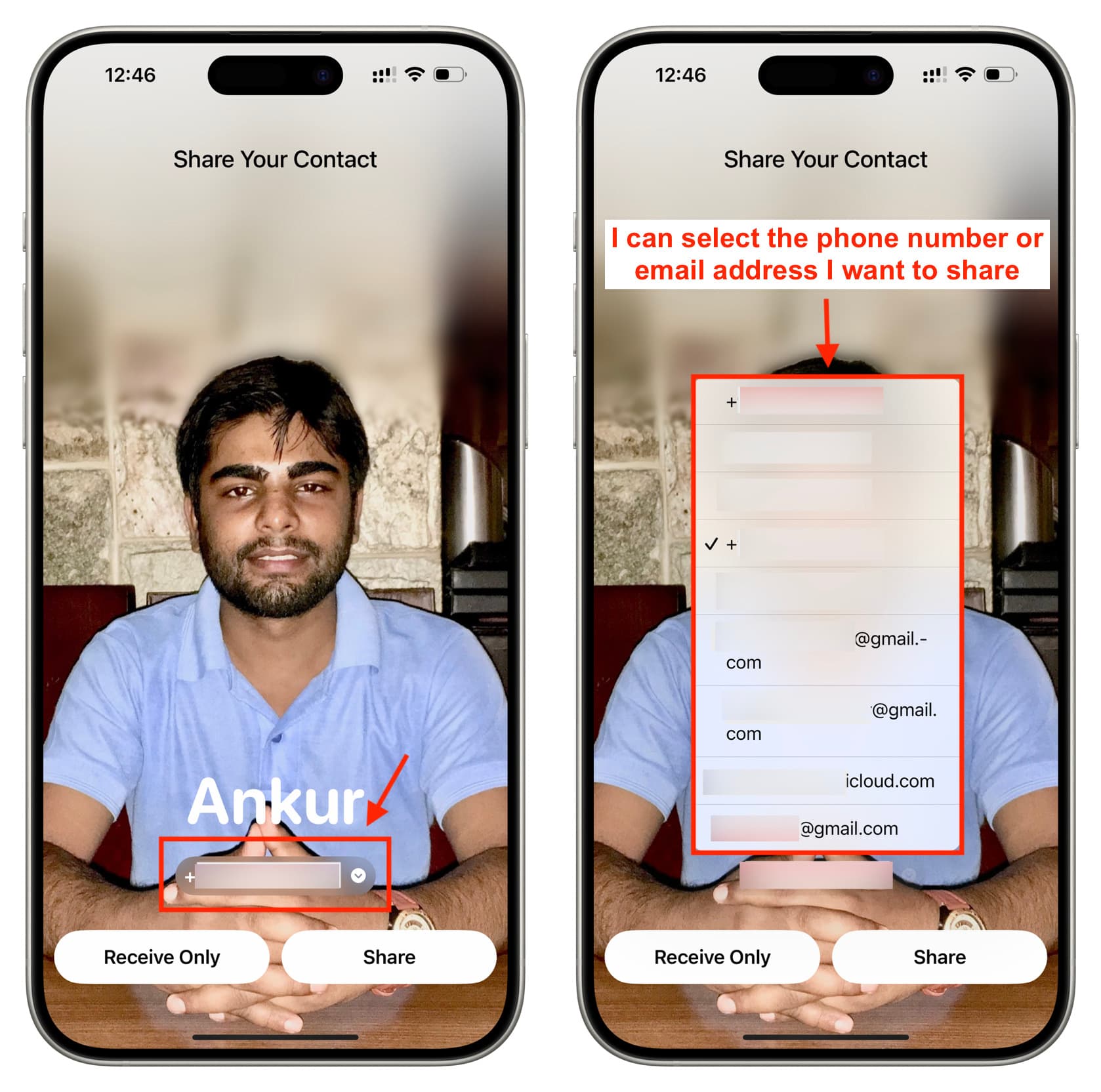
6) Now choose to:
- Receive contact information: To receive the other person’s contact information, tap Receive Only on your iPhone and ask them to choose Share on theirs.

- Exchange each other’s contact info: Both you and the other person must select Share on your respective iPhone.

7) Tap Done when NameDrop has finished sharing contact information. You can also choose Edit to update the contact name and other details before saving them to your iPhone. You can find these details in the Phone or Contacts app.
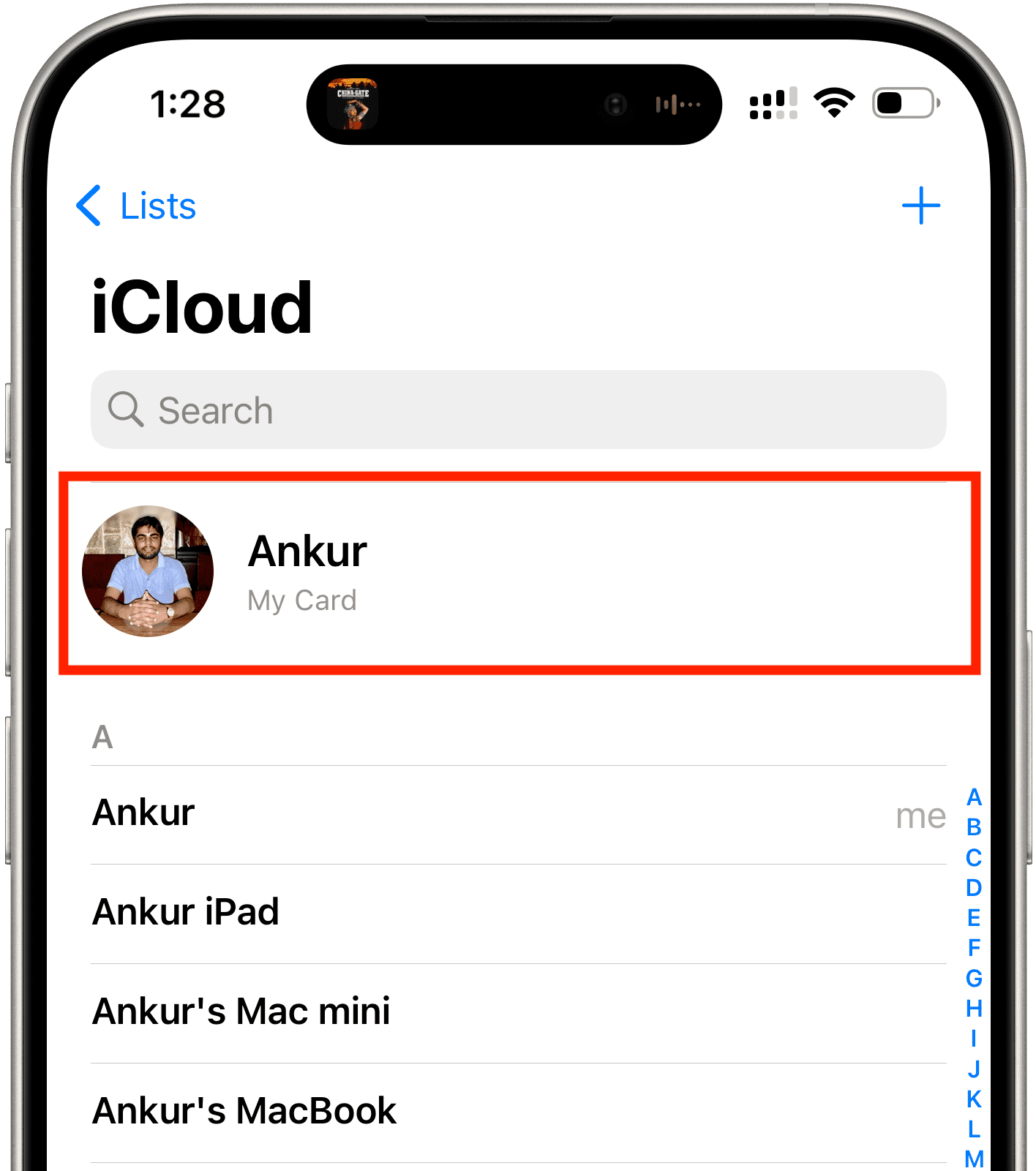
NameDrop uses some of the information from your My Card at the top of the Contacts app for sharing, including your phone number, email address, and contact poster. NameDrop doesn’t support sharing physical addresses, social media profile links, messenger handles, website URLs, preferred pronouns, and other information.
Cancel NameDrop
Move both iPhones away before NameDrop begins exchanging contact information to abort the session and cancel the transfer. Otherwise, you’ll need to manually delete the new entry in the Contacts app.
Turn off NameDrop
NameDrop is secure by design. The feature only works when the phones are unlocked, and with your explicit consent. No matter what you may read online, it’s impossible for anyone to bring their iPhone near yours to steal your contact information over the air. If unconvinced (or maybe you don’t have use for NameDrop), you can turn the feature off in Settings > General > AirDrop > Bringing Devices Together.
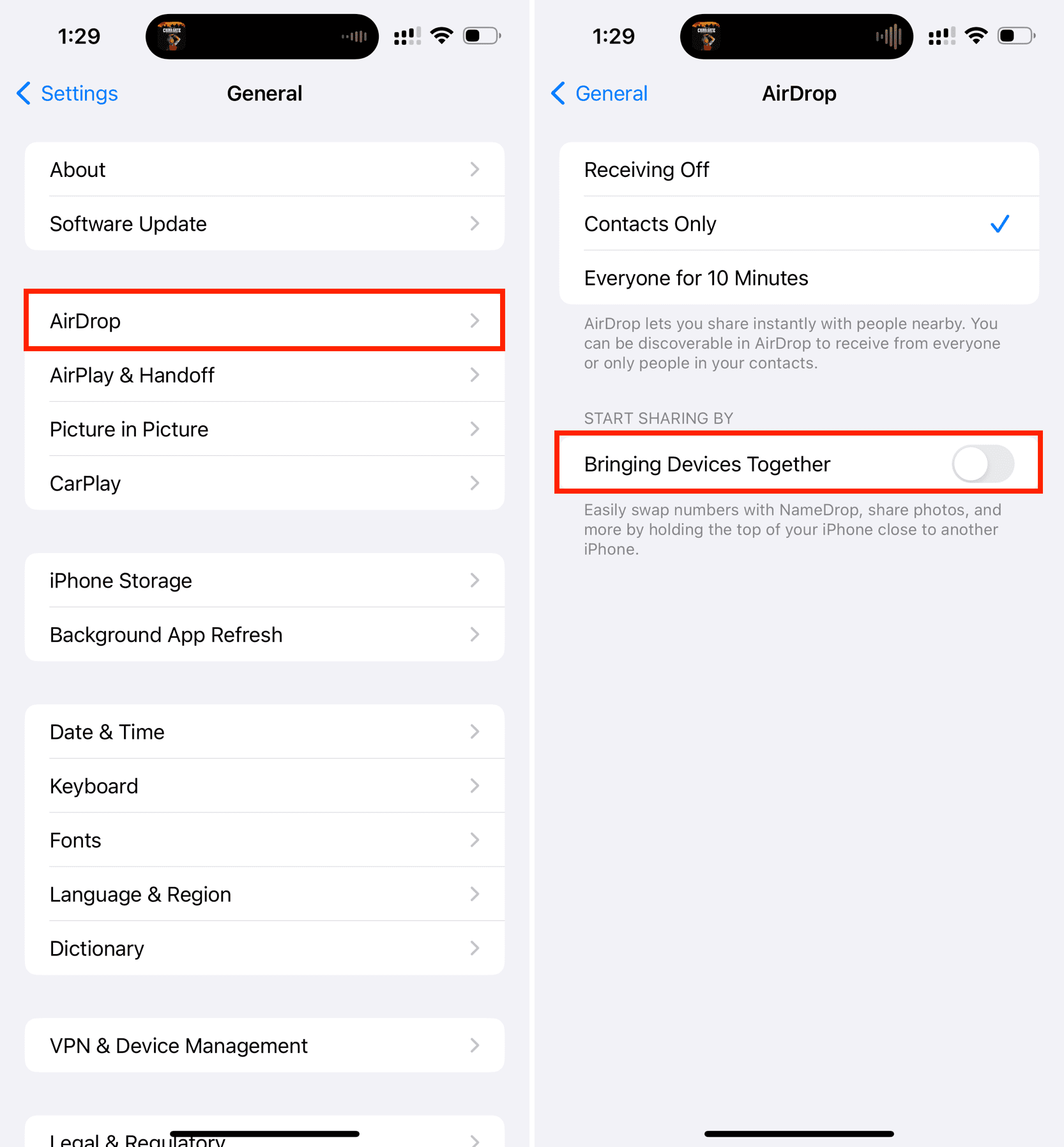
Fix NameDrop not working between two iPhones
- Make sure Bringing Devices Together is enabled for both iPhones.
- Update your iPhone to the latest iOS software.
- Ensure the Wi-Fi and Bluetooth icons in Control Center are blue on both iPhones.
- Unlock both devices.
- Turn Airplane Mode on and off.
- Move both iPhones about one meter (three feet) apart, then bring them very close again.
- Tap the top of one iPhone against the top of another one.
- Don’t pull the iPhones apart unless the Share Your Contact screen has appeared. You may see a small “Connected” banner at the top that can be tapped before moving the phones apart.
- Restart both iPhones.
- If nothing helps, reset the network settings.
Does NameDrop work with NFC-equipped Android phones?
You cannot. NameDrop is an iOS-exclusive feature.
Also, check out: