Learn how to easily remove the day and date from your Mac’s top menu bar and customize your display to suit your preferences with this simple guide.
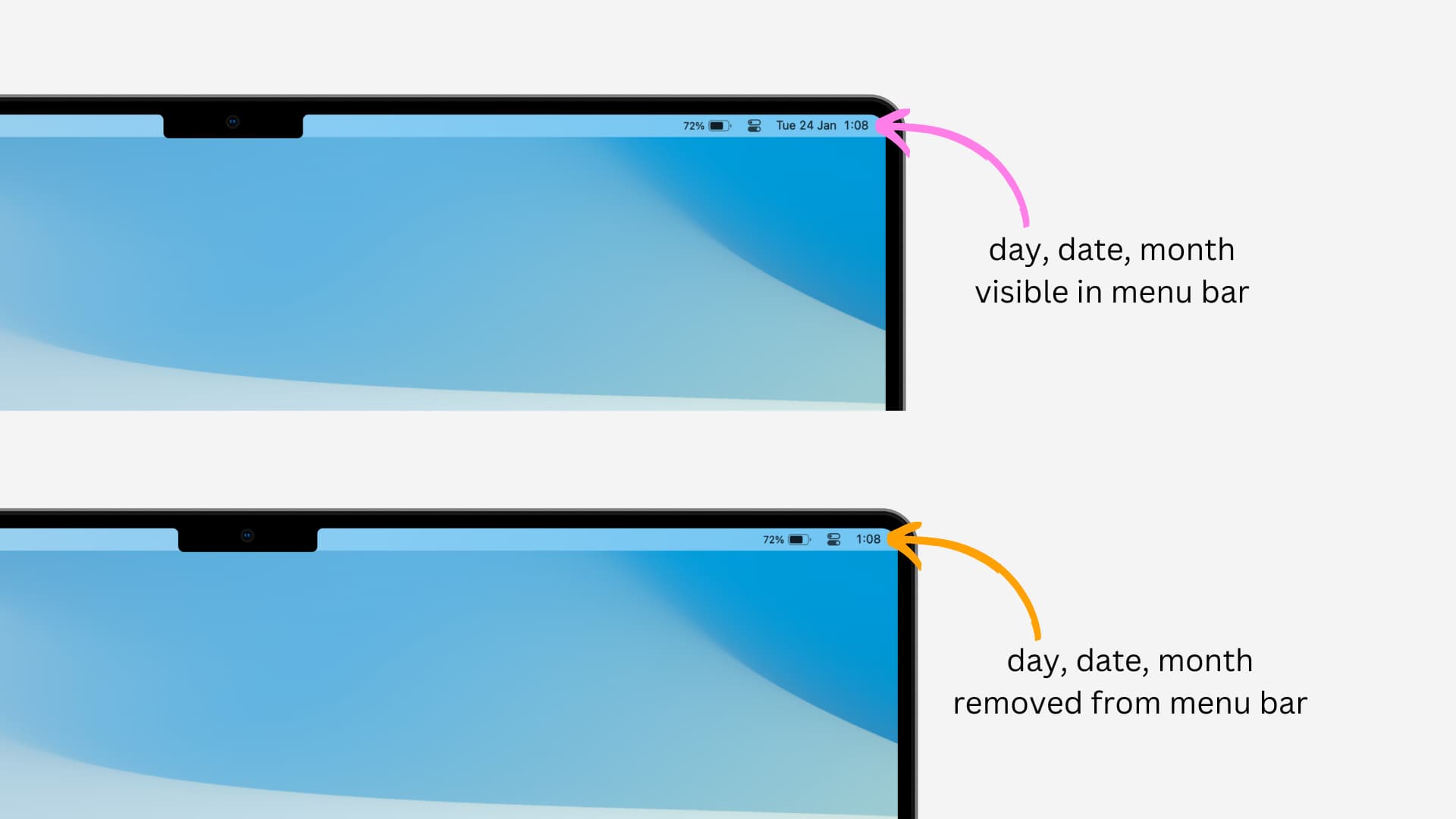
But why?
If you’re looking to hide the date in your Mac’s menu bar, you likely already have your reasons, but here are a few reasons I think people would find this action useful:
- You want to make room for other icons on the menu bar.
- You prefer a minimalist look with as few icons as possible.
- You’re using a more powerful app, such as Dato, to display the date and more.
- You want the date and day to be hidden from the full-screen screenshots and screen recordings you capture on your Mac.
Also see: 14 useful free apps for your Mac menu bar
Remove the day and date from the top menu bar on your Mac
Unlike what you might think, the option to remove the date from the menu bar is not in the general Date & Time settings. Instead, it is hidden in the Control Center settings.
1) Open System Settings and select Menu Bar. On previous versions of macOS, select Control Center instead.
2) Click Clock Options next to Clock.

3) Turn off ‘Show date’ or set it to ‘Never.’ You’ll see that the date disappears from the top right of the menu bar.
4) If you don’t want to see today’s day, turn off the switch for ‘Show the day of the week.’
5) Finally, click Done.

Are you on an older version of macOS?
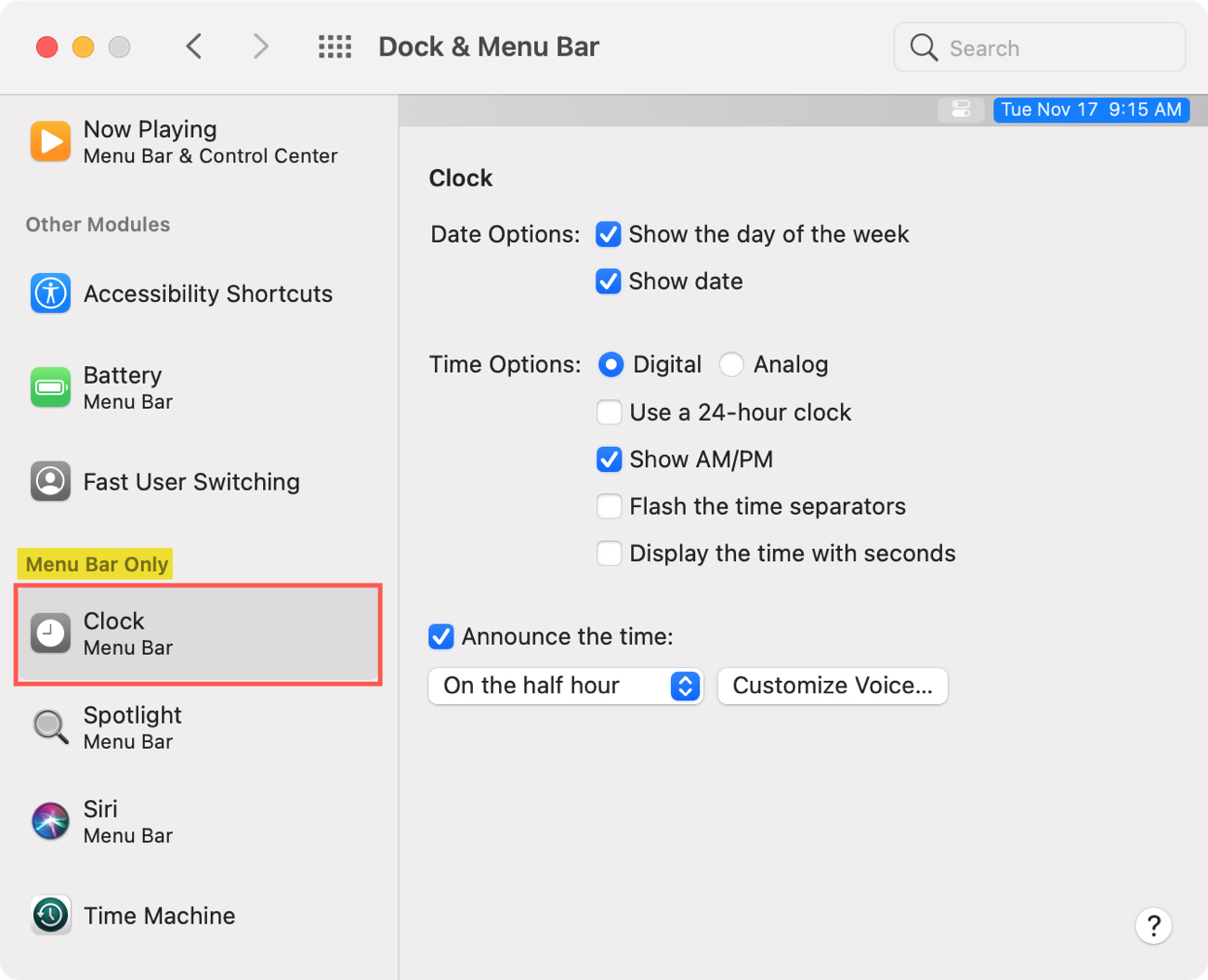
To hide the day and date on an older version of macOS, go to System Preferences > Dock & Menu Bar > Clock and uncheck the box for ‘Show the day of the week’ and ‘Show date.’
Is it possible to hide the time from Mac’s menu bar?
There is no option to completely remove the clock from Mac’s top menu bar. However, you can go to System Settings > Menu Bar > Clock Options and choose the Analog clock style, which will replace the digital clock and reduce the size of the time indicator, thus making more space for your other icons.
More menu bar tips for your Mac: