Learn how to reset your Screen Time passcode if you have forgotten it, whether for your own Apple devices or your child’s iPhone, iPad, or Mac.
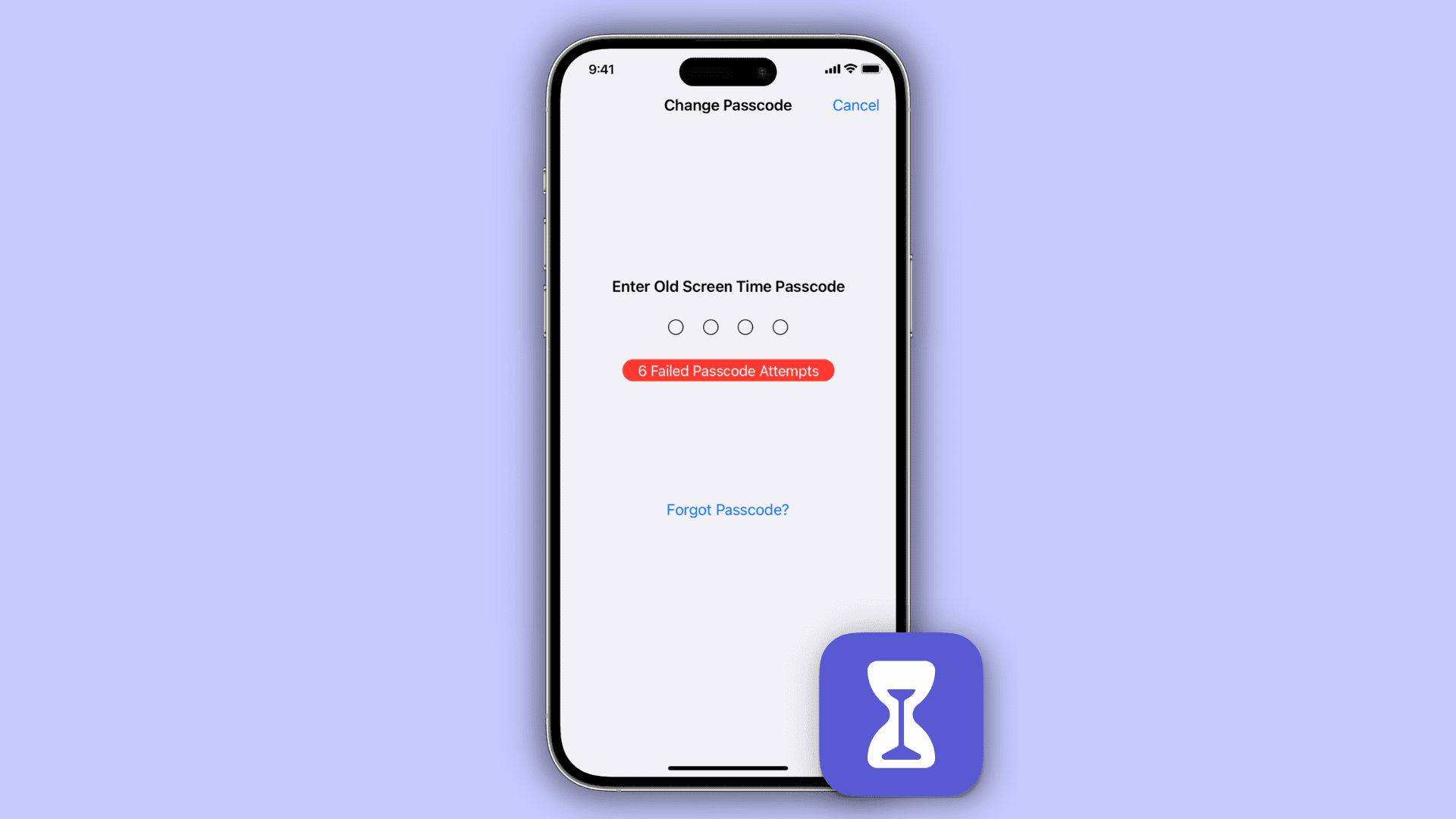
What is a Screen Time passcode?
Screen Time is a powerful feature that lets you set privacy restrictions, block app installation or deletion, limit usage, prevent in-app purchases, restrict certain apps and websites, block Apple Intelligence features, and much more. You can enable it on your own and your child’s iPhone, iPad, and Mac.
When setting up Screen Time initially or at any point later, you can create a Screen Time passcode to prevent your child from removing the restrictions you’ve set on their device. Similarly, you can set a passcode on your own device to prevent anyone from changing its settings.
How to reset the Screen Time passcode
If you’ve forgotten your Mac, iPad, or iPhone Screen Time passcode, here’s how to reset it. The steps are updated for the latest versions of iOS, iPadOS, and macOS, but they’ll help even if you’re on an older version.
On iPhone or iPad
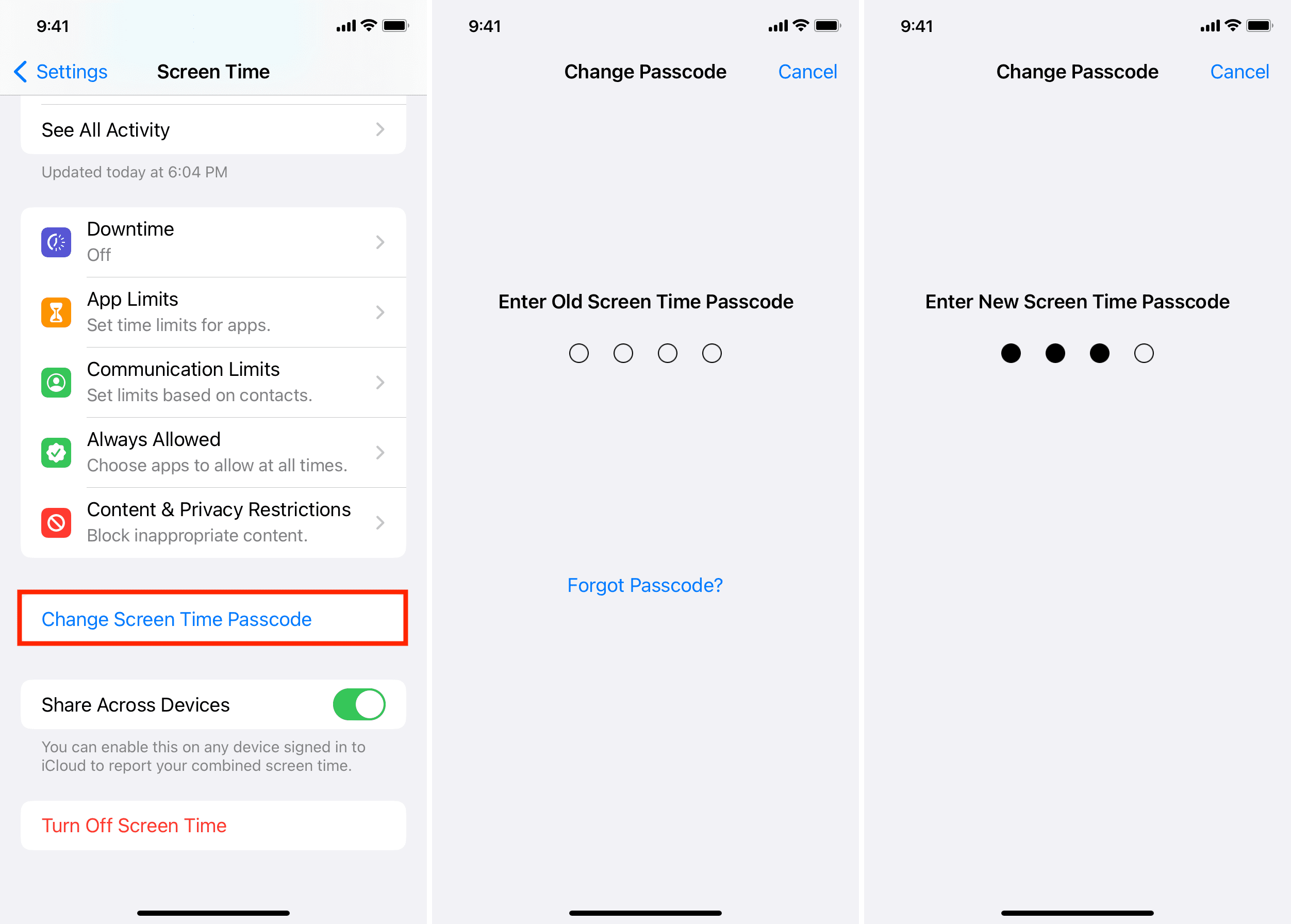
1) Open the iOS Settings app and tap Screen Time.
2) Tap Change Screen Time Passcode twice, as shown in the screenshots below.

3) Tap Forgot Passcode?
4) Enter your Apple Account email address or phone number and tap OK. Next, enter your Apple Account password and hit OK.

5) In a few seconds, you’ll see the option to enter a new Screen Time passcode.
6) Finish the Screen Time Passcode Recovery step by entering your Apple Account email and passcode once more.

This is how you can reset the Screen Time passcode using your iPhone or iPad.
If you don’t know your Apple Account email address or have forgotten its password, see our linked articles for help.
On Mac
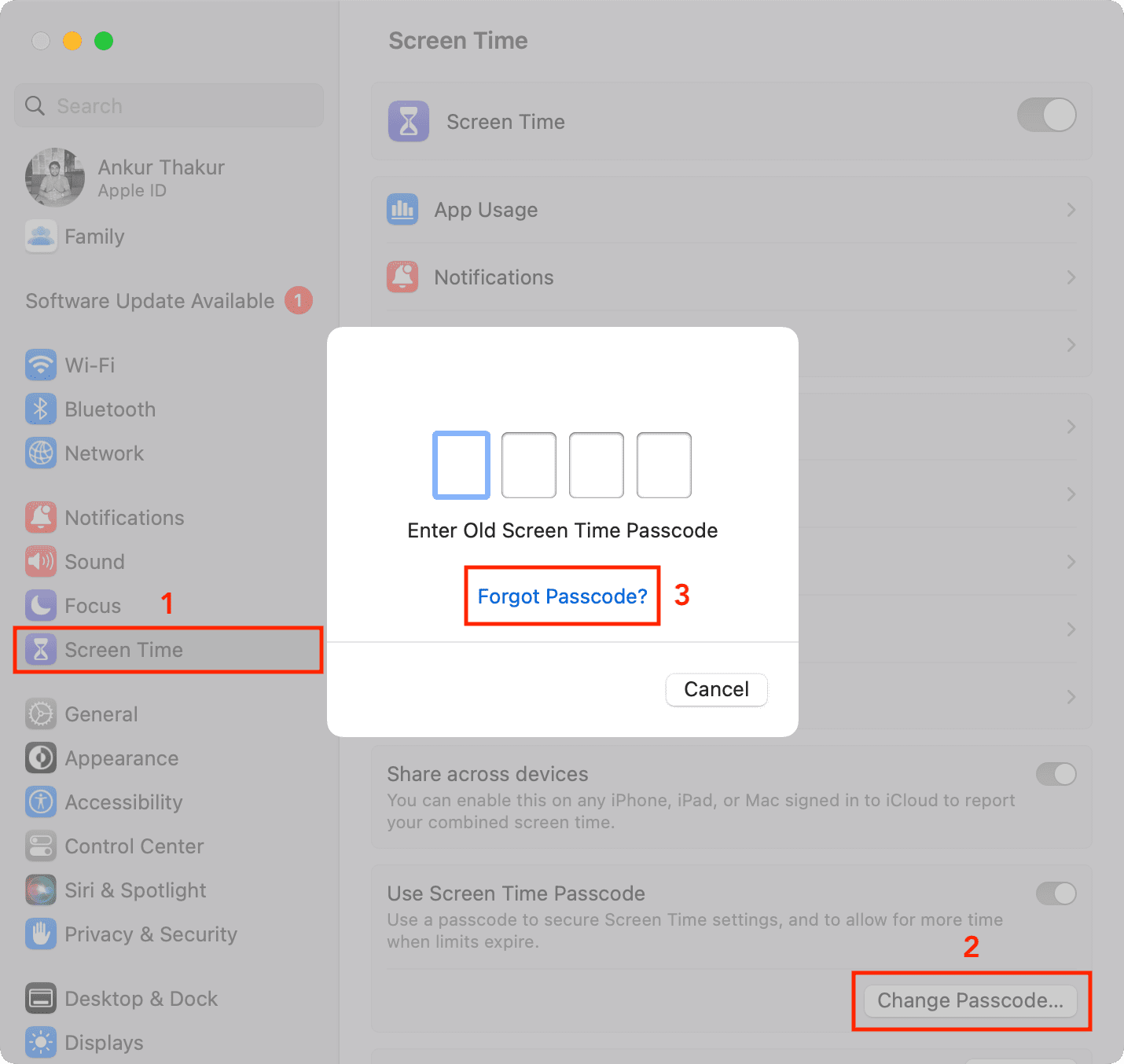
- Open System Settings or System Preferences.
- Select Screen Time.
- Click Change Passcode > Forgot Passcode.
- Enter your Apple Account email and password to authenticate.
- Type the new Screen Time passcode you want to set and finish things off by entering your Apple Account and its password.
Reset the Screen Time passcode for your child’s device
If you use Family Sharing and manage your child’s device, you (as the family organizer) can reset their device’s Screen Time passcode from your iPhone.
1) Go to the Settings app on your iPhone or iPad and tap Screen Time.
2) Scroll down to the Family section, and tap your child’s name.
3) Tap Manage Screen Time from the bottom.

4) Tap Change Screen Time Passcode twice, and authenticate using your Face ID, Touch ID, or device passcode.
5) Finally, you’ll see the passcode screen to set the new Screen Time passcode for your child’s device.

Frequently Asked Questions about Screen Time
How to change the Screen Time passcode
If you don’t remember your Screen Time password, you’ll have to follow the above steps to reset it. However, if you do remember it but want to change it to something else, follow this quick guide:
- Open Settings and select Screen Time.
- Tap Change Screen Time Passcode > Change Screen Time Passcode.
- Enter your old Screen Time passcode.
- If you entered the old passcode correctly, you’ll see the screen to set a new, different Screen Time passcode. Type in the new passcode.
How to find out a Screen Time password
Back in iOS 12 and earlier (when most features of Screen Time were under a setting called Restrictions), you could use free unlocker tools like Pinfinder, which would use your device’s iTunes backup to find your Screen Time or Restrictions passcode. However, this no longer works with modern iOS versions.
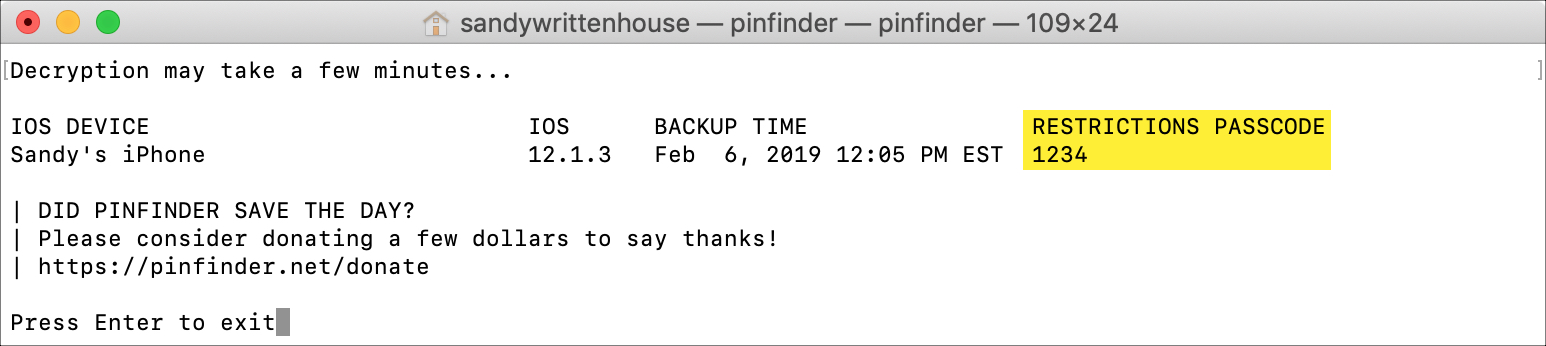
Plus, Apple makes it super easy to reset your forgotten Screen Time passcode, so there’s no need to use third-party apps that go through your device’s backup.
Blocked from entering the Screen Time password?
Just like your iPhone gets disabled after entering the wrong device passcode multiple times, you’ll get the same warning after several incorrect Screen Time passcode attempts. After multiple failed tries, your iPhone or iPad will block you from making more guesses for a minute or so.
If you’ve forgotten your Screen Time passcode, simply reset it using the steps above. If you prefer not to reset it, try using the passwords you most commonly use.
What is the default Screen Time passcode?
There is no default Screen Time passcode on iPhone, iPad, or Mac. Instead, the Screen Time passcode is a four-digit numeric passcode set by the user or the child’s guardian.
How to bypass Screen Time
There isn’t a way to bypass Screen Time restrictions until you enter the correct Screen Time passcode. For instance, if your guardian has set a limit on app usage and you exceed that daily limit, you can use that app for one more minute without the passcode. After that, you’ll have to request more time from your guardian or enter the Screen Time passcode.
If anyone could turn off Screen Time without entering its passcode, it would defeat the purpose, as a child could easily bypass all restrictions set by the guardian by simply turning off Screen Time!
How to bypass Screen Time passcode
There’s no way to bypass the Screen Time passcode, but you can reset a forgotten passcode without losing your data or settings.
How to erase an iPhone without the Screen Time passcode
When you try to erase all content of your iPhone from the Settings app, you may be asked for the Screen Time passcode (along with the device passcode) to proceed, which could lead to data loss.
However, if you don’t know your Apple Screen Time passcode and can’t reset it for any reason, your only option is to use a computer to restore your iPhone with Recovery Mode.
This will erase everything on your iPhone and reinstall iOS. Afterward, you can set up your device again. Important: During setup, you’ll need to enter your Apple Account password to remove the Activation Lock, which is enabled by the Find My feature.
Also, check out: