Learn how to turn off or customize spoken turn-by-turn directions in Apple Maps and Google Maps on your iPhone.
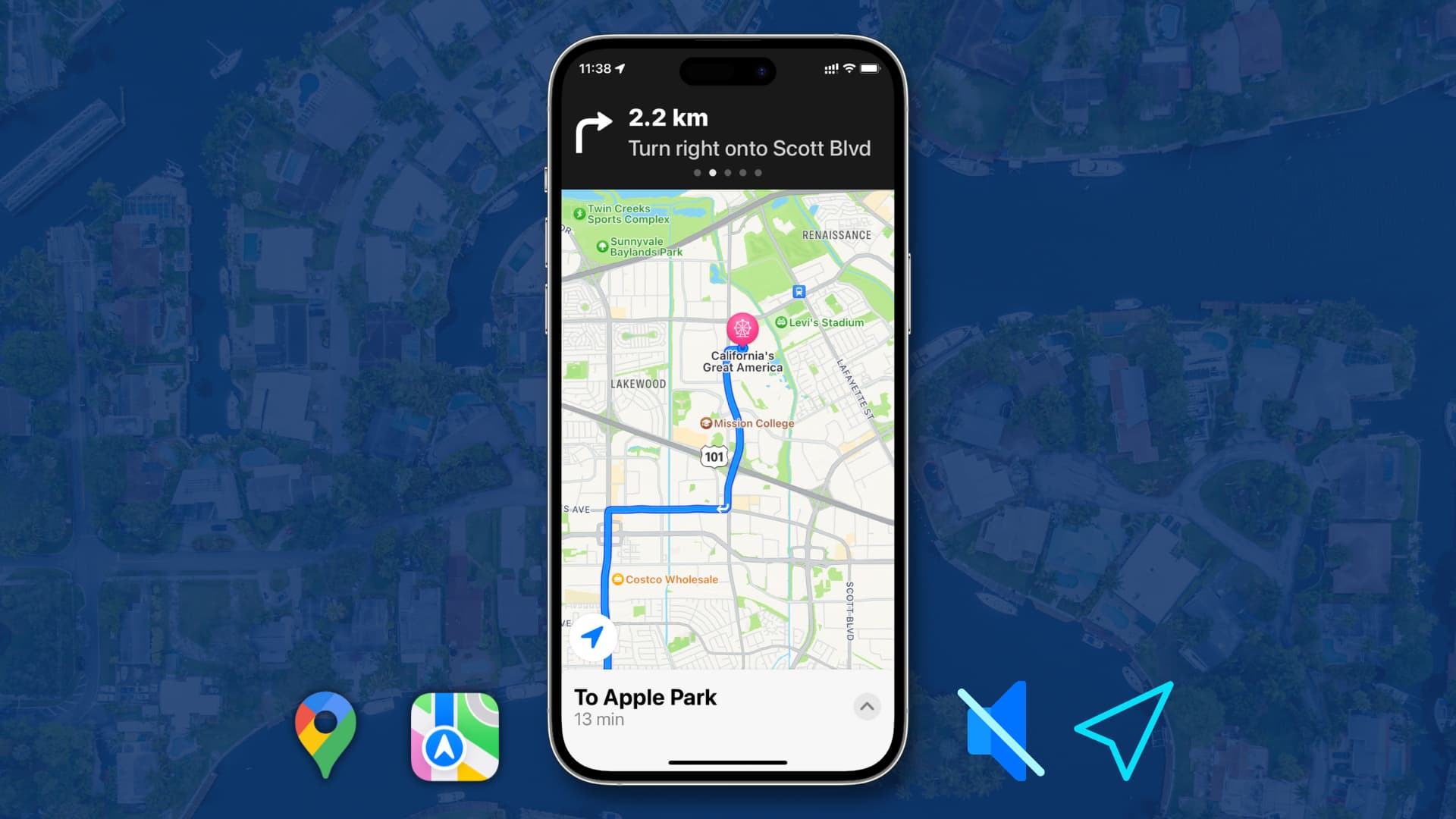
When using turn-by-turn navigation in Apple Maps or Google Maps, your iPhone announces upcoming turns and alerts, so you can stay informed without looking at the screen.
If you find these instructions unnecessary, turning off the voice guidance or adjusting its volume is simple.
Apple Maps
Depending on your needs, you can set Apple Maps to announce every turn loudly, speak only the alerts, or remain completely silent.
Turn spoken directions on or off
1) Open Apple Maps and start turn-by-turn navigation to some place.
2) Tap the speaker button if you see it on the screen. If you don’t, swipe up on the bottom card and tap Voice Controls.

3) Select Muted to switch off voice alerts for all directions. Or set it to Alerts Only to get audio announcements for important driving alerts only. You can also choose Louder, Normal, or Softer volume levels from this screen.

If you want to change the volume of spoken directions in Apple Maps, use the volume up and down buttons on your iPhone. You can also choose one of the three Voice Volume options explained in step 4 above or below.
Customize spoken directions settings
1) Open the Settings app and tap Apps > Maps.
2) Scroll down and tap Spoken Directions. From here, you can enable or disable the following options:
- Voice Volume: Choose from softer, normal, or louder volume options.
- Directions Pause Spoken Audio: This feature allows you to pause currently playing content like podcasts, audiobooks, music, etc., when Apple Maps on your iPhone speaks the directions.
- Directions Wake Device: During a long trip, you may lock the iPhone screen to save its battery or minimize light distractions while driving at night. However, even after the screen turns off, Apple Maps continues to run the navigation, and enabling the Directions Wake Device toggle will ensure that when you have to make a turn or something, the spoken directions wake your iPhone screen for visual assistance.
- Directions on Radio: On supported cars, you can hear the spoken directions on your car speaker.

Google Maps
While the screenshots here are from an iPhone, these steps also apply to Google Maps on Android.
1) Tap the speaker button on the Google Maps navigation screen to set it to alerts only (speaker icon with an alert symbol).

2) To turn off all alerts, swipe up on the bottom card and tap Settings. Then, turn make sure “Mute” is selected under the ‘Guidance audio’ section. Next, turn off “Play alerts even while muted.” You can also select Softer, Normal, or Louder guidance volume from this screen.
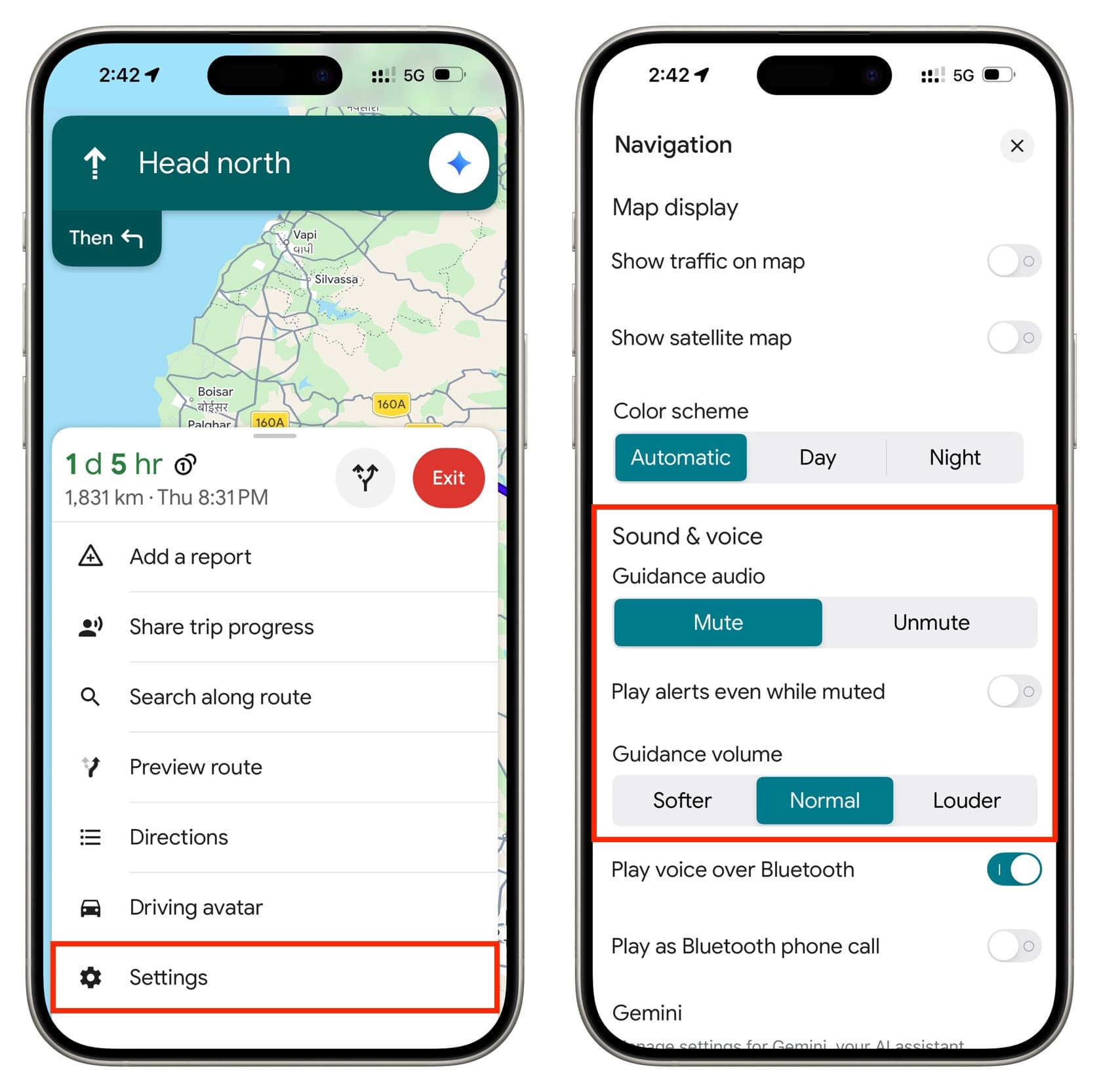
While using turn-by-turn navigation, you can use the physical volume buttons to increase or decrease the sound level for spoken directions in Google Maps.
Note that the “Play alerts even while muted” ensures your phone only announces specific alerts.
Depending on your needs, you can set Apple Maps or Google Maps to loudly inform you of every turn, speak only the alerts, or go completely mute.
On a related note: