Increase the privacy of your personal conversations on iPhone by locking the Messages app or hiding texts so others with access to your phone can’t see them.
Make sure you have set a password for your iPhone
Adding a passcode can protect your messages, photos, calls, contacts, and everything else on your iPhone. So, in case you are not using one, head to Settings > Face ID/Touch ID & Passcode and add a passcode.
Lock the Messages app on iPhone or iPad
iOS has a built-in way to lock and hide apps. While you cannot hide the Messages app, you can certainly lock it. Once that’s done, your iPhone or iPad will require Face ID, Touch ID, or device passcode before letting you or anyone else into the Messages app.
So, if you’re looking to secure your SMS texts and iMessages from others, this is the go-to way to do that.
- Touch and hold the Messages app icon on your iPhone or iPad Home Screen and tap Require Face ID.
- Tap Require Face ID again from the popup. Going forward, the Messages app will need authentication before displaying the texts.

If you no longer want to lock the app, touch and hold it and select Don’t Require Face ID.
Other tips
There is no straightforward way to lock the Messages app to hide your conversations if your iPhone or iPad is on an older version of iOS or iPadOS. However, you can explore these options if you want to prevent your private SMS or iMessage from being seen by family members, friends, and others.
Make the messages private on the Lock Screen
When your iPhone is left on the office table or in the family room, incoming texts appear on the Lock Screen, and anyone can see the initial part of the message. Turn off previews on the Lock Screen to address this.
Set the message to come in discreetly
When you receive a new message, your iPhone alerts you with a sound. Your office colleagues or family members will get a hint if you receive several texts in a short span of time. To address this, silence your message notifications and prevent them from waking the screen. You can do this for all texts or just those from specific people.
Hide all message notifications
You can take things further by disabling message notifications on the Lock Screen by going to Settings > Notifications > Messages and turning off the Allow Notifications switch. From now on, you won’t be notified of any new incoming messages and can see new texts only when you go inside the Messages app.
Use Screen Time to lock the Messages app
Screen Time has an App Limit feature that lets you set a daily time limit, and once that’s reached, it locks the app. Just set a one-minute daily limit for Messages.
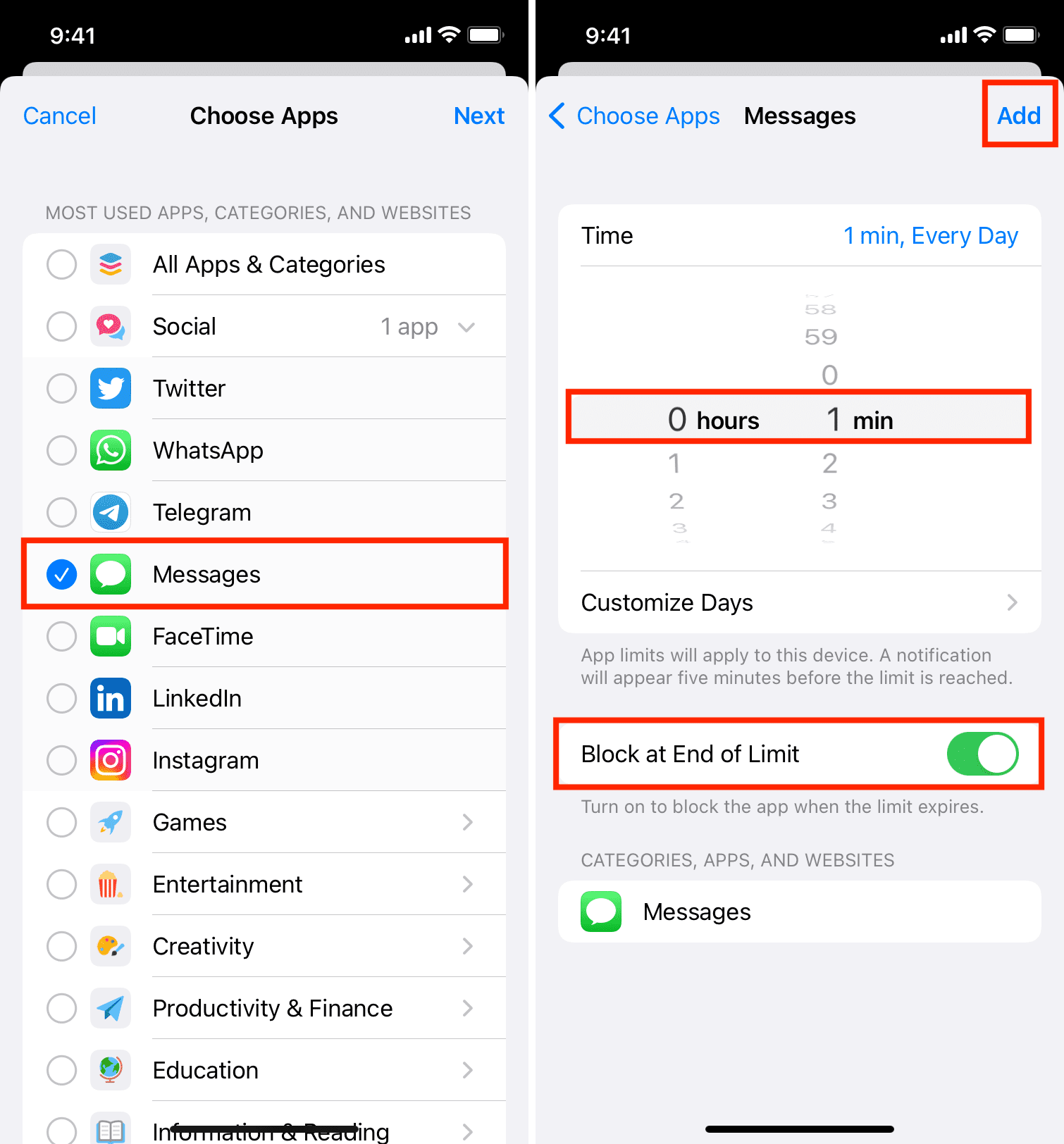
Then, open the Messages app and use it for a minute. After one minute, it will show that you have hit the time limit. Tap Ask For More Time > One More Minute. The first extra minute is allowed without the password.
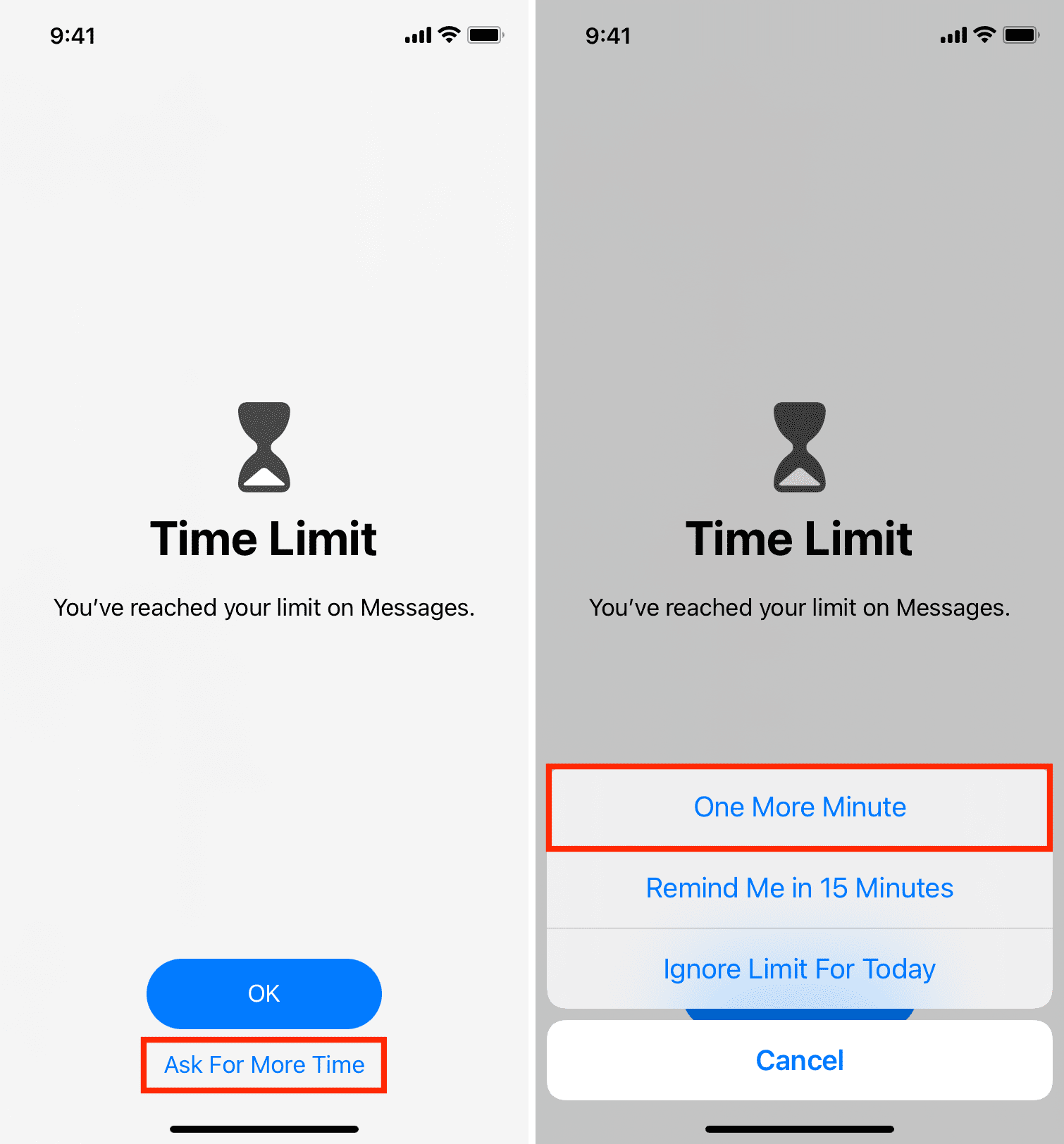
After using the app for one more minute, it will lock itself. From now on, the only way to get inside the Message app (until midnight) is by entering the Screen Time passcode (don’t share it with anyone else). For that, tap Ask For More Time > Enter Screen Time Passcode and approve for 15 minutes, an hour, or the rest of the day.
The above solution is not as perfect as a dedicated password lock, but it’s something you can explore. And if you don’t enter the Screen Time passcode and approve for 15 minutes or an hour, the app will keep itself locked the entire day, and no one can see your conversations.
Just keep in mind that Screen Time limits reset at midnight. So, you’ll have to use the app for 1 + 1 = 2 minutes again for the Screen Time lock to come into action.
Save messages to the Notes app and lock the note
If you have some meaningful conversations that you want to privately store for the future, you can take their screenshots and save those images to the Notes app. After that, lock that note with a password.
Export, print, or screenshot your messages
Another approach to keep some sensitive messages hidden is to export or print them (or take screenshots). After that, keep the exported file, the printed paper, or the screenshots somewhere safe that only you can access.
Turn off iMessage on your other Apple devices
If you own multiple Apple devices, keeping iMessage enabled on all can be a privacy nightmare. For instance, it isn’t very private to keep iMessage active on a Mac that your family members share.
Therefore, for maximum privacy, keep iMessage enabled only on the device that’s always with you, like your iPhone. If family members or office colleagues use your Mac or iPad, turn off iMessage by following these steps:
- On iPhone or iPad: Go to Settings > Apps > Messages, and turn off iMessage.
- On Mac: Open Messages and press the Command + , (comma) keys to go to app settings. Now click iMessage. Finally, click Sign Out next to your Apple Account to stop using iMessage.
Use iMessage alternatives like WhatsApp, Signal, Telegram
I understand if you’re used to iMessage and have meaningful conversations on it. But if locking your chat is of utmost importance, consider switching to apps like WhatsApp. Don’t forget to ask your friends to sign up for that service as well.
Use ChatLock jailbreak tweak
If you have jailbroken your iPhone, use the ChatLock tweak to add a passcode to the Messages app. This is handy and lets you keep your conversations protected.
Check out next: