Learn how to add a VPN button to your iPhone or iPad Control Center so you can toggle your favorite VPN without leaving the app you’re using.

Before we get to it, be sure you’ve set up a VPN on your iPhone or iPad.
Add a VPN button to Control Center
A VPN option is readily available within the Connectivity bundle of the iPhone or iPad’s customizable Control Center. Simply touch and hold the tile in the upper-left corner with controls for Airplane mode, AirDrop, and Wi-Fi to expand it, then you can toggle your VPN.

You can also add a standalone VPN button to Control Center for faster access. Apple permits third-party app developers to create Control Center widgets for their apps. If your favorite VPN provider has one, you can add it to Control Center by following the instructions below.
1) Open Control Center on your iPhone or iPad by swiping down from the top-right corner of the screen.
2) Touch and hold an empty spot in Control Center or tap the plus button in the top-left corner.
3) Tap Add a Control at the bottom of the screen.

4) Search for VPN using the search field at the top of the Control Center gallery, then select to add a corresponding VPN button to Control Center. You can pick the built-in VPN control from the Connectivity section or a custom third-party one, like NordVPN.
5) Swipe up from the bottom to exit editing mode.

You now have a handy VPN toggle in Control Center.
From my personal experience, the built-in control works best with a single VPN app configured on your device. While it reliably disconnects the VPN, the built-in control often struggles to connect to the VPN, throwing errors like “User authentication failed” or “The VPN server did not respond.”

I also noticed that ProtonVPN would automatically reconnect the VPN whenever I switch to it, even after turning off the VPN via Control Center. This may also happen with other VPN clients if they’re configured to automatically reconnect in order to stop leaking your IP addresses when the VPN connection drops. This is why you may prefer an app’s custom VPN button for Control Center over Apple’s default control.
Add a VPN toggle to Control Center on jailbroken devices
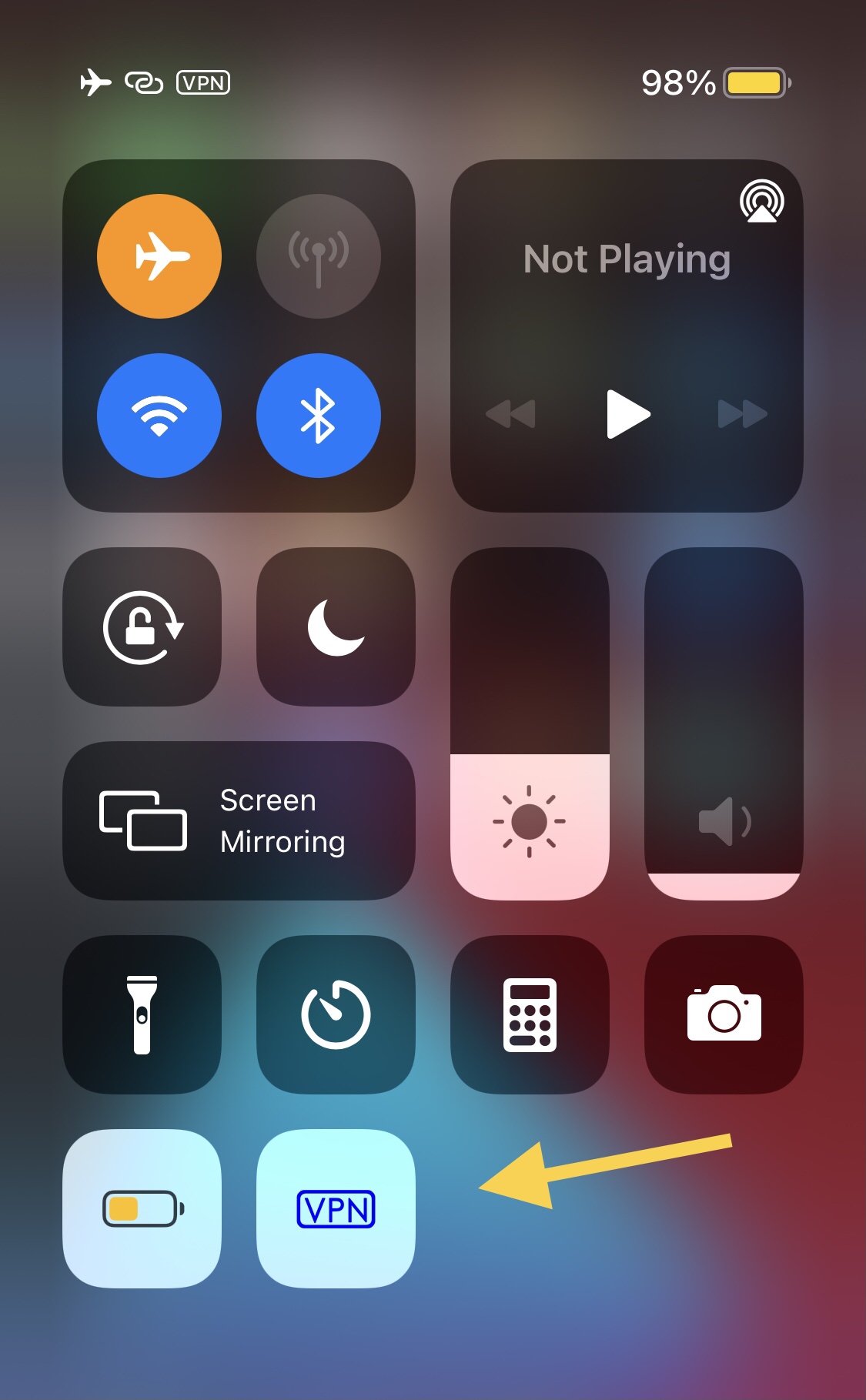
Older versions of iOS don’t have a built-in VPN toggle for Control Center. If your device is jailbroken, however, a free add-on for CCSupport called CCVPN by iOS developer KingPuffDaddi will let you add a VPN toggle to your Control Center.
CCSupport is a package that lets developers create new shortcuts and toggles for Control Center, which are listed in the Settings app alongside built-in controls. CCVPN works in much the same way; after installing it, visit Settings → Control Center to add CCVPN to the Included Controls section, as shown in the screenshot below.
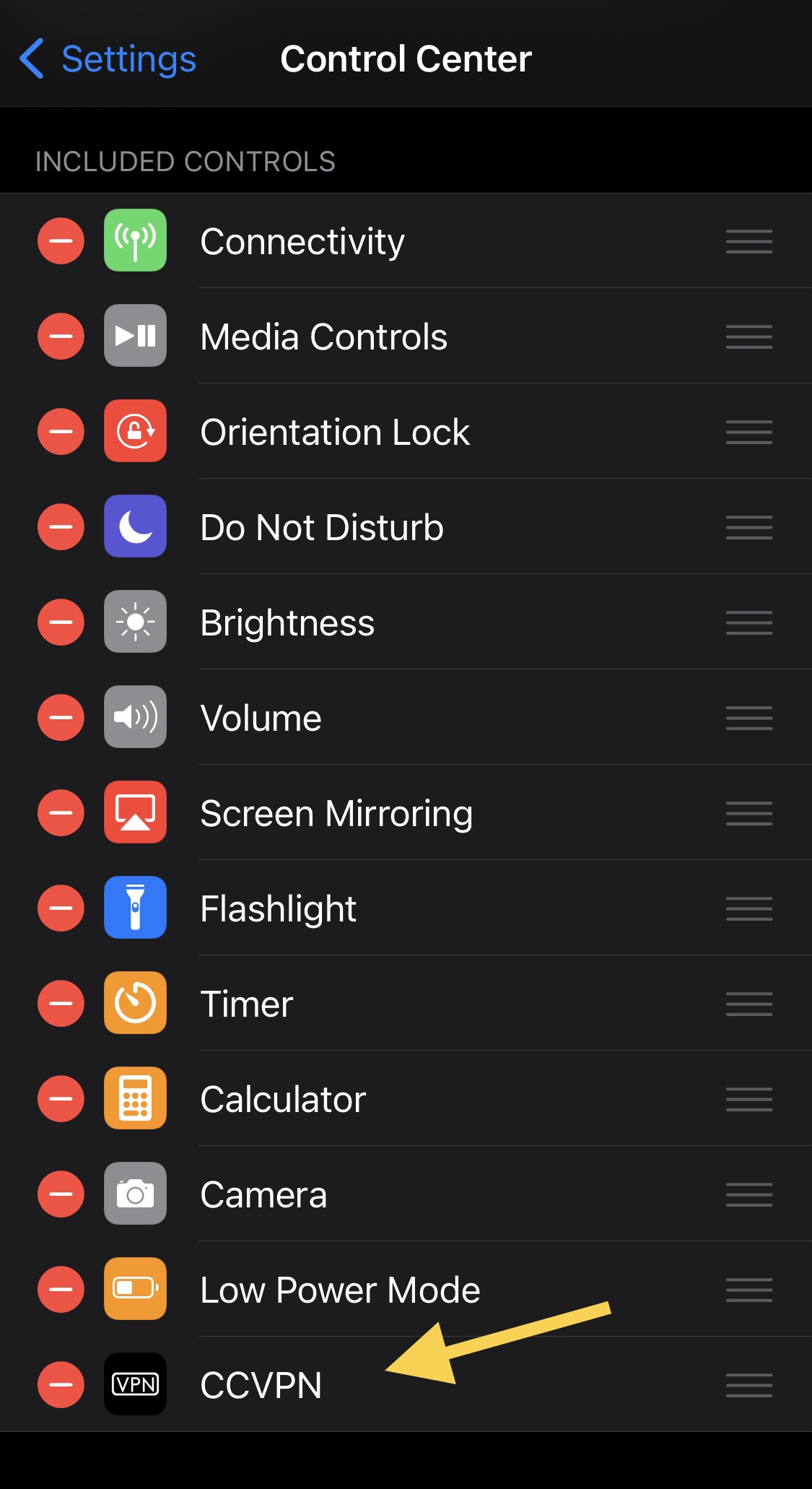
You can download CCVPN for free from the BigBoss repository via your favorite package manager app. The add-on supports all jailbroken iPhones running iOS 11, 12, 13, 14, 15, and iOS 16.
Do you plan to add a VPN toggle to your iPhone’s Control Center? Let us know in the comments below.
More on VPNs: