Learn how to send PDF, ZIP, TXT, and other files through iMessage on iPhone, iPad, and Mac without using additional apps.
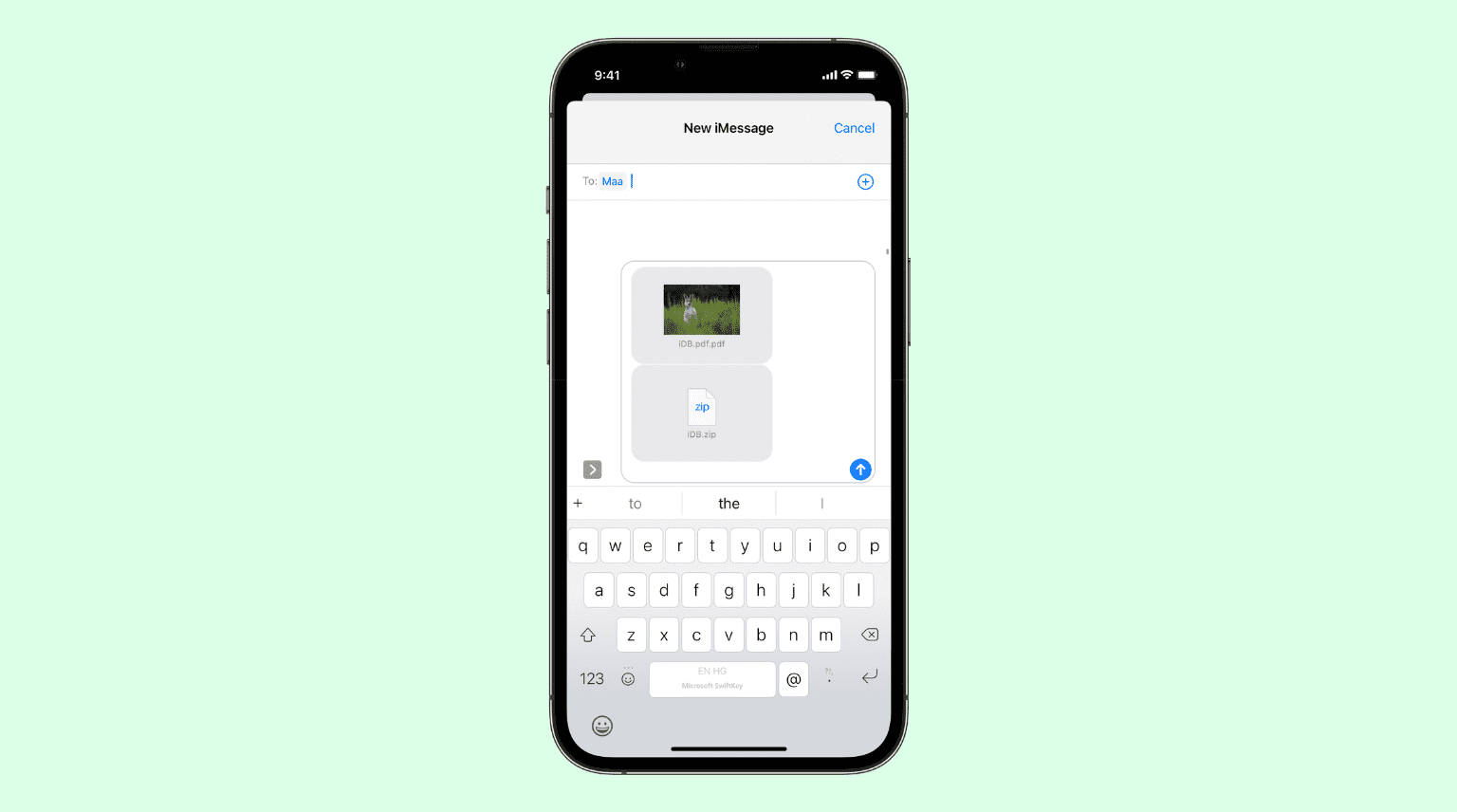
When you’re inside an iMessage chat, you only see the option to send photos and videos. As a result, you might wonder how to send a PDF via iMessage or how to attach a ZIP file to your text. It’s actually very easy to do, and you don’t even need additional third-party apps or services.
Send PDF, ZIP, and other files using iMessage on iPhone and iPad
1) Open the Apple Files app that’s preinstalled on all iPhones and iPads.
2) Tap the Browse button and go to the iCloud Drive or On My iPhone folder where your files are saved.

3) Tap the three dots icon, followed by Select.

4) Mark one or more PDF, ZIP, or other files that you want to send. Note that you can select files of different types, such as one PDF and one ZIP.
5) Tap the share icon and select Messages from the iOS Share Sheet.

6) Type the person’s name, email, or phone number and tap the blue arrow to send the files via iMessage.

If the file you want to send is not already in the Files app (On My iPhone or iCloud Drive), you’ll have to add it there first. The steps to do that are simple. Simply select the files in an app, tap the share icon, and select Save to Files.
If your PDF and ZIP files are in apps like Google Drive, Dropbox, or OneDrive, you can enable these services to show in the Apple Files app. After that, you can text the PDF or ZIP file easily via the Messages app.
Finally, if a third-party PDF or ZIP file app already lets you share them via the iOS Share Sheet, tap the share icon and choose Messages. This way, you eliminate an additional step of adding the file to the Files app.
Send files via iMessage from Mac
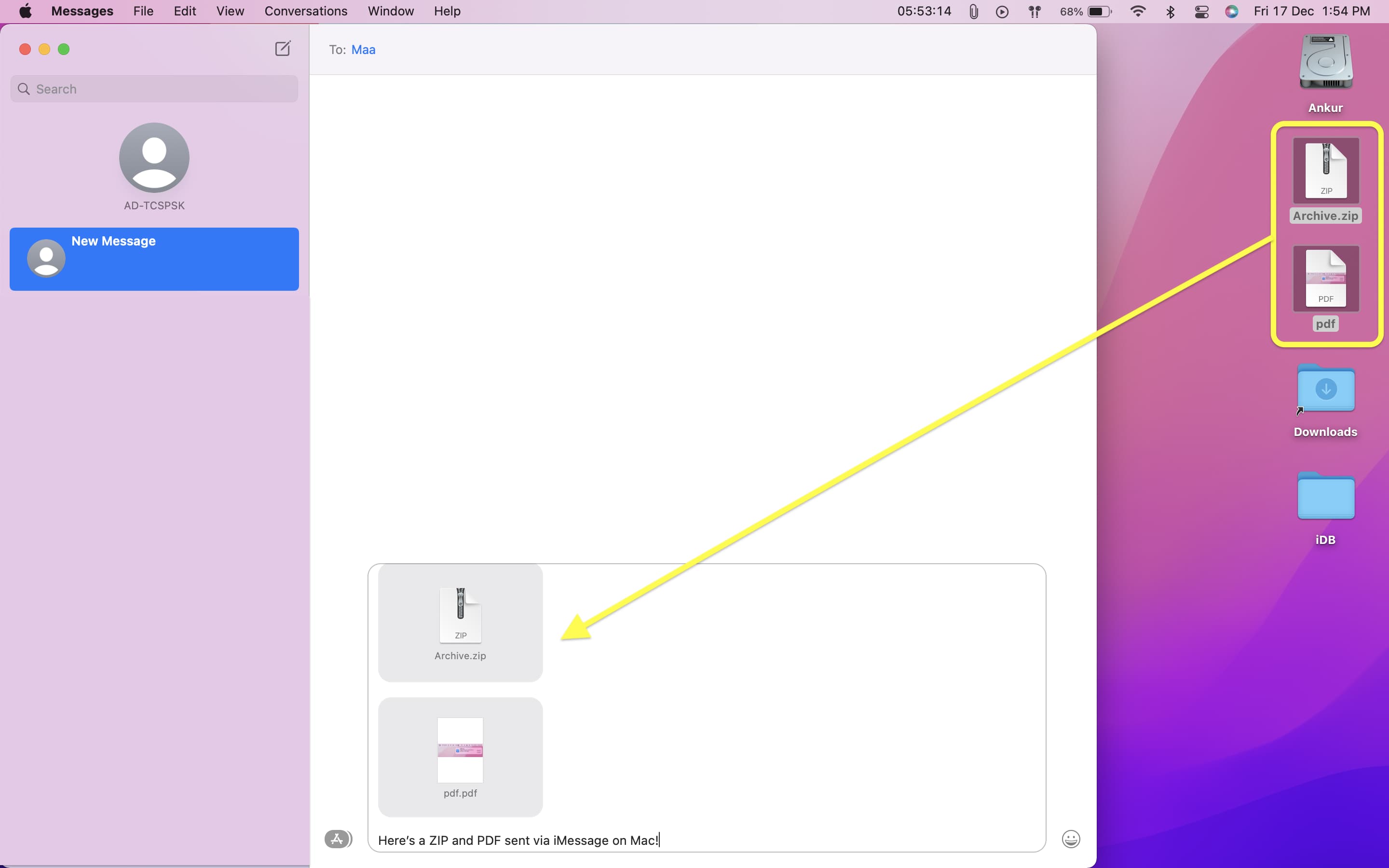
It can’t get easier to send PDFs, ZIPs, and other files through the Messages app on Mac. All you need to do is shrink the Messages app window size and drag & drop the file on the iMessage screen. After that, press the enter / return key to send the file.
Check out next: