Learn how to hide photos and videos on your iPhone, iPad, and Mac if you’d like to keep them private or simply want to declutter your camera roll.

About the ‘Hide’ feature in Apple Photos
You can hide a photo in a couple of taps, and then that particular item will no longer be visible in your main photo library. Instead, it will only appear in the dedicated ‘Hidden’ section of the Photos app, which, by the way, is locked behind Face ID (though you can very easily unlock it permanently).
Remember that instead of hiding individual items, you can also just lock the entire Photos app so no one can open it without authenticating with Face ID, Touch ID, or passcode.
Hide photos and videos on an iPhone or iPad
1) Open the Photos app and go to the Library tab.
2) Tap Select and mark one or more photos you want to hide.
3) Tap the three dots menu icon at the top.

4) Select Hide and confirm.

Hiding a photo or video puts it into the protected Hidden album so you can view it whenever you want. Hidden photos and videos are not deleted unless you choose to delete them manually.
- Open the Photos app and go to the Collections tab.
- Scroll down to the Utilities section, and tap Hidden.
- Tap View Album and authenticate with Face ID, Touch ID, or your passcode to view all your hidden photos and videos.

If you don’t see the Hidden album
Apple gives you the choice to hide the Hidden album. Once you do that, the Hidden album won’t appear visible in the Photos app even though it’s still present.
To show the Hidden album again:
- Go to iPhone or iPad Settings > Apps > Photos and tap Albums.
- Turn on the switch for Hidden Album (formerly Show Hidden Album).
- You can hide the album anytime by repeating the first step and turning off the Hidden Album switch.

Unhide photos and videos
- Go to the Hidden album in the iOS Photos app.
- Tap Select and mark one or more photos.
- Tap the three-dot button and choose Unhide.

Hide photos and videos on a Mac
You can create a locked folder on your Mac or an external drive and save any private photos there. You can also hide any photos or videos in the built-in Photos app.
Open the Photos app on your Mac and do one of the following:
- Select one or more photos and videos, then right-click or Control-click them and choose Hide [Number] Photo from the contextual menu.
- Select the photo(s) you’d like to hide and click Image > Hide [Number] Photos from the top menu bar.
- With the photo selected, press Command + L on the keyboard.
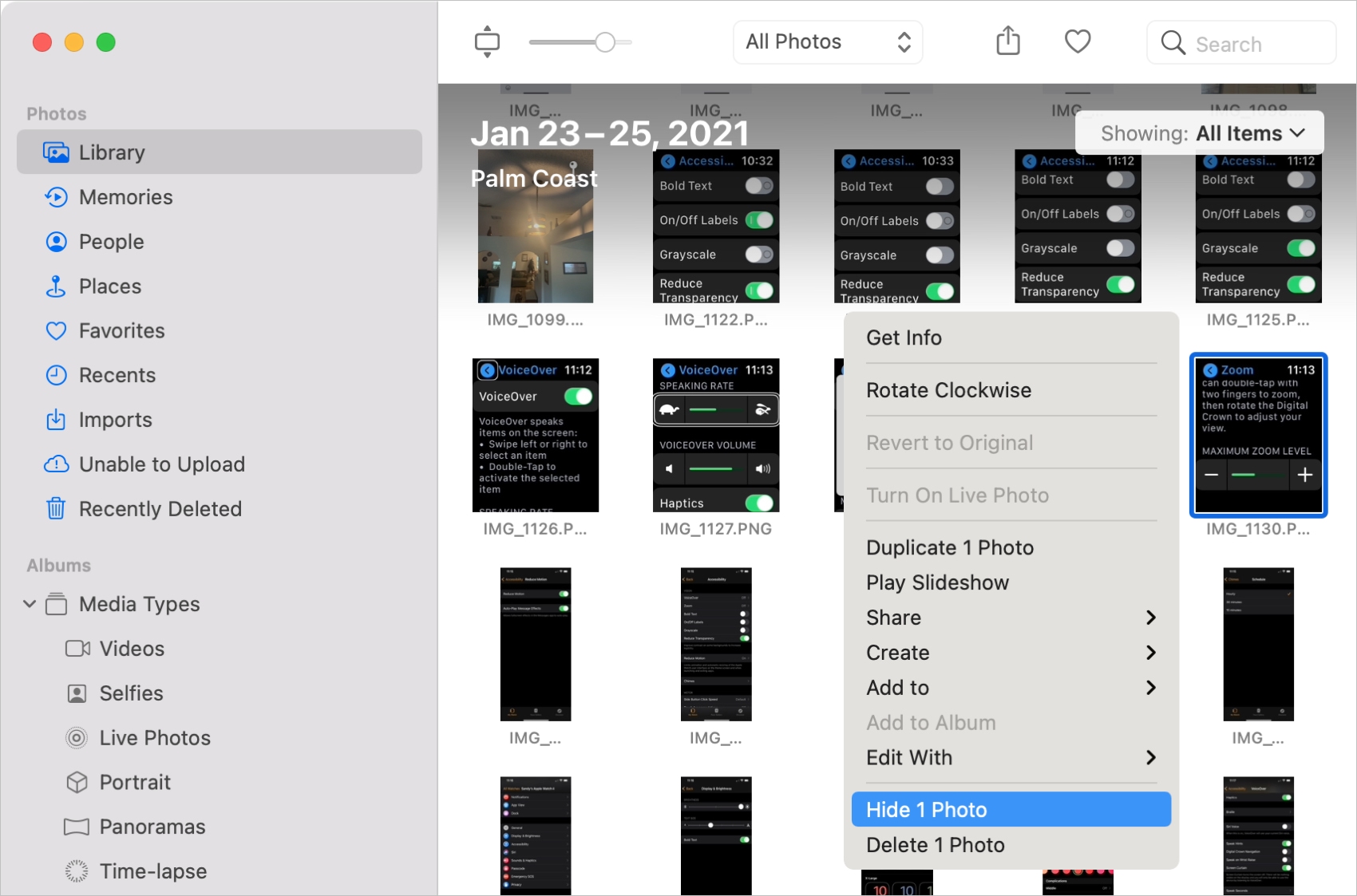
You’ll be asked to confirm the action, so choose Hide from the popup.
You must manually select an option to display the Hidden album on your Mac.
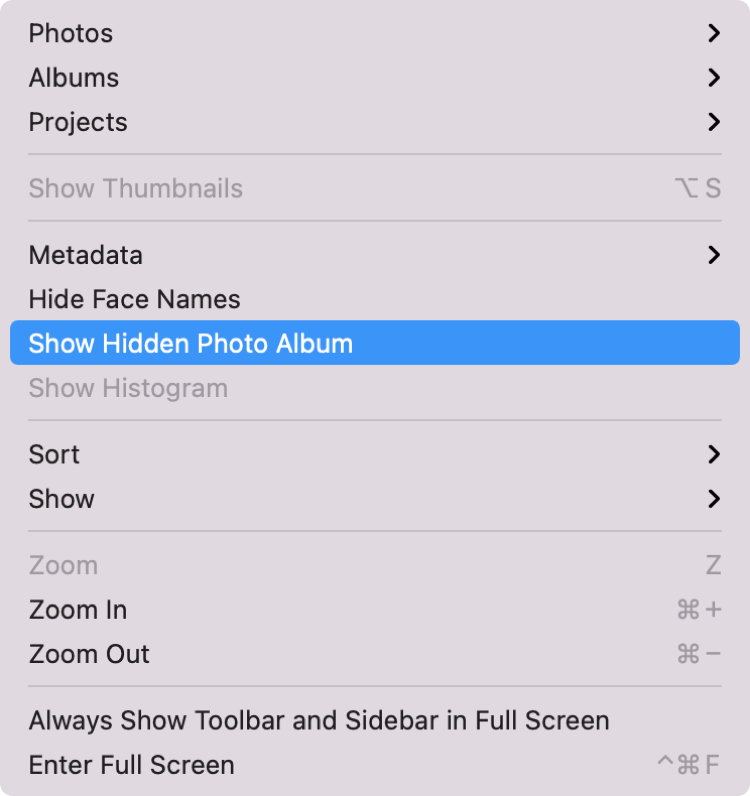
- With the Photos app open, click View > Show Hidden Photo Album in the top menu bar. You can hide the Hidden album by choosing the same action.
- Next, expand the Utilities section in the sidebar and click Hidden.
- Click View Album and authenticate with your Mac’s password or Touch ID to view your hidden media.

Unhide photos
If you’re ready to unhide a photo, open the Hidden album in the Photos app on your Mac, and perform one of the following actions:
- Right-click the photo and pick Unhide [Number] Photo from the menu.
- Select the photo and click Image > Unhide [Number] Photo in the menu bar.
- Select the hidden image and press the Command + L keys to unhide it.
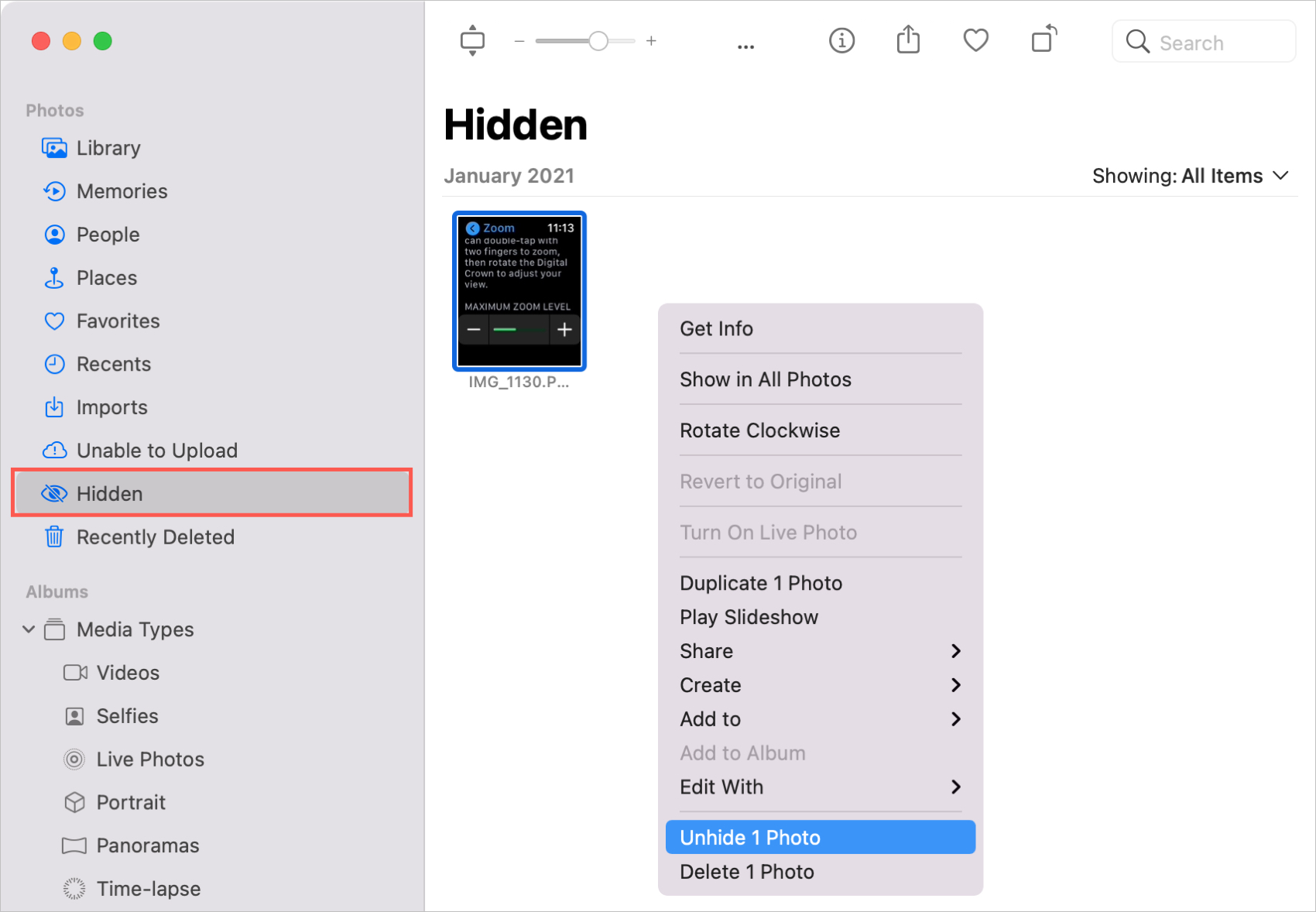
You can unhide multiple pictures at the same time by selecting them before choosing one of the above actions.
Hidden photos sync via iCloud
With iCloud Photos enabled, any photos you hide will sync across devices. For example, you can hide a photo on your iPhone and find it in the Hidden album on your Mac or unhide a photo on your Mac, and it will unhide on your iPhone, too.
On a related note: How to lock photos and videos with a password or Face ID on iPhone and iPad