You can include images and PDFs as references in your notes, which keeps everything together. And if you want to annotate one of those items, you can mark up images and PDFs right in the Notes app on your iPhone, iPad, and Mac.
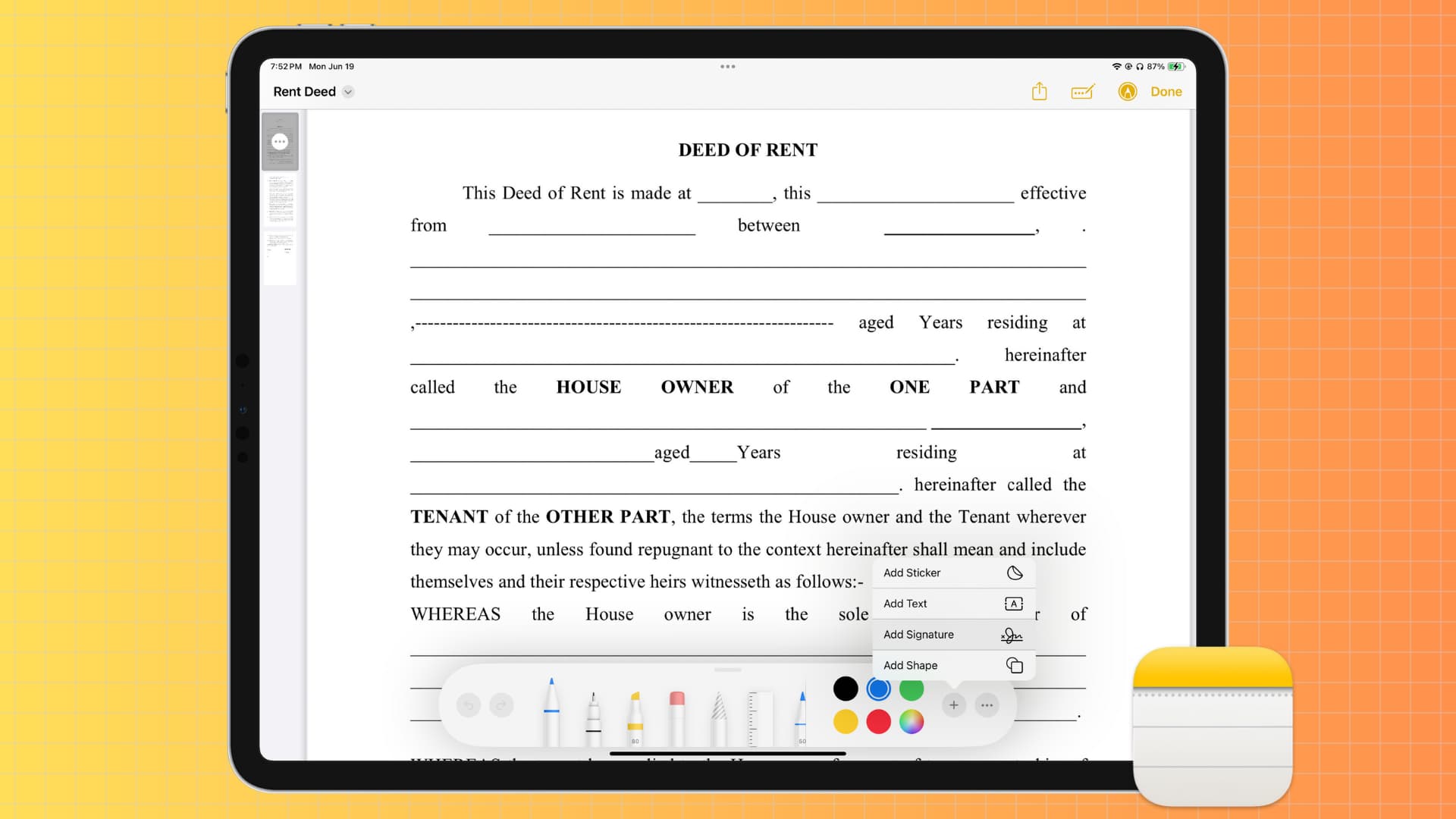
The Markup tools in the Notes app let you highlight, circle, add text, or magnify certain parts of an item so you can easily reference them with your note. You can also add a signature to them and use other useful tools.
In case an image or PDF isn’t added to your note, simply drag and drop one to add it. You can also tap the paper clip icon inside a note to insert a photo or scan documents that will be added as a PDF.
Markup images in Apple Notes
Edits you make on one device will sync to your other Apple devices via iCloud if they all have the same Apple Account.
iPhone or iPad
1) Go inside a note with an added picture and tap the image to open it in an enlarged view.
2) Tap the Markup icon.
3) Use the Markup tools and tap the checkmark icon to save the changes.

Mac
1) Open the Notes app and go to the note where you have the image.
2) Take the mouse cursor over the image and click the markup icon. On older versions of macOS, click the tiny arrow in the upper-right corner of the screen and choose Markup.

3) Use the Markup tools and click Done to save the changes.

Markup PDFs in Apple Notes
Like images, you can also work with documents in the Notes app and edit them.
iPhone or iPad
1) Launch the Notes app and find the note with the PDF.
2) If you’re on an iPad and have an Apple Pencil, you can directly annotate over the PDF. On iPhone, and even on iPad, tap the small arrow in the top-left corner of the PDF thumbnail, then choose Quick Look.

3) Tap the Markup button and annotate over the PDF as needed.
4) Then, tap the checkmark icon to save the changes (on older versions of iOS, tap the three dots icon at the top and choose Done).

Mac
1) Go inside the note with an added PDF or scanned document (which is a PDF).
2) Click the tiny arrow (formerly the three dots icon) next to the PDF name and choose Markup.
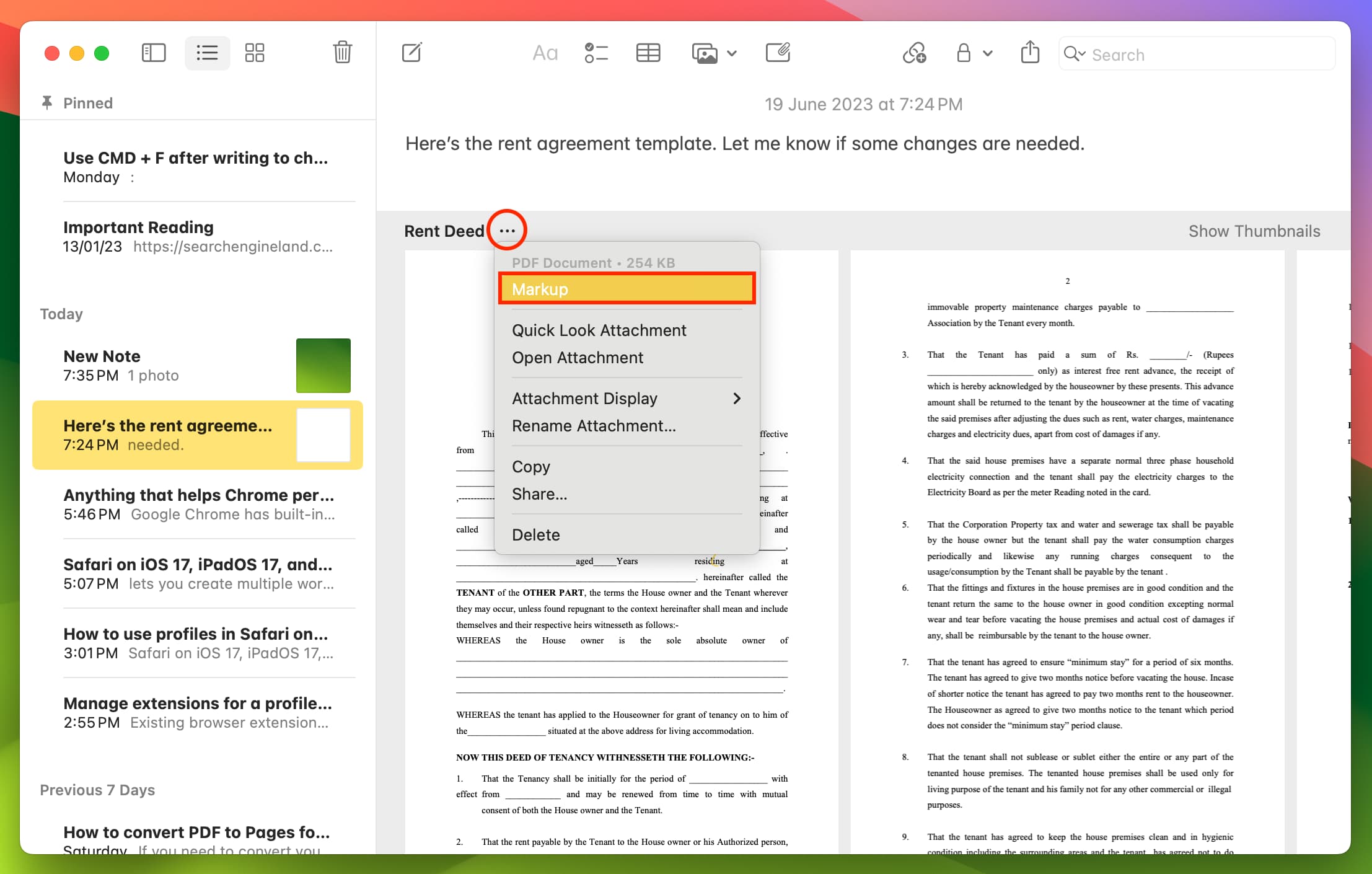
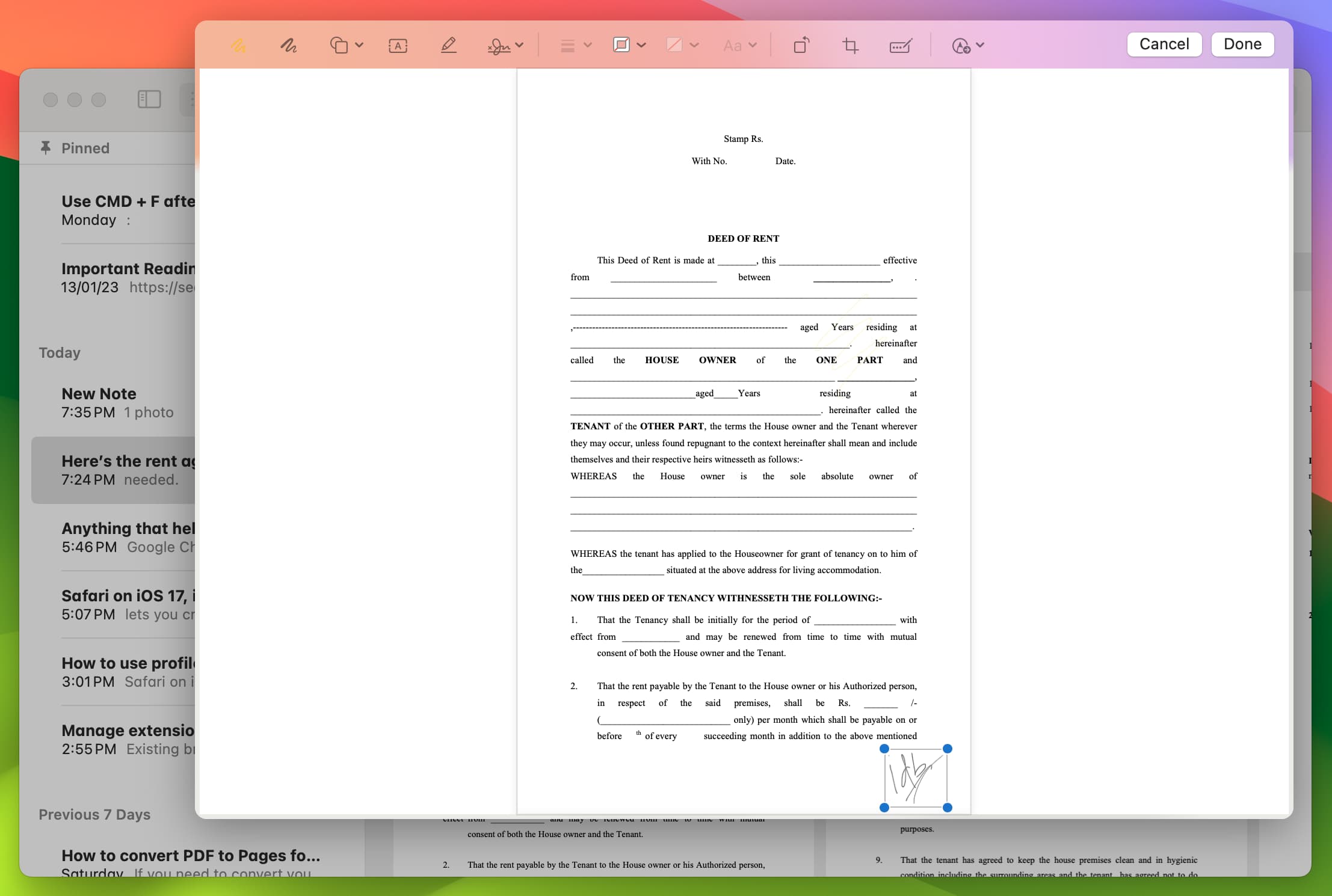
3) Use the Markup tools here and click Done.
Also, check out: