A digital gift can be the perfect present for the gift-giving season, Mother’s or Father’s Day, or a birthday.
Apple makes it easy for you to buy a book, music, app, game, movie, or TV show as a gift. All you need is the recipient’s email address, and you’re on your way to making their day.
Some notes on buying gifts…
- Make sure the recipient has an Apple device. Gifting an iOS app to a friend who uses an Android phone would be meaningless.
- You must add a valid payment method, like a credit card, to your account to send a gift. The gift price will be deducted from it. You can’t send gifts using your Apple ID Account balance. If needed, check which payment methods Apple supports in your country.
- You can only gift to people in your country. For example, if you’re in the United States, you cannot send a gift to a friend whose Apple Account is India- or UK-based.
- You can only gift paid items. For free apps, books, and other things, you can simply share the link, and the other person can download it.
- I also noticed you cannot gift items that aren’t yet released but are only available as pre-orders.
- You cannot gift Mac apps.
- You cannot gift movies and TV shows from your Mac or PC.
- You can’t send a gift if you use Family Sharing and the Ask To Buy option is enabled.
- Older versions of iOS didn’t allow gifting a single song, but only the full album. You can use your Mac or PC to send a single song as a gift to someone.
Gift an app, music, movie, or book from your iPhone or iPad
1) Open the App Store, iTunes Store, or the Books app on your iPhone or iPad. We’re using the App Store for this tutorial.
2) Find the paid item you want to gift. Such items have a price button instead of the regular GET button. Note that if you have previously purchased a paid item, it will show the download cloud button instead of the price button.
3) Tap the share button and select Gift App or Gift from the Share Sheet.

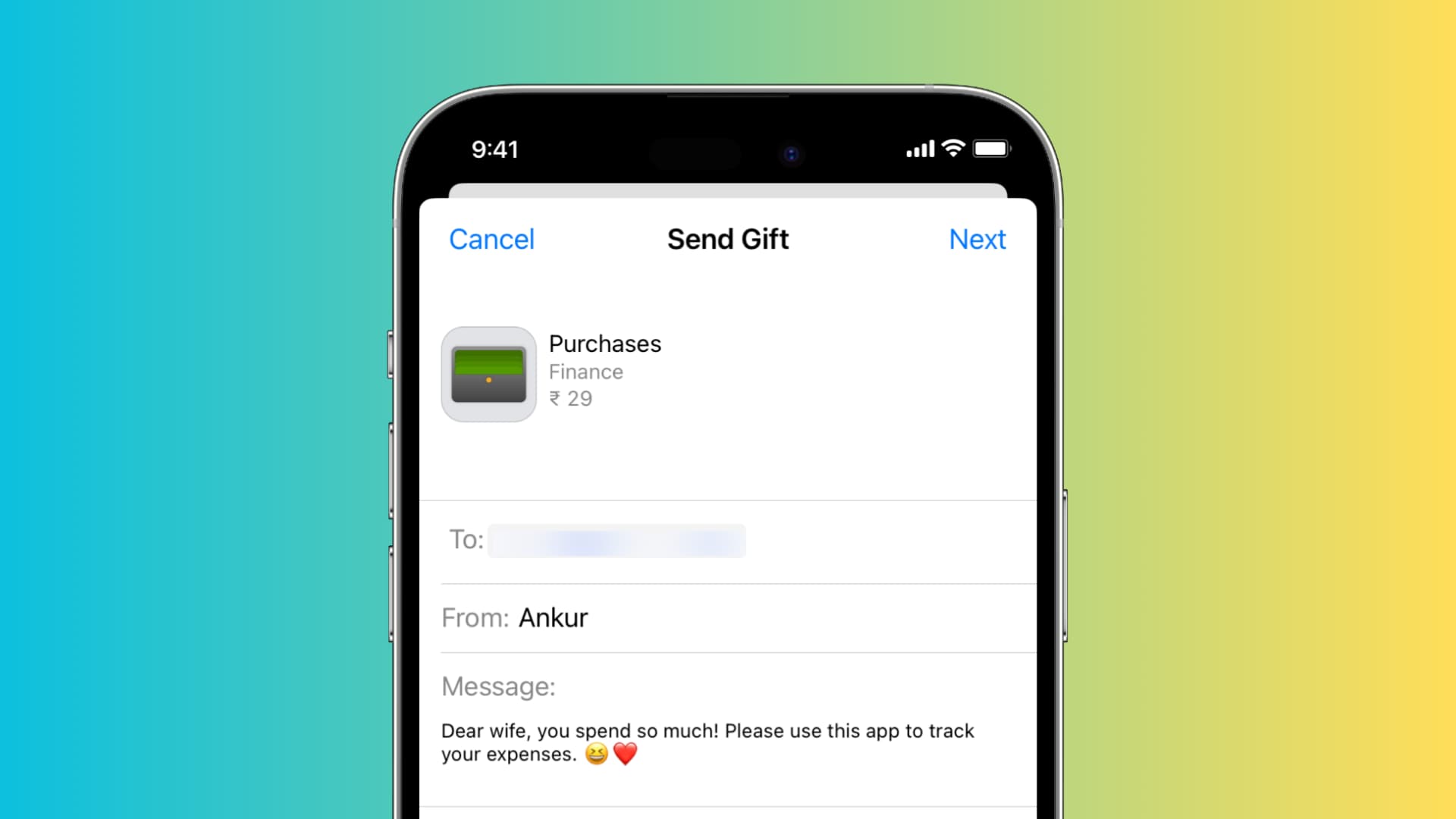
4) Enter the email address of the person you’re sending the gift to, and personalize it with a custom message. You can also select the date when this gift should be sent. After that, tap Next.
5) Swipe to see all the themes and tap Next when the one you want to use is on the screen. The recipient will receive an email with a festive design that matches the theme you pick.

6) Finally, go through the confirmation screen and tap Buy > Buy Now. After this, you may be asked to enter your Apple Account password. Simply do that, and hit OK.
Once your gift is sent (on the date you selected), the recipient will get an email where they can click Redeem to get the item.
Send a song or album as a gift from your Mac or PC
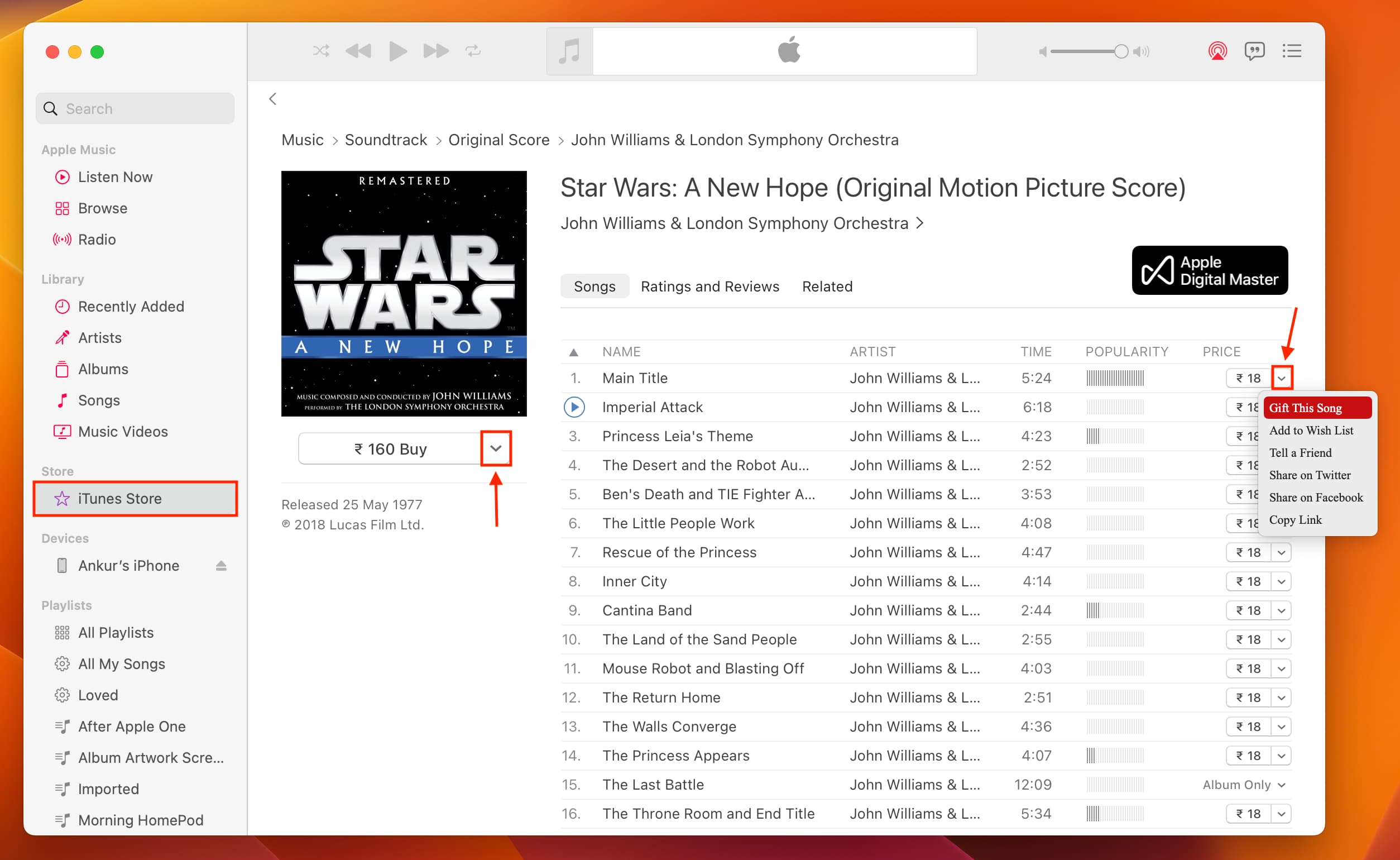
1) Open the Music app and click iTunes Store from the left sidebar. If you don’t see it, click Music > Settings from the top menu bar, and check the box for iTunes Store in the General tab.
2) Find the song or album you want to gift.
3) Click the downward arrow next to the item and select Gift This Song or Gift This Album.
4) Enter the recipient’s email, personalize your gift, and follow along.
Resend the gift
If the recipient hasn’t received the gift email from Apple or has deleted it, you can resend it. You won’t be charged again.
- Open the Settings app on your iPhone or iPad and tap your name at the top.
- Tap Media & Purchases > View Account and sign in using your Apple Account, if asked.
- Tap Gift and select the gift you want to resend.
- Ensure the recipient’s email address is correct. You can edit the email address if needed.
- Finally, tap Resend Gift. In case you don’t see this option, that means the gift has been redeemed.
Cancel a gift
Changed your mind? You can cancel your gift up to two days before the delivery date by contacting Apple Support. If the gift was sent the same day, you may not be able to get it back!
If you’re not sure which app, movie, album, or book your recipient might like, you can always send them store credit as a present instead. This lets them use the funds you give as a gift to buy an item of their choice.