Learn how to change the home page and new tab page in Firefox and Chrome browsers on Mac, iPhone, and iPad to a specific URL, or leave it blank.
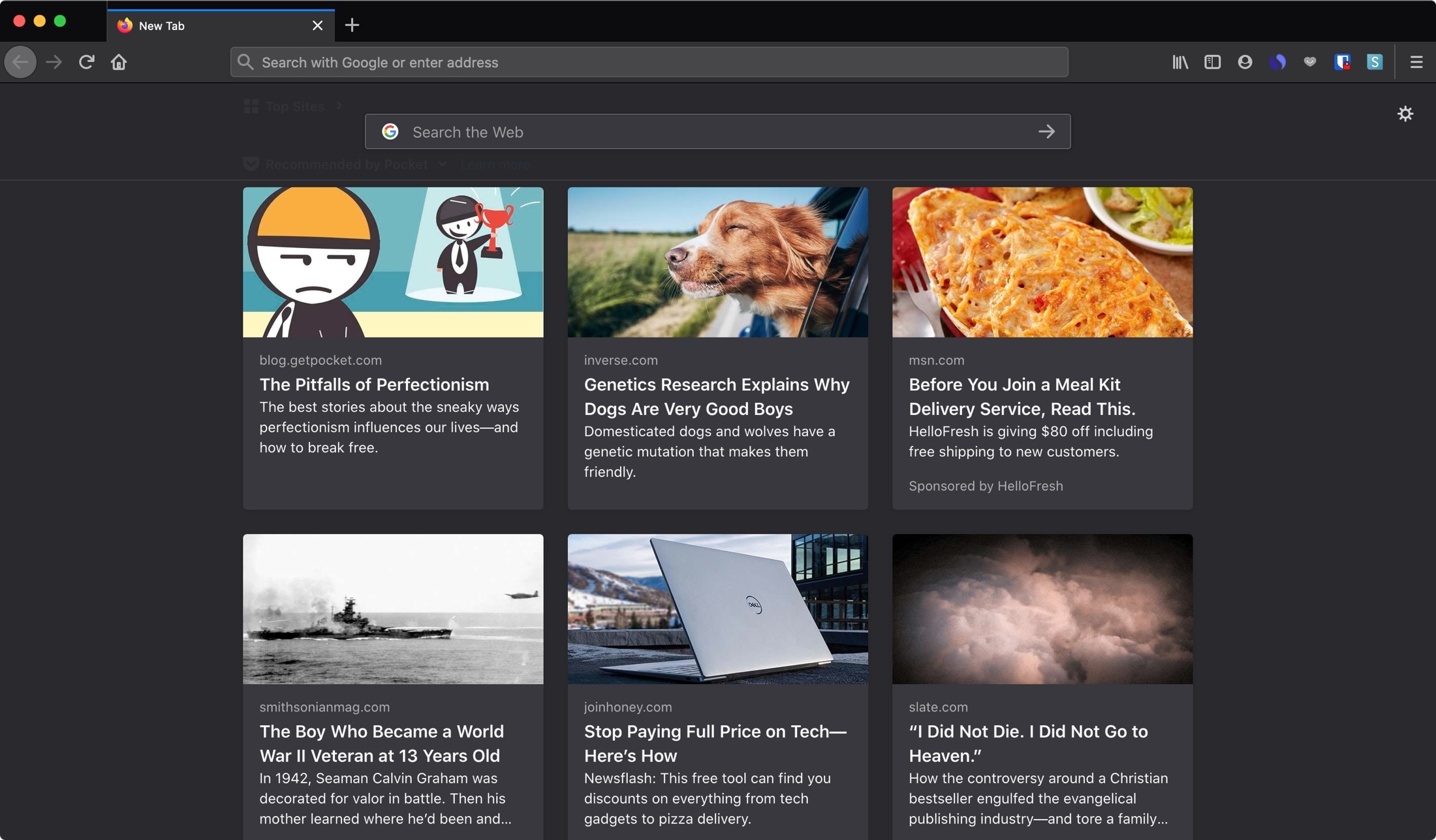
To many people, a browser’s home page is one of those tiny things you rarely give any attention. But to others, it’s how they start their day or their browsing experience. Whether you use it to catch up on the news, check on your own blog, or start a Google search, you can make your home page anything you want in Firefox and Chrome.
We’ve already explained how to change your Safari Home page on Mac and iOS. So here, we’ll help you change your home page in Firefox and Chrome on Mac. Firefox users can also change their home page on iPhone and iPad. (Sorry, Chrome fans, you can’t currently change your home page on iOS.)
Firefox
Change your home page
- Open Firefox, click the hamburger menu button on the top right, and select Settings.
- Choose Home on the left.
- Under New Windows and Tabs, click the drop-down box next to Homepage and new windows and pick Custom URLs. You can also choose a Blank Page if you prefer.
- Enter the URL for the page, click Use Current URLs if you have the page currently open, or click Use Bookmark to pick a saved page.

Set your new tab page
Below the home page setting is one for New tabs. In that drop-down box, you can choose to display the Firefox Home or a Blank Page. Unfortunately, you cannot currently enter a URL for new tabs on Mac.
Change your home page on iOS
- Open the Firefox app on your iPhone or iPad, tap the menu button at the bottom, and pick Settings.
- Choose Homepage.
- Enter the URL for the page under Custom URL and tap Done.

Set your new tab page on iOS
Similar to Mac, you can decide what you want for your new tabs. In the Settings, directly above Home, tap New Tab. Then, pick Firefox Home, Blank Page, or enter a custom URL.

Google Chrome
Change your home page
- Open Google Chrome on Mac or PC, click the three dots menu button on the top right, and select Settings.
- Choose Appearance on the left.
- Next to Show home button, enable the toggle if it’s disabled.
- Below that, choose the enter custom web address button and enter the URL in the box. You can also choose to use the New Tab page if you prefer.

Change your startup page
Different than your home page, you can set a specific startup page in Chrome. You can continue where you left off when you closed Chrome or open a certain page or set of pages.
- Go back to Chrome settings and choose On startup on the left.
- If you want a particular page, pick Open a specific page or set of pages.
- Select Add a new page to enter a certain URL or Use current pages to open those pages on startup.

On a related note: