Check out the easy steps to create, use, and manage folders in the Voice Memos app on iPhone, iPad, and Mac to better organize your voice recordings.

The ability to use folders in Voice Memos means you don’t have to rely solely on a naming convention to keep your recordings organized. If you take tons of audio recordings, putting them in proper folders is something you must know about.
Note: If you use iCloud for Voice Memos, the folder you create and changes you make on one device will sync to all your other Apple devices.
Create a folder in the Voice Memos app
- Open the iOS or macOS Voice Memos app.
- On the iPhone, tap the arrow (<) on the top left. On iPad & Mac, tap or click the sidebar icon from the top left corner.
- You’ll see a section for All Recordings, Favorites, Watch Recordings, and Recently Deleted. Tap or click the new folder icon.
- Give your folder a name and hit Save.

Your new folder will show up in the My Folders section of the menu. You can continue creating new folders the same way or jump into moving your recordings.
Move a group of recordings to a folder
To get a head start on organizing your Voice Memos, you can move them to folders in bulk on iPhone and iPad. Sadly, this doesn’t work on Mac.
- Tap Edit at the top of your recordings list.
- Select the recordings you want to file and tap the share button at the bottom.
- Tap Move and pick an existing folder (or tap the new folder icon to create a new one).

Move individual and new recordings
If you want to move an individual recording on iOS, swipe from right to left, tap the Move folder icon, and select the folder. On Mac, drag a recording to the folder.

For new recordings, you can select a folder and then record your memo. This way, your new recording will already be in the folder you want.
Edit folders in Voice Memos
You can rename, delete, and rearrange your folders in Voice Memos.
On iPhone or iPad
Head to the folder list and tap Edit at the top. Then, do one of the following:
- To rename a folder, tap the actions icon (three dots) and select Rename. Type in the new name and tap Save.
- To delete a folder, tap the minus sign and then the trash can, or tap the actions icon and select Delete.
- To rearrange folders, touch and drag using the three lines, then release.

On Mac
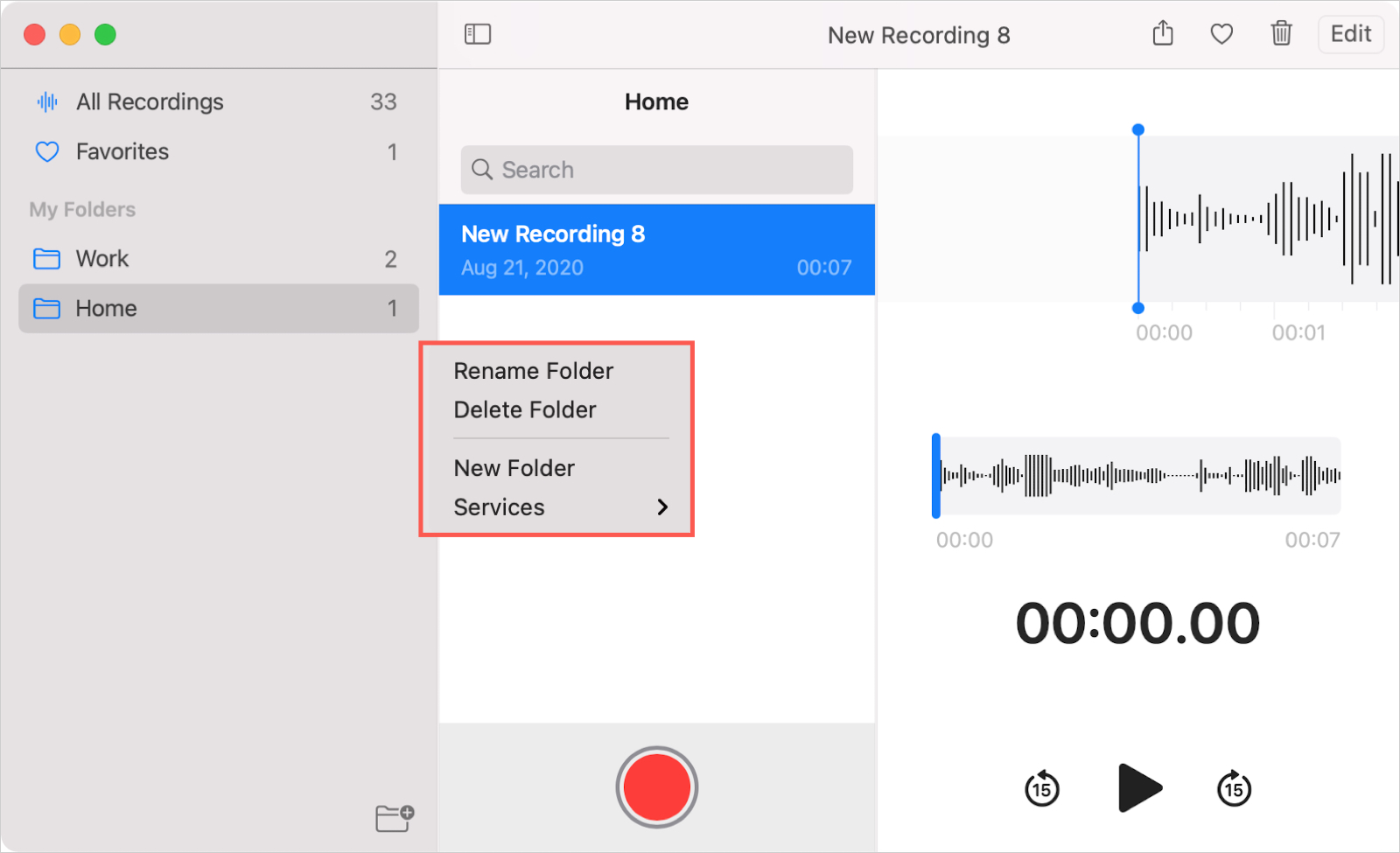
Right-click a folder and pick Rename Folder or Delete Folder. To rearrange folders, just drag and drop them in the order you wish.
Other tips for Voice Memos: