You don’t need to strain your eyes or grab your reading glasses to see items on your screen more clearly. Use these built-in options to increase the font size on your Mac and enjoy a more comfortable computing experience.
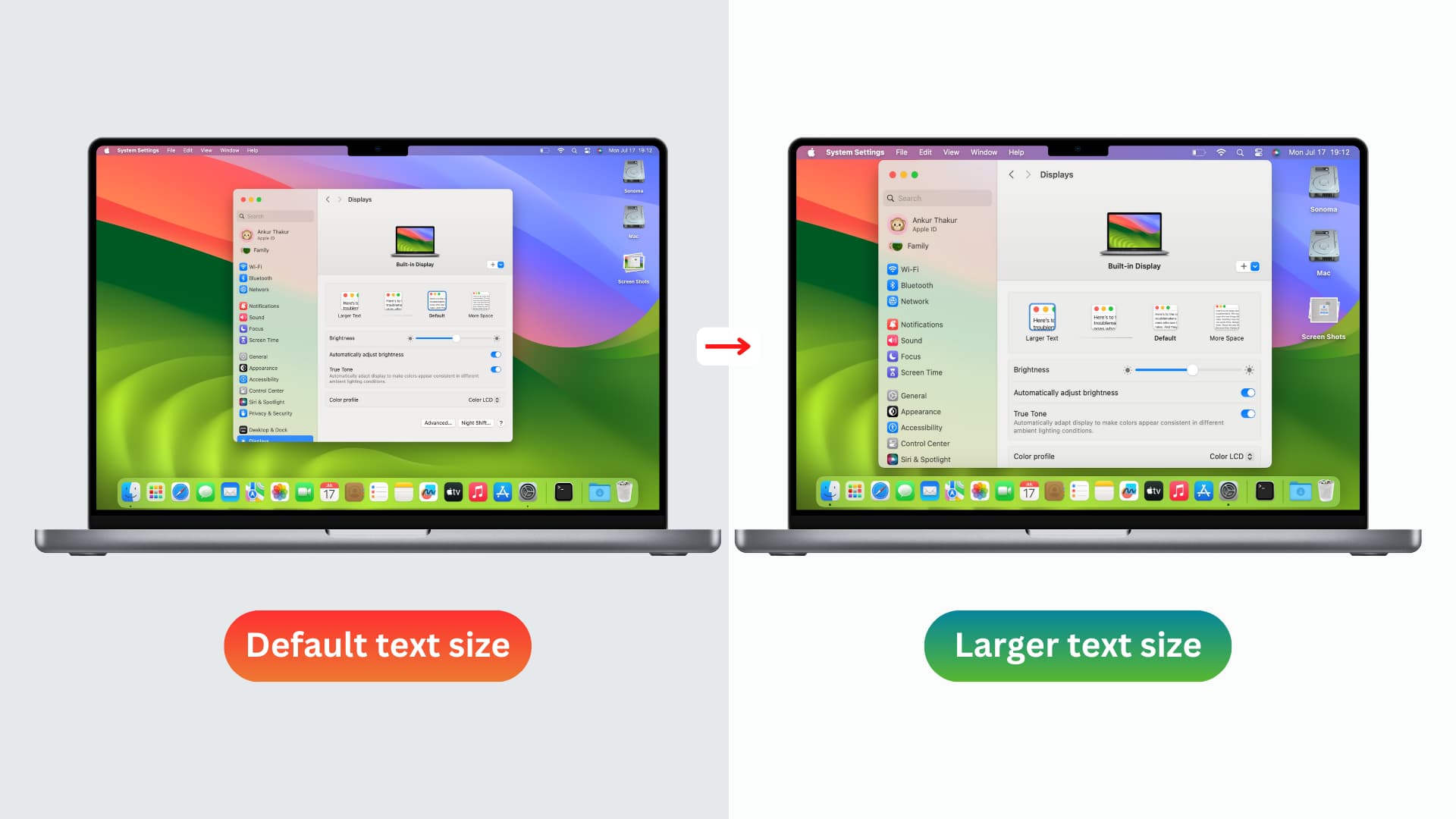
We’ll go over five easy ways to increase the text size on your Mac. These tips work for MacBook Air, MacBook Pro, MacBook Neo, Mac mini, Mac Studio, iMac, and Mac Pro.
Increase the overall system text size on Mac
This results in larger app windows and bigger text throughout the system.
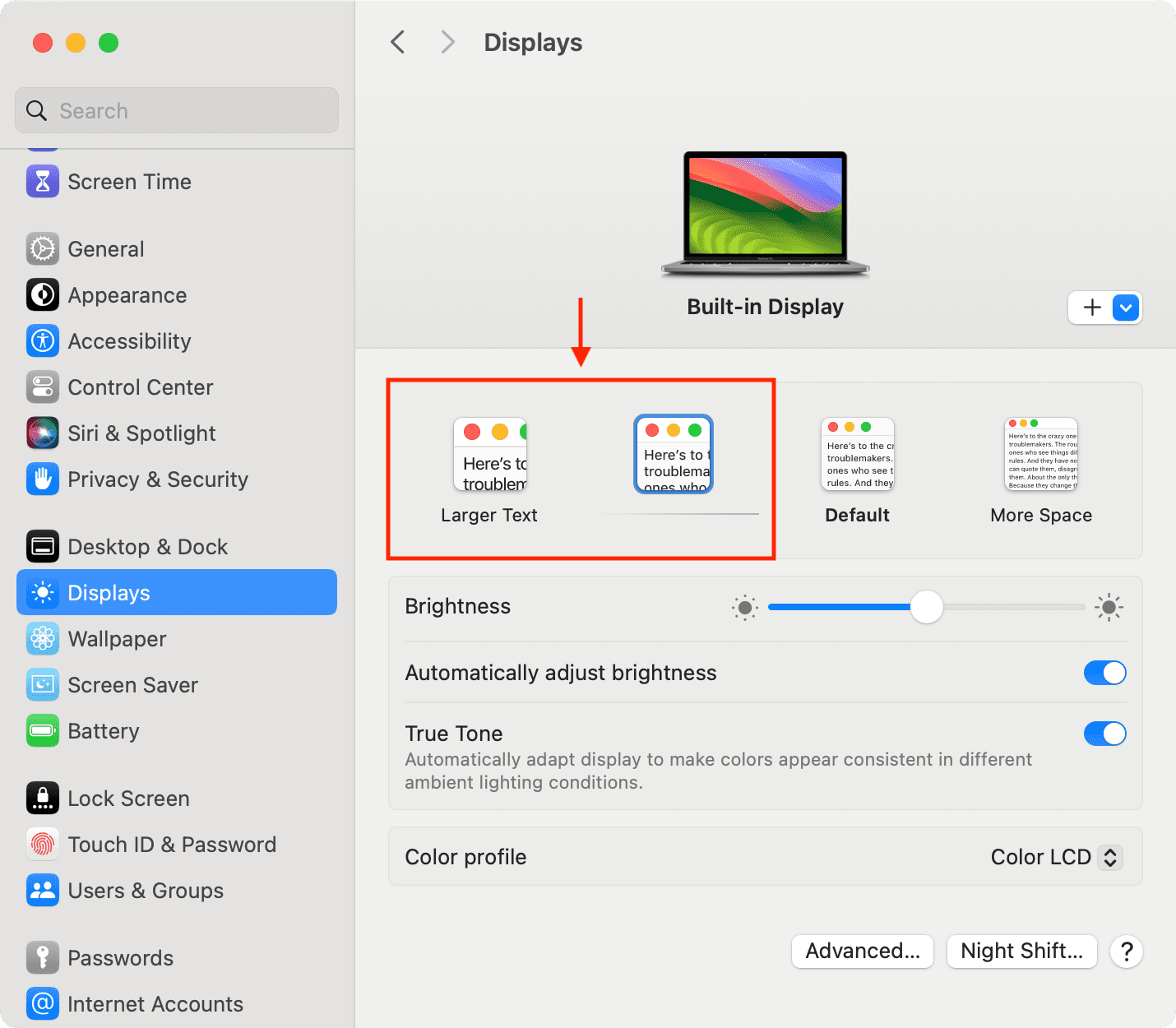
- Open System Settings and select Displays.
- Choose Larger Text or an option that’s on the left of the currently selected Default text style.
- Depending on the screen size or the size of the connected monitor, you may be prompted with a pop-up and asked to confirm. For example, if I select Larger Text on my 13-inch MacBook Pro, it shows a pop-up asking, “Are you sure you want to switch to this scaled resolution?” I can click the Change Resolution button or hit Cancel and pick another option.
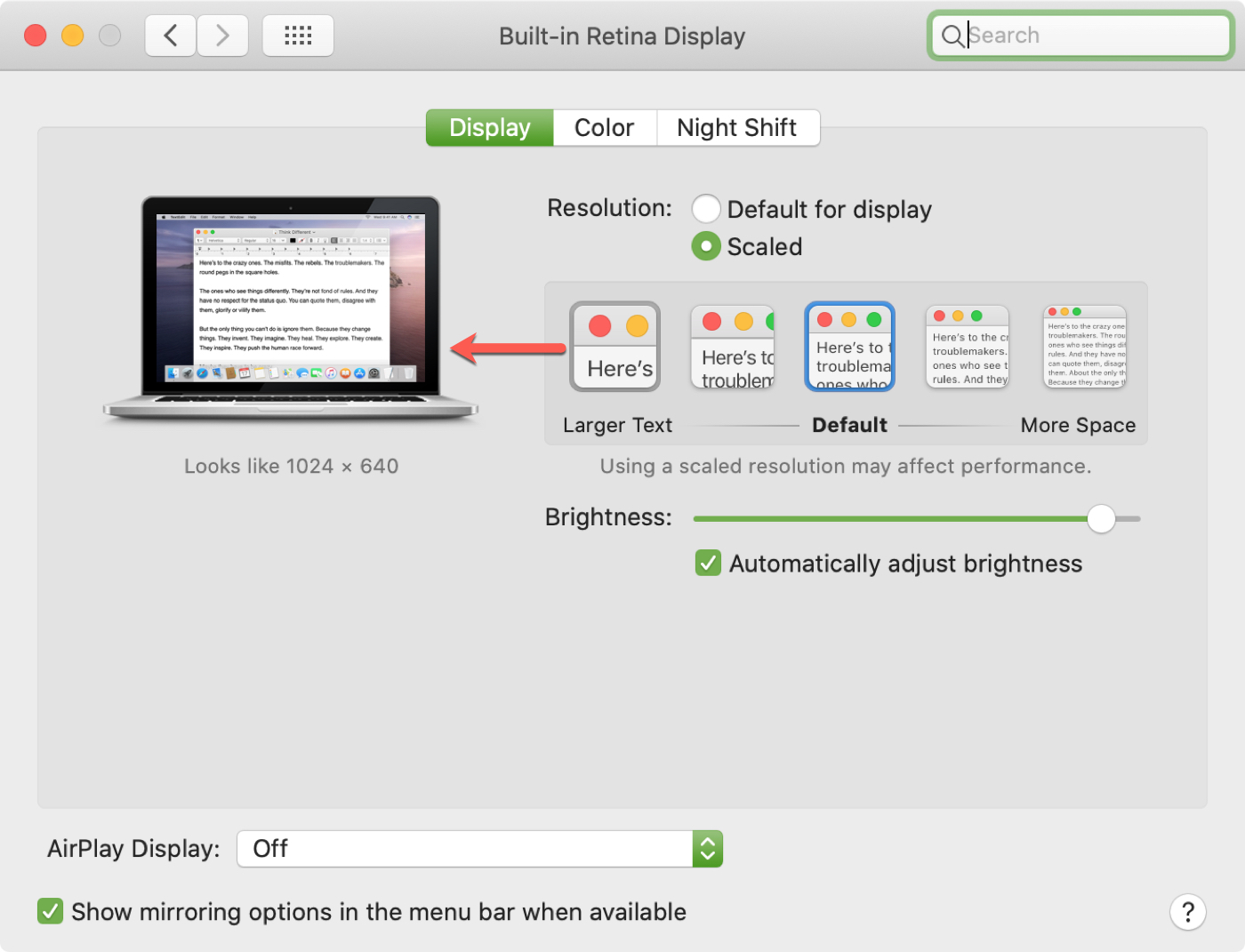
Follow these steps if your Mac is running an older version of macOS.
- Go to System Preferences > Displays and make sure the Display tab is selected.
- Next to Resolution, choose Scaled.
- You’ll notice a box open up showing you the settings for Larger Text and More Space. Obviously, you’re here to increase the text size, so pick an option to the left. As you put your cursor over the two different choices, you’ll see a preview to the left, along with what the resolution will look like.
- After you pick an option, click OK to confirm the change. In a moment, your screen will refresh and reflect the change. Now, you should see a bigger font size that’s easier to view.
Change the text size of some apps
macOS Sonoma and later allows you to change the text size of a handful of apps on a per-case basis. Follow our dedicated tutorial to do that.
Use in-app text size settings
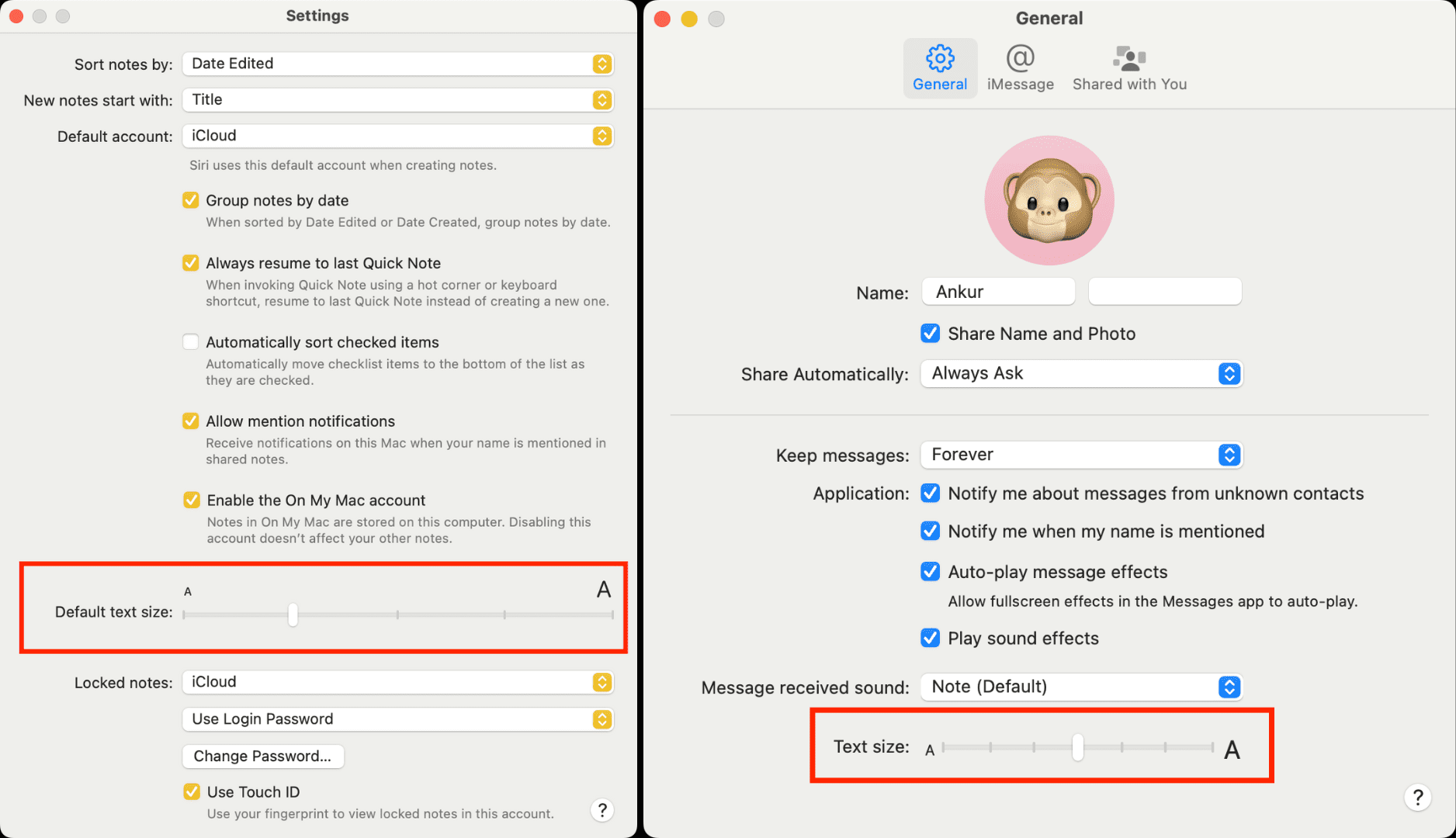
Some apps like Notes and Messages offer a built-in option to adjust the text size. You’ll find them in their in-app settings, which you can access by opening the app and pressing the Command + , (comma) keys or by clicking the app name > Settings from the top menu bar.
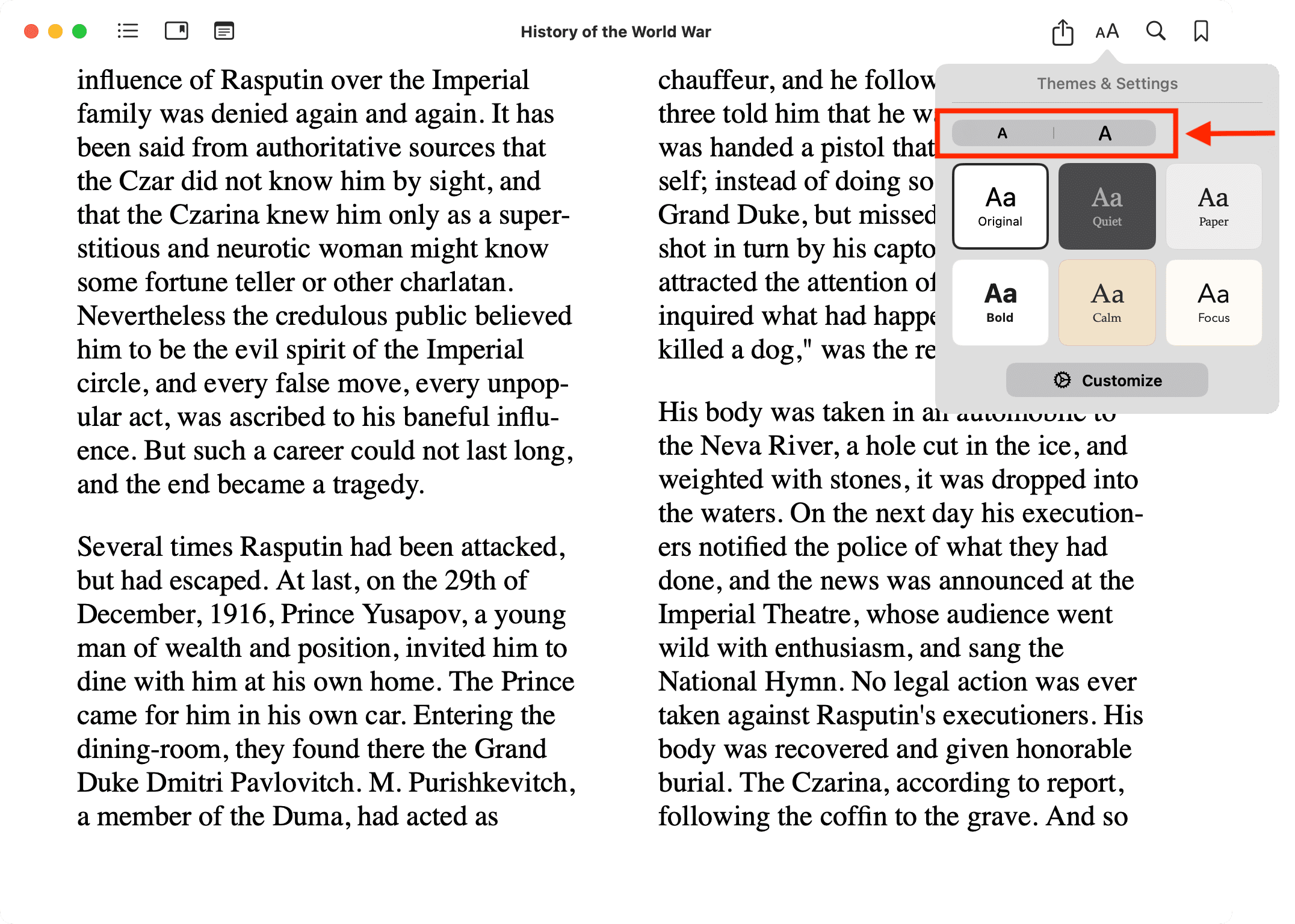
Additionally, some reading apps like Books (screenshot below) offer on-screen buttons to increase or decrease the text size to make your reading comfortable and stress-free.
Use the Accessibility features to make text bigger
If you want to increase the text size for a shorter time, you can do this using the built-in accessibility features and keyboard shortcuts.
Zoom the entire screen
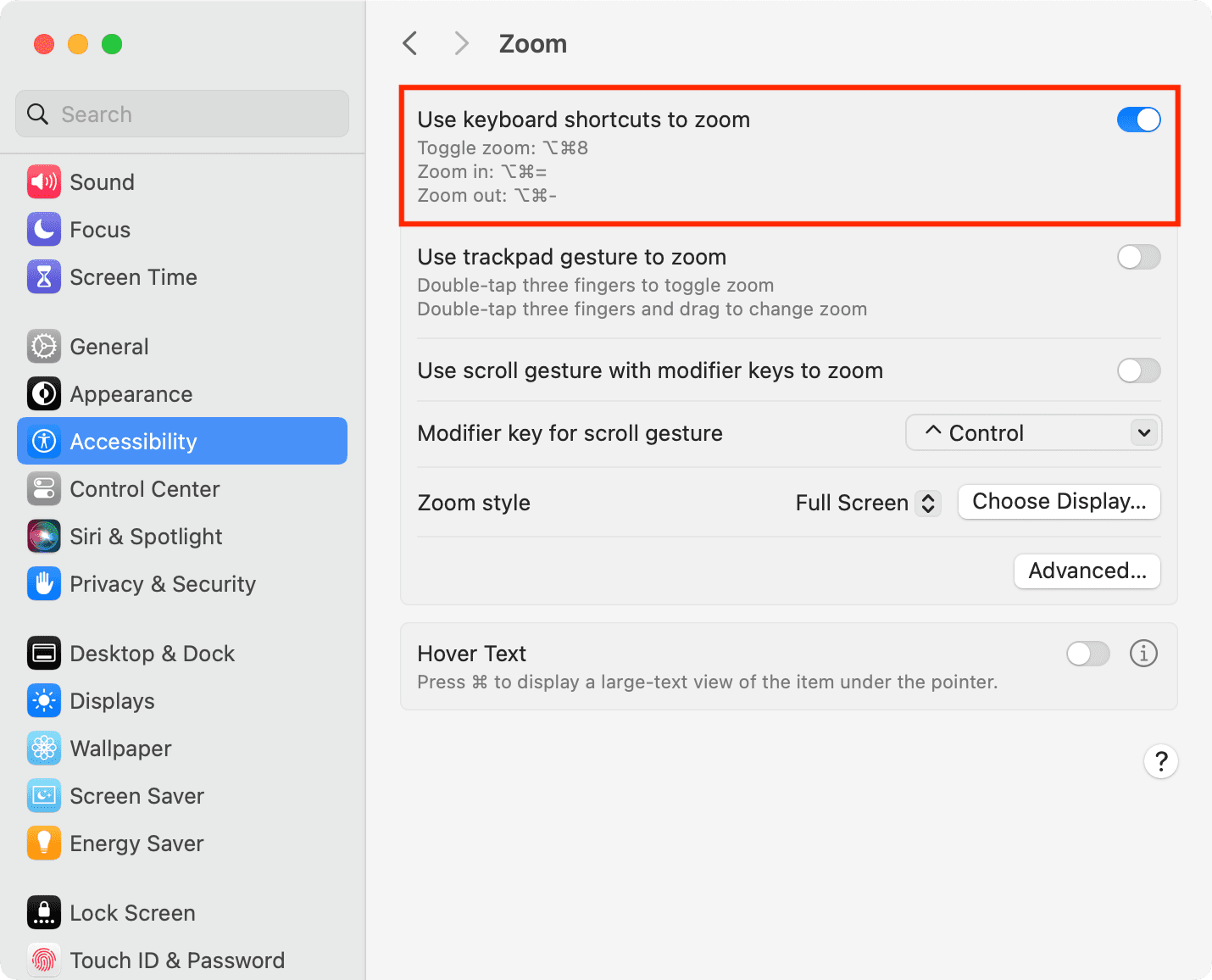
- Open System Settings and go to Accessibility > Zoom.
- Turn on the switch for Use keyboard shortcuts to zoom.
- From now on, press Option + Command + 8 keys to trigger screen zoom and use Option + Command + +/= (plus/equal key) to zoom in and Option + Command + - (minus key) to zoom out.
Zoom just specific texts
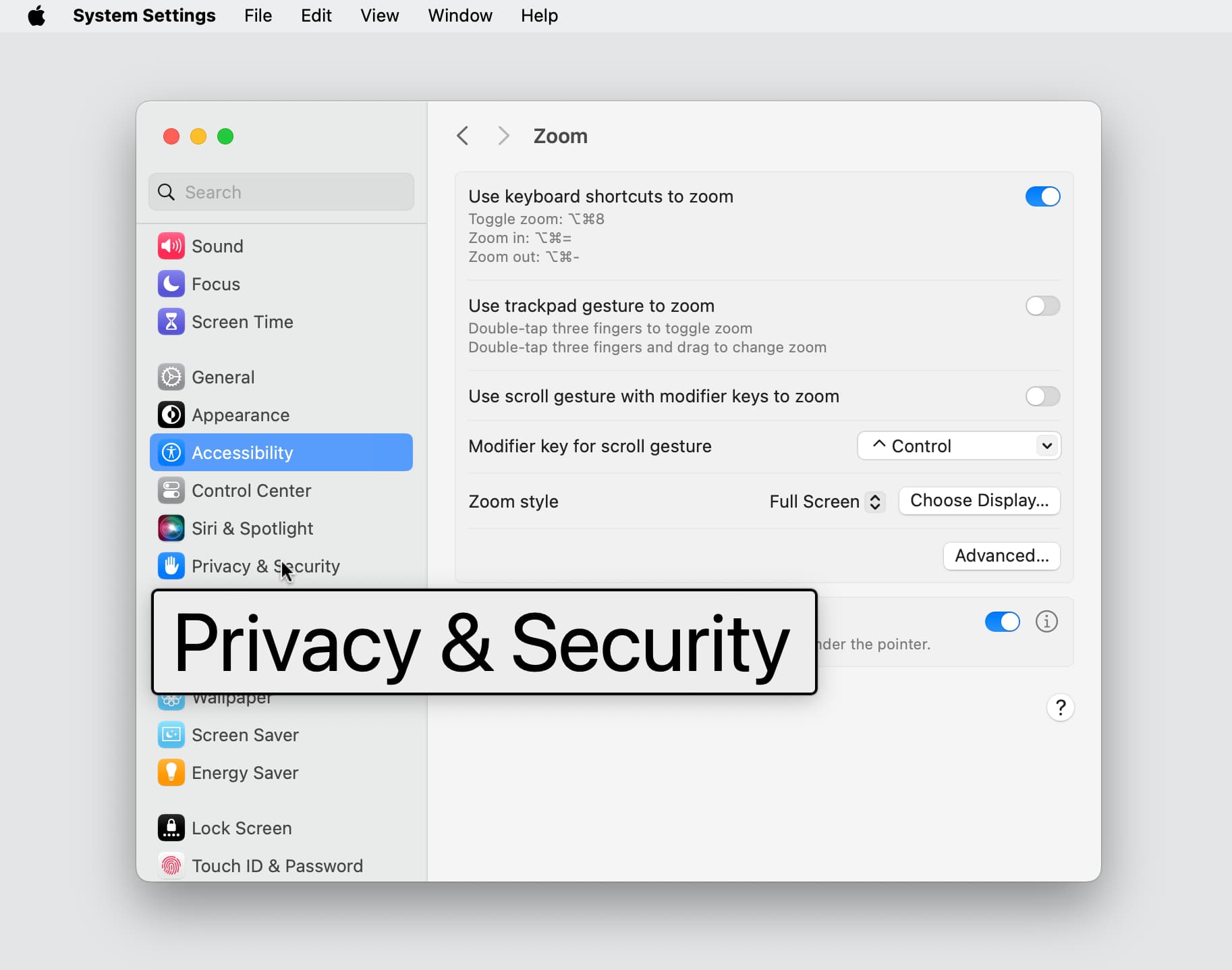
If you’d rather not zoom in on the screen but just increase the text you’re reading, you can enable Hover Text.
On the latest version of macOS, you’ll find it in System Settings > Accessibility > Hover Text > Hover Text (Hover Typing is different). If you’re on an older version of macOS, go to System Settings > Accessibility > Zoom.
Additionally, click the info button ⓘ next to Hover Text to pick the size, style, location, and a different modifier key if you like.

This cool feature will pop the text out in a large font when you hover over it while pressing the Command key.
If your Mac is on an even older version of macOS, follow these steps instead:
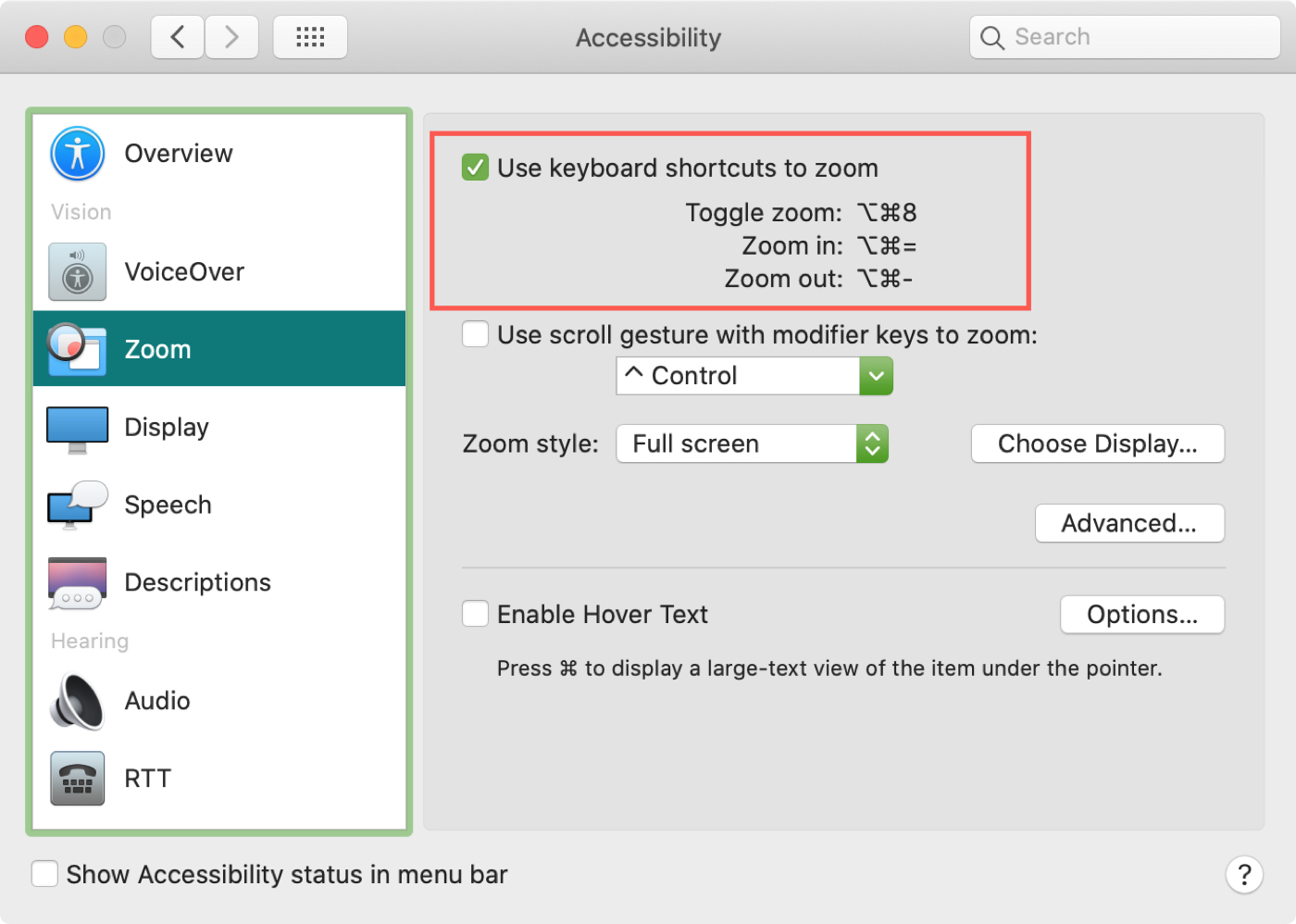
- Go to System Preferences > Accessibility > Zoom.
- Check the first box at the top for Use keyboard shortcuts to zoom and make a note of the shortcuts you’ll be using. Now, you can use those shortcuts to zoom in and increase the size of your screen and, thus, the text on it.
- From this screen, you can also Enable Hover Text.
Take advantage of quick shortcuts
Here are a couple of extra keyboard shortcuts you can use to increase the font size on Mac.
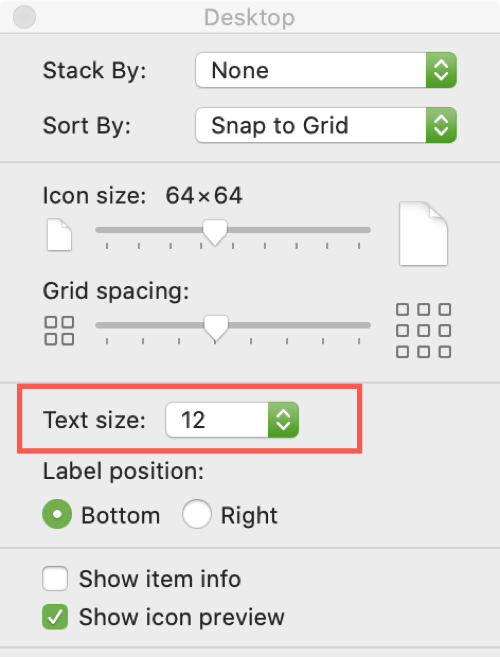
On the desktop
Press Command + J and a small window will open. Next to Text Size, select the size you want in the drop-down box. You’ll see the size of the text for items on your desktop increase immediately.
On web pages and apps
For web pages and some apps, you can use the shortcut Command + +/= (plus key) to zoom in and Command + - (minus key) to zoom out in Safari, Google Chrome, and other web browsers.
On a related note: