Want to know the distance between two places? Learn how to measure distance to see how far one location is from another using the Apple Maps app on iPhone, iPad, or Mac.
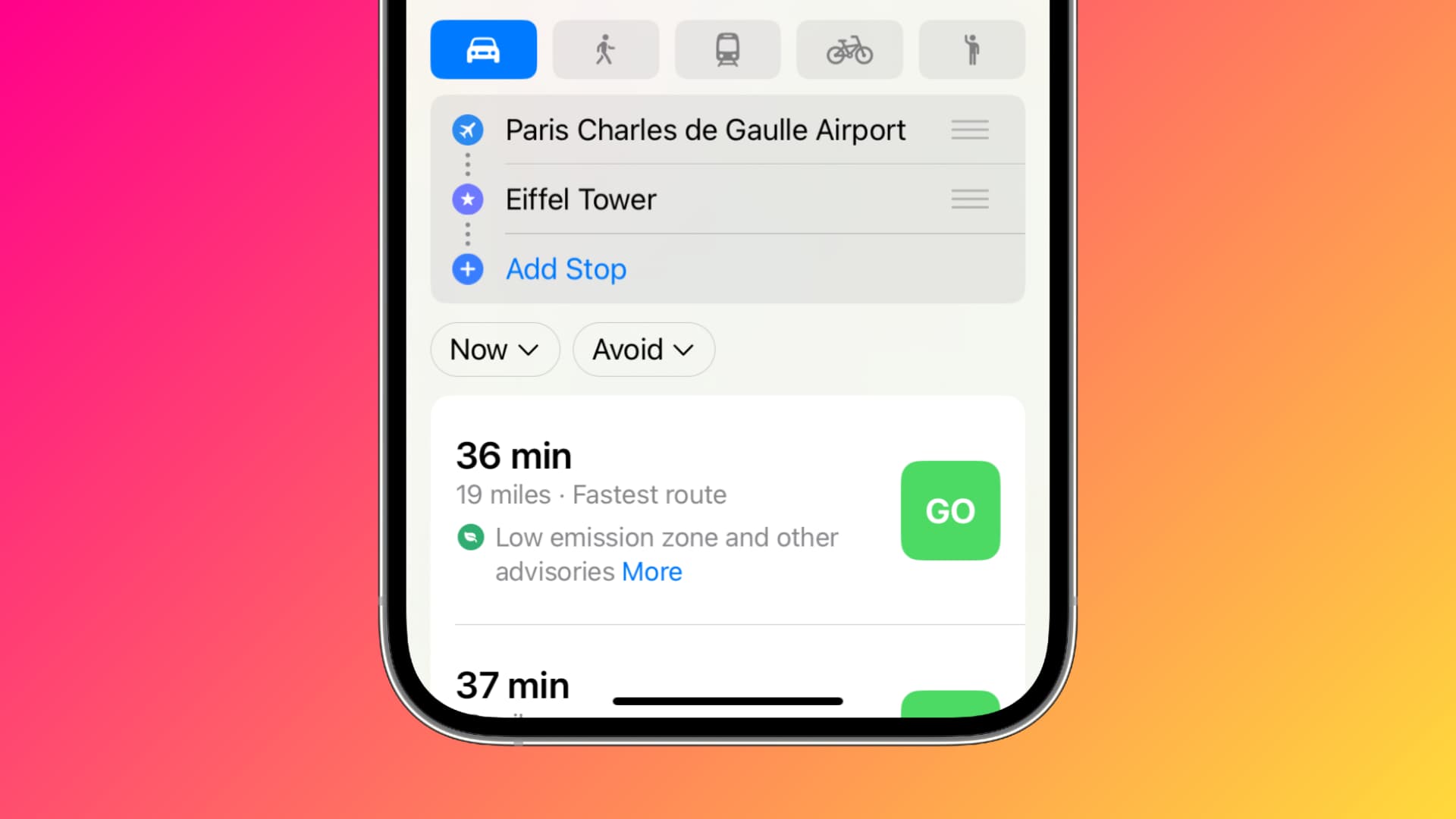
If you use the Maps app for getting directions or information on locations, then you already know how convenient it is. What you might not know is that you can measure the distance and even get directions between two locations other than your current one.
This is handy if you’re planning a trip and want to see how far your hotel is from an attraction or something as simple as the distance between two of your friends’ houses.
Follow these steps to measure the distance between two places in Apple Maps on both iOS and macOS.
On iPhone or iPad
1) Open the Apple Maps app, tap the search bar, enter the name of the first location, and select it from the suggestions.

2) Tap Directions or the directions button that may have a car icon in the middle.
3) Now tap My Location.

4) Enter the name of the second location and select it from the search results.
5) After a few seconds of loading, you should get directions between these two places, and it will also show the distance in miles or kilometers.

Tap the car, walk, bus, or bicycle icons to see the distance based on your mode of transport. You can also use the hamburger icon (three short lines) to drag the first location to the top.
On Mac
1) Open Maps, type the name of the first location in the top left search bar, and select it.
2) From the map, click Directions or Create Route.
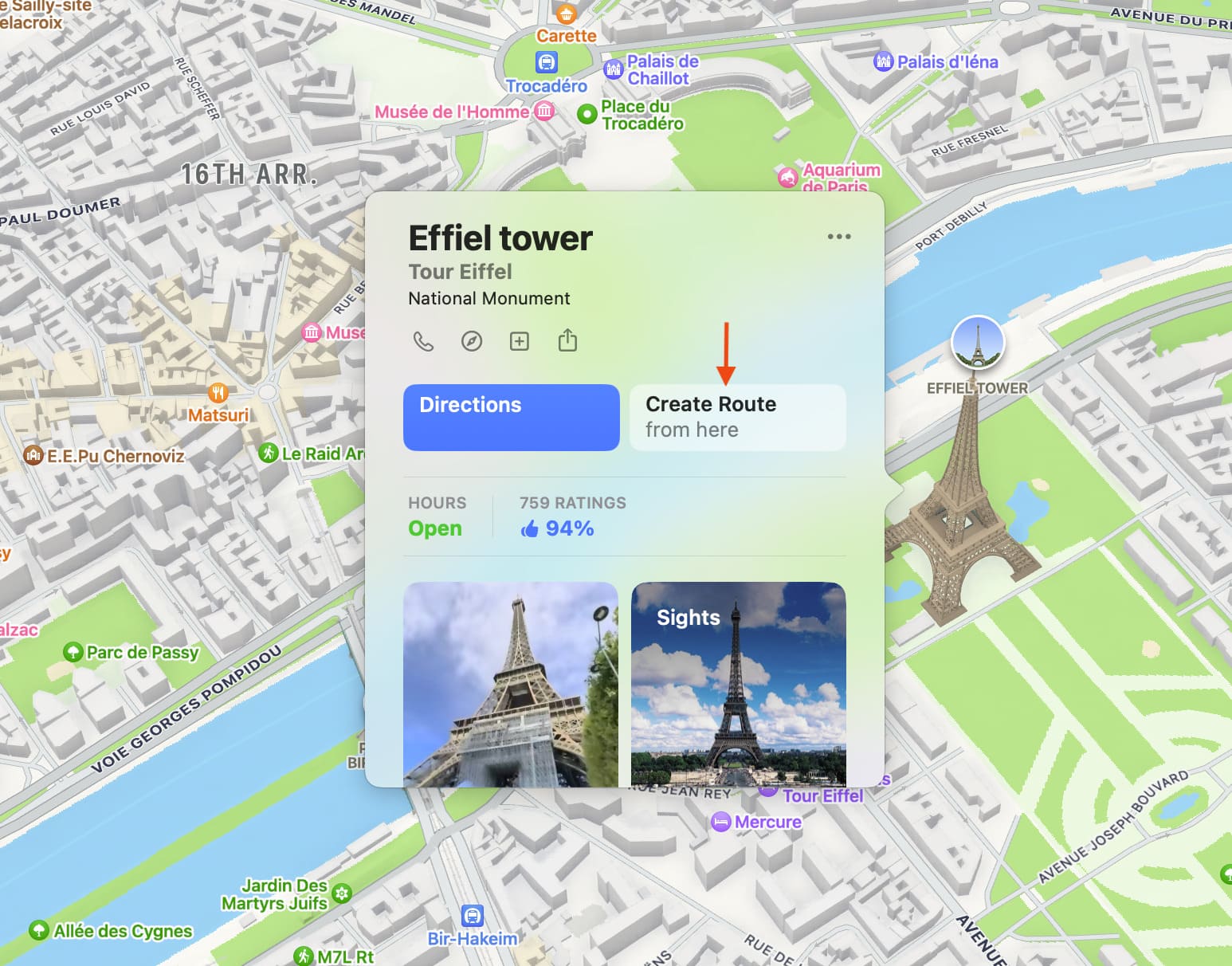
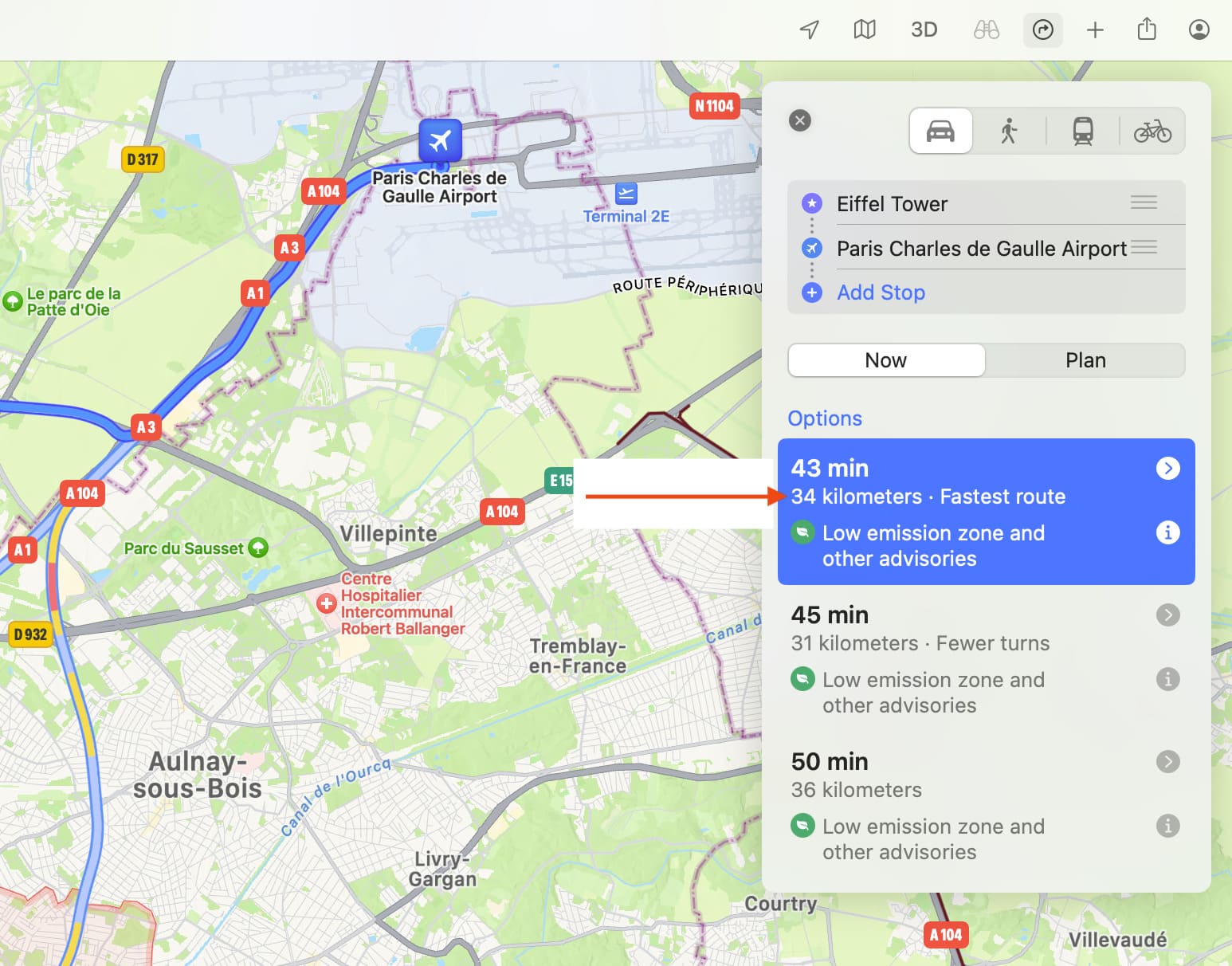
3) Enter the name of the second location and select it. In a couple of seconds, you’ll see the distance between the two places.
Other tips for Maps: