Participating in group messages on iPhone, iPad, and Mac is a cool way to communicate with friends or family. You might make plans together, chat about your favorite show, or just use it as a hangout.
One way to have easy access to that group conversation is to give it a name. That way, you can find it quickly in your conversation list when you need it. This tutorial shows you how.
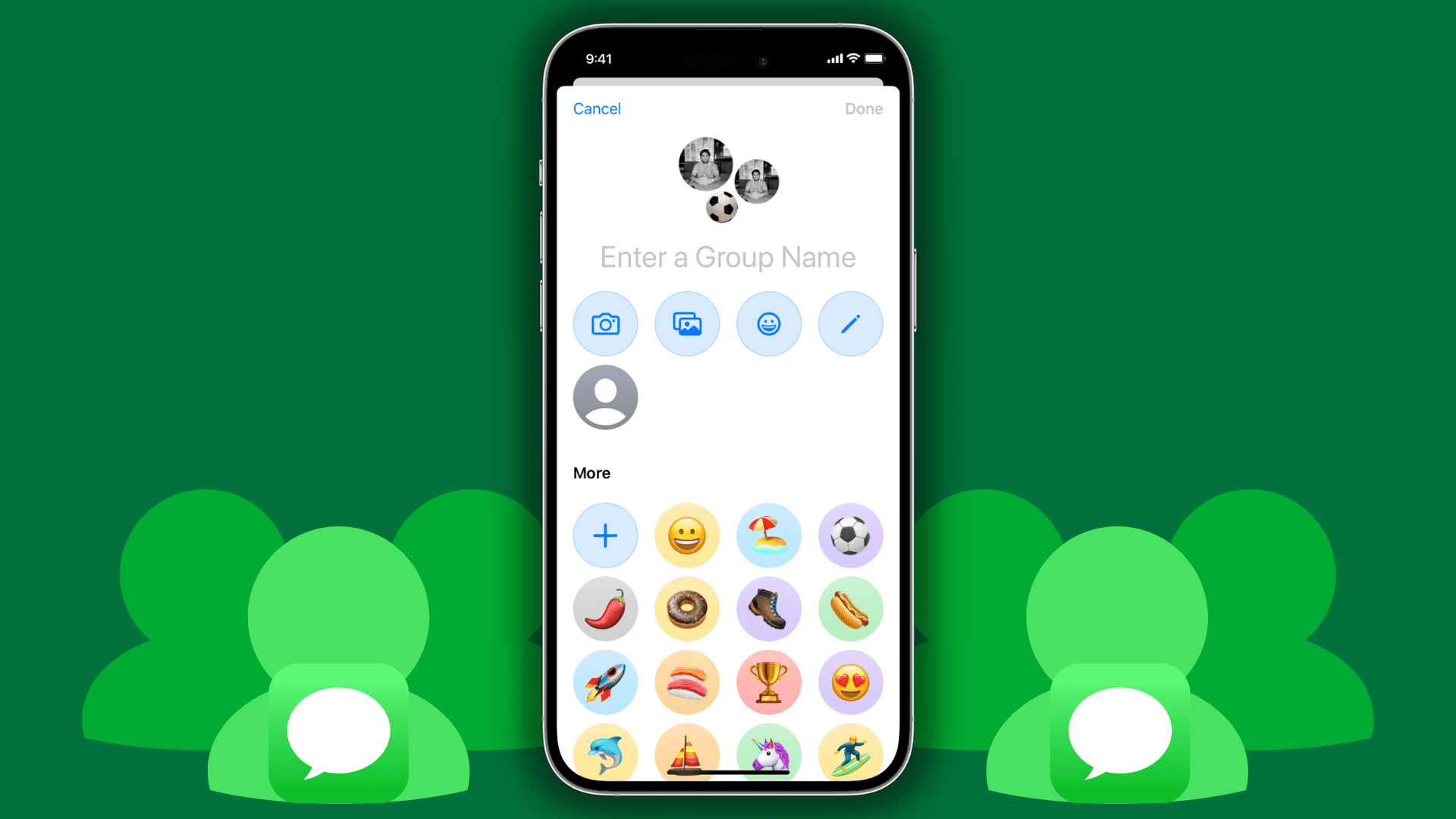
Note: Earlier, you could only rename iMessage conversations. But now you can also rename SMS, RCS, and MMS group texts.
Follow these steps to name a group conversation in the Messages app.
On iPhone and iPad
1) Open the Messages app and select the iMessage or SMS group conversation.
2) Tap the people thumbnail at the top of the screen.
3) Tap the Edit button and select Edit Name & Photo.

4) Enter a name in the “Enter a Group Name” field, then tap the checkmark icon to save it.

The new group name will reflect everywhere in your Messages app.

On Mac
- Launch Messages and go to a group conversation.
- Click the current name and profile icon at the top.
- Click Edit > Edit Name & Photo.
- Add a name in the “Enter a Group Name” field at the top or replace the current name and click Done to save the changes.

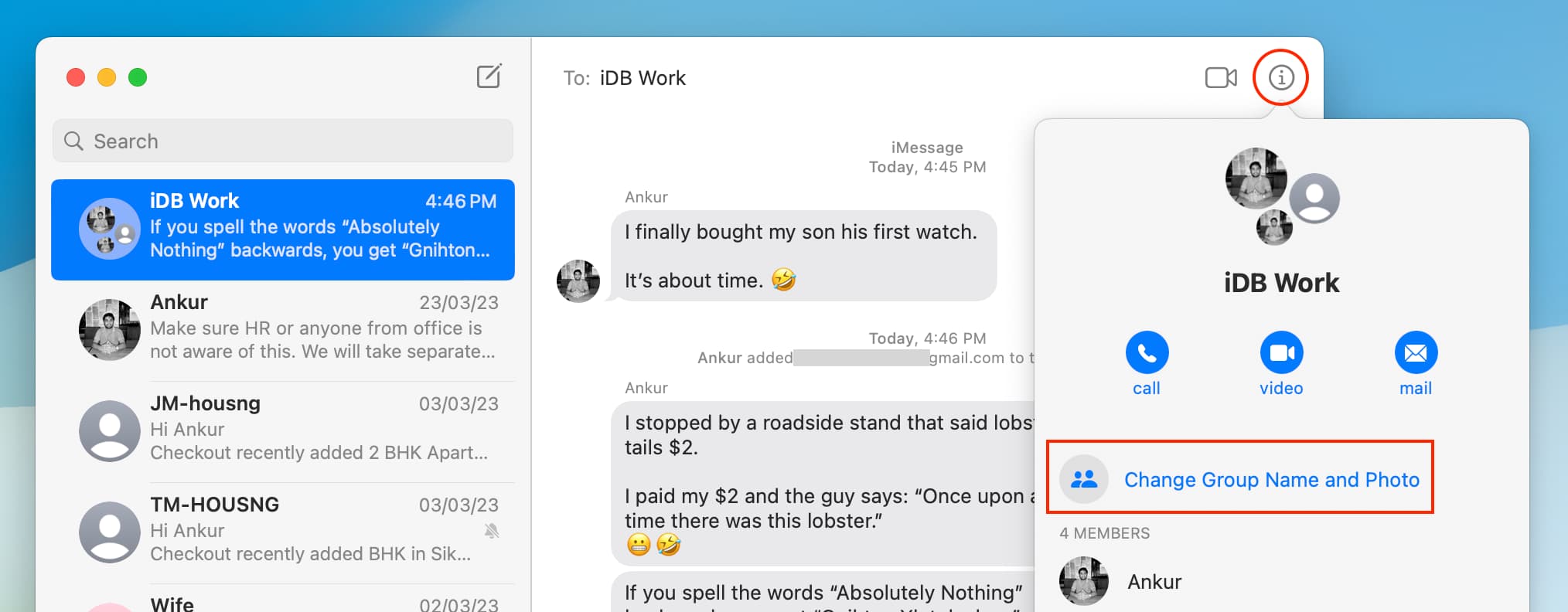
On older versions of macOS:
- Go to a group chat and click the info icon ⓘ in the top right.
- Now click Change Group Name and Photo.
- Enter a group name and hit Done.
This might be one of those small things you don’t think about, but it can be really handy when you want to find your group conversation in Messages quickly.
Do more with groups in Messages: