The Apple TV+ streaming service is a good option for unique originals if you’re looking for something different to watch. But it’s not for everyone. Maybe you’re not thrilled with the selection of shows, maybe you don’t like the subscription price, or you just don’t like its video player. Whatever the case, here’s how to cancel your Apple TV+ subscription or free trial.

Depending on the type of subscription you cancel, whether Apple TV+ or something else, Apple states:
If you cancel, you can keep using the subscription until the next billing date. If you cancel during a trial period, you might lose access to content immediately.
If you sign up for a free trial, make sure to cancel within 24 hours of the renewal date so that you won’t be charged.
That said, here’s what to do if you’re subscribed to Apple TV+ independently or have a free trial that you don’t want to continue.
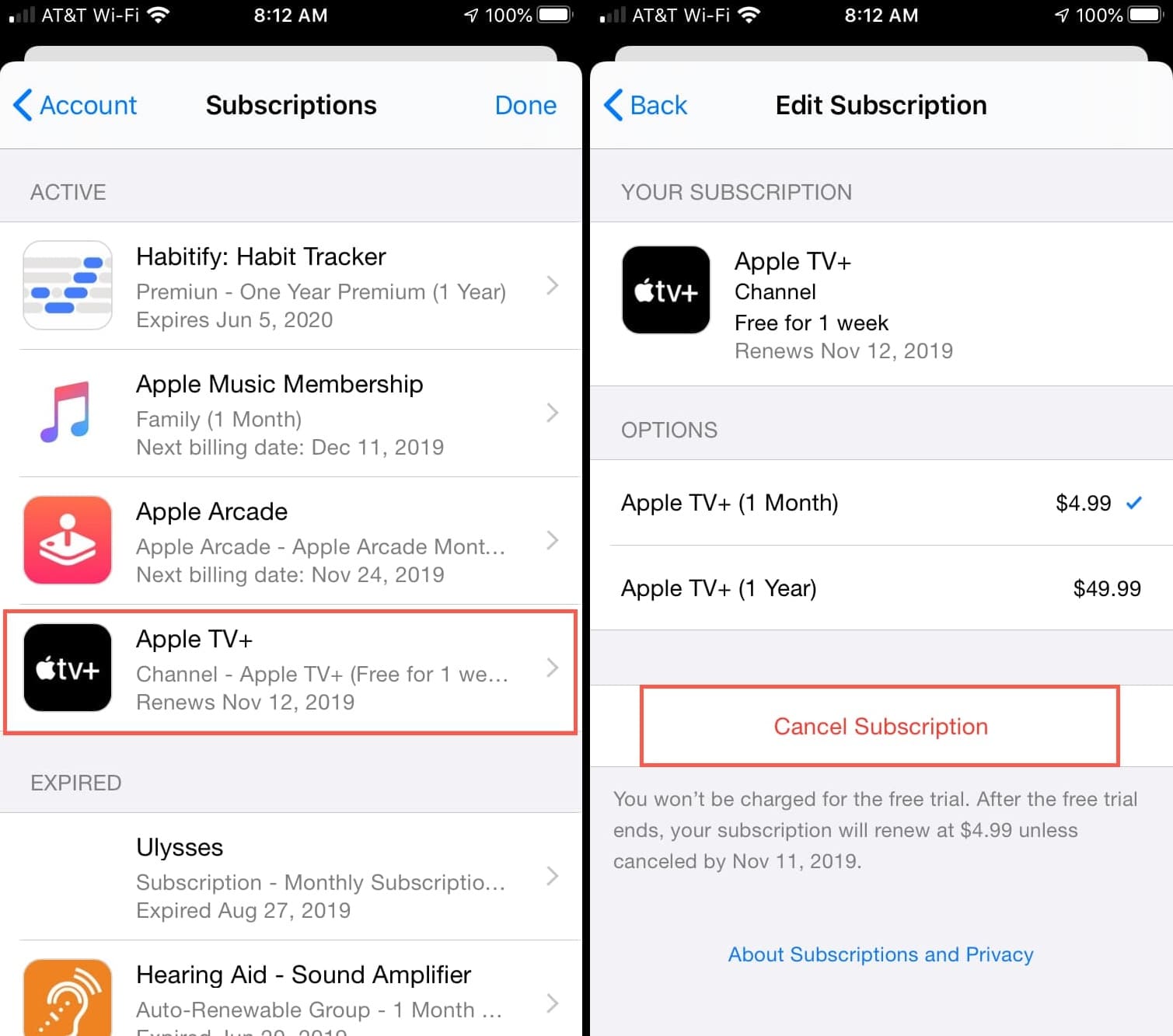
From iPhone or iPad
- Open the Settings app and tap your name at the top.
- Tap Subscriptions and select Apple TV+ from the list of your subscribed apps and services.
- Tap Cancel Subscription and confirm.
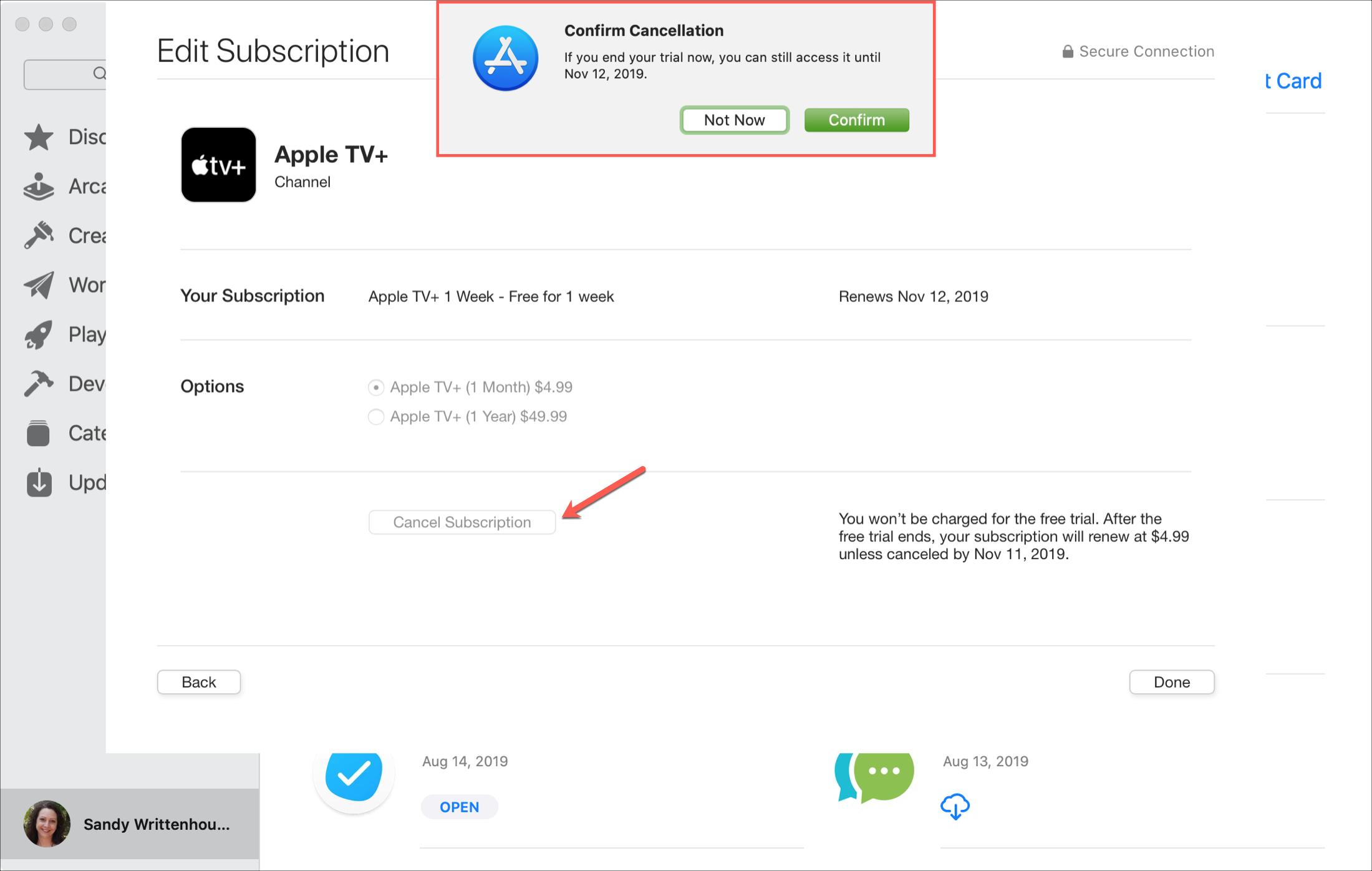
From Mac
- Open System Settings and select your Apple Account from the top left.
- Go to Media & Purchases and click Manage next to Subscriptions.
- Select Apple TV+ and click Cancel Subscription.

Note that on older versions of macOS, clicking the Manage button will open the Mac App Store, showing you the Subscriptions screen. Click Edit next to Apple TV+, followed by Cancel Subscription.
From Apple TV
- Open the Settings app on your Apple TV setup box, go to Profiles and Accounts, and click your account name under the Default heading.
- Scroll down and select Subscriptions. Enter your Apple ID password or confirm using your iPhone or iPad.
- Select Apple TV+, click Cancel Subscription, and confirm.

From non-Apple devices
If you don’t own an Apple device, cancel your Apple TV+ subscription by going to tv.apple.com or account.apple.com on your Windows PC, Android phone, or Chromebook. You can learn more here.
Cancel Apple TV+ if you have Apple One subscription
Most people have Apple TV+ as a free trial or as part of an Apple One subscription.
Apple One is a subscription service that bundles various Apple services like Music, TV+, Arcade, News+, iCloud+, and Fitness+ into a single bundle and helps you save money.
If you’re subscribed to Apple One, I think there is absolutely no need to selectively cancel Apple TV, as doing that will discontinue your Apple One subscription, and you’ll have to pick other services like Music, iCloud+, News+, Arcade, and Fitness+ individually, and that will be far more costly.
So, instead of canceling Apple TV+ from Apple One, you can ignore it and simply delete the TV app from your iPhone and iPad.
However, if you’re fixed on getting rid of Apple TV+ by removing it from your Apple One subscription and don’t mind paying more, here are the steps to do that.
- Open the Settings app on your iPhone or iPad, tap your name at the top, tap Subscriptions, and select Apple One.
- You can choose Cancel All Services and get rid of your Apple One subscription and everything it offers.
- Or, you can tap Choose Individual Services. Then, from the next screen, uncheck Apple TV+, and you’ll see a button saying how many services you’re keeping and how much you’ll have to pay each month. Tap that blue button to confirm you’re ok paying more. And even on this screen, if you change your mind, tap Keep Bundle.

On the same note: