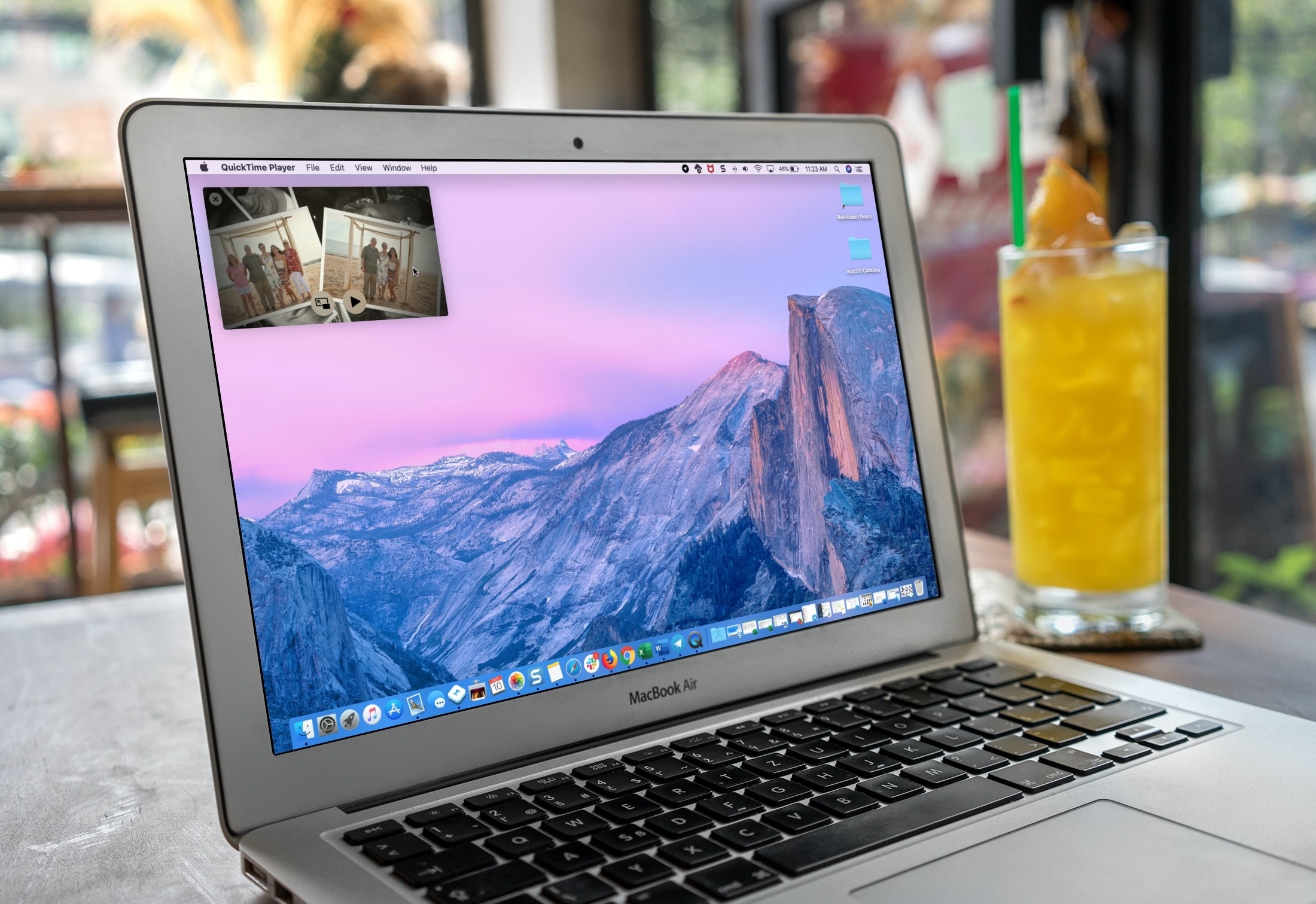
If you use QuickTime Player on your Mac to watch videos and movies, you’ll like its Picture-in-Picture (PiP) feature. It will convert the playing video into a small floating window, which you can resize and place anywhere on the screen.
Enable and use picture-in-picture
1) Pop open QuickTime Player on your Mac to a video or movie you want to watch.
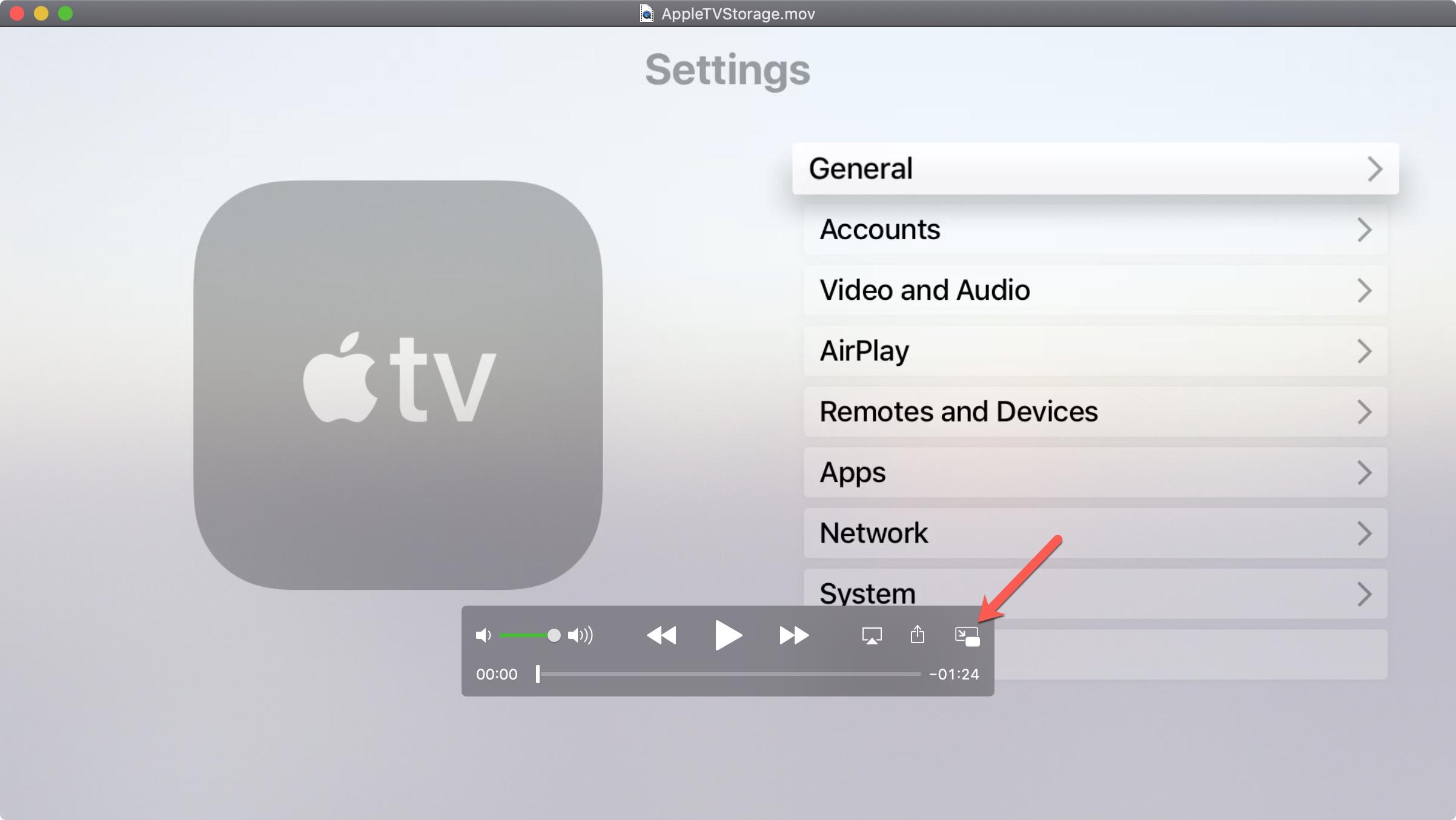
2) Click the Picture-in-Picture button in the Navigation Controller at the bottom.
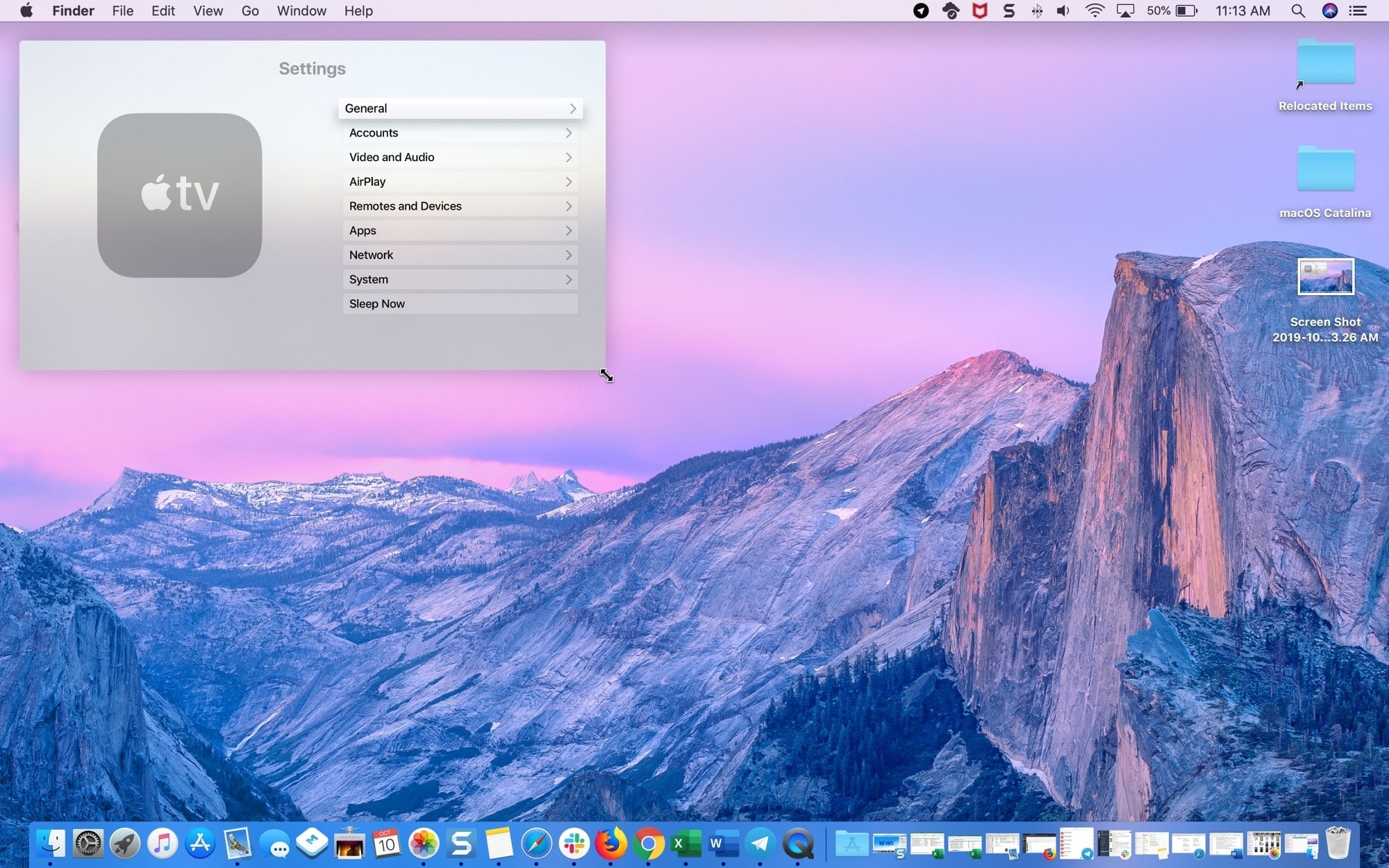
3) The QuickTime Player window will shrink and move to a corner of your screen. You can resize it by dragging it out from one of the edges.
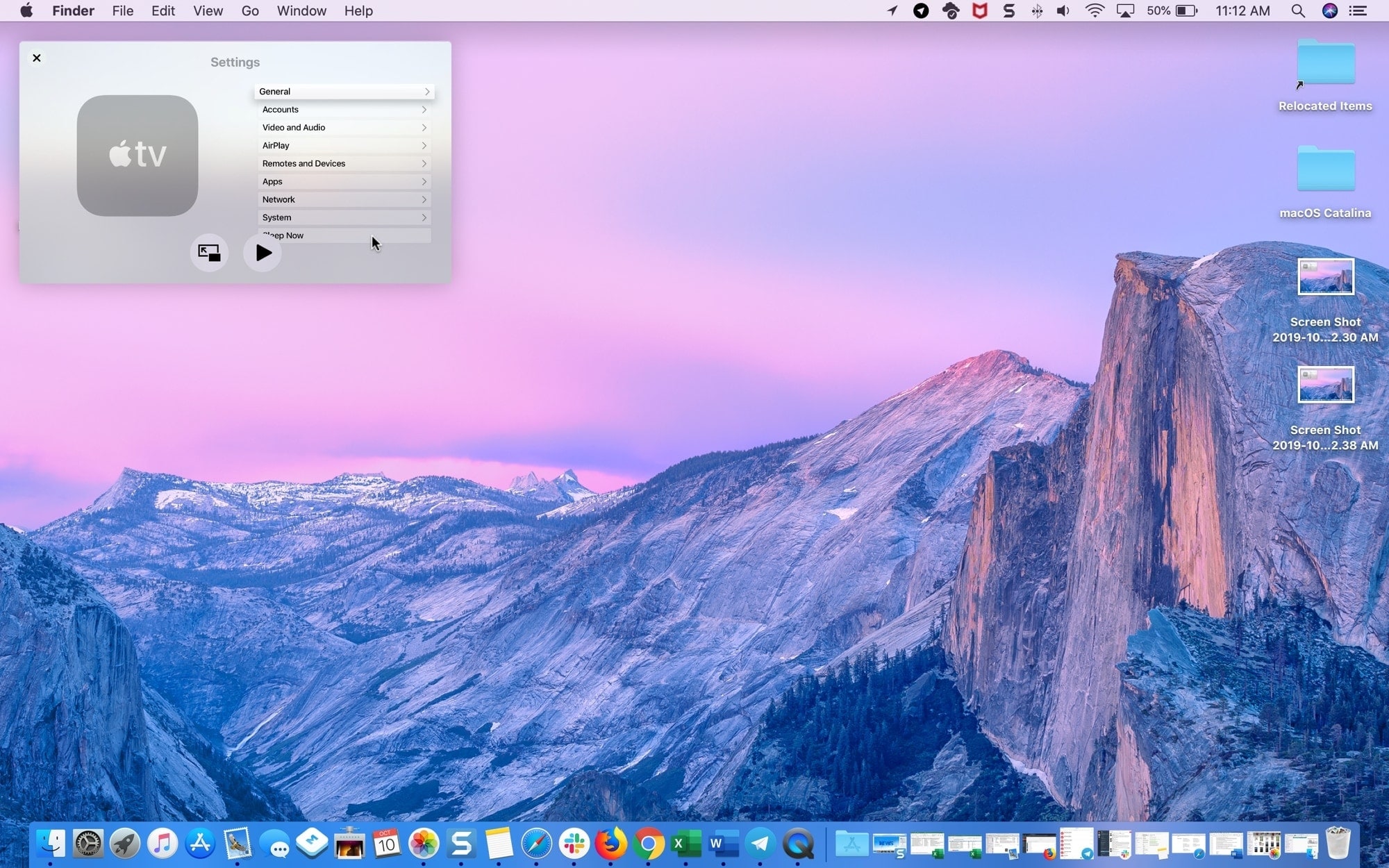
And you can move it by clicking and dragging it. When you move it, the app will snap to the nearest corner of your screen. However, if you hold the Command key when dragging the PiP window, you can snap it anywhere on your Mac screen.
4) Use the Play and then Pause button to control playback.
5) Click the X in the corner of the window or the Picture-in-Picture button to return it to its original size.
Notes on picture-in-picture in QuickTime Player
Here are just a few extras to keep in mind.
- You can enable picture-in-picture while a file is playing. It will shrink and move uninterrupted.
- When you enable picture-in-picture, the QuickTime Player window will play on top of your other open app windows, even if the other apps are in full-screen mode.
- Picture-in-picture mode currently only works in playback, not when you are recording with QuickTime.
- You can exit picture-in-picture while a file is playing, and, as with enabling it, it will continue to play as it returns to its original size and location.
What do you think of this QuickTime Player feature? Is it something you’ll use?
Also, check out: