Learn a quick way to filter your digital library to show only downloaded titles and PDFs in the Apple Books app for offline reading.
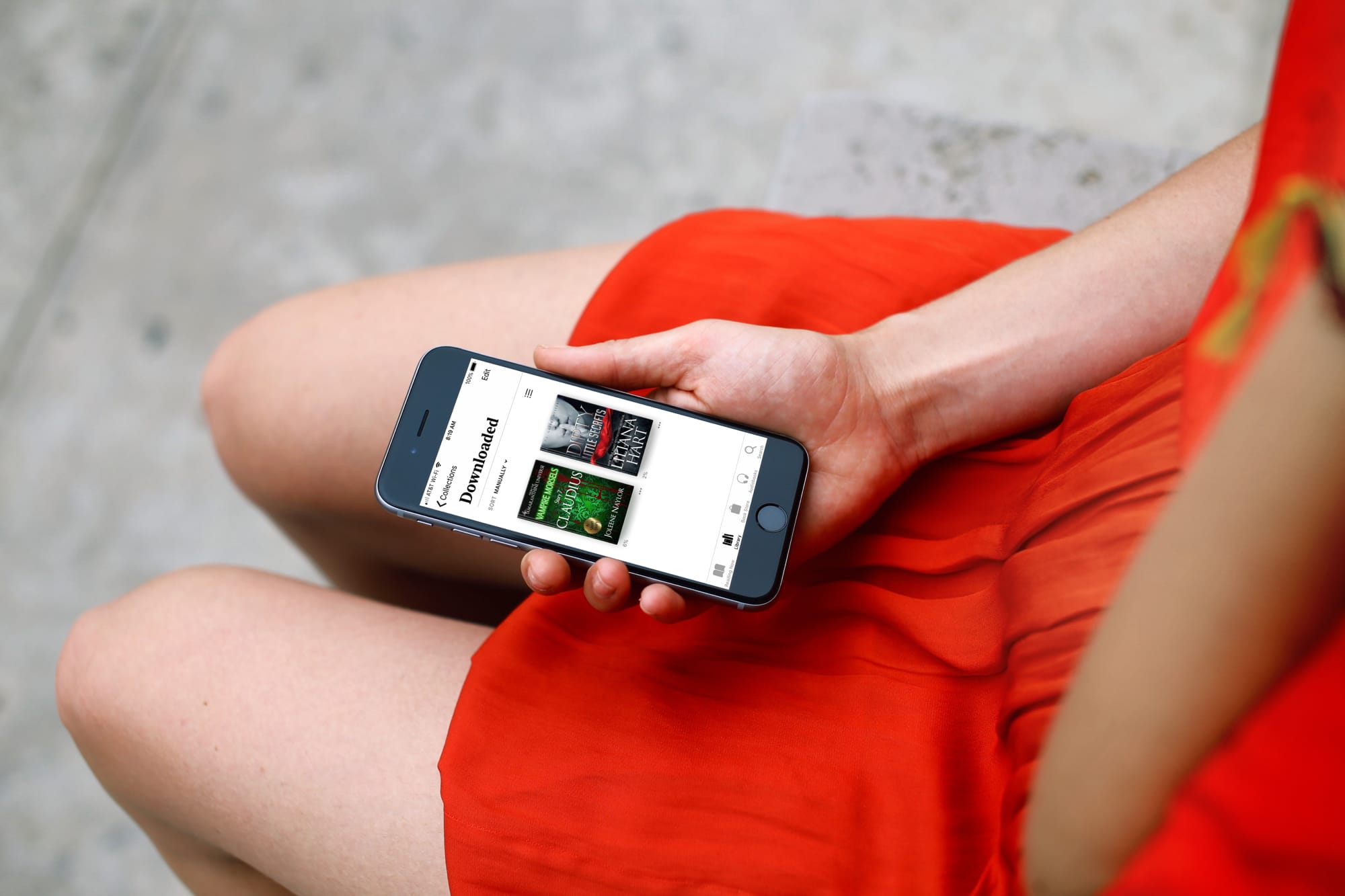
If you purchase a lot of books through Apple’s Books app, you want to access what you’re in the mood to read quickly.
There is a convenient Reading Now screen, but maybe you want to find a book you downloaded a while back.
You can easily see only those books you’ve downloaded in the Books app, so you can read them even when you’re without an Internet connection, like on a plane.
Access all downloaded books in the Books app
- Open the Books app on your iPhone or iPad.
- Switch to the Library tab.
- Tap the menu icon at the top, which is made up of four small lines.
- Choose Downloaded from the list of options to see only those books and PDFs you have saved for offline reading.

In step 3 above, you’ll also notice you can access what you Want to Read, Finished, and Samples, as well as Audiobooks, PDFs, and all Books.
Getting to your downloaded books is easy in the Books app. With a few taps, you can start a new novel or pick up where you left off with a book of short stories.
If you’re on a Mac, you won’t see an easy option to view just your downloaded titles. Look under each title; if it has a cloud icon, the book isn’t saved offline. However, if you don’t see such an icon, that means the book is saved on your computer.

Do you enjoy Apple’s Books app? Are there any tips you have for our other readers who use it?
For more, check out how to use themes while reading books on iPad and iPhone, and also learn where Books are stored on your Mac.