Learn how to change the number of lines for email previews in your Mail inbox on iPhone, iPad, and Mac to display more or less information.
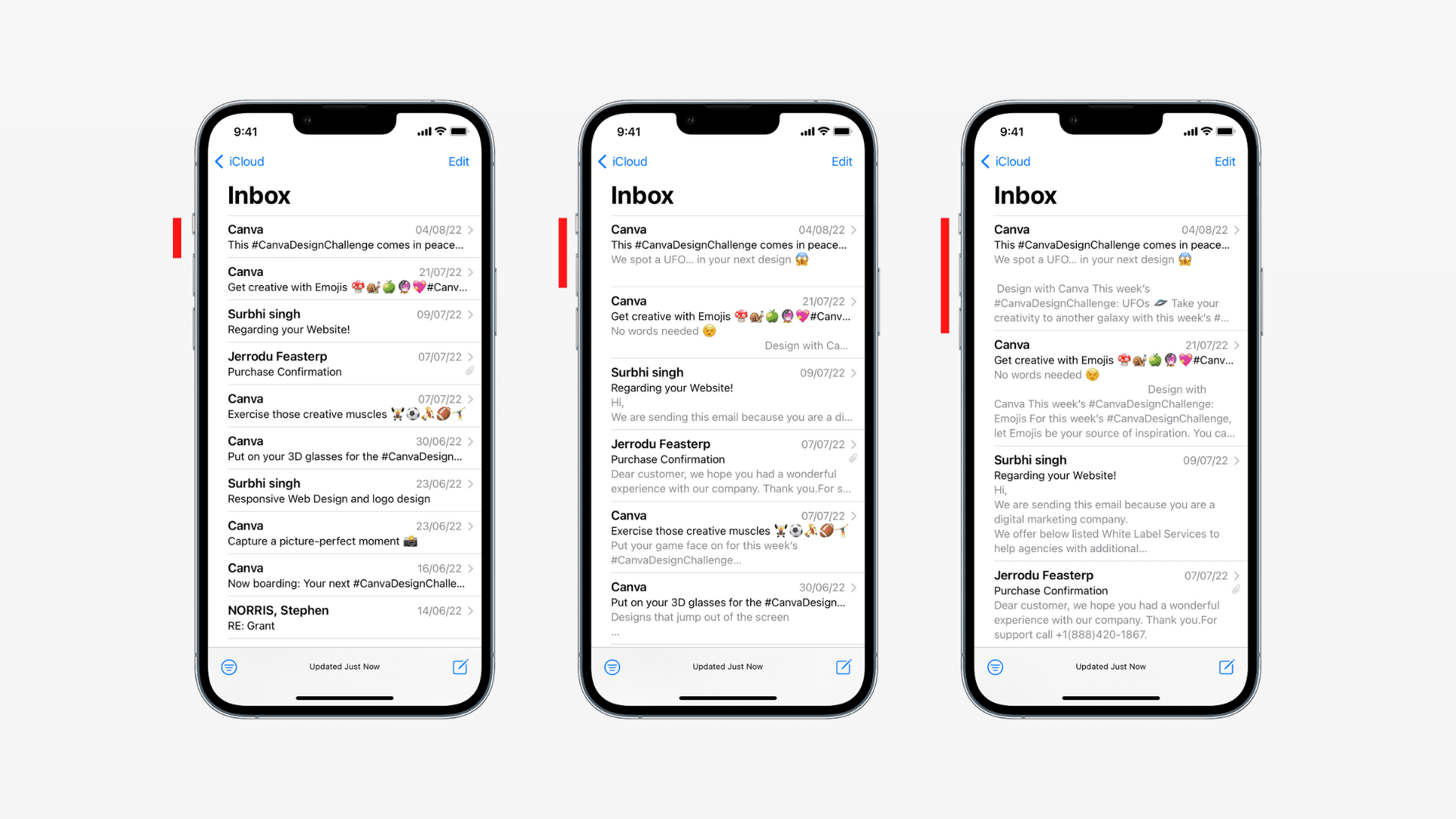
The Mail app shows message previews in the inbox list, with 2 lines by default. A preview can be more helpful than the subject in threads where the subject line is the same.
You can change information density in those previews by adjusting preview length, ranging from one to five lines to show more or less information.
iPhone and iPad
- Open the Settings app.
- Scroll to the bottom and tap Apps.
- Select Mail from the list of applications.
- Tap Preview in the Message List heading.
- Choose the number of lines to display, ranging from None to 5 Lines.

Mac
- Open the Mail app on your Mac.
- Click Mail > Settings or Mail > Preferences from the top menu bar.
- Switch to the Viewing tab.
- Click the drop-down menu next to List Preview and choose the number of lines to display in message previews, ranging from None to 5 Lines. Keep in mind that Mail ignores your set preview length when you switch to the classic layout.

Inbox clarity… It’s hard enough to keep up with overloaded inboxes. Choosing the right balance between preview length depends on how many messages you’d like to see in the inbox list at once and the amount of detail you need in message previews.
Do you find these email previews in the inbox list more useful than glancing at the subject? Or are they equally important to you? Let us know in the comments down below!
Do more with Mail: