Enable a hidden setting that lets you force the Facebook mobile app to autoplay all video reels and stories in your News Feed with audio OFF or ON.
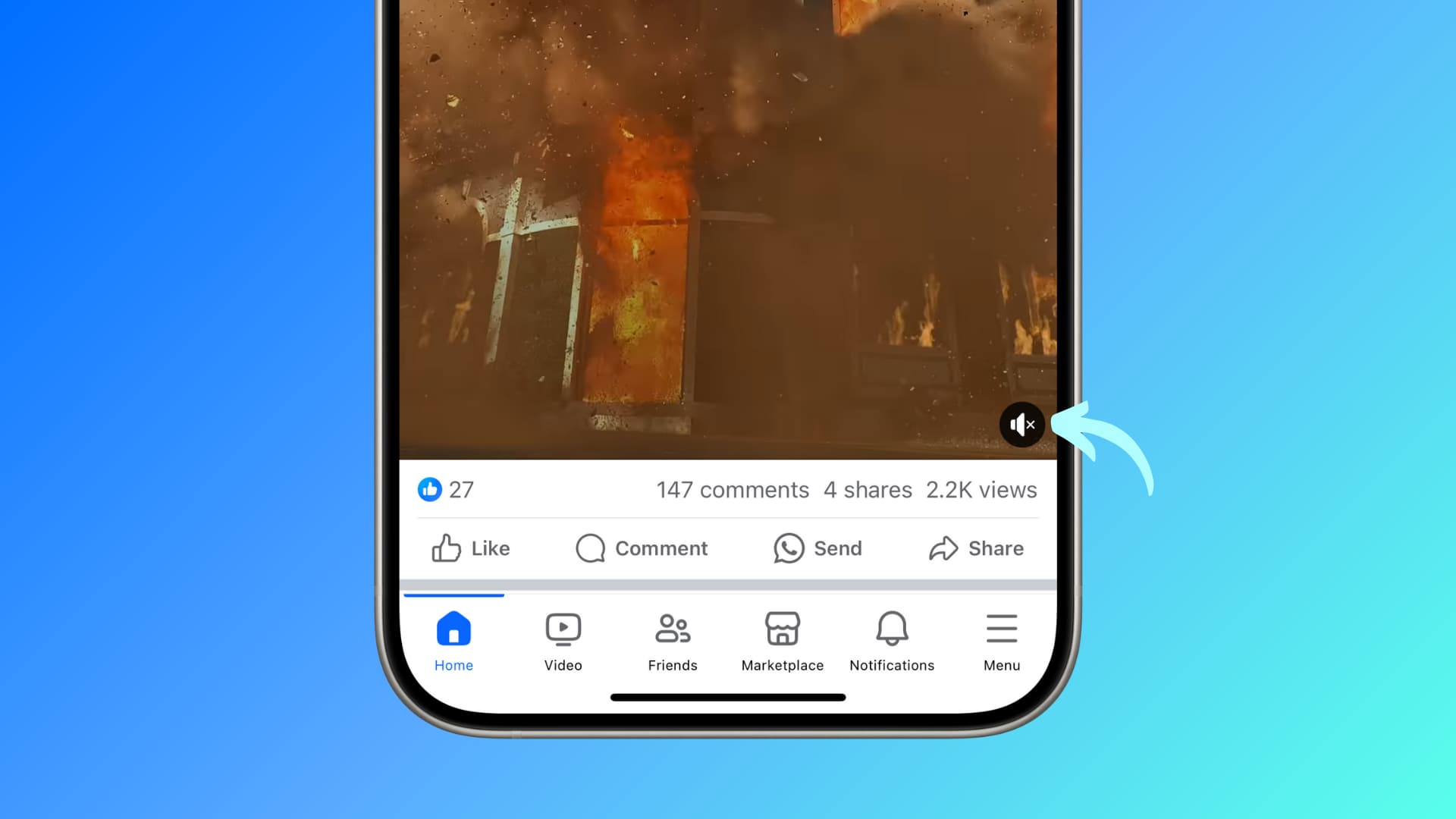
Have you noticed that the videos in your Facebook Home Feed don’t autoplay silently but have their sound turned on? This can be very annoying if you’re browsing Facebook at night or in places like a library, and a random video on the timeline starts playing with loud audio.
Thankfully, you can change this behavior and turn off sound from auto-playing videos. Conversely, if you want the videos to autoplay with sound so you don’t have to tap the little loudspeaker icon, you can do that as well.
Change the audio setting for auto-playing videos on Facebook
- Open the Facebook app on your iPhone, iPad, or Android phone and tap the hamburger menu icon.
- Tap Settings & privacy at the bottom of the list, then choose Settings.
- Select Media from the list of options.
- Enable or disable “Reels start with sound on” and “Stories start with sound on” to disable or enable automatic sound for any videos that appear on your Facebook home page. Turning off “Play all sounds in app” will disable sounds like the one you hear when you tap an in-app menu.
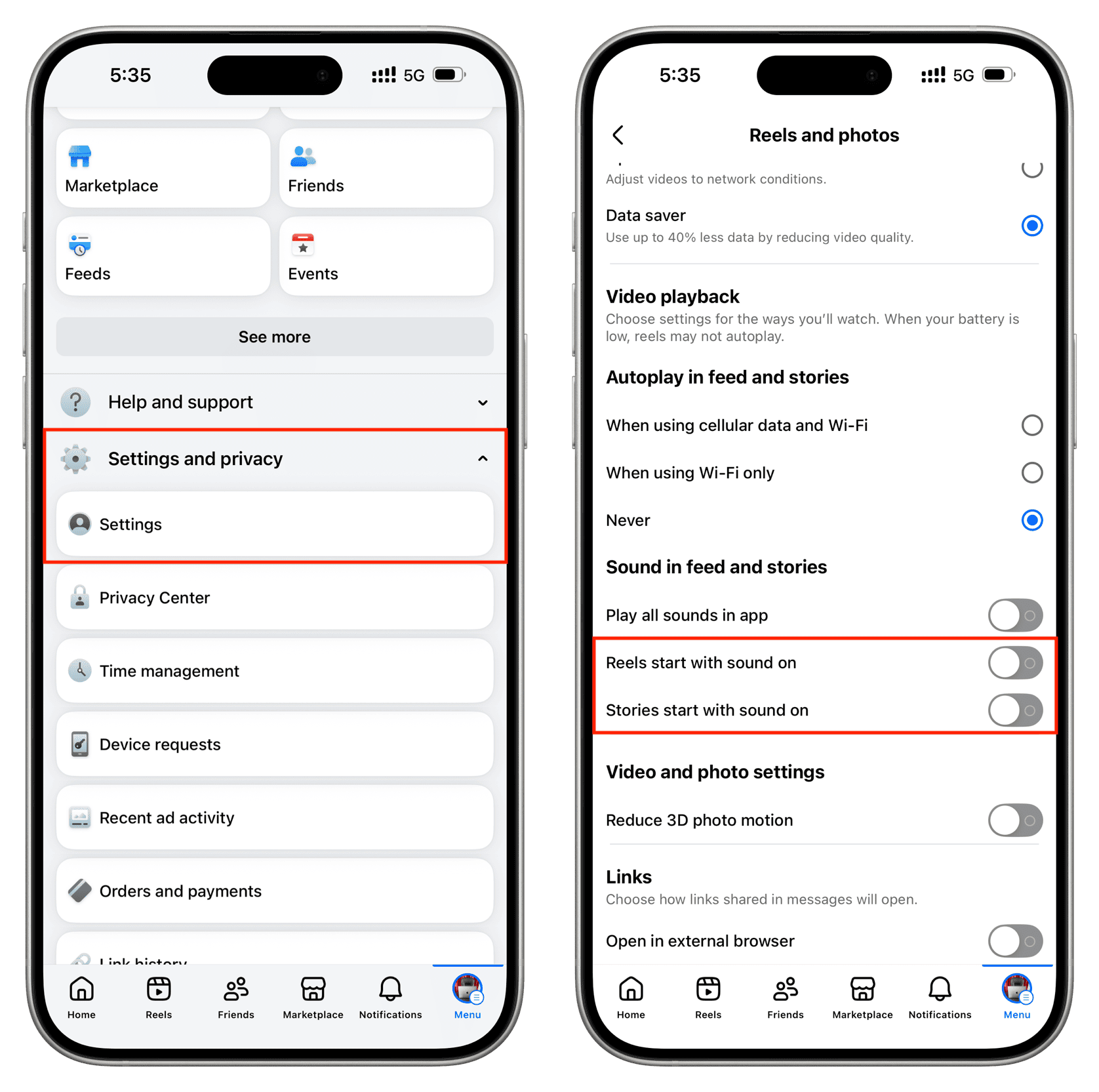
If you disable the sound for Home Feed videos, you’ll need to tap a video to hear the audio. With sound enabled for these videos, clips will begin playing with audio on, and sound will fade in and out as you scroll through your timeline.
Remember that you can also control video volume with the sound settings of your mobile device. To override the setting and keep videos silent, simply set your iPhone to silent. Secondly, autoplay stops if your device’s battery is low. So, when that happens, the sound will obviously be muted.
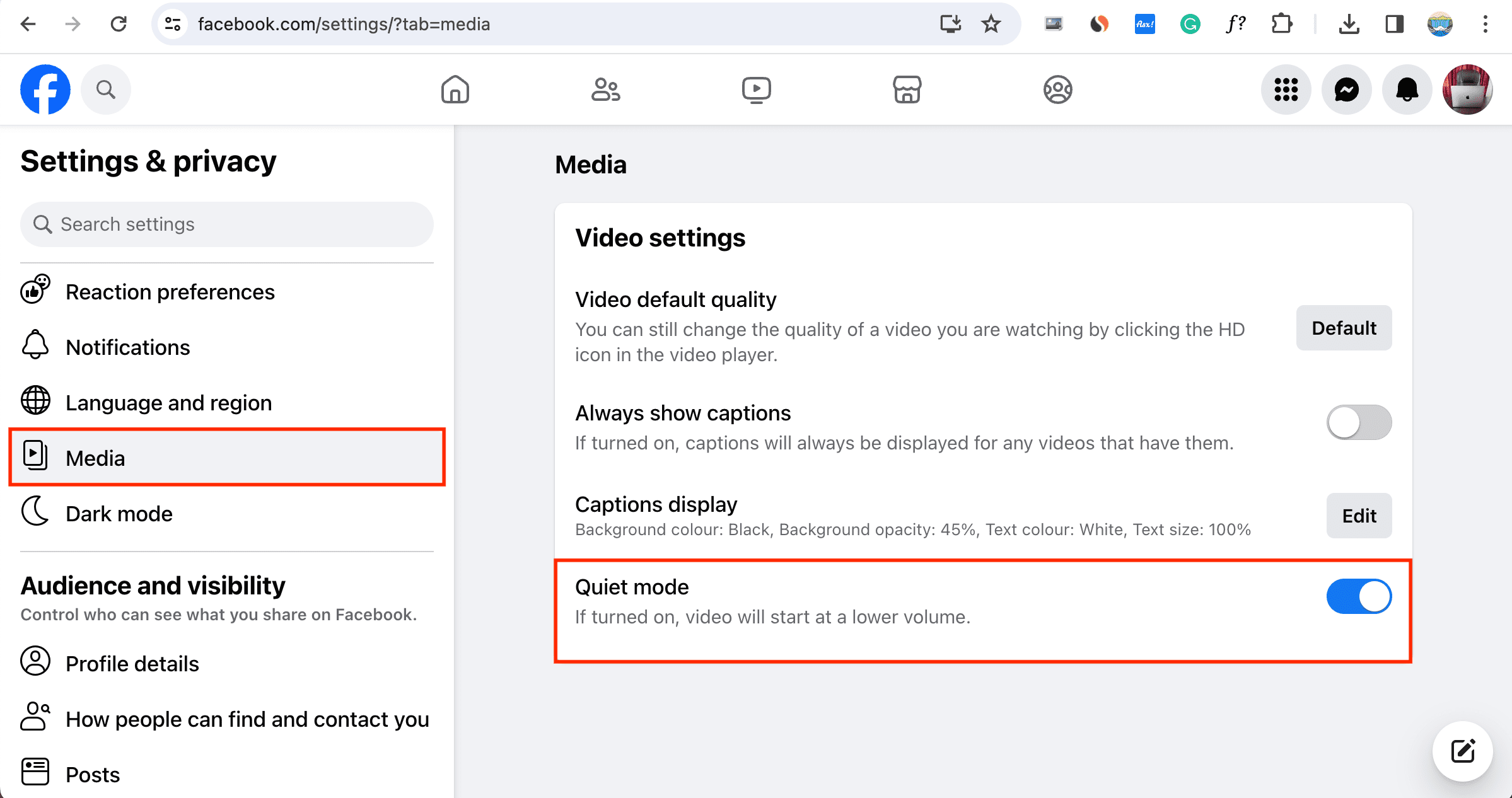
These options are unavailable on Facebook’s desktop interface. However, if you click your profile picture on Facebook Web and go to Settings & privacy > Settings > Media, you’ll see a Quiet mode option, which, if turned on, will force the videos to start at a lower volume.
If you don’t want videos in your News Feed to play automatically in the first place, be sure to check out our tutorials explaining how to change the video autoplay setting in your Facebook app.
Also, check out: