You may have inadvertently deleted data from your iPhone, iPad, and Mac, or even your iCloud account. Fortunately, Apple offers you a way to restore previously lost data, and this tutorial guides you through the process.
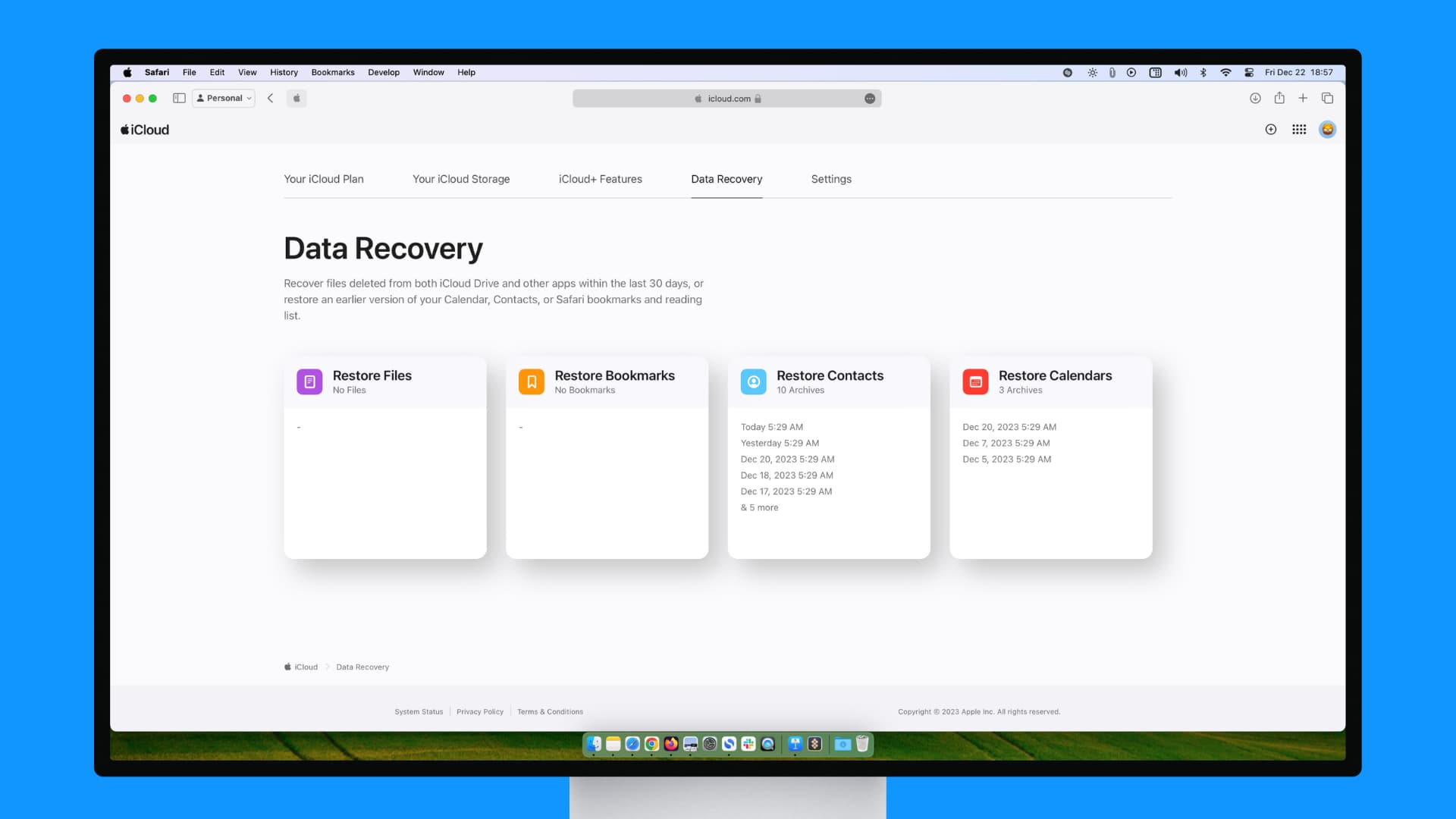
Apple’s iCloud data restoration covers various items typically stored in the cloud that may have been accidentally deleted. This includes:
- Contacts
- Calendar events
- Reminders
- Safari bookmarks
- iCloud Drive files
- iCloud Photos
- iCloud emails
- Pages, Numbers, and Keynote files
Important:
- You have 30 days after deleting something to restore it via iCloud. So if you notice something is gone or missing, then it’s a good idea to get on top of this instead of procrastinating.
- When you restore contacts, reminders, calendar events, and such, it will replace everything on all devices tied to your iCloud account.
- You’ll find the recovered items in their respective apps or location where they were, like the original iCloud Drive folder or the Numbers, Pages, and Keynote folder in iCloud Drive.
Recover Contacts, Calendars, Reminders, and Safari Bookmarks
- Go to icloud.com/recovery and sign in with your Apple Account and password.
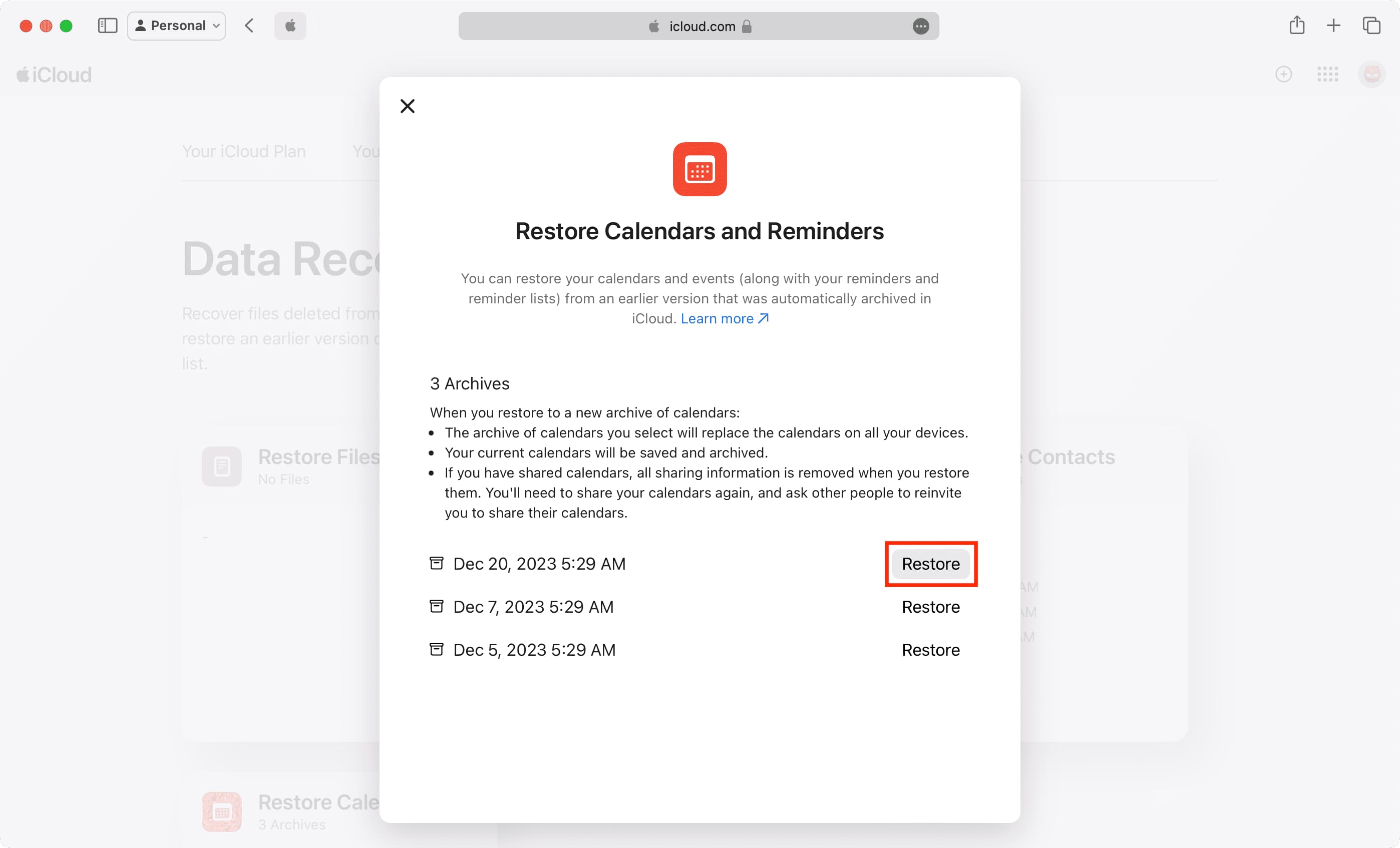
- You’ve got four recovery tiles here. Go inside one, and you’ll see the available versions listed by date and time when they were archived. Click Restore next to the one you want to recover.
- Click Restore once again to confirm.
Recover iCloud Drive, Numbers, Keynote, and Pages files
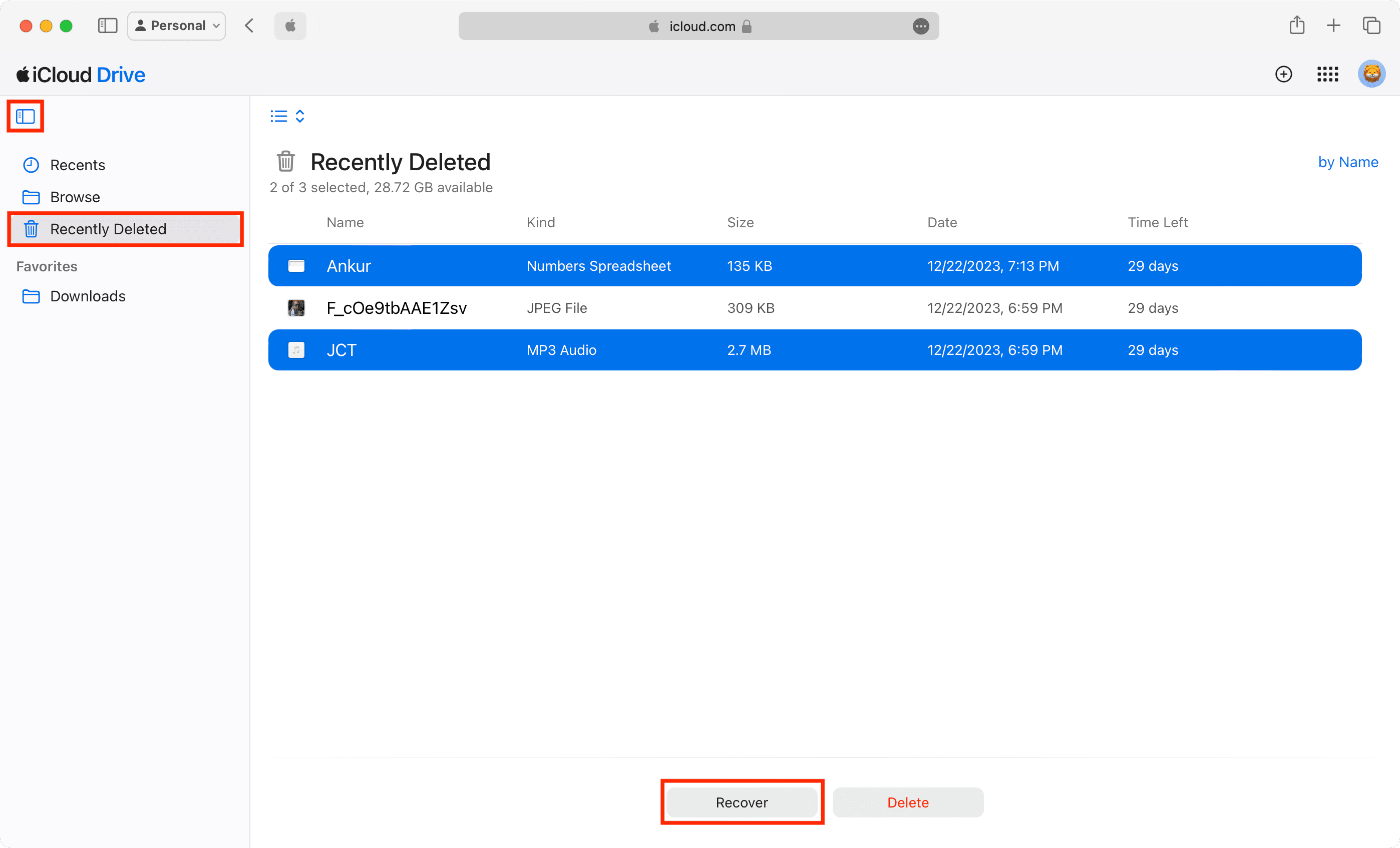
- Visit iCloud.com, log in with your Apple Account, and select Drive.
- Go to the Recently Deleted section. If you don’t see it, click the Show Sidebar icon first.
- Click Recover All or select one or more files by holding the command key on Mac or the control key on Windows PC, then click Recover.
Recover deleted iCloud Photos
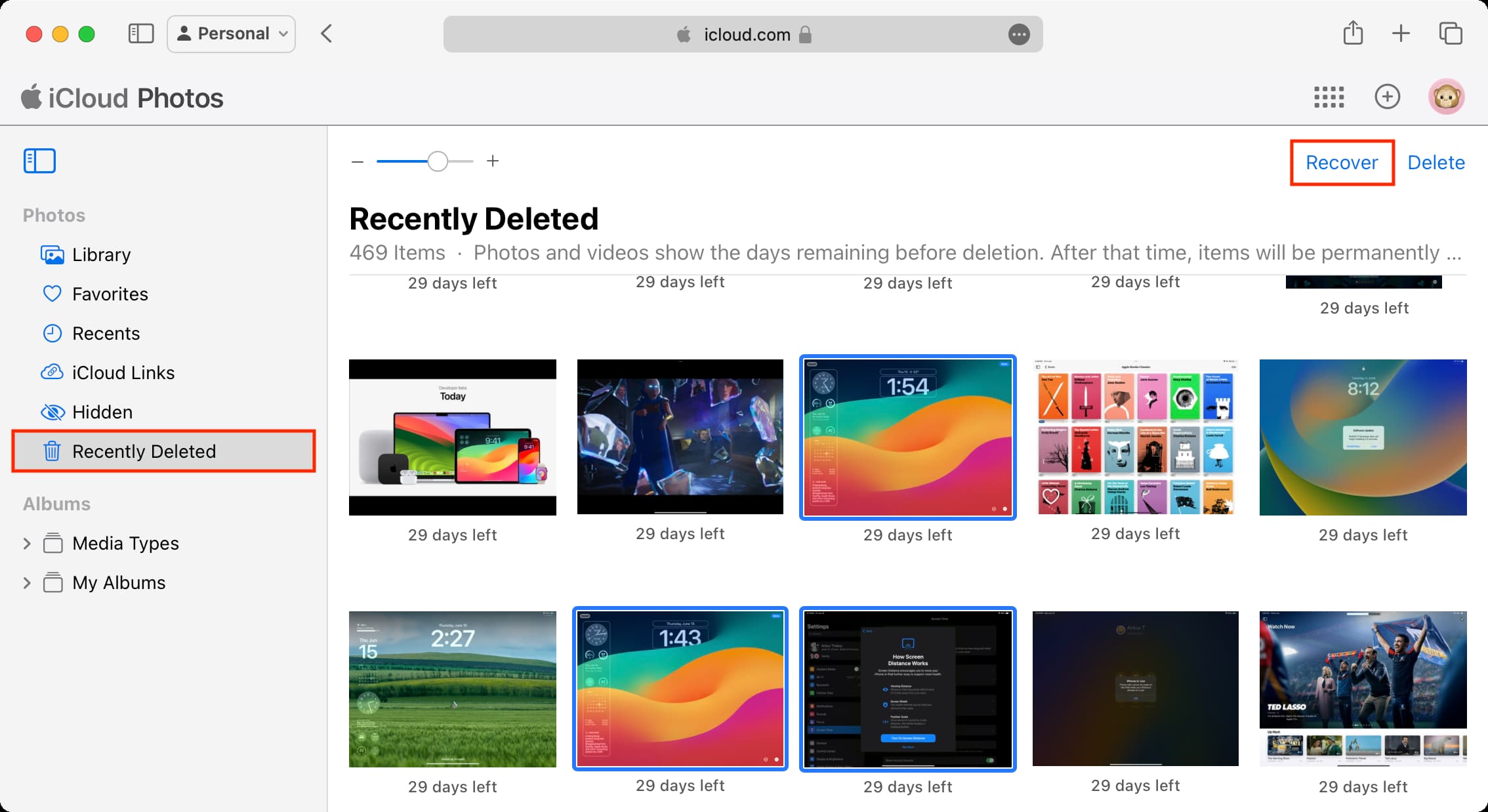
You can recover pictures and videos from the Recently Deleted section of iCloud web or the Photos app on your iPhone, iPad, and Mac. From there, select the photos and hit Recover.
Recover trashed emails
It’s easy to recover deleted iCloud emails from iCloud.com, but you can’t recover deleted emails from other services like Gmail or Yahoo, even if you use them inside the Apple Mail app. To recover these, use the Trash section of the Apple Mail app or go to the respective website of that email service, such as gmail.com or yahoo.com.
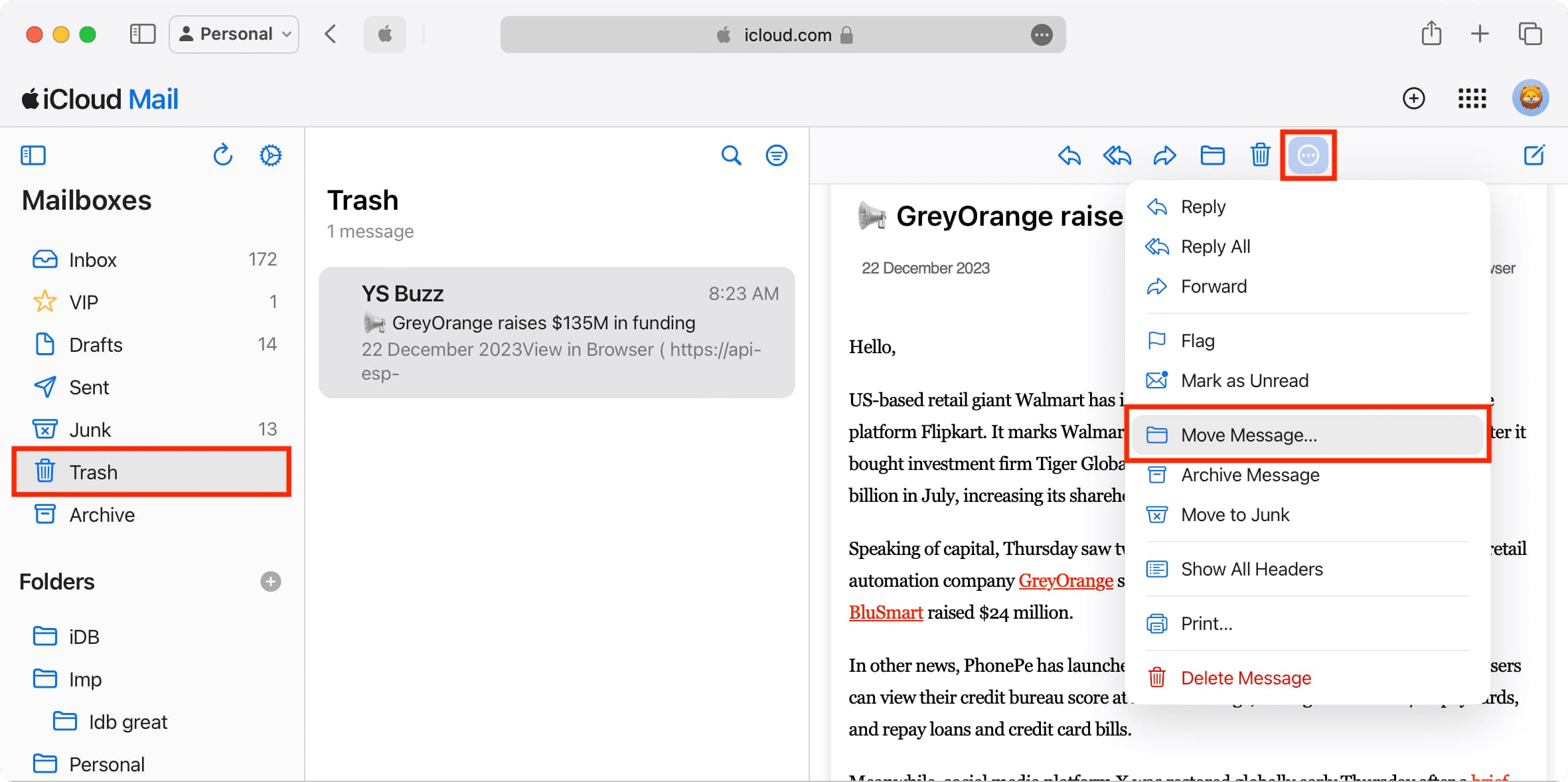
- Head over to iCloud.com/mail and sign in with your Apple Account.
- Select Trash from the left sidebar.
- To recover one email, drag it to the Inbox section or click its three-dot menu icon and choose Move Message > Inbox > Move.
- To recover multiple emails, hold the command key on Mac or the control key on Windows PC and select them. After that, click Move > Inbox > Move.
Recover deleted notes
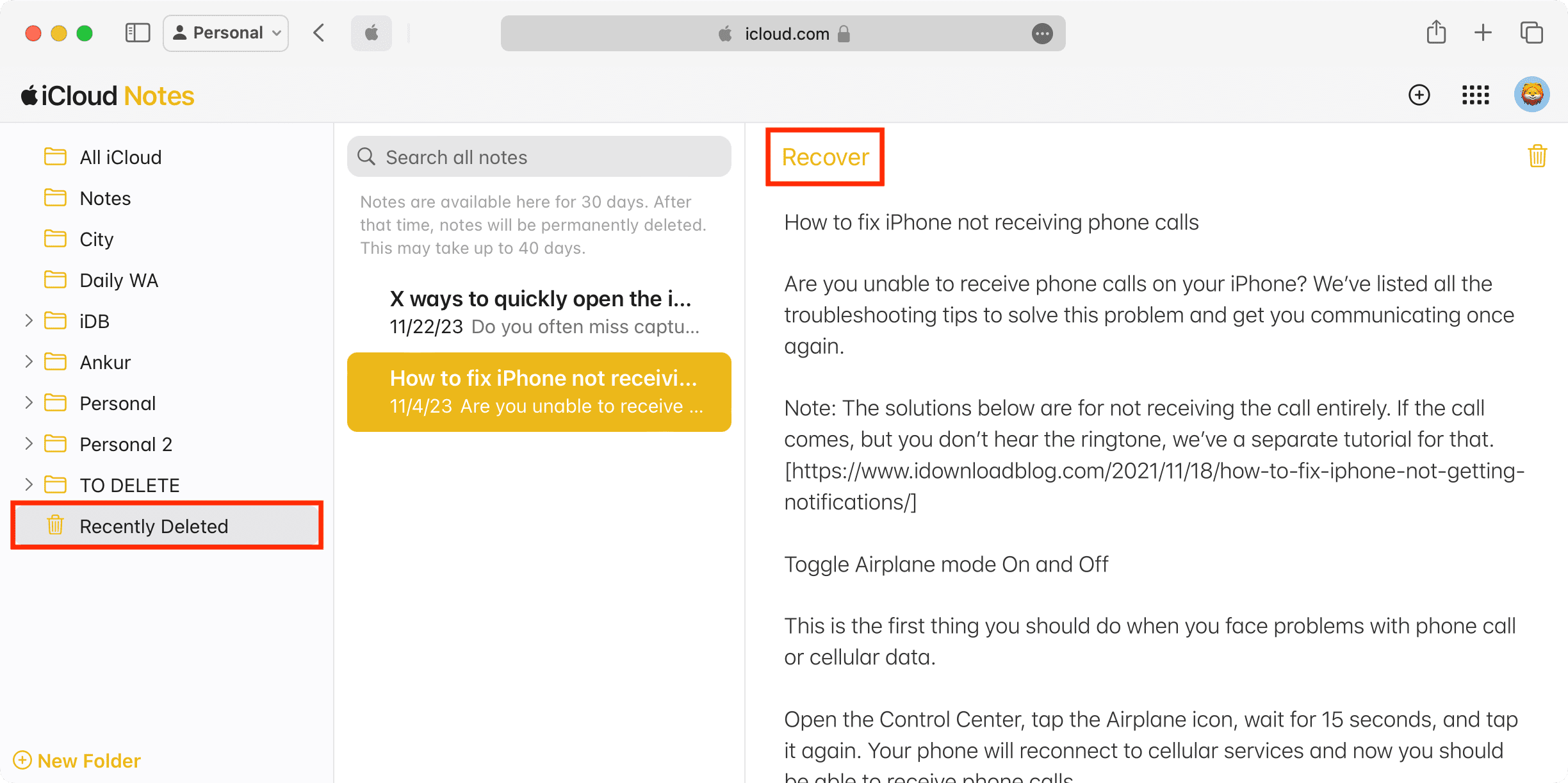
If you’d like to get back one or all of your recently deleted notes, you can do it from the Notes app on your iOS or macOS device or from icloud.com/notes.
iCloud isn’t syncing the restored data to all your devices…
If you’re having trouble getting iCloud to sync all your freshly restored data to your iOS devices and Macs, keep in mind that Apple says this process can take as much as 6 hours to complete. If it’s taking a long time, look into the following scenarios.
Do you have many devices?
The more devices you have, the more devices iCloud has to push data to. Although it should be fast for 2-3 devices, any more than that could take substantially more time because of bandwidth issues. In these instances, sync times may take longer than expected.
Are all of your devices connected to the internet?
If any of your devices are powered off or disconnected from the internet at the time you’re restoring data from iCloud, it will be unable to sync to these devices. You need to make sure they’re powered on and connected to an internet source so iCloud can push the data to them.
Are all of your devices using the same iCloud account?
If any of your devices are using a different iCloud account than the one on which you initiated the restore, then the data from the iCloud restore you’re pursuing won’t be synced to those devices. You need to be using the same iCloud account on all of your devices for your iCloud restore to be effective for all of them.
Contact Apple
If all else fails, give Apple a call. They’ll be able to help straighten out your dilemma and help you get your device’s data up and running again!
Next, learn how to recover: