Learn how to save email attachments from Apple Mail to a folder on your iPhone or iPad or apps such as Google Drive or Microsoft OneDrive.
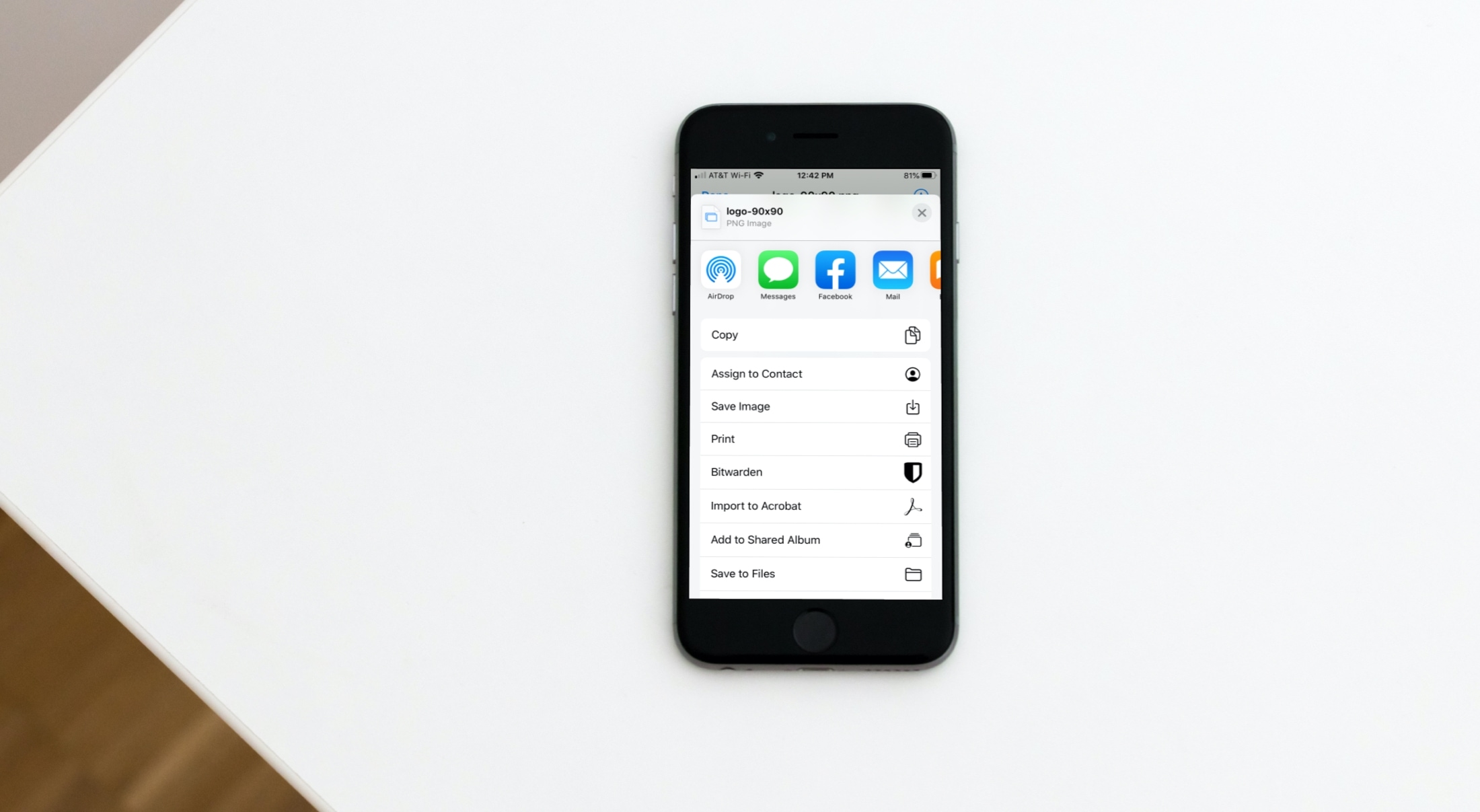
In my experience, attachments fall into two categories: images and all other file types, like PDFs or Office documents. There’s a slight difference in how image attachments are saved, so that’s where we’ll start.
Basically, images and videos attached to emails are saved to the iOS Photos app, while other attachment types can be exported to folders on the device or to cloud storage services connected to the Files app, such as Dropbox, Google Drive, or Microsoft OneDrive.
Save image attachments
The easiest way to save an image attachment in the Mail app on your iPhone or iPad is to hold it and select “Save Image” or “Save to Photos” from the menu.

You can also choose Save Image from the share menu.

Another option is to tap the image to open it in fullscreen, then tap the share icon and select “Save Image.” If you use cloud storage like Google Drive or Dropbox, select it in the share menu to save your image attachments there.

Save file and document attachments from Apple Mail
The most obvious method to export email attachments in the Mail app is by tapping the downward-pointing arrow icon in the attachment tile and choosing an option:
- Save to Documents: Download the attachment to the Documents folder in your iCloud Drive, which is readily accessible from within the Apple Files app.
- Save to Downloads: Save the email attachment to the Downloads folder.
- Save Attachment: Save the attachment into a custom folder in the Files app.

You can also touch and hold the attachment, choose Save to Files from the menu, and select a folder in Files.

Or, select Share from the touch-and-hold menu and choose an app to save or send your attachments to, like WhatsApp.

Lastly, you can tap the attachment to open it within the Mail app, then tap the share button and pick an option.

Also, check out: