Learn how to set your iPhone or iPad to automatically delete old texts and attachments instead of keeping them forever to declutter your Messages app and free up storage space.
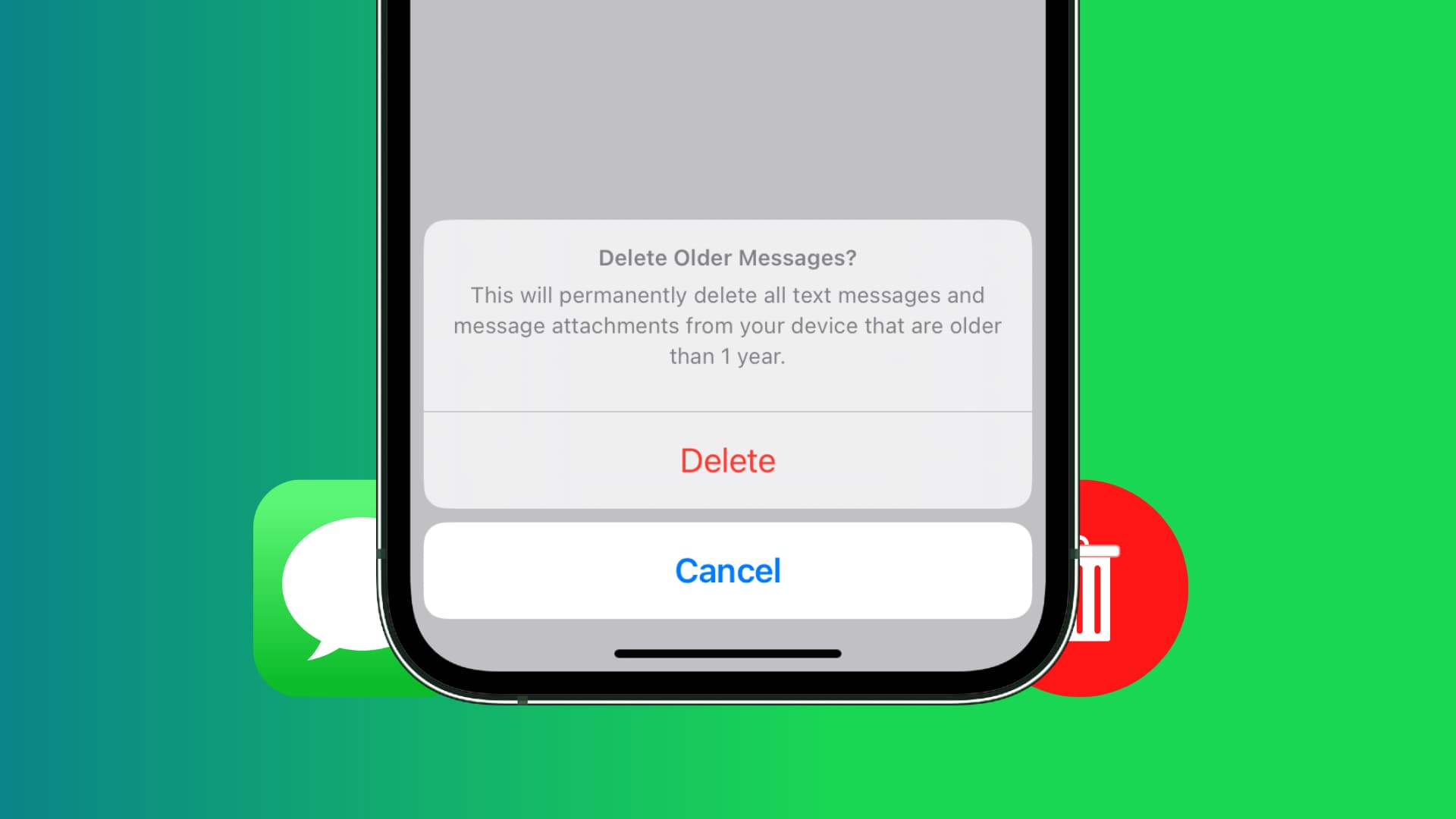
Messages app keeps all those animated GIFs, pictures, and videos sent to friends and family, adding to the cruft already taking up storage space on your iPhone.
If your device is running low on storage, you can set the Messages app to clear older chats and automatically delete new texts after the expiration date.
Set Messages for iPhone to automatically delete old texts
- Open the Settings app.
- Scroll to the bottom and tap Apps.
- Select Messages in the list of applications.
- Tap Keep Messages under the Message History heading.
- Choose how long to keep chats before they’re automatically deleted: 30 Days, 1 Year, or Forever. By default, the app keeps your messages forever.

Setting message expiration to 30 days or 1 year will immediately delete all chats and attachments older than that.
If you exchange lots of media-rich messages with friends and family in the Messages app, setting message expiration will tidy up your inbox and free up storage space on an ongoing basis.
However, don’t turn on auto-delete if you need to keep certain chats for proof, safekeeping, remembrance, or any other purpose. And if you must, then screenshot those important texts or export and print them.
Also, check out: