Learn how to stop videos & GIFs from auto-playing when you browse through your X timeline on your iPhone, iPad, Mac, and web browser.
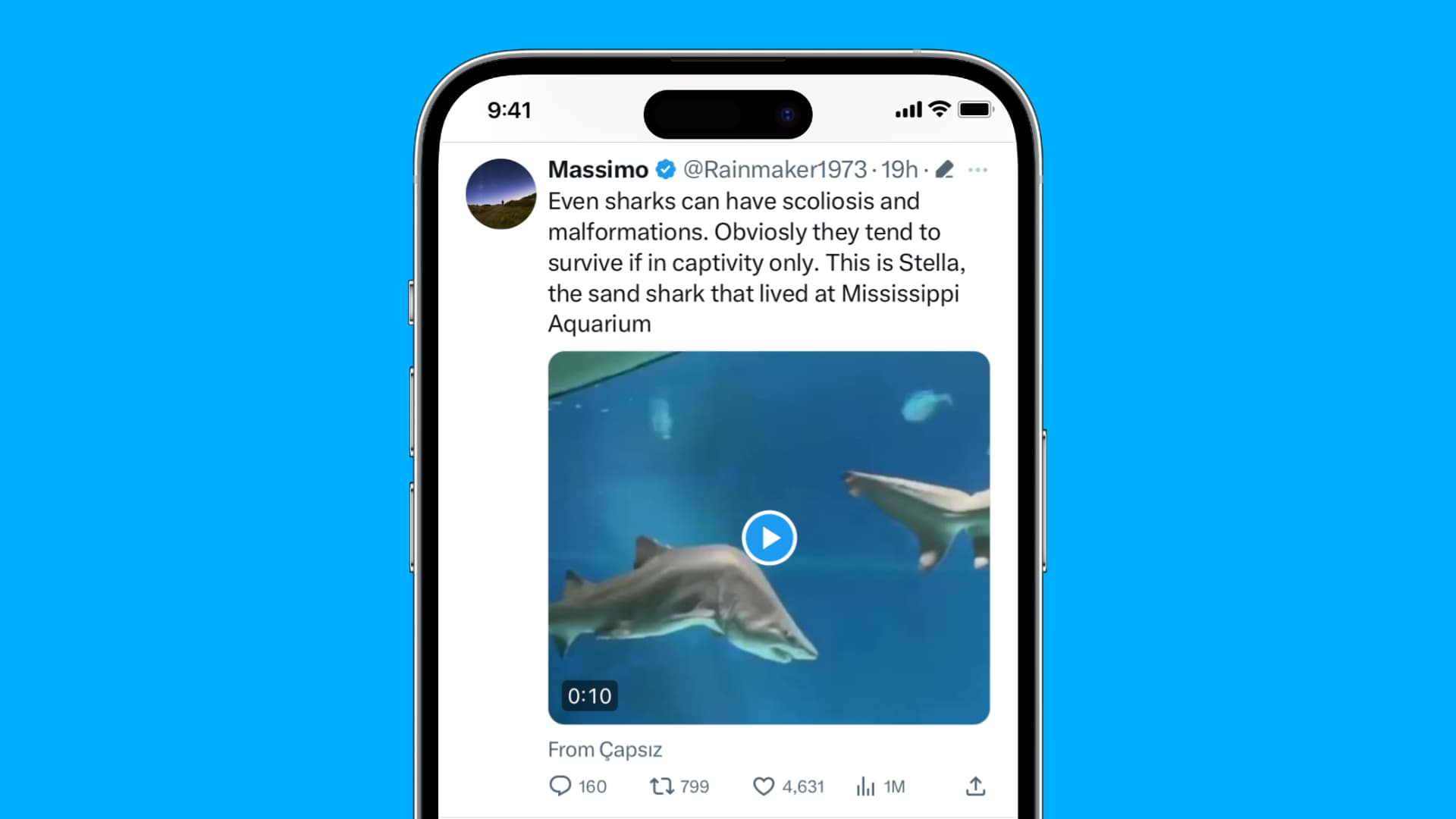
Video auto-play is enabled by default to streamline the experience and increase user engagement.
Having videos play automatically as you scroll through your X timeline is cool, unless the convenience comes at the expense of your mobile service bill. If you’re on a metered data plan, auto-playing videos can quickly eat into your data allowance and incur unwanted overage charges.
Thankfully, settings for video auto-play (including video ads) can be easily adjusted. Even better, you can choose video autoplay independently on X.com and X’s mobile app. For instance, you can set videos to autoplay on your iPhone and not on the web.
X app
- Tap your profile picture from the top left of the X app.
- Tap Settings and privacy.
- Go to Accessibility, display, and languages.
- Select Data usage.
- Tap Video autoplay and set it to “Only on Wi-Fi” or “Never.” You can also turn on Data Saver if you’re on a tight cellular or Wi-Fi plan.

On X.com
- Visit x.com in a web browser on your Mac or Windows PC.
- Click More from the left side of the screen, followed by Settings and privacy.
- Click Accessibility, display, and languages.
- Select Data usage.
- Set Autoplay to Never.

After you choose Never, videos and animated GIFs will no longer auto-play in this web browser when you scroll through your X timeline.
If you want my advice, you should restrict video autoplay in the X app to Wi-Fi only, while leaving the feature enabled for X’s web interface on your computer.
While we’re at it, we also have a tutorial on stopping videos from auto-playing in the Facebook app.
Also, check out: How to upload and download images in full resolution on X