Learn how to post high-quality images to X (formerly Twitter) and download photos from there in the best resolution on your phone or computer.
My colleague Jim and I often post iPhone, iPad, and Mac wallpapers on X. To ensure those images are of the absolute best quality, it’s important to enable a setting that uploads them at full resolution.
Similarly, when you download images or our wallpapers from X, you should know how to load them in 4K quality and save that instead of the compressed version.
Upload high-quality 4K images to X
- Open the X app or website on your iPhone, iPad, or Android phone, tap your profile picture, and go to Settings and privacy.
- Select Accessibility, display, and languages, followed by Data usage.
- Make sure Data saver is off. Then, tap High-quality image uploads and set it to ‘On cellular or Wi-Fi.’

From now on, when you post an image, it will be uploaded in the best possible quality (up to 4K.)
In my observation, I noticed that X supports up to 4096 × 4096 pixels (you see this number when you open an X image in a new tab on a computer). Note that 4K typically refers to 3840 × 2160 pixels, whereas for movie projection it refers to 4096 × 2160 pixels.
Download images in 4K from X
- Tap the photo in a post so it fills the screen.
- Touch and hold the image or tap the three dots icon in the top right.
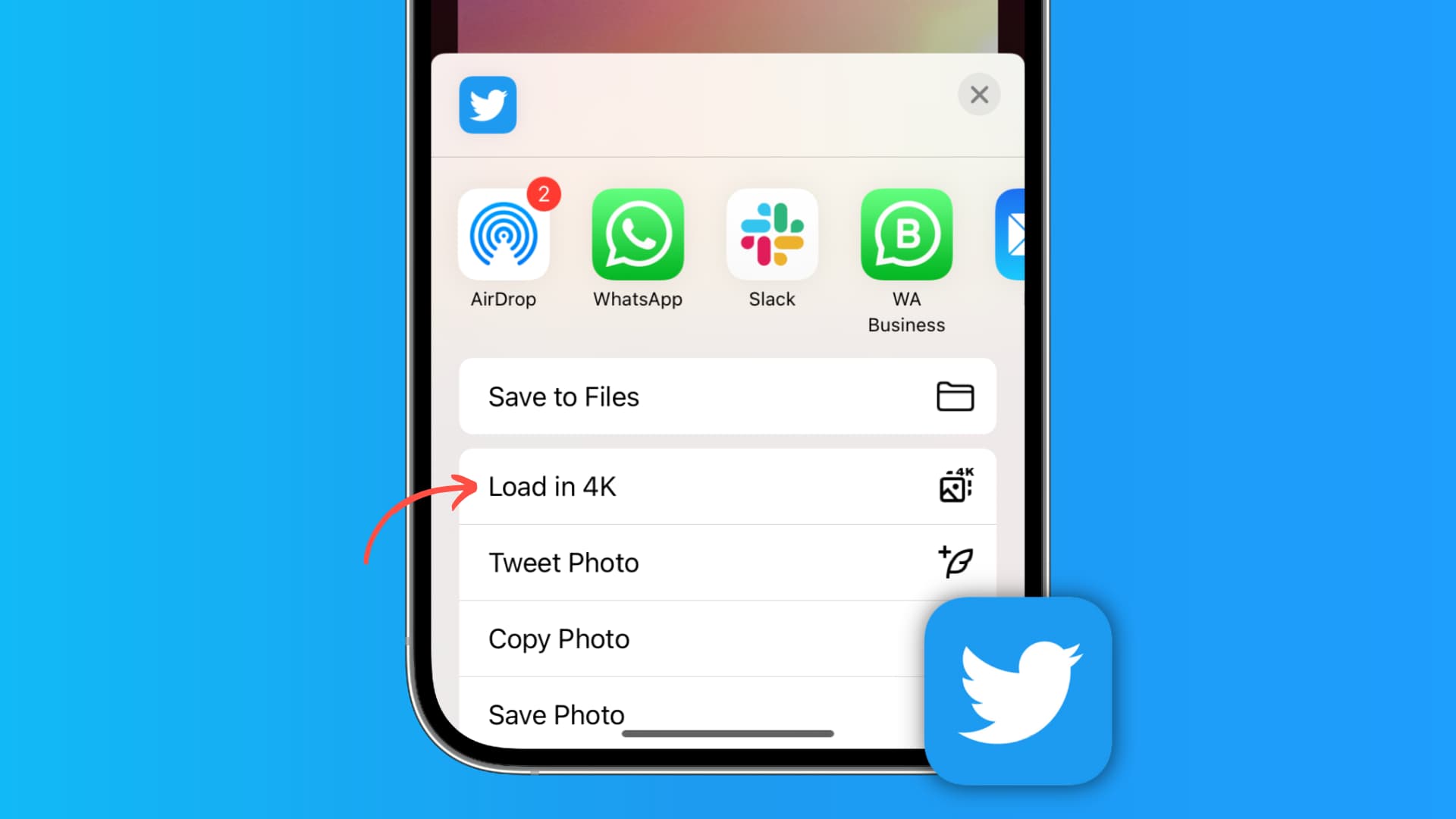
- Tap Load in 4K from the iOS Share Sheet.
- X will reload the image in the best possible quality. Touch and hold the image or tap the three dots icon again, then tap Save Photo to download this 4K image to your phone’s Photos app.

If you’re on a computer
Open the image, then right-click it and select Open Image in New Tab. This will load the photo at full resolution in a new tab. Save it to your computer now.

See the difference
I downloaded a wallpaper posted by iDB using the Twitter app on my iPhone. It’s 946 × 2048 pixels in dimension and has a file size of 257 KB.
Next, I loaded the same image in 4K and saved it. It’s 1125 × 2436 pixels in dimension and a whopping 2.6 MB in size. In other words, it’s almost ten times the size of the regular version!
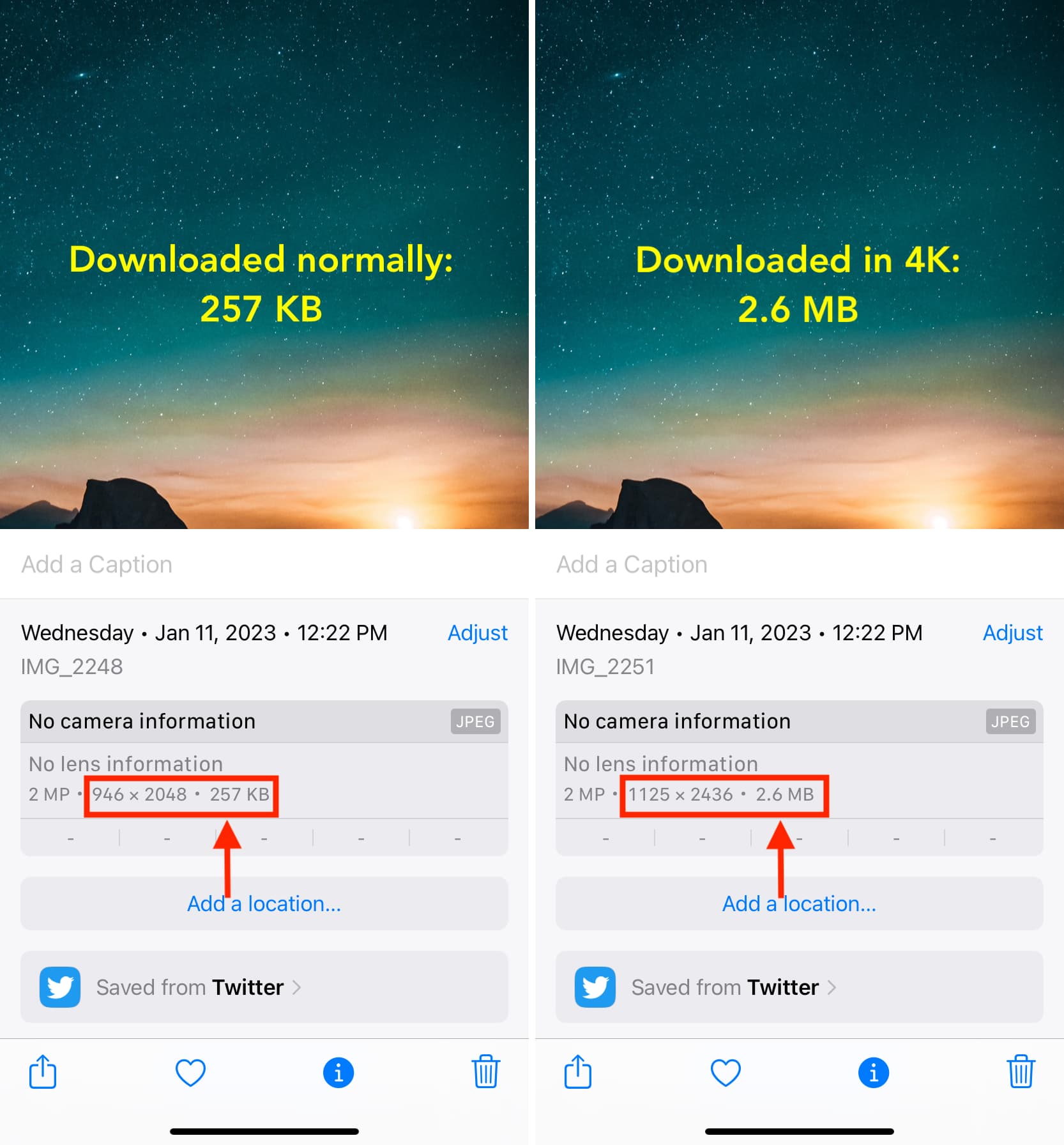
Note that not all images uploaded to X are available to download in 4K. But if the person who tweeted has enabled high-quality uploads (steps above) and has used a high-resolution image, then it can be downloaded in 4K.
On a related note: