Learn how to create a backup of your Apple Watch to ensure your valuable information remains secure and easily restorable.
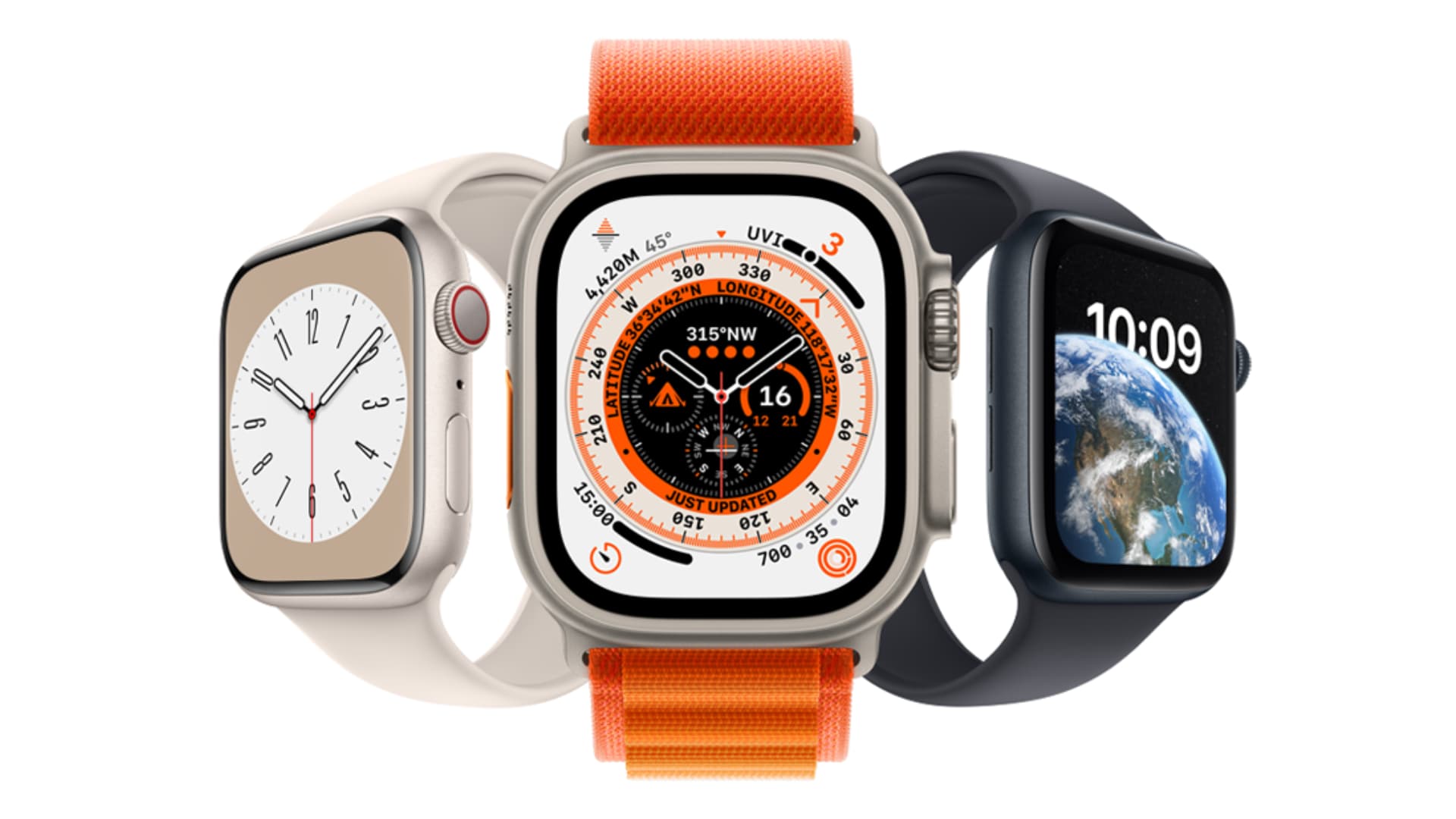
Similar to iPhones and iPads, settings and data on your Apple Watch can be backed up and restored should anything go wrong or you’re just setting up a new watch from a backup.
Restoring your Apple Watch from a backup, if you have one, can save you the hassle of setting up the device anew, especially after having it repaired or erased because you’ve forgotten the passcode or have entered the wrong one six times in a row.
Apple Watch backup happens automatically
Your Apple Watch data is backed up automatically to your iPhone. You’ll see no confirmation or no apparent button to initiate the backup. All you need to do is make sure both devices are kept nearby.
Back up your Apple Watch manually
There’s no specific option to force a backup of your Apple Watch other than unpairing the device from the connected iPhone. Unpairing the devices through the Apple Watch companion app on your iPhone always performs a backup first without you having to do a thing.
You should keep the watch and your iPhone close together as you unpair them, since the unpairing process is performed via Bluetooth.
- Open the Watch app on your iPhone.
- Tap All Watches in the top left corner of the screen.
- Tap the info icon ⓘ next to the paired Apple Watch.
- Tap Unpair Apple Watch and confirm. Before unpairing the watch, a backup of all the data on that watch will be created and synced to your iPhone.

From there, that backup will itself be backed up either to iCloud or to your computer (Finder on Mac or the Apple Devices app on Windows PC), depending on how you have configured your iPhone backup.
After it has been successfully backed up, the content and settings on your Apple Watch will be wiped clean, and the device will be set back to the default factory settings. This post further details unpairing your Apple Watch from its connected iPhone.
Back up a family member’s Apple Watch
You can also pair a family member’s Apple Watch with your iPhone if they don’t own an iPhone. Such Apple Watches are backed up directly to that person’s iCloud account when the watch is charging and connected to Wi-Fi.
What’s included in an Apple Watch backup?
A backup file contains the following items:
- App-specific data for stock apps and settings for stock and third-party apps
- Your Home screen app layout
- Watch face settings and customizations
- Dock settings
- General system settings like brightness and sounds & haptics
- Health and Fitness data, including history, unlocked achievements, awards, and calibration data
- Music playlists, albums, and mixes
- Synced photo album
- Notification settings
- Siri Voice Feedback settings
- Time zone
What’s not included in your Apple Watch backup?
- Your Bluetooth pairings
- Cards used for Apple Pay on Apple Watch
- Apple Watch passcode
- Messages
Note: If iCloud Messages is on, then your iMessages and SMS are already stored in iCloud.
How to restore Apple Watch from backup
Restoring your Apple Watch will bring back your stored data and settings. When you’re ready, you can pair your fully erased or brand-new Apple Watch and then set it up from a stored backup.
When you’re following the steps to set up your new or erased Apple Watch, you’ll be offered the option to restore a previous backup (if you have one). Simply tap Restore from Backup and pick the most recent backup file.

Voilà, Apple Watch is now ready, and you can pick up right where you left off just before the last backup.
Note that, just like iPhone backups, watch backups are not backward compatible. So, if I have a watchOS 26 backup (say, from a different watch), but I’m setting up my old Apple Watch that’s running watchOS 10, then the watchOS 26 backup can’t be restored to it. Such backups say “Update Required” in red ink (as seen in the screenshot above).
Check out next: 30+ things to do and know after buying an Apple Watch