Learn how to delete individual pages from your Safari history on iPhone, iPad, and Mac for increased privacy.

Have you ever “accidentally” visited a site on your iPhone only to immediately delete your entire history because you didn’t want to leave traces of your activity? That’s what happened to me the other day, and boy, did I regret wiping my whole Safari history clean just because of one stupid page.
I assumed that iOS didn’t allow the removal of individual pages from browsing history. Having done my research since, I now know better. Yes, it’s possible to remove a page, any previously visited page, from your browsing history in Safari on both iOS and Mac. It couldn’t be simpler.
Removing cherry-picked items from your Safari history on iOS and Mac is also a sure-fire solution to the problem of unwanted history items surfacing in Safari’s suggestions in the search/URL bar when you enter the initials of its main domain.
On iPhone or iPad
- Open Safari on your iPhone, tap the three dots icon, then tap Bookmarks or its icon that resembles an open book. On iPad, tap the sidebar icon in the top left and choose History or Profile Name History.
- Tap the History button (clock icon), as shown in the screenshot below.
- Scroll through the list to find the previously visited page you’d like to remove. Then, swipe right to left on it and tap the delete icon. You can also swipe left on an entire day or time period (like This Afternoon) and hit the red trash icon.

Mac
- Open Safari on your Mac, then press Command + Y keys to view your browsing history. You can also click History > Show All History from the top menu bar.
- Find the previously visited page you’d like to remove. Control-click or right-click on it and choose Delete from the contextual drop-down menu.
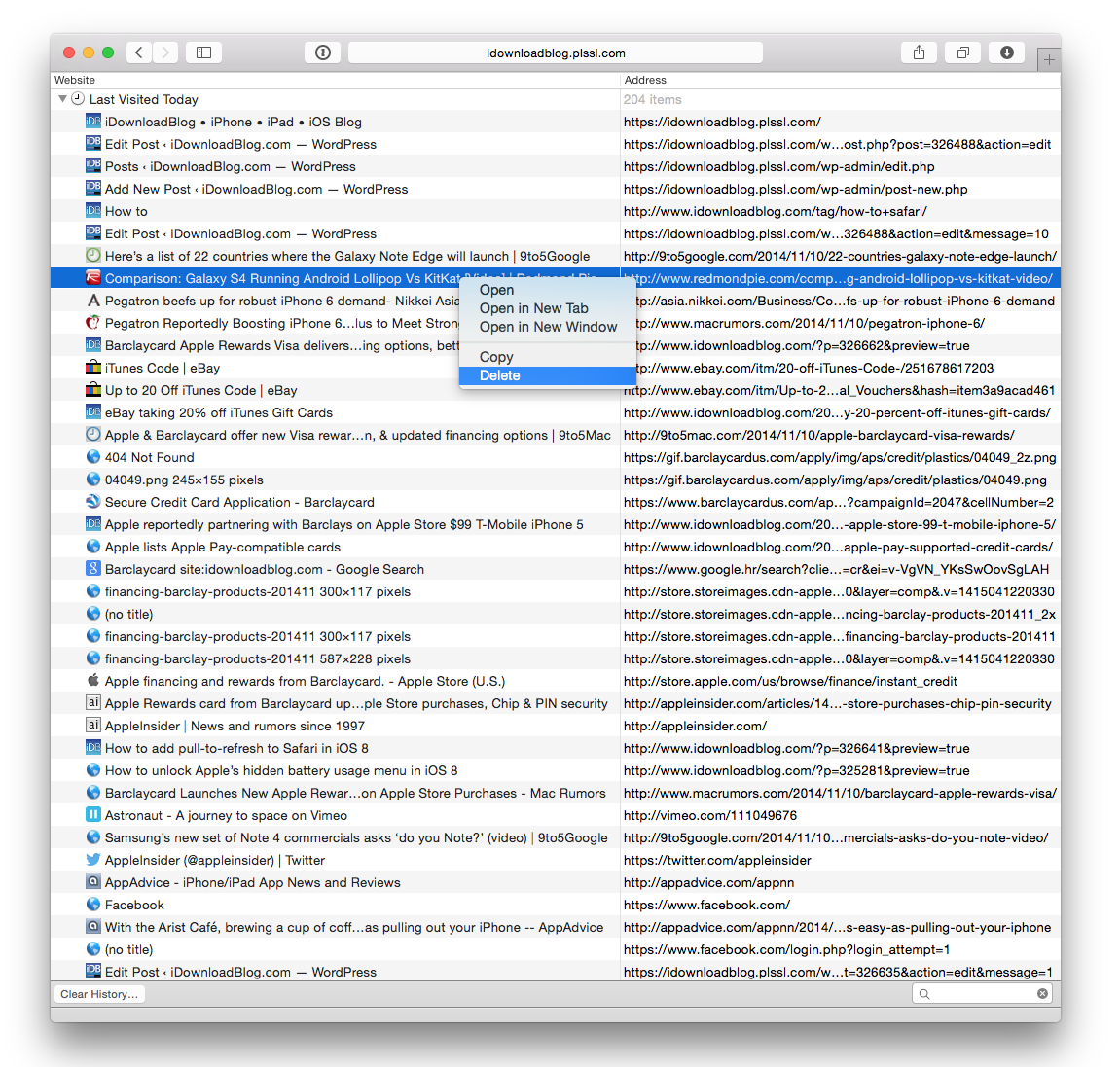
Tip: You can also select the entry and press the delete key on your keyboard. To select multiple pages in Safari history, press and hold the Command key and make your selection. After that, press the delete key to remove them.
Keep in mind that iCloud keeps your browser history synced across Mac and iOS devices that are linked to the same iCloud account, in addition to your bookmarks, open tabs, and Reading List items. As a result, deleting a webpage on one device removes it automatically from Safari history on all your other devices. It’s a great time saver and precisely what most people will want to do anyway. Should you, however, prefer to have separate web browsing history on each device, consider disabling Safari sync in iOS Settings / macOS System Settings > Apple Account > iCloud > See All.
Privacy-minded parents who share devices with their kids will be happy learning they can take steps to ensure any webpage doesn’t show up in their browsing history. Or maybe you were just skimming through online shopping sites in search of the perfect holiday present for your significant other. In that case, unless you were shopping for presents in Safari’s private browsing mode, you don’t want your spouse to inadvertently spoil the surprise by stumbling upon your gift ideas in your browsing history.
More on Safari: