In this tutorial, we show you how to add your most-used camera features and controls to the top of the viewfinder for quick one-tap access.

When you open the Camera app on your iPhone, you have a row of controls at the top of the screen (Apple calls them Essentials) that show just a few quick options like flash, Live Photo, and Night Mode.
To access additional controls like aspect ratio, timer, exposure, styles, filters, format, and more, you have to first tap the six-dot icon, followed by the desired option (like Filters), and then your preference for that option (like Mono).

iOS 27 makes your life easier by moving the six-dot icon to the lower portion of the screen. Additionally, it lets you customize the top row of essential icons. You can either remove all icons for a clean camera preview screen. Or, you can fill the row with several little icons to quickly access your most ‘essential’ camera features. You can also rearrange them as you like.
Just remember that even if you remove all these widget-like icons, some, like Flash and Night Mode, will temporarily appear based on the lighting conditions around you. For instance, the Night Mode moon icon will appear there intelligently so you capture brighter photos with more light.
Customize iPhone Camera app controls
1) Update your iPhone to iOS 27.
2) Open the Camera app.
3) Tap the six-dot icon as shown in the screenshot below.
4) Tap the new Edit button at the top of the screen.

5) Tap the photo controls in the bottom pane that you want to add to the top row. On my 15 Pro Max, I was able to add up to 8 icons there.
6) Touch an added icon in the top Essentials row and drag it left or right to arrange it just as you like. Finally, tap Done to save the changes.

Moving forward, you can quickly turn a particular feature on or off just by tapping its icon at the top; you won’t need to tap the six-dot icon first.
If you made a lot of changes and want to revert to the default style, head back to the photo controls editing screen and tap “Reset to Essentials” at the bottom of the screen.
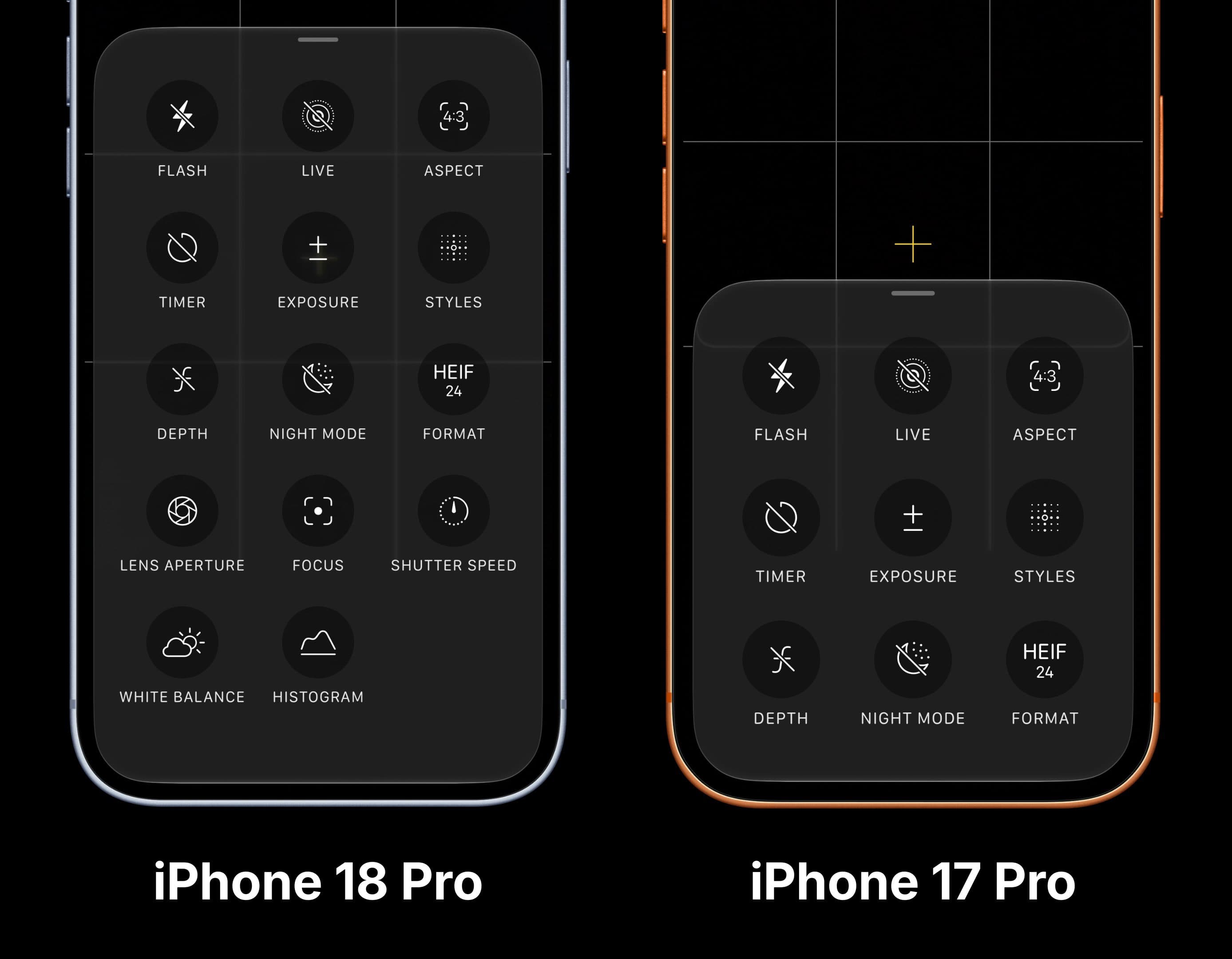
Depending on which iPhone model you have and the settings you have enabled, here’s the list of controls you’ll see and can add to the top row:
- Flash
- Live Photo
- Aspect ratio
- Timer
- Exposure
- Photographic Styles
- Photo Filters
- Depth control
- Night Mode
- Center Stage
- Photo file Format
- Lens Aperture
- Focus
- Shutter Speed
- White Balance
- Histogram
- iCloud Shared Photo Library
And remember that even after you add several controls to the top row, they will still be available near your thumbs behind the six-dots icon.
What do you think of this?
I certainly love this customization. But it would have made more sense if Apple gave us one more option: show these controls at the bottom of the screen, maybe under the shutter button. That way, it would be easier to access on larger iPhones with one hand.
Also, check out: