Check out the correct steps to completely sign out of Gmail and your Google account from your iPhone or iPad, even if you no longer have access to the device.
Gmail is the world’s most popular email service, and for most people, it’s their one and only email service. If someone has access to your Gmail, they could potentially reset passwords for your bank accounts, apps, shopping sites, and much more. Therefore, it’s vital to keep your Gmail account secured and logged out from devices you no longer use or have access to.
Sign out of the Gmail app
1) Open the Gmail app and tap your profile picture in the upper-right corner.
2) Tap Manage accounts on this device.
3) Select Remove from this device below the account you want to remove, and confirm by tapping Remove.
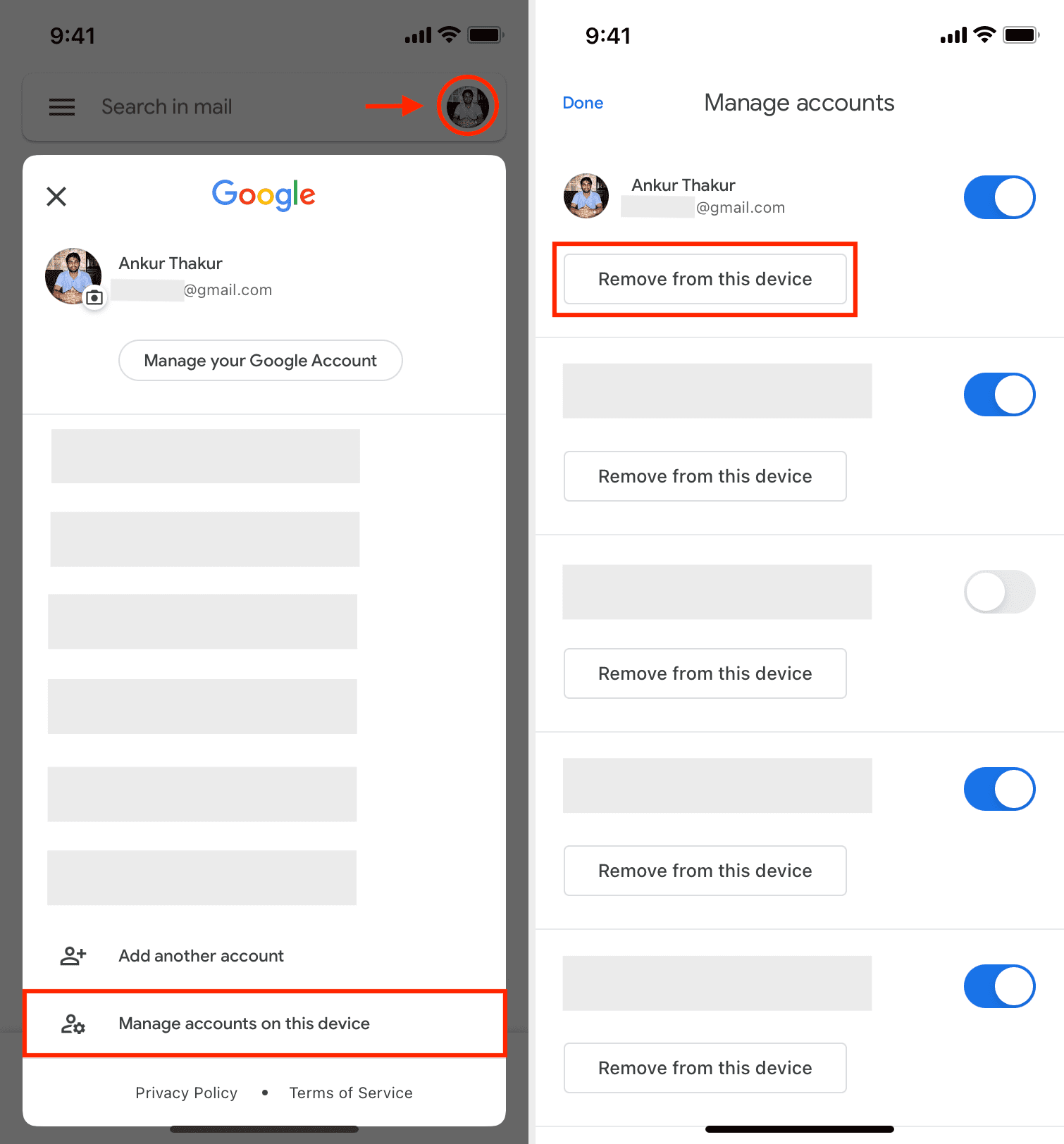
You have successfully signed out of Gmail inside the Gmail app on this iPhone. Doing so will also sign you out of other Google apps, like YouTube, if you are signed in with the same account credentials.
But the work isn’t done yet! Make sure you follow the steps below to ensure you’re completely signed out.
Sign out of Google from iPhone settings
You can effortlessly add your Google account to your iPhone and allow iOS to use it for email (inside the Apple Mail app), contacts (inside the iOS Contacts app), calendar (inside the iOS Calendar app), and reminders (inside the Apple Reminders app). To entirely sign out of Gmail from your iPhone, you must remove your Google account from iOS settings.
1) Open the Settings app and tap Apps > Mail.
2) Select Mail Accounts.
3) Tap Gmail.
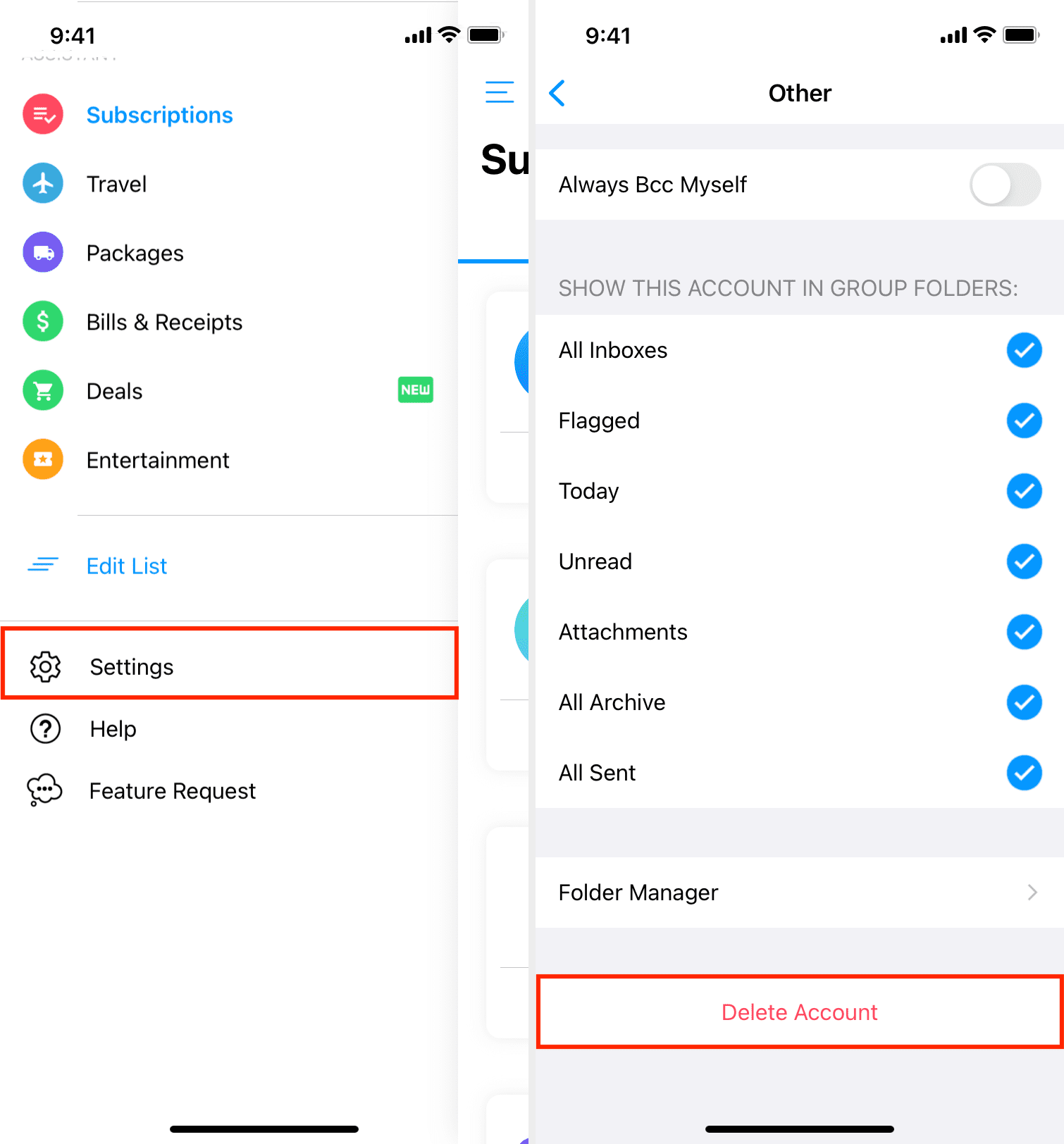
4) From here, choose Delete Account > Delete from My iPhone to sign out of Google from your iPhone or iPad.
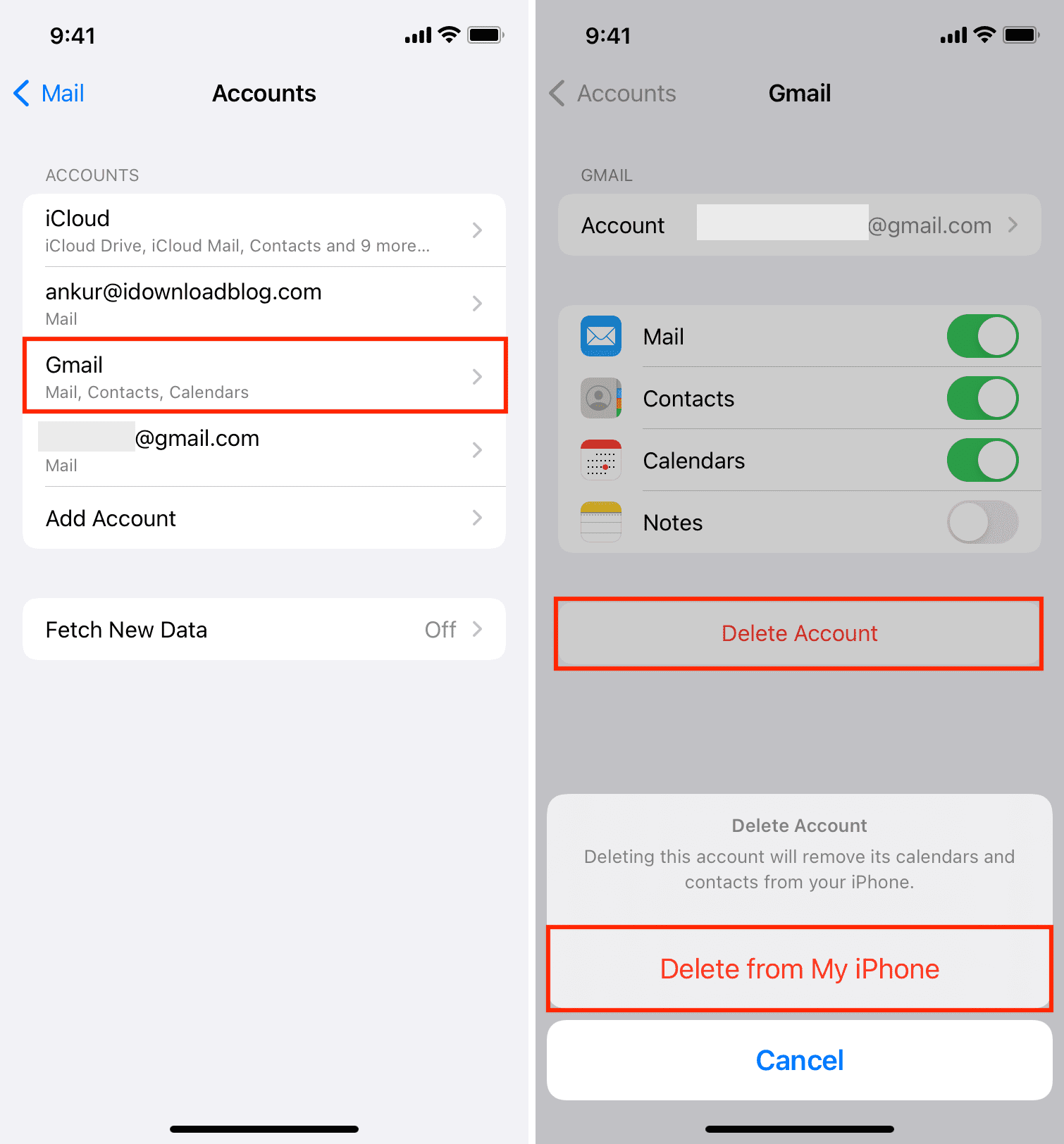
You have successfully removed this Google account from your iPhone. If you have added multiple Google accounts, follow the above steps for all the desired accounts you want to remove.
Sign out of Gmail from iPhone browsers
After removing your Google account from iOS settings, it should have signed you out of this account, even in the Safari app. However, follow the steps below to ensure that it has happened. Plus, if you use Gmail or other Google services like Docs, Sheets, or YouTube in any other non-Apple browsers like Chrome, Firefox, Brave, Opera, Edge, etc., sign out from there as well.
1) Go to mail.google.com/mail/ from a browser you use on your iPhone or iPad.
2) If you see a screen to re-enter your Google password, that means you’re already signed out. If you see your Gmail inbox, that means you’re signed in. Tap the three lines icon from the top left.
3) Select your email address from the top.
4) Choose Sign out of all accounts.
5) Next, tap Remove an account > red minus button > Yes, remove.
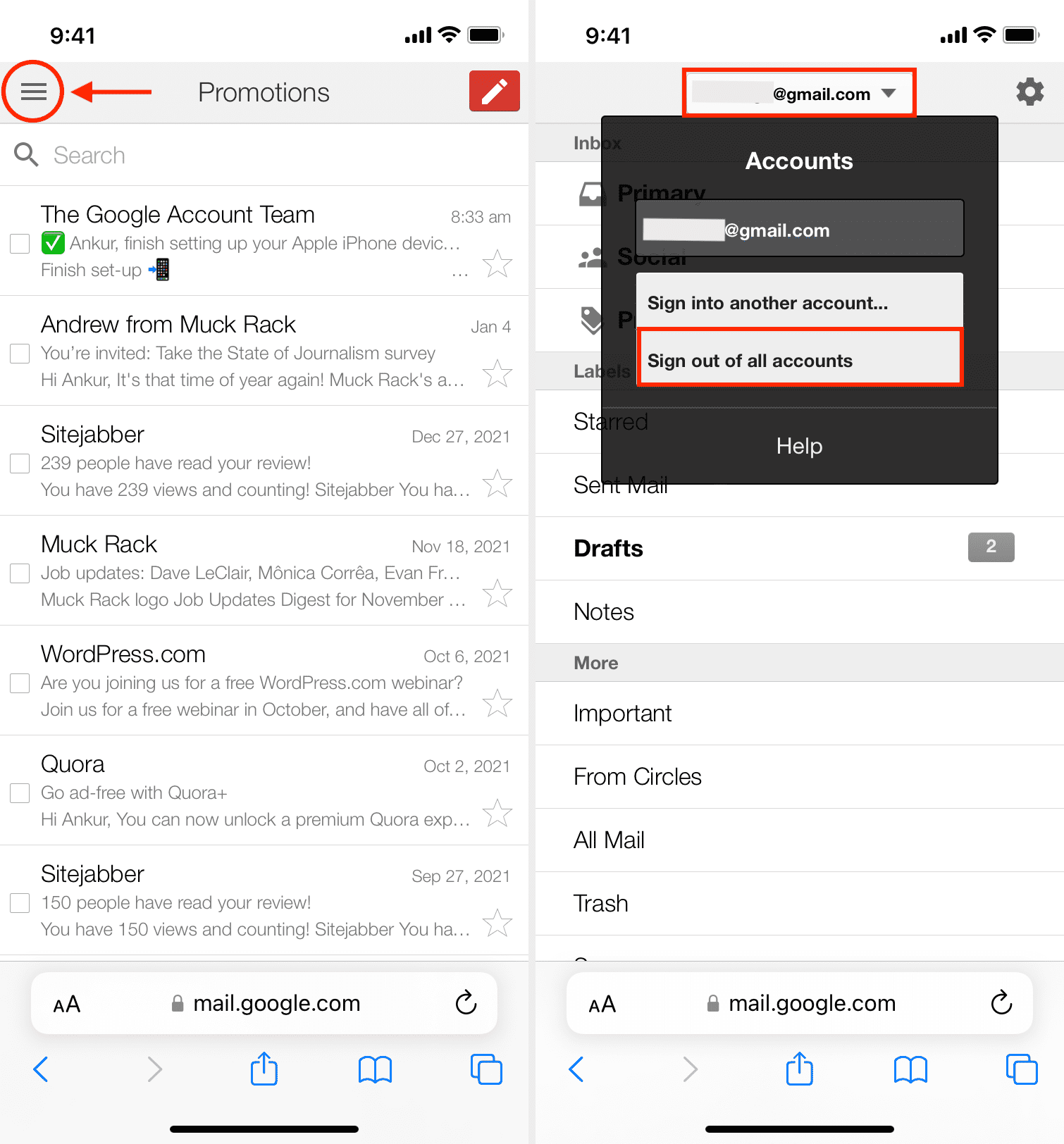
You have successfully signed out of Google and Gmail inside that browser. If you use the same Gmail account in multiple browsers, make sure to follow the above steps on all.
Tip: When you clear your browsing data of a web browser, it should sign you out of all logged-in websites.
Sign out of Gmail from other email apps
If you use third-party email apps like Edison Mail, Newton, Spark, or Outlook, sign out of your Gmail account from those too. Usually, you’ll find the steps to sign out in that app’s settings.
How to remotely sign out of Gmail
By now, you know how to completely sign out of Google or Gmail from your iPhone and iPad if you have access to the device. In all general scenarios, the above methods should have you covered. However, what if the iPhone isn’t with you? In that case, you can log in to your Google account on a computer and do the following.
Sign out of Google remotely
Follow these steps to remotely remove access to your Google Account from a specific device:
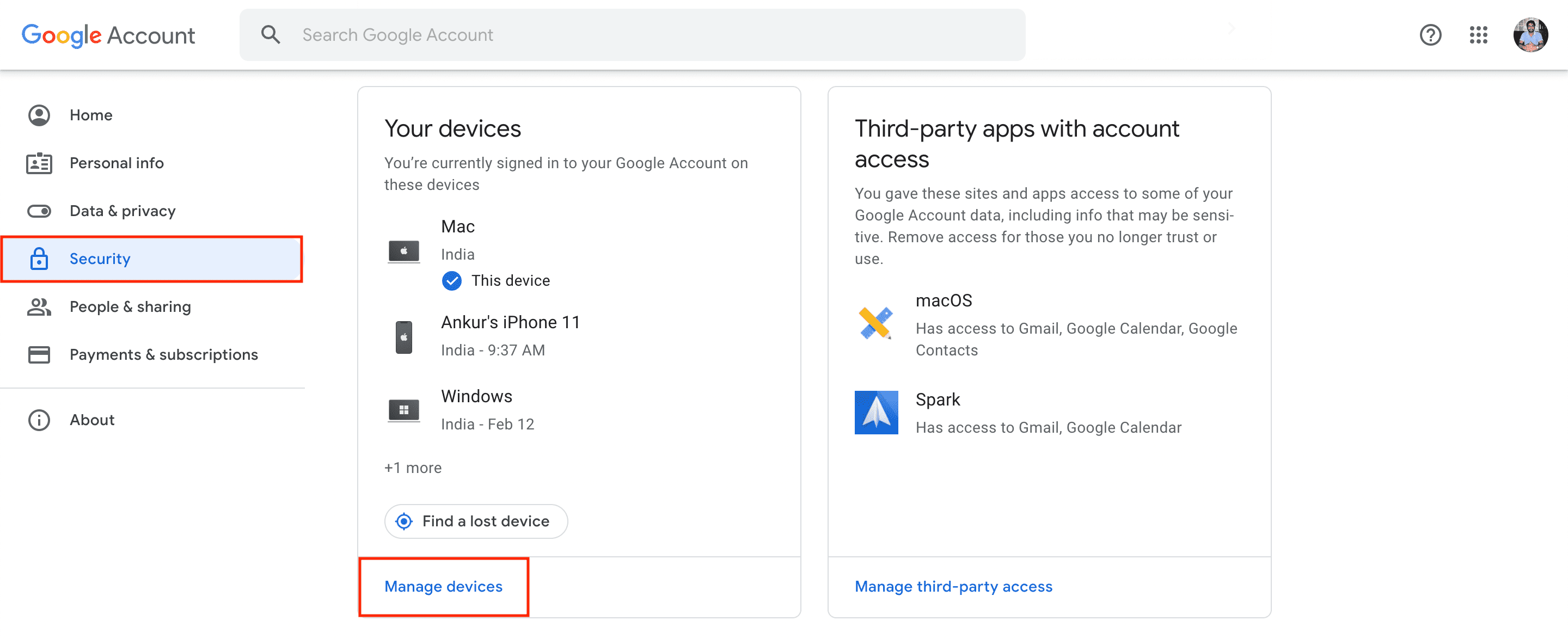
1) Go to myaccount.google.com/security and log in if not already.
2) Click Manage all devices.
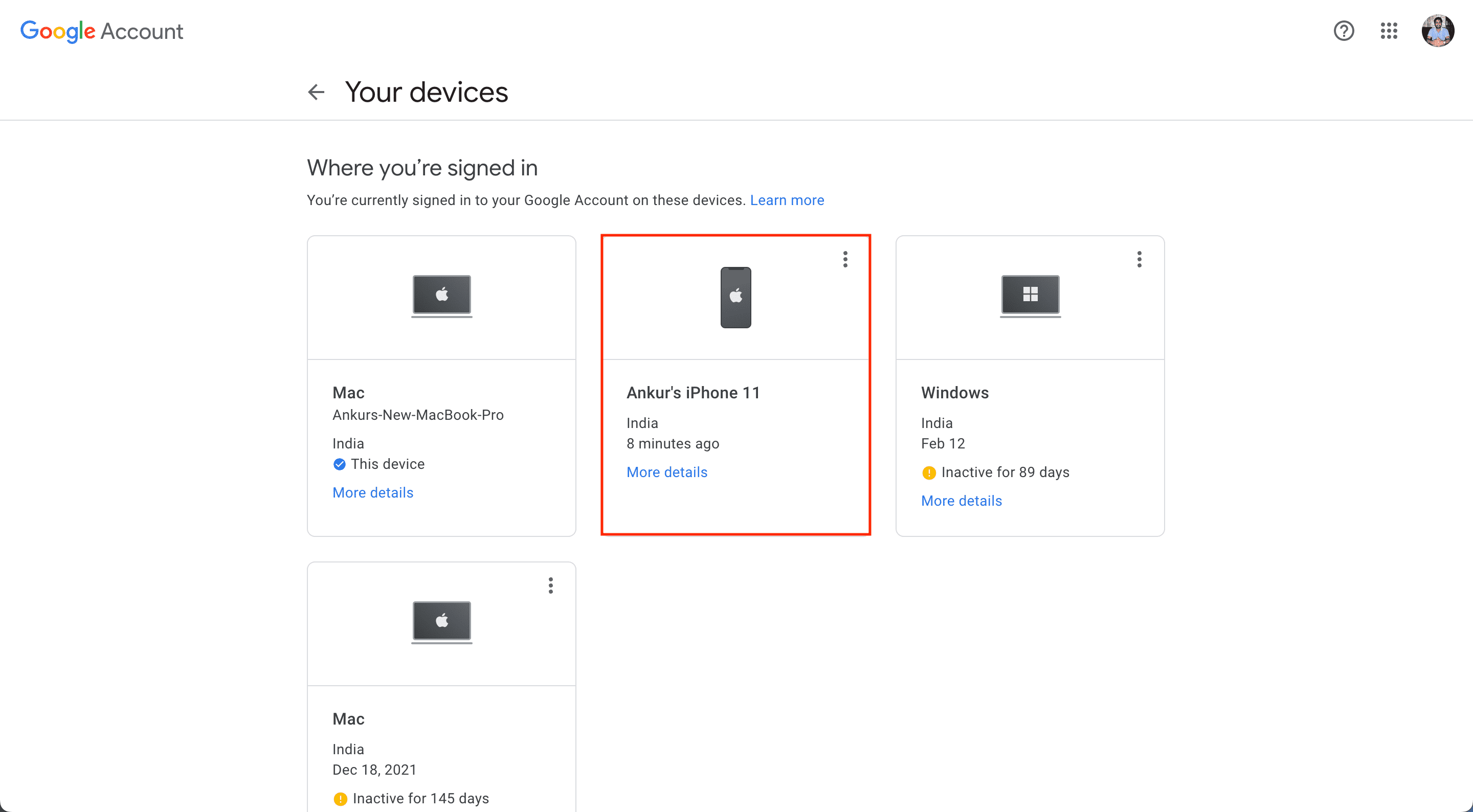
3) Select one of the devices from where you want to sign out. Enter your account password if prompted.
4) Click Sign out and confirm.
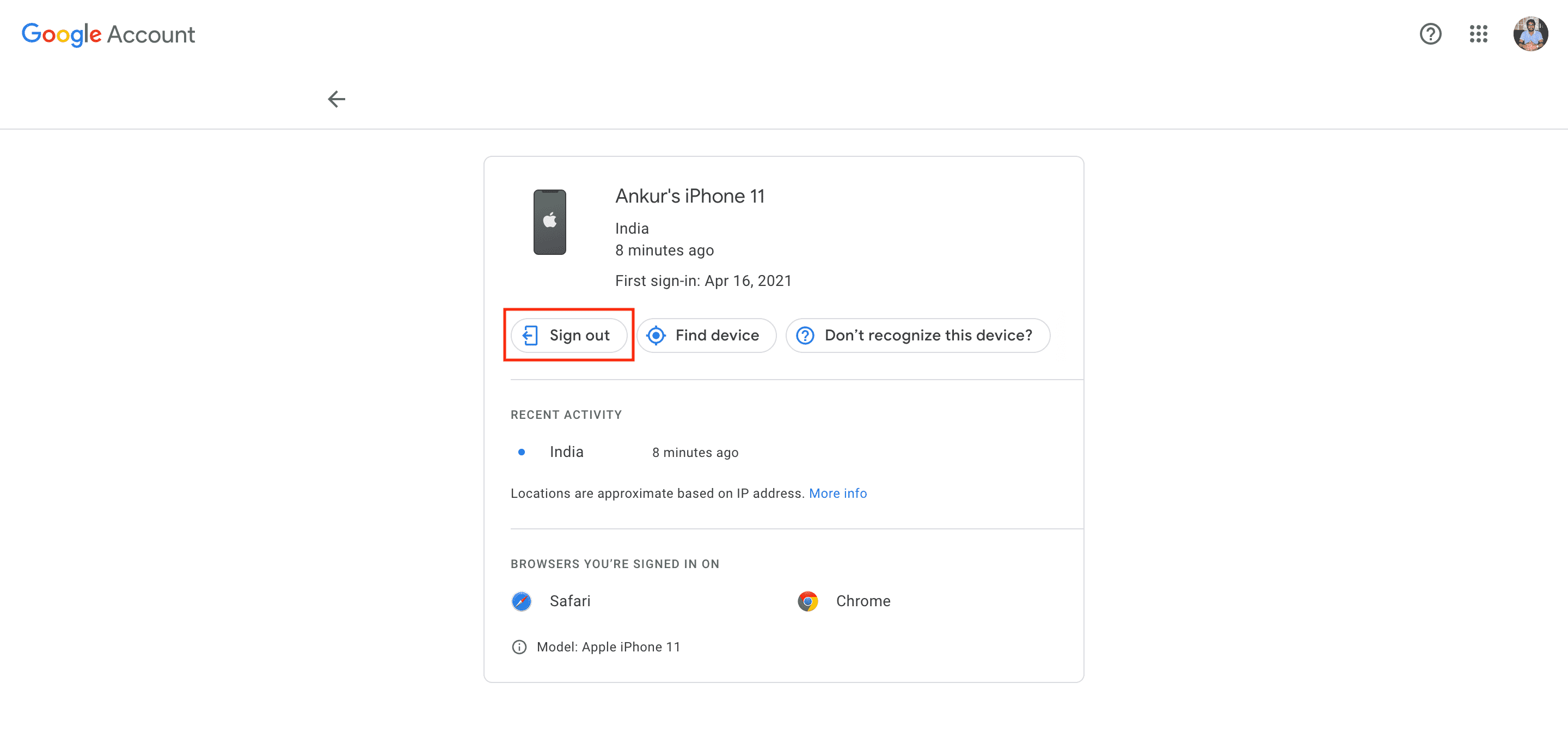
This is how you can sign out of Google and Gmail remotely from any device. After you follow the above steps, the next time that device connects to the internet and you (or someone with access to that device) try to use Gmail, it will ask to sign in again.
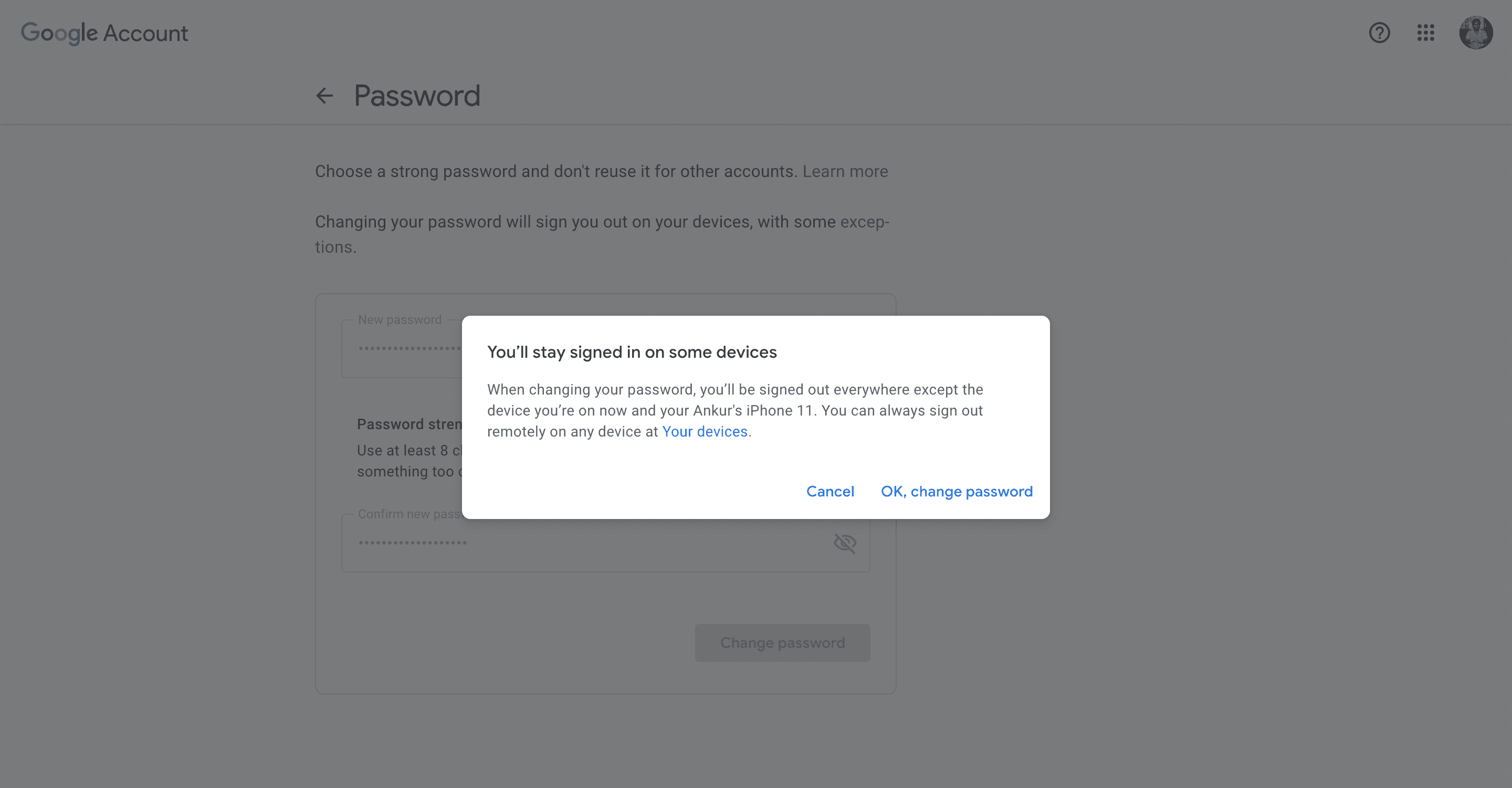
In addition to the above steps, when you change the password of your Google account, it signs you out of all the devices except a few, like the device you’re on now and the device that verifies you when you sign in to your Google account.
More on Google: