Learn how to change calendar colors on your iPhone, iPad, and Mac to make events easier to spot in the Apple Calendar app.

You don’t have to be termed as a visual person to appreciate color coding. Assigning colors to things can help you spot what you want faster. The Calendar app on iPhone, iPad, and Mac gives you this option. When you apply a color to a calendar, every event on that calendar will display in that color. This is particularly useful if you use multiple calendars.
Change Calendar colors on iPhone and iPad
1) Open the Calendar app on your iPhone and tap the little calendar icon at the bottom. If you’re on an iPad, tap the calendar icon in the upper left corner to see the calendar list on the left side.
2) Tap the info icon ⓘ to the right of the calendar’s name.

3) Tap the current color and then choose another color from the list.
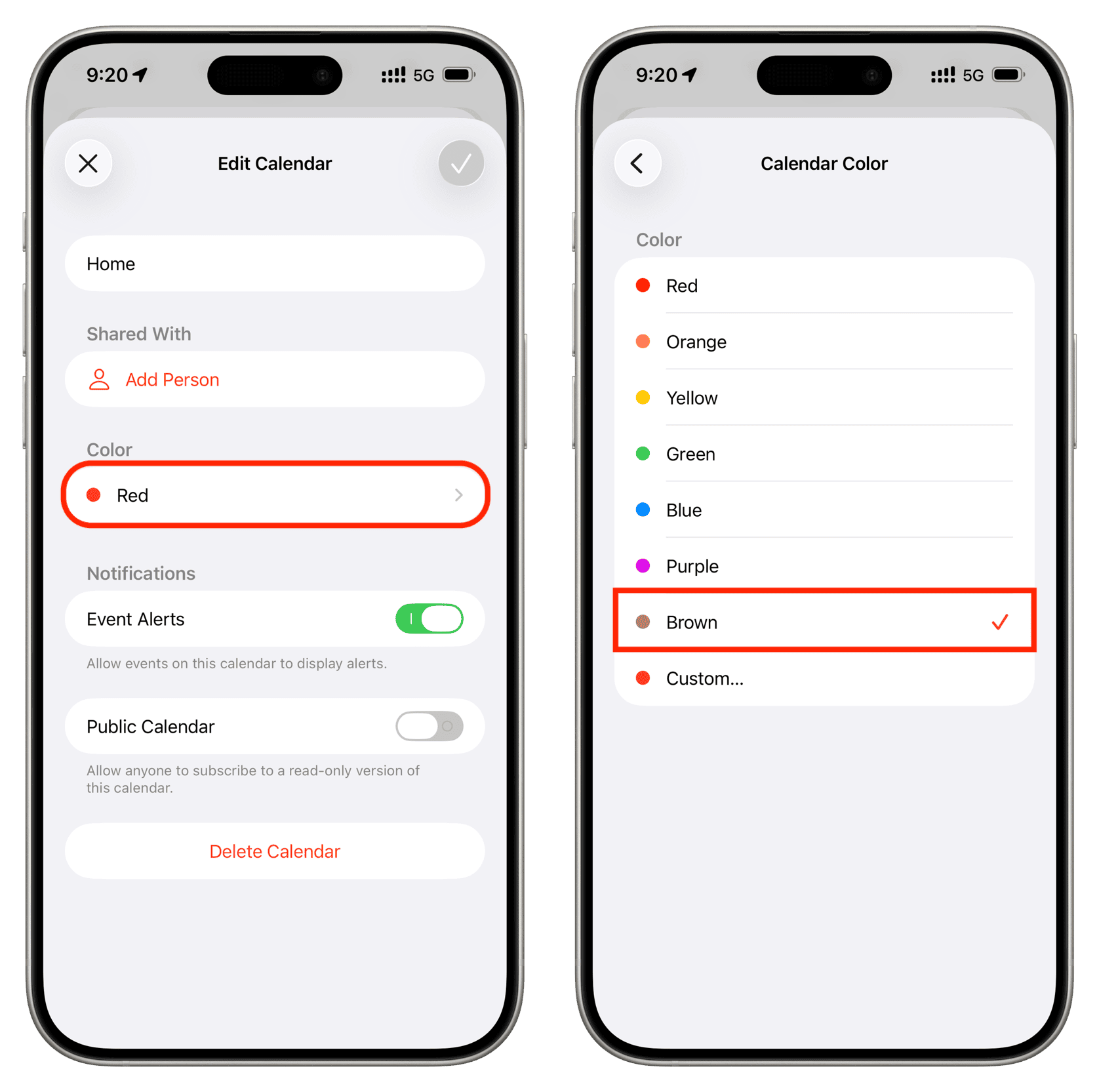
4) Go back to the previous screen by tapping the back button at the top left corner and tap the checkmark icon to save the changes.

Now, you’ll see your colorful Calendar app fill up with the colors you pick, making it easier than ever to spot events for specific calendars.
Change Calendar colors on Mac
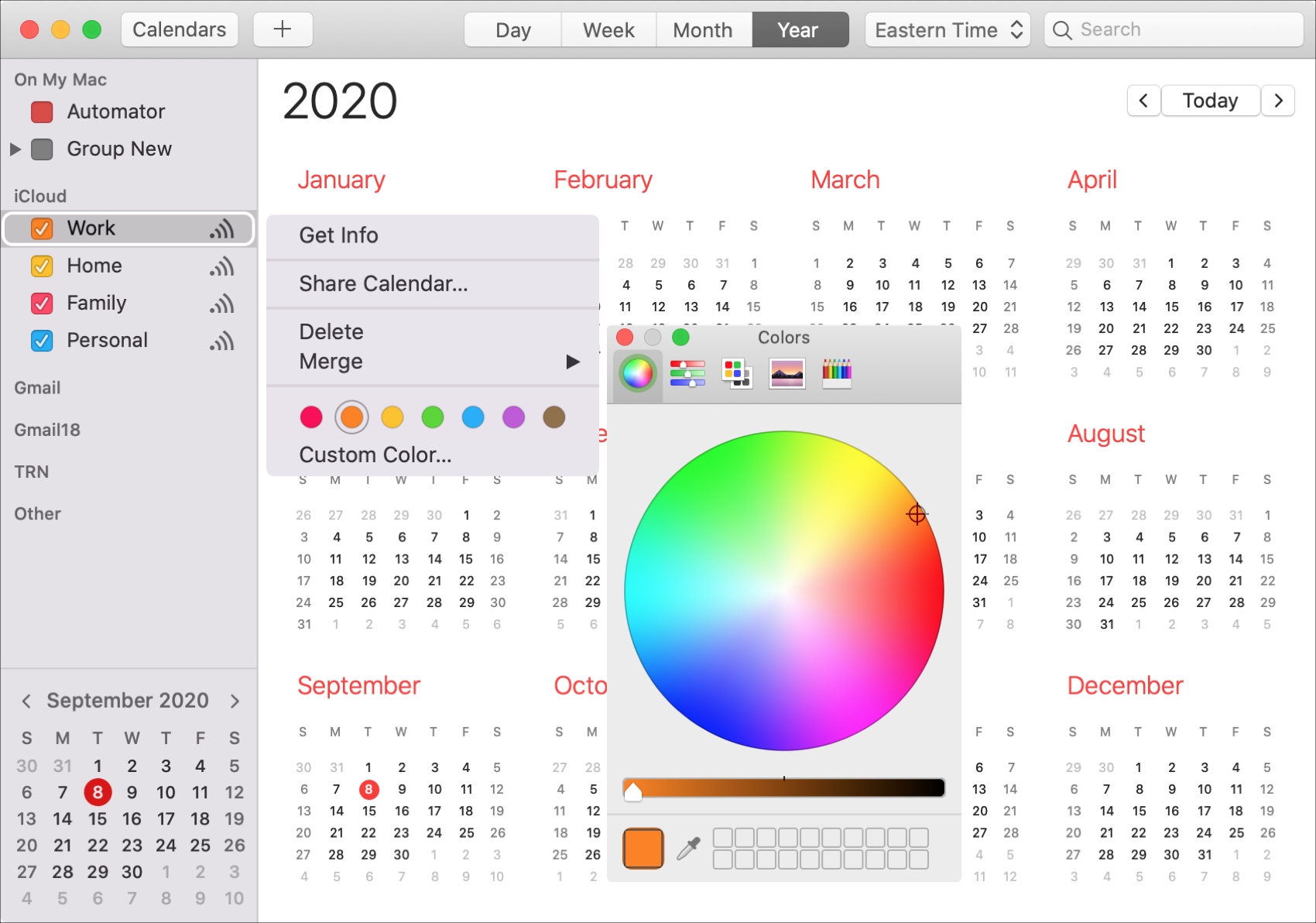
Make sure that your Calendar List is visible on the left side of the Calendar app on Mac. If it’s not, you can hit the Calendars icon at the top or click View > Show Calendar List from the menu bar. Next, follow these steps to change the calendar color:
1) Right-click a calendar in your list.
2) Choose a common color or Custom Color where you can use the color slider, palette, or pencils to get an exact color. If you use a custom color, you’ll see the calendar color change immediately. Close the color picker window when you have the one you want.
Simple things like color coding make everyday tasks just a little easier. By making your calendars different colors in the Calendar app, you can know what’s happening at a glance.
Do more with the Calendar app: