Protect your privacy and find out when your iPhone, iPad, or Mac camera or microphone is recording, which app is using it, which app recently did, and revoke that app’s access if needed.
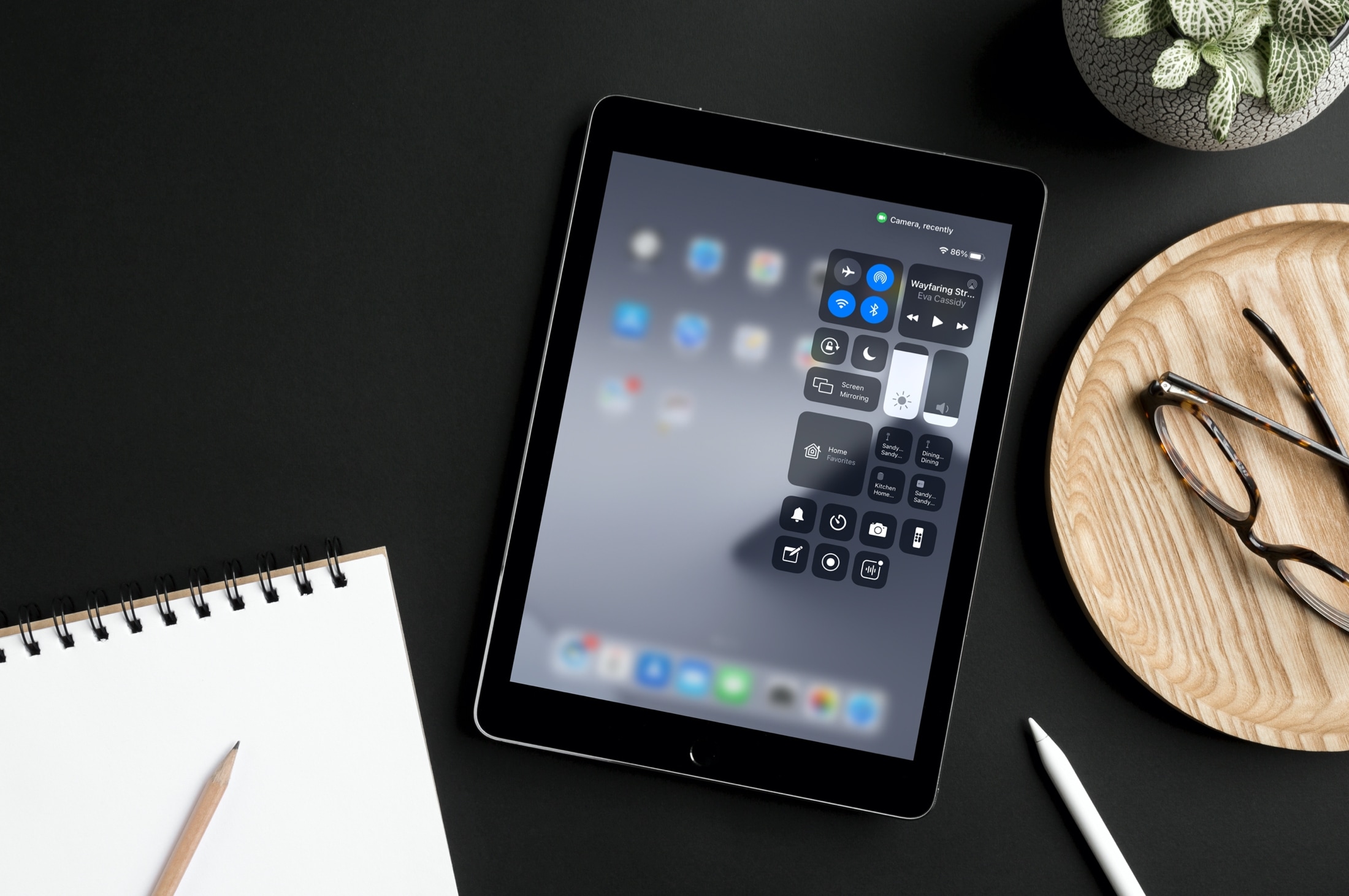
If you’re using the camera or microphone for an app, you’ll see an indicator at the top of your screen. In addition, you can see which app is currently using that tool, along with which app used it recently.
These are useful security features, so we want to show you how to use them on your iPhone, iPad, and Mac.
What are the green and orange dots?
If you’re using an app that’s accessing your device’s microphone, you’ll see an orange dot on the top of your screen. And for apps using the device camera, that dot will be green.

So, if you see one of these indicators on your screen and don’t believe you’re currently recording with your camera or microphone, this lets you know that you actually are and can take action.
It’s not just an indicator that you’re using the Camera app. The green dot appears for any app that uses your iPhone or iPad camera. So if you start a Live Video on Facebook, scan a document in Notes, or snap a shot for Instagram, you’ll see the green dot.
Similar to the green dot for your camera, you’ll see an orange dot when you’re recording a Voice Memo, dictating a message in Slack, or making a request to Siri. Any app or service using your microphone will put the orange indicator in your status bar.
See apps currently or recently using your microphone or camera
If you’re not sure which app is using your microphone or camera, it’s easy to find out. You don’t have to cycle through all of your open apps; just open Control Center. At the top of your Control Center, you’ll see which app is currently using your microphone or camera.

If you close an app that was using your camera or microphone, you can see this, too. Open Control Center, and at the top, you’ll see the icon for the camera or microphone and which app was using it most recently. On newer versions of iOS, you can even tap that message to expand it and see everything on one screen.

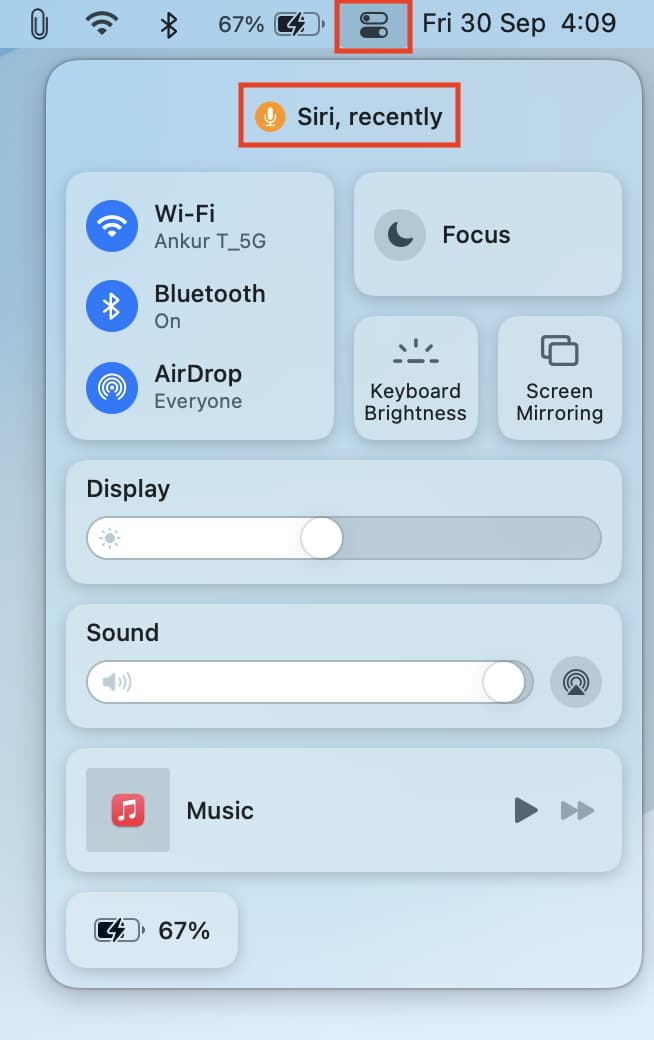
On Mac, while the camera and microphone are in use, you’ll see the green and orange dots next to the Control Center icon in the top menu bar.

And to know which apps recently used your Mac’s camera or microphone, simply click the Control Center icon. Here, you’ll see the green and orange icons with the app name signifying recent camera or microphone access.
See apps that have permission to access the camera and microphone
When you install a third-party app on your iPhone, iPad, or Mac that wants access to something, you’ll receive a prompt asking if it’s okay. They might ask to access your camera, microphone, Photos, Contacts, Calendar, etc. If you want to use the app, you likely accept and move on. But over time, you probably forget who you’ve given access to and for what. So, we are going to show you how to see which apps can have such permissions. You can then decide if they should still have that access or if you want to revoke it.
On iPhone and iPad
1) Open the Settings app on your iPhone or iPad and tap Privacy & Security.
2) You’ll see each app or item on your device for which you can grant access. Tap the Camera or Microphone option, and you’ll then see the apps and services that have access to it.
3) Some of the apps you’ll find won’t be a surprise. For example, apps like Messenger, Telegram, and Spark will have access to your Contacts. And if you use another calendar app like Fantastical or Google Calendar, they’ll have access to your Calendars. But if you take a look at Bluetooth, Microphone, or Camera, you might scratch your head as to why some of these apps need access to those items.
4) If you want to remove access for any app, just turn the toggle off. If you later use the app and realize it needs access, you can grant it again if prompted, or go back to Settings > Privacy & Security and turn that toggle back on.

On Mac
To see that information in macOS, go to System Settings > Privacy & Security. Then select Camera or Microphone, and it will show which apps are permitted to access these features. From this screen, you can turn off the switches to revoke the permission.

There are important privacy features
If you’ve ever been concerned about privacy in the sense that you thought you were being recorded with an app on your device, these features should help. You can immediately see if your camera or microphone is recording you and which app is the culprit.
What do you think about these privacy features on iOS, iPadOS, and macOS?
On a related note: