In this tutorial, we’ll show you how to turn on VoiceOver on your HomePod to get helpful audio feedback when interacting with the HomePod’s touch surface.
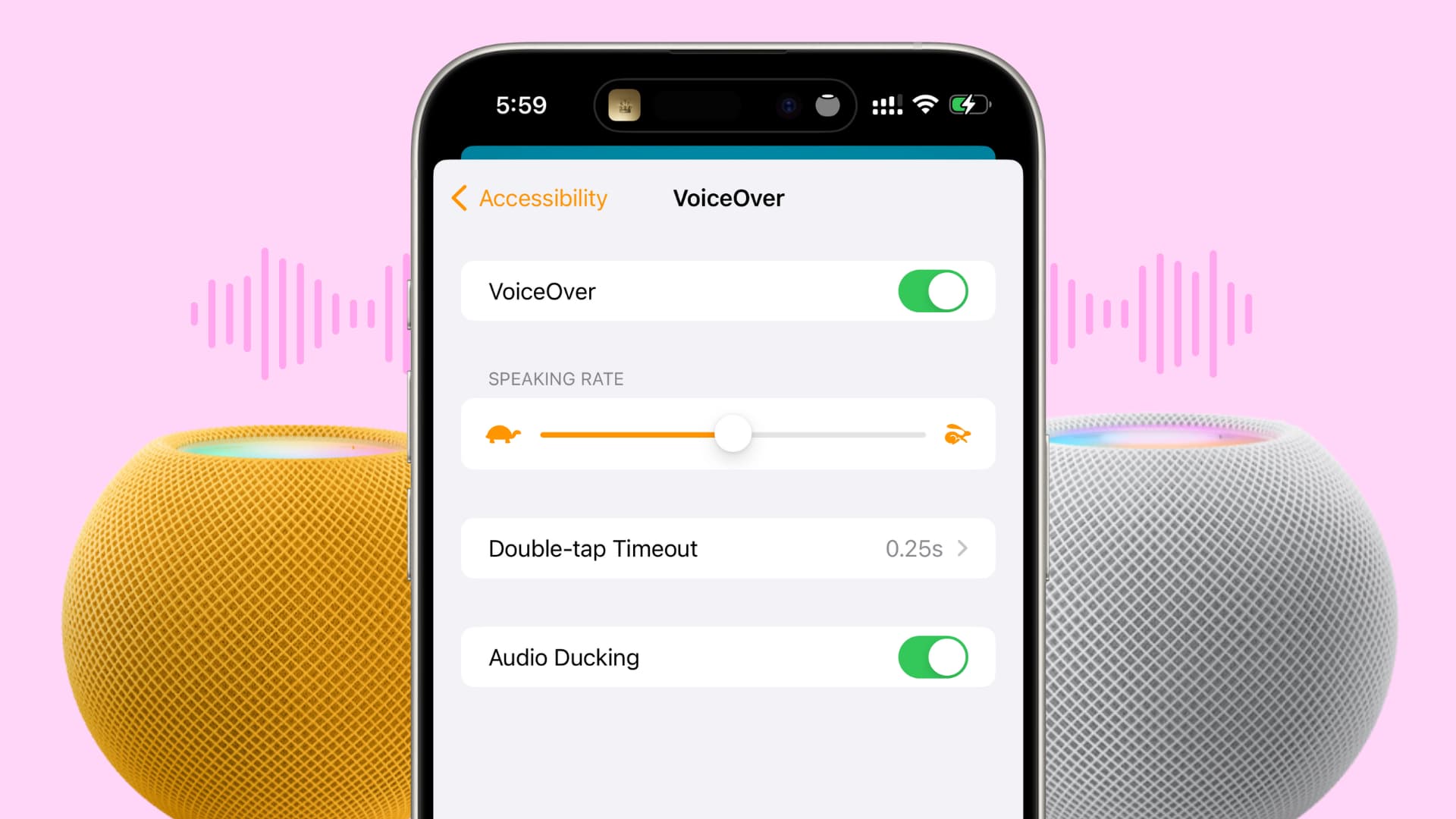
If you use accessibility features like VoiceOver on your Mac or iOS devices, you can also use them on your HomePod or HomePod mini.
VoiceOver is a helpful feature for the visually impaired that reads aloud what’s happening on the device. Additionally, you can control it with simple gestures.
If you would like to set this up and start using it on your Apple smart speaker, it’s very easy to do.
Activate VoiceOver on HomePod
1) Open the Home app on your iPhone, iPad, or Mac and make sure you’re in the Home tab.
2) Touch and hold the HomePod tile and choose Accessory Settings. On Mac, right-click over the HomePod name and choose Accessory Settings.
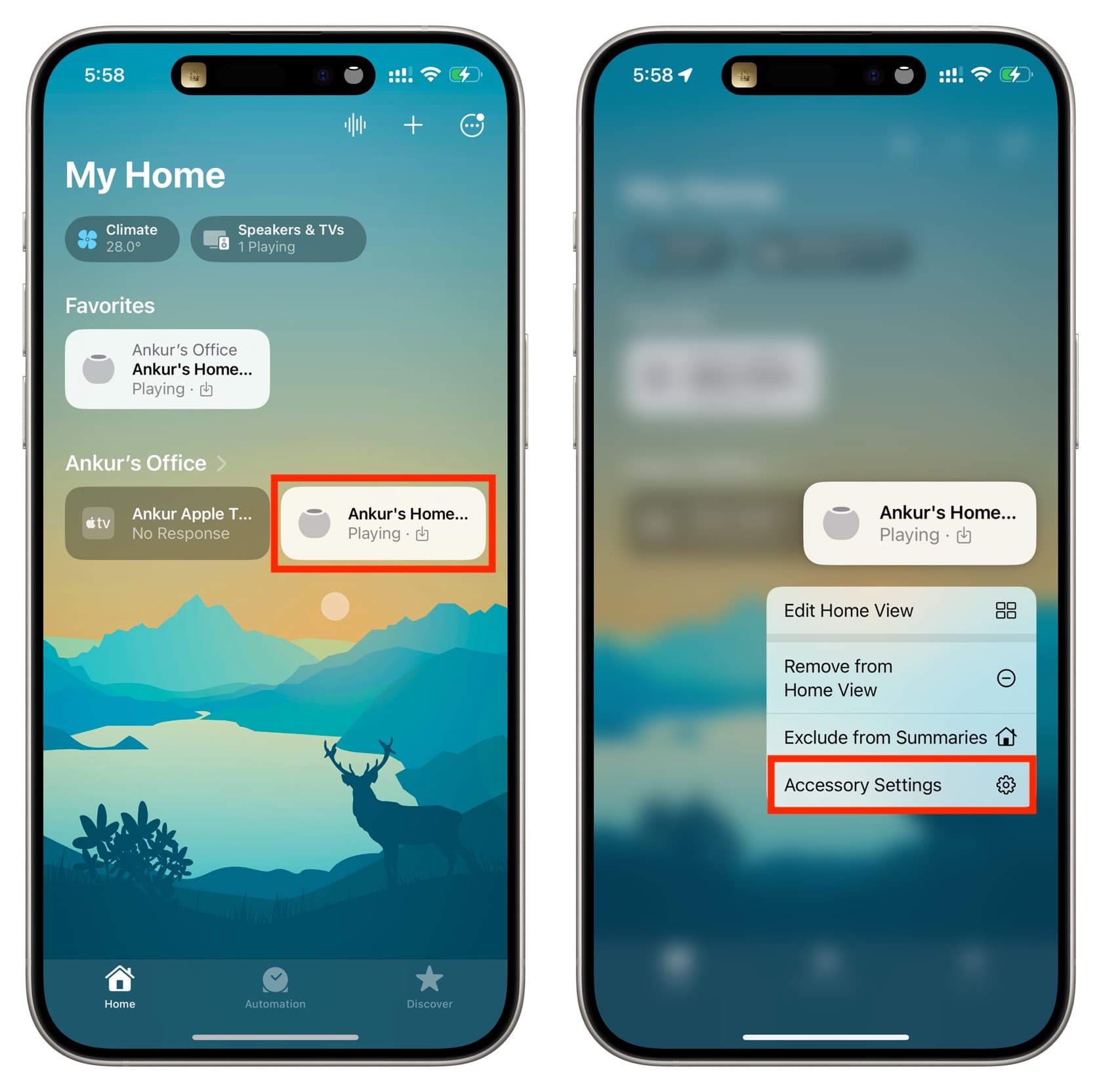
3) Scroll down and select Accessibility.
4) Tap VoiceOver and turn on the VoiceOver slider from the next screen to activate this feature.
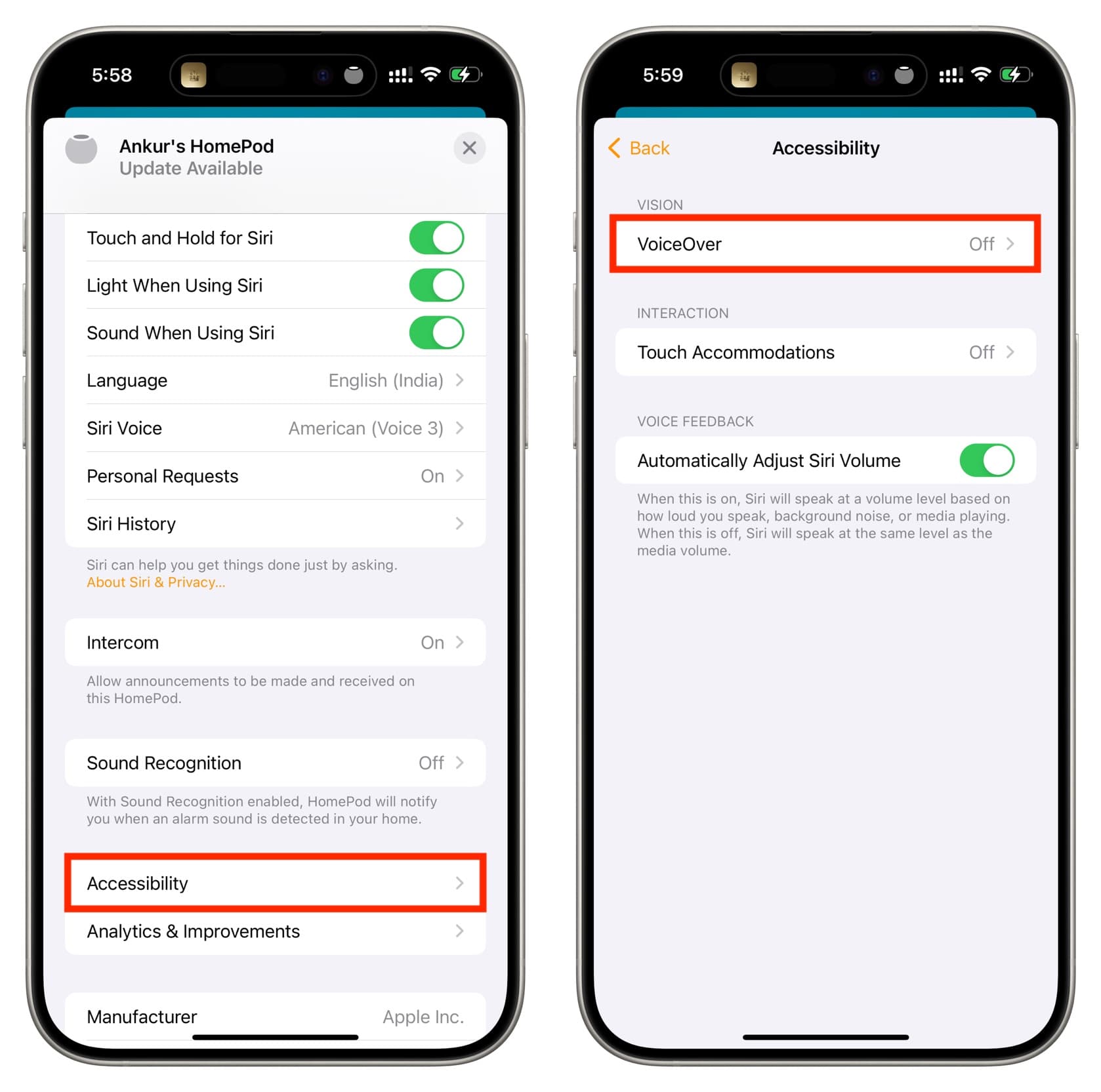
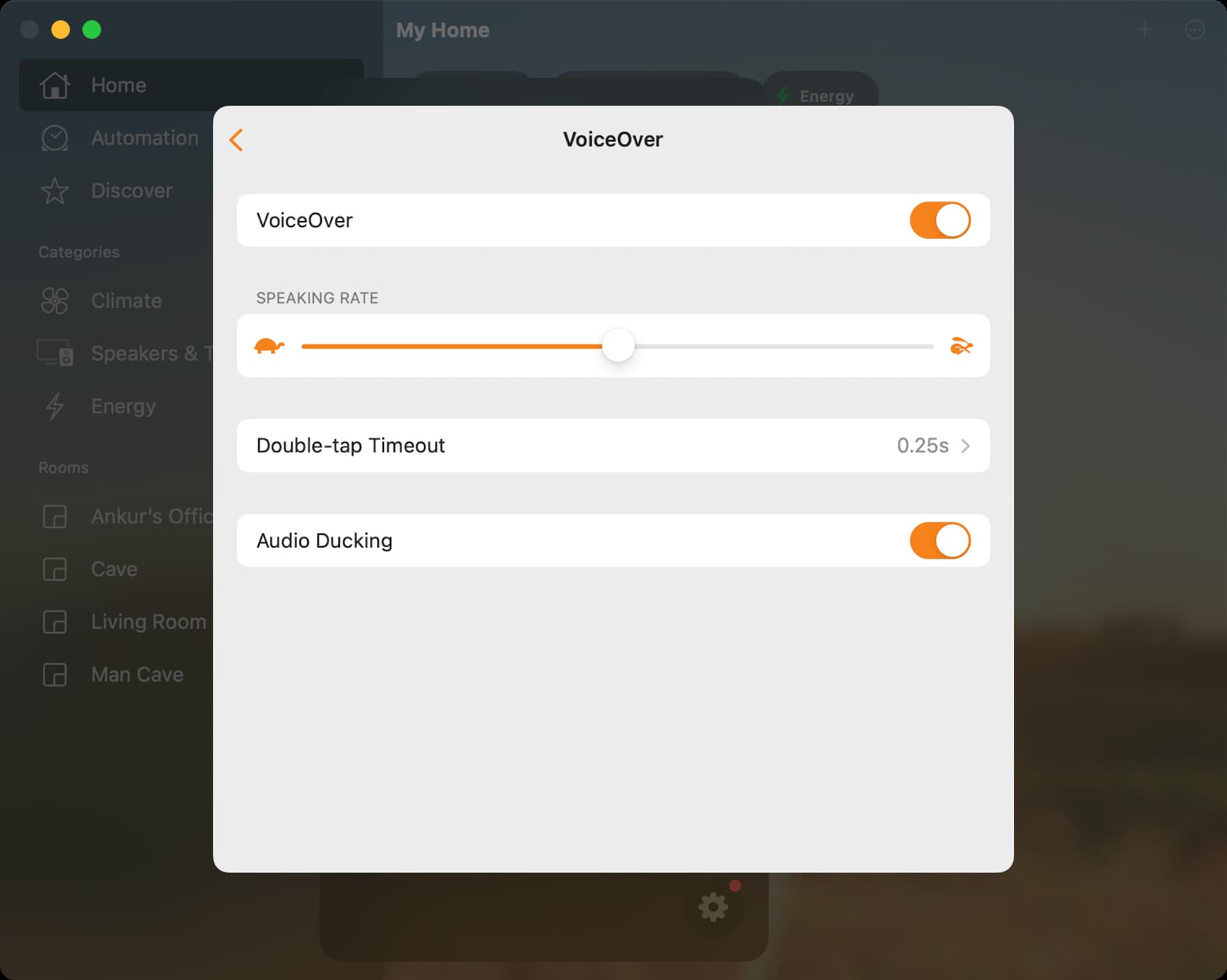
5) While the default VoiceOver settings are fine for most, you can tweak them accordingly based on your needs:
- Speaking Rate: Set how fast VoiceOver speaks.
- Double-tap Timeout: Pick the amount of time between two finger taps on the HomePod’s touch surface that equates to a double-tap action.
- Audio Ducking: If you leave it on, the volume of audio that’s currently playing on your HomePod (like music) will reduce when VoiceOver speaks.
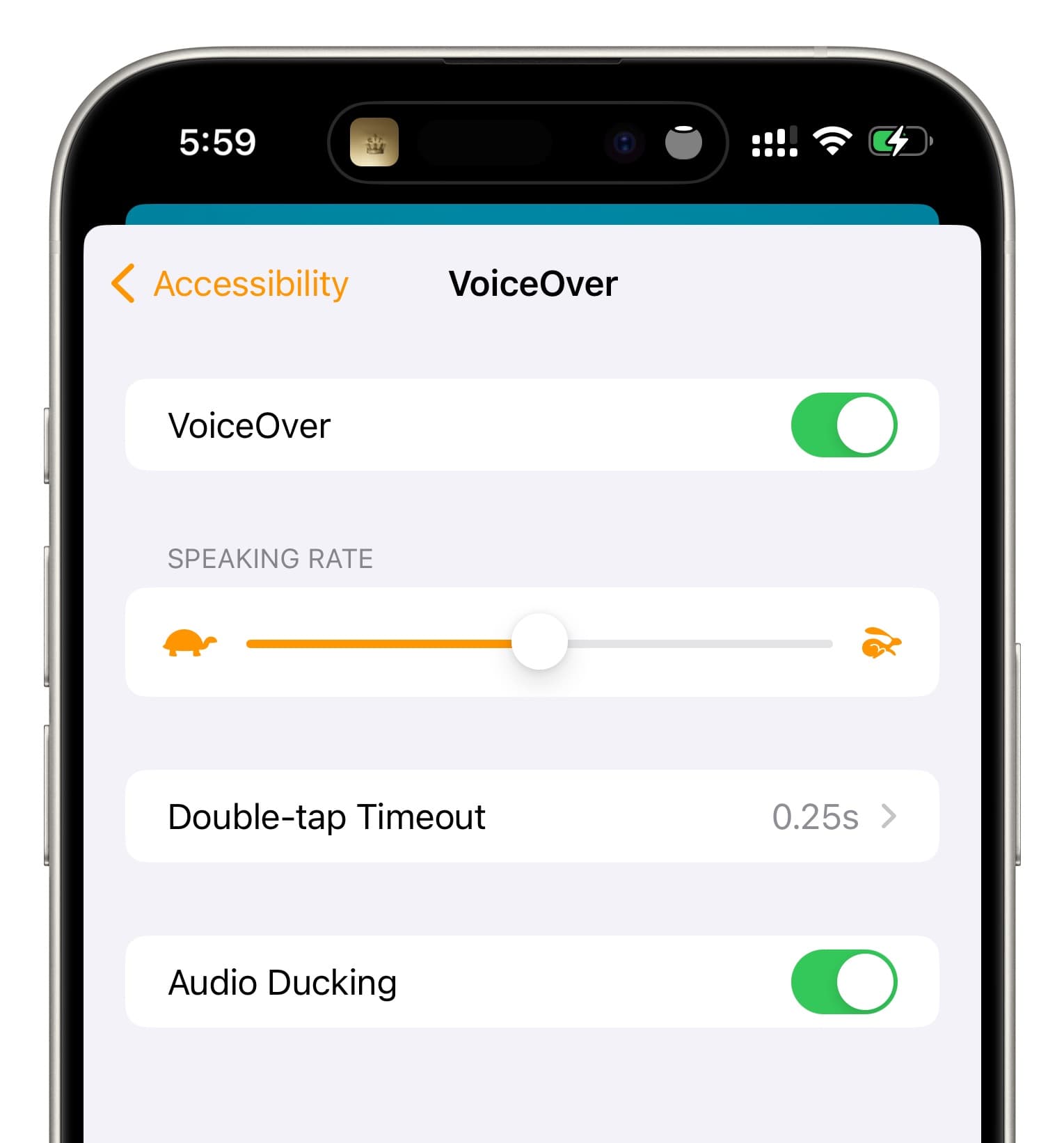
Here’s how this looks in the macOS Home app:
Use VoiceOver gestures on HomePod
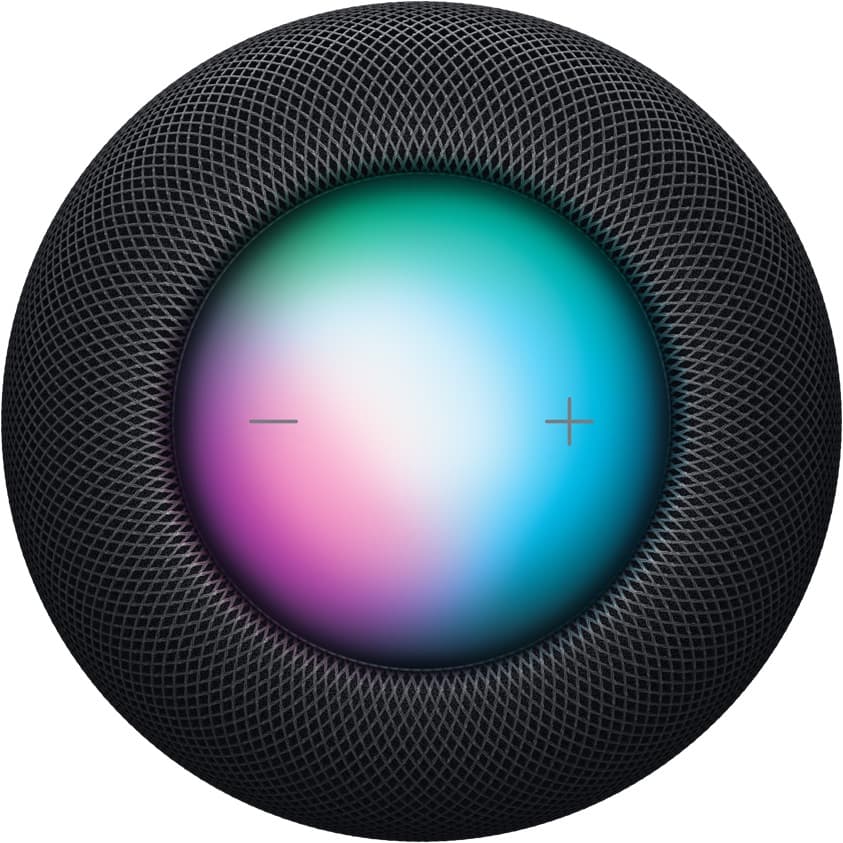
Once you have VoiceOver activated on your HomePod, you can control it with these gestures on the top of the device:
- Tap or drag: Siri tells you the name of the control you’re touching and selects it.
- Double-tap: Use the selected control. It will play or pause the media if you touch the middle of the touch surface (not the volume buttons).
- Double-tap and hold for volume: Adjust the volume as you hold the plus (+) or minus (-) volume button.
- Double-tap and hold for play/pause: It will activate Siri.
- Triple-tap: Skip the current song playing.
- Quadruple-tap for music: Play the previous song.
Other tips for your HomePod: