Learn how to block the Podcasts app on your iPhone, iPad, Mac, and Apple TV from automatically playing the next episode of a show after the current one ends.
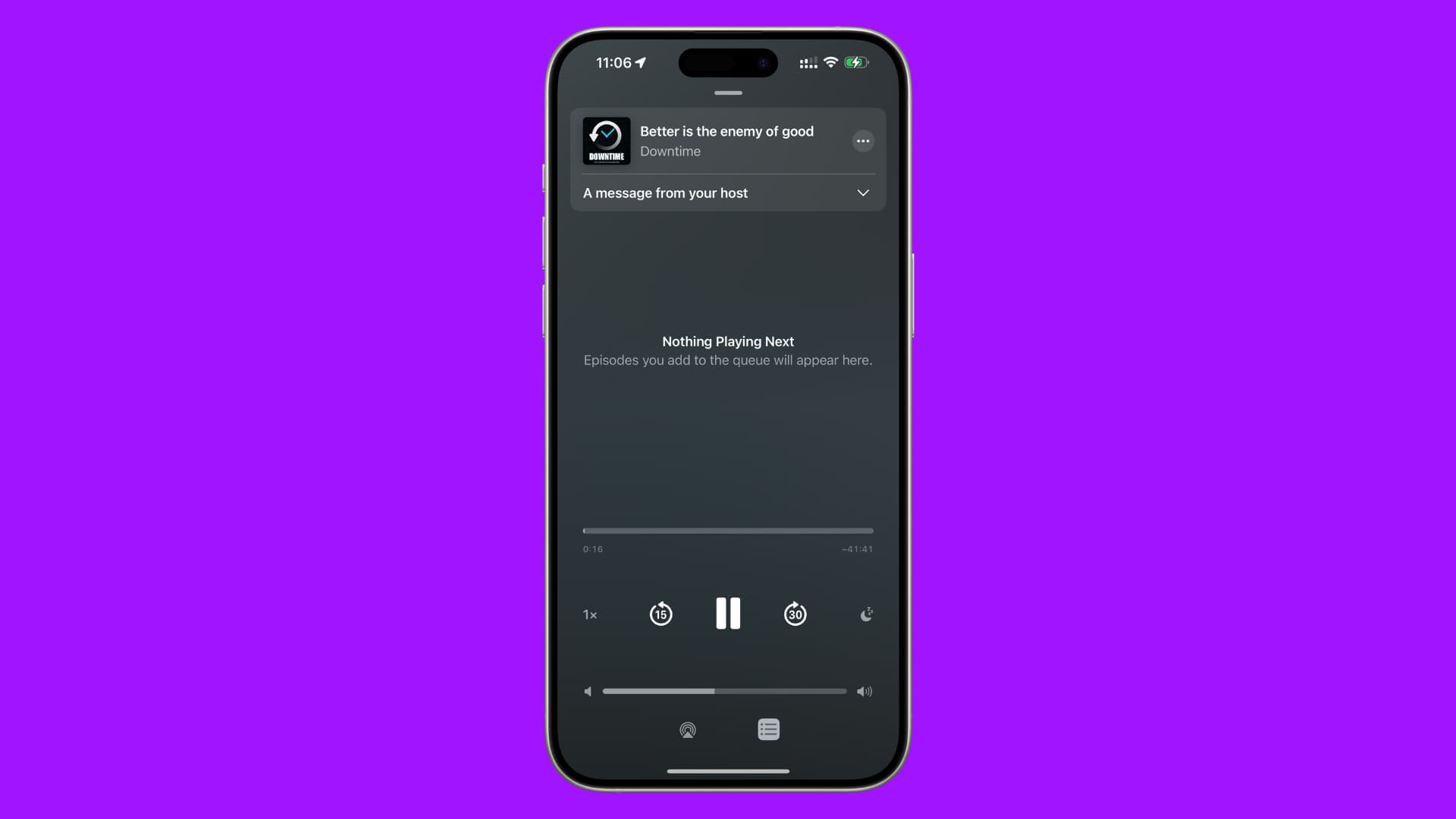
The Podcasts app has a handy continuous playback option that’s enabled by default. What this does is advance to the next episode of the same show after the one you’re currently listening to ends. This behavior is fine if all you want is to catch up on your favorite podcast.
But if you’d rather listen to specific episodes without having to worry about excess cellular data usage or prefer to manually advance to the next episode, consider turning this feature off.
Follow these steps individually on every device where you want to stop auto-playing the next episode of a show.
iOS
- Open the Settings app on your iPhone or iPad.
- Tap Apps from the bottom and select Podcasts.
- Turn off the switch for Continuous Playback.
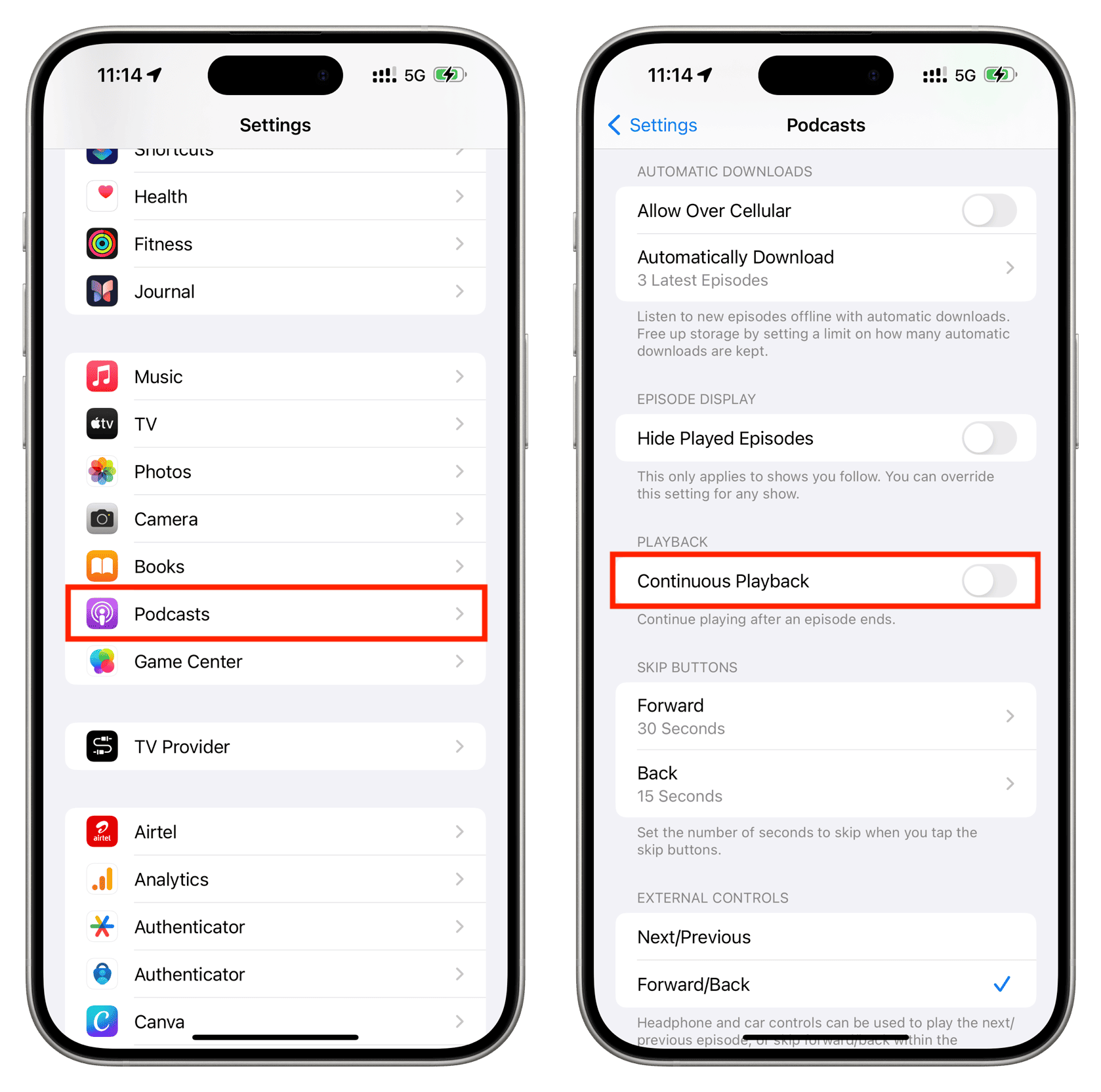
When this option is turned off, the app will not automatically advance to the next episode from the same show when the episode you’re currently listening to ends.
macOS
- Open the Podcasts app on your Mac.
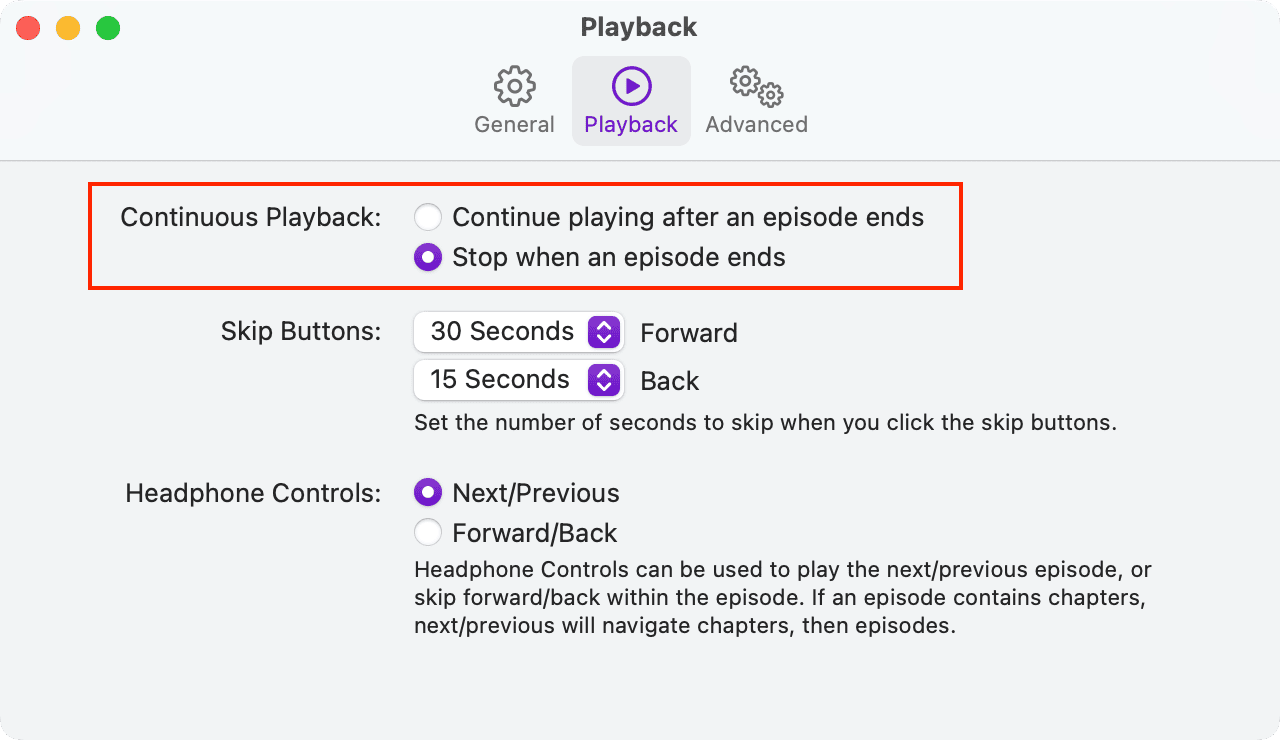
- Click Podcasts next to the Apple icon in the top-left corner of the screen, then select Settings.
- Go to the Playback tab.
- Select “Stop when an episode ends” for Continuous Playback instead of “Continue playing after an episode ends.”
tvOS
- Open the Settings app on your Apple TV.
- Select Apps.
- Select Podcasts to manage its settings.
- Turn off Continuous Playback.

On a related note: