Learn how to download all your data and then delete your LinkedIn account using a computer or the mobile app on your iPhone or Android phone.
Things to know before closing your LinkedIn account
When you close your account, your basic information gets removed from LinkedIn within 24 hours. Any recommendations or endorsements you’ve given or received, as well as your messages and connections, will be wiped clean from the servers. Your public profile remains available in search engine results until their caches refresh.
Closed account information will be deleted from LinkedIn’s servers. Logs and other backup information will be de-personalized through the deletion process within 30 days of account closure.
You can reopen your account if it’s been closed for less than 14 days, but that won’t bring back your previous endorsements and recommendations, ignored or pending invitations, Followings (Influencers, Companies, etc.), and group memberships.
Anything you had shared with other LinkedIn users through InMail, network updates, content sharing, or groups shall remain visible after the account is nuked from orbit. Group content associated with closed accounts will display an unknown user as the source.
Folks who have a LinkedIn membership, group, or Premium account license must resolve those accounts before they can close their free account. To cancel a Premium service, visit linkedin.com/premium/cancel.
LinkedIn’s data retention policy
To comply with laws and meet regulatory requirements, LinkedIn keeps select data on you even after you’ve closed your account. “We may retain personal information, for a limited period of time, if requested by law enforcement,” cautions LinkedIn.
The company maintains 30 days’ worth of web server logs for security, debugging, and stability purposes by creating aggregate data sets that cannot be traced back to individuals. Don’t worry; you can download your data and submit a request for additional information about your account that’s not included in the backup.
Due to the way Yahoo, Bing, Google, and other search engines collect data, it may take up to 72 hours for your public profile to be removed from public search engine results. Should something go awry and your profile remains exposed to search engines after the 72 hours have expired, you can contact Google directly for removal.
For more information, read LinkedIn’s Privacy Policy and Data Retention Policy.
Download your LinkedIn data
Your data belongs to you. With that in mind, you’re recommended to download a copy of your LinkedIn data, posts, connections, and other pieces of information prior to deleting your account.
- Log in to your account at linkedin.com.
- Click your profile image, then choose Settings & Privacy from the menu.
- Select the Data privacy option.
- Click ‘Get a copy of your data.’
- Check the box for what you’d like to download and hit Request archive.
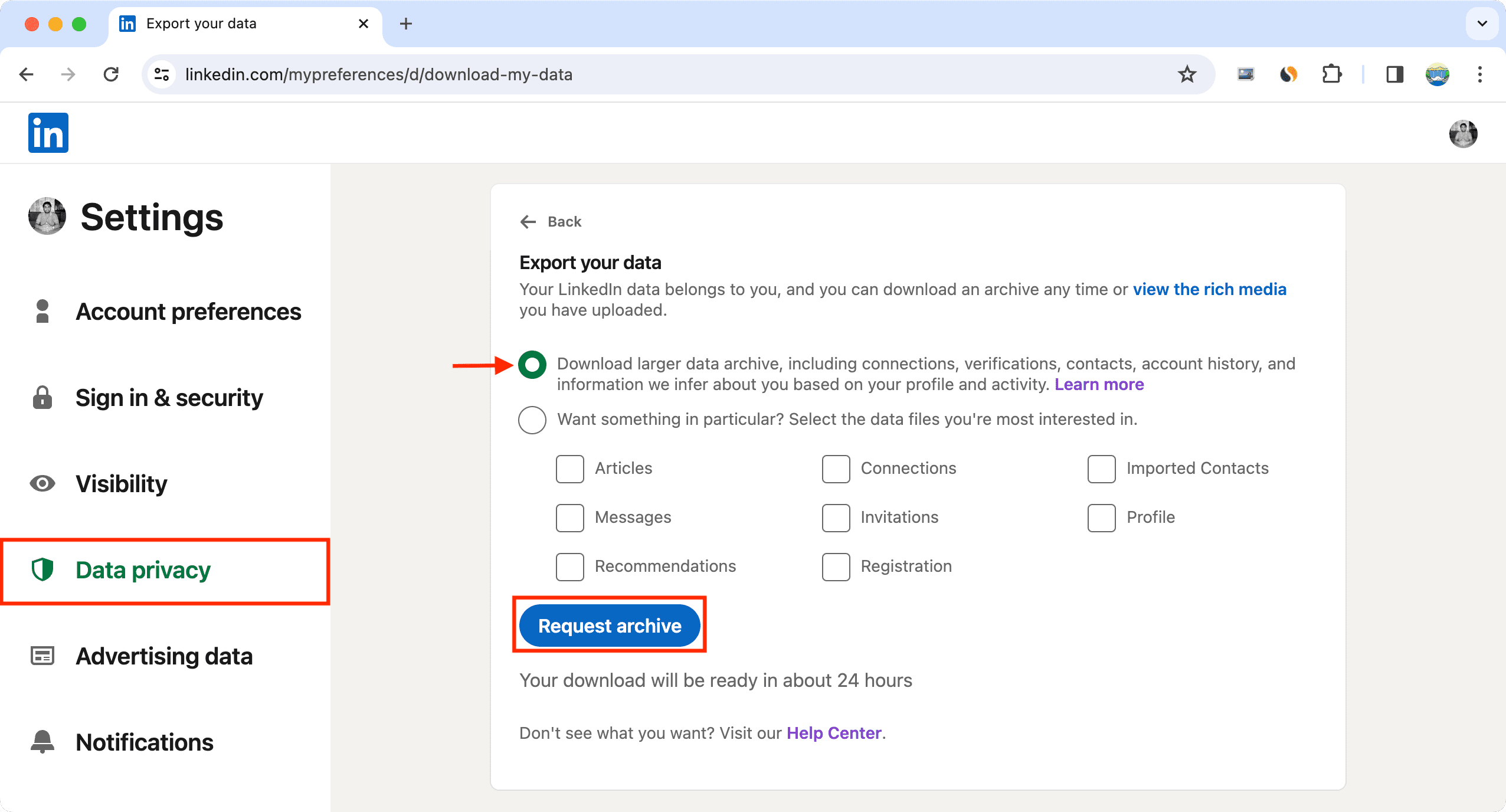
Once you receive an email from LinkedIn with a download link, click it to save the archive on your computer, then open the file to unpack it and explore the files within.
LinkedIn’s support document lists all of the items delivered in backup files.
If you live in the United States and wish to see other items that are not included in your LinkedIn archive, such as your IP access logs, complete LinkedIn’s Data Consent form.
Permanently delete your LinkedIn account
You can do it from your computer or your mobile device.
Using the website
- Log in to your account at linkedin.com.
- Click your profile pic at the top, then choose Settings & Privacy from the menu.
- Select Account preferences from the left side.
- Scroll down to Account management, click Close and delete account, and follow along.
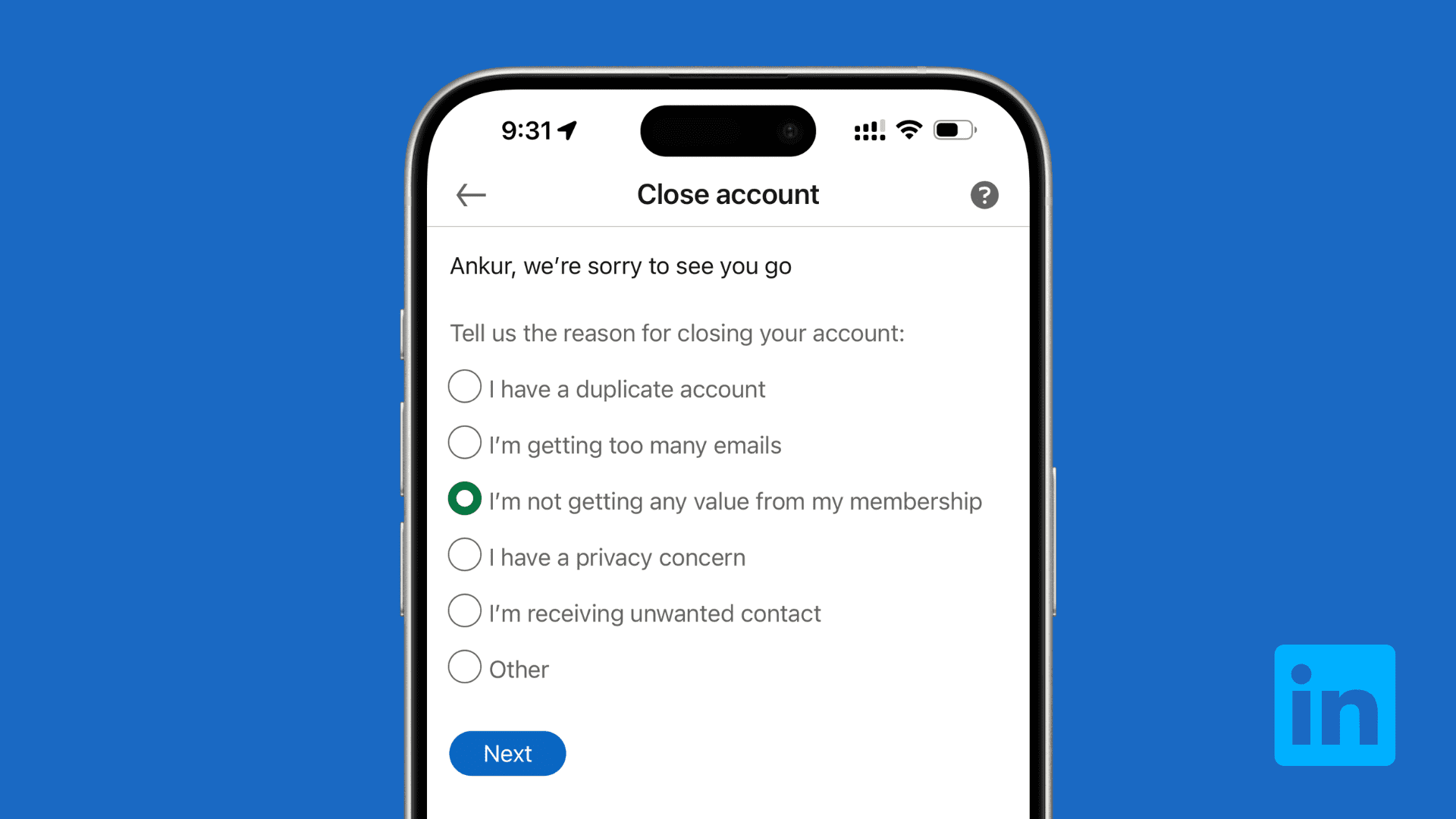
- Check one of the reasons for closing your account, enter your LinkedIn password, and then finalize your request to close your account.

Tip: You’re recommended to tick the box next to “Unsubscribe me from LinkedIn email communications, including invitations,” to stop receiving LinkedIn’s annoying marketing messages.
Using the mobile app
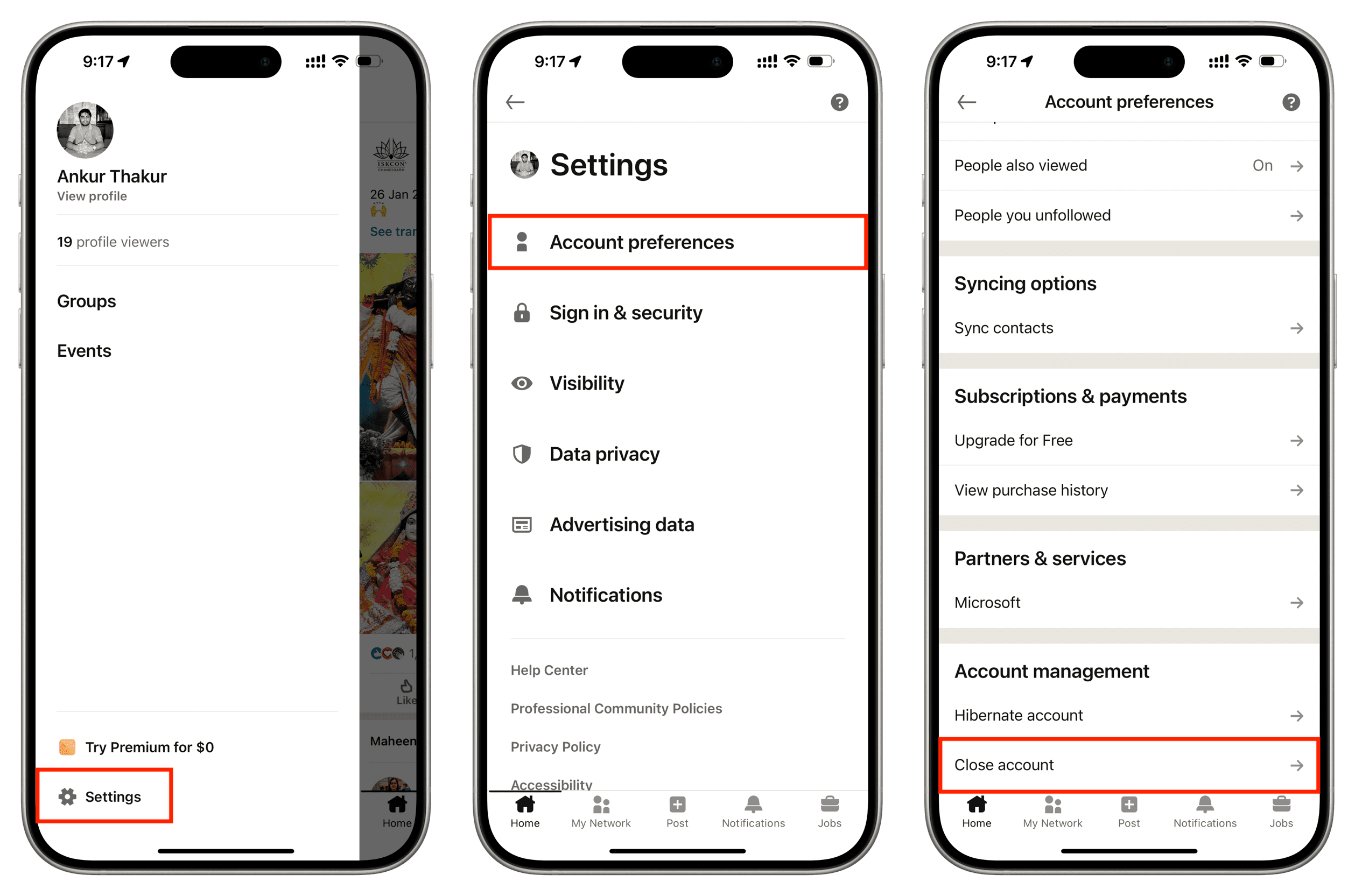
- Open the LinkedIn app on your iPhone or Android phone.
- Tap your profile picture icon and choose Settings.
- Select Account preferences.
- Tap Close and delete account from the bottom and follow along.
Congratulations, you’ve just closed your LinkedIn account. Don’t forget to delete the LinkedIn app from your mobile devices!
If you change your mind within the next 14 days and want to reopen your account, simply log in with the same email address you used to originally sign up for the service. In most cases, you should be able to get back your account, except for:
- Endorsements and recommendations
- Ignored or pending invitations
- Followings (Top Voices, Companies, etc.)
- Group memberships
Be sure to browse our account deletion archive for other step-by-step tutorials that deal with deleting user accounts on other popular online services like: