Find out how to sync files from the Desktop and Documents folders of your Mac to all your other devices, including other Mac, iPhone, iPad, iCloud Web, and even Windows PC.
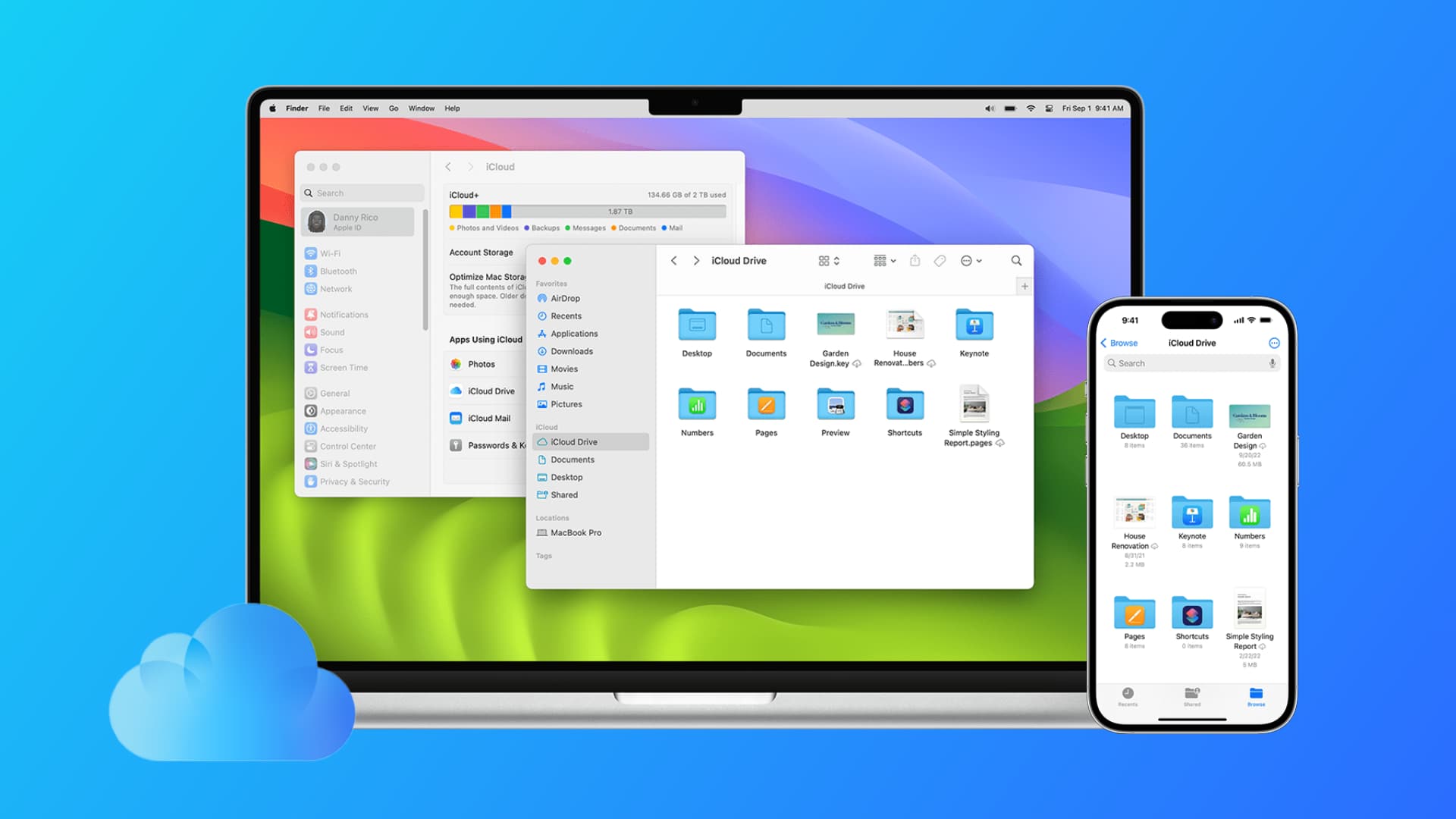
Your Mac can keep everything that’s on your Desktop and in the Documents folder in iCloud Drive. This way, these files will be available on all your devices, and the new changes you make will sync and reflect everywhere.
Secondly, storing your Desktop and Documents files can also help if you have insufficient local storage on your Mac but have subscribed to a higher iCloud+ plan with lots of free space. Your files will be saved to iCloud Drive and will not take up space on your Mac unless you download them for offline use.
Before you begin, make sure you’ve signed in to your Mac and other devices with your Apple Account and enabled iCloud.
Turn on Desktop and Documents for iCloud
- Open System Settings on Mac.
- Select your Apple Account name from the top left and go to iCloud > Drive.
- Turn on the switch for Desktop & Documents Folders and click Done.
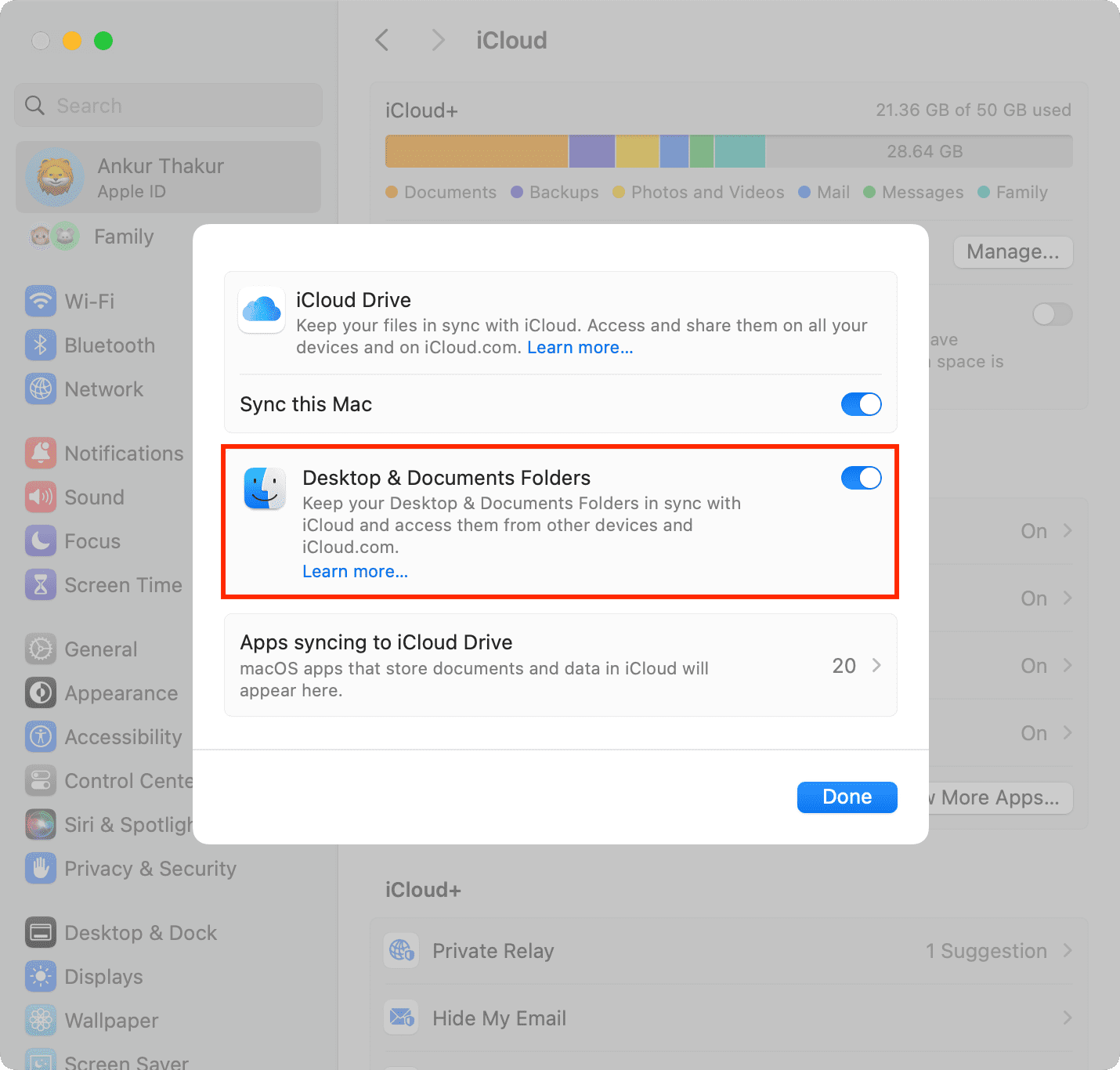
Now, all your existing and new files that are in the Desktop and Documents folders on this Mac will be uploaded to iCloud Drive. This process can take anywhere from a few seconds or minutes to a few hours or even days or weeks, depending on your Internet connection and how much space the files on your desktop and in the Documents folder are taking up.
You can set up Desktop and Documents sync on every Mac you want to keep in sync.
Tip: Now’s also the right time to change the location where screenshots taken on your Mac are saved. By default, screenshots are saved on the desktop, and you probably don’t want to have them synced across other devices.
See your Desktop and Documents files
Changes you make to these folders on one device will sync to all. If a file or folder is not available offline, you will see the download button next to it. Click it to first save the file, and then you can open it or use it in other apps.
On Mac
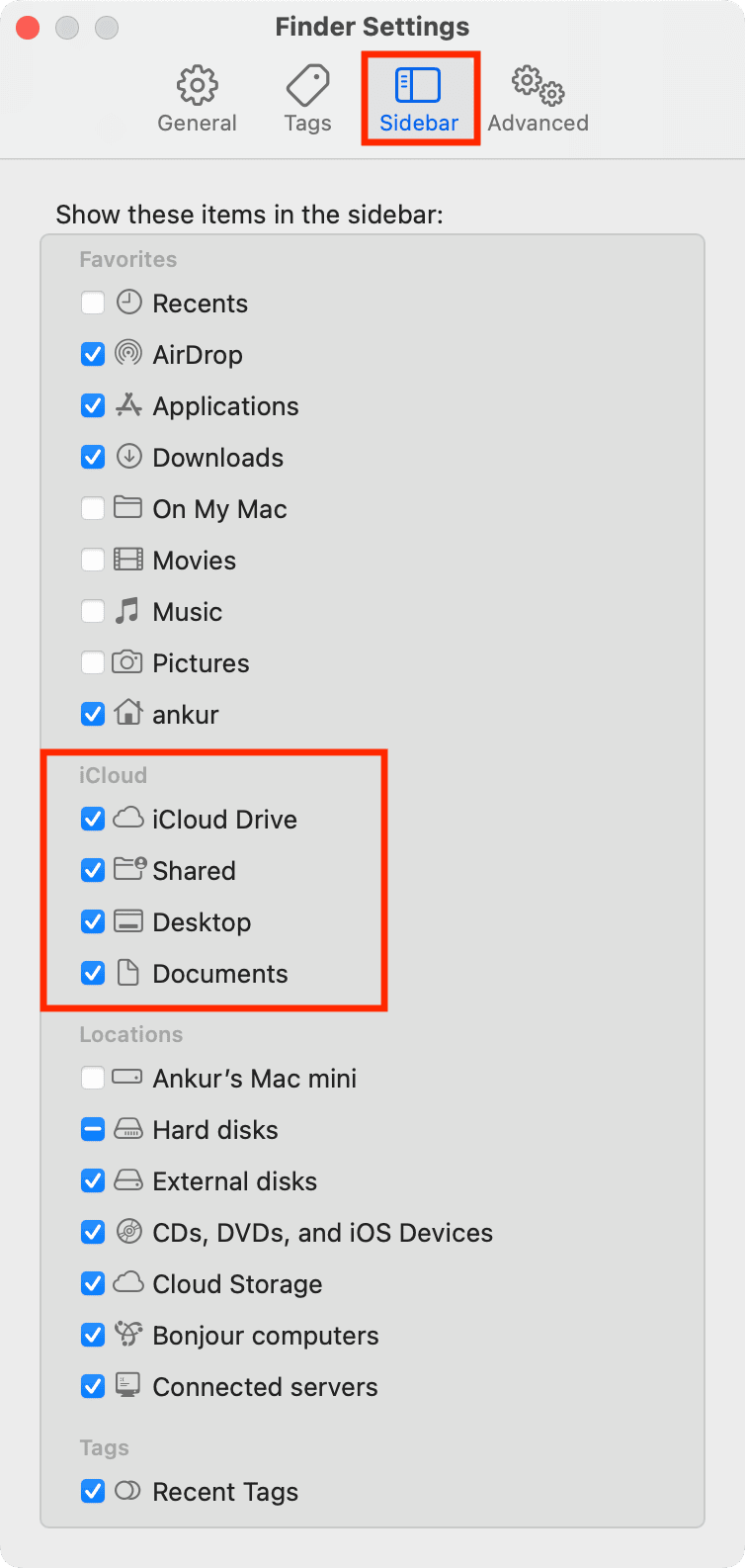
After you turn on Desktop & Documents Folders in iCloud Drive, your existing Documents and Desktop folders are moved to iCloud Drive. You’ll find them under the iCloud section of the Finder.
Should you find the new arrangement confusing, you can move the icons back. Click and hold the Desktop or the Documents icon in the Finder’s sidebar under iCloud, drag it to a new location, and let go.
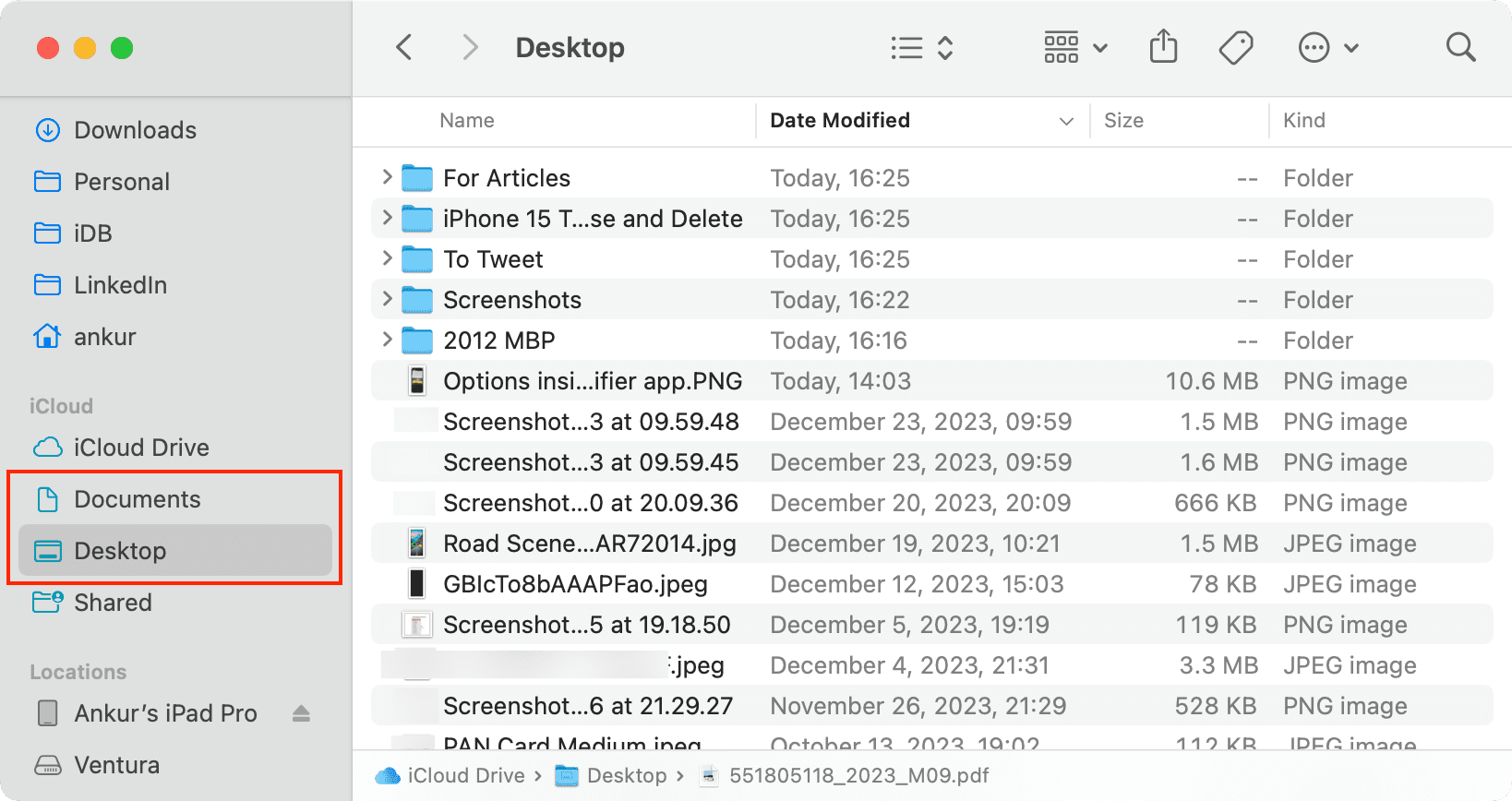
If you don’t see it, click Finder > Settings from the top menu bar. After that, go to Sidebar and check the boxes for iCloud Drive, Desktop, and Documents.
Using Terminal commands on Desktop and Documents folders: Even though your Desktop and Documents folders now live in iCloud Drive and the Finder no longer shows them in your user account folder, you can still refer to their regular locations in Terminal scripts and commands.
For example, you can still change the current directory to your Documents folder in Terminal by executing the “cd” command like you normally would.
In my case, I’d type the following into the Terminal window:
cd /Users/Chris/Documents/
or
cd /Users/Chris/Desktop/
to switch the current directory to my user account’s Desktop folder.
On iPhone or iPad
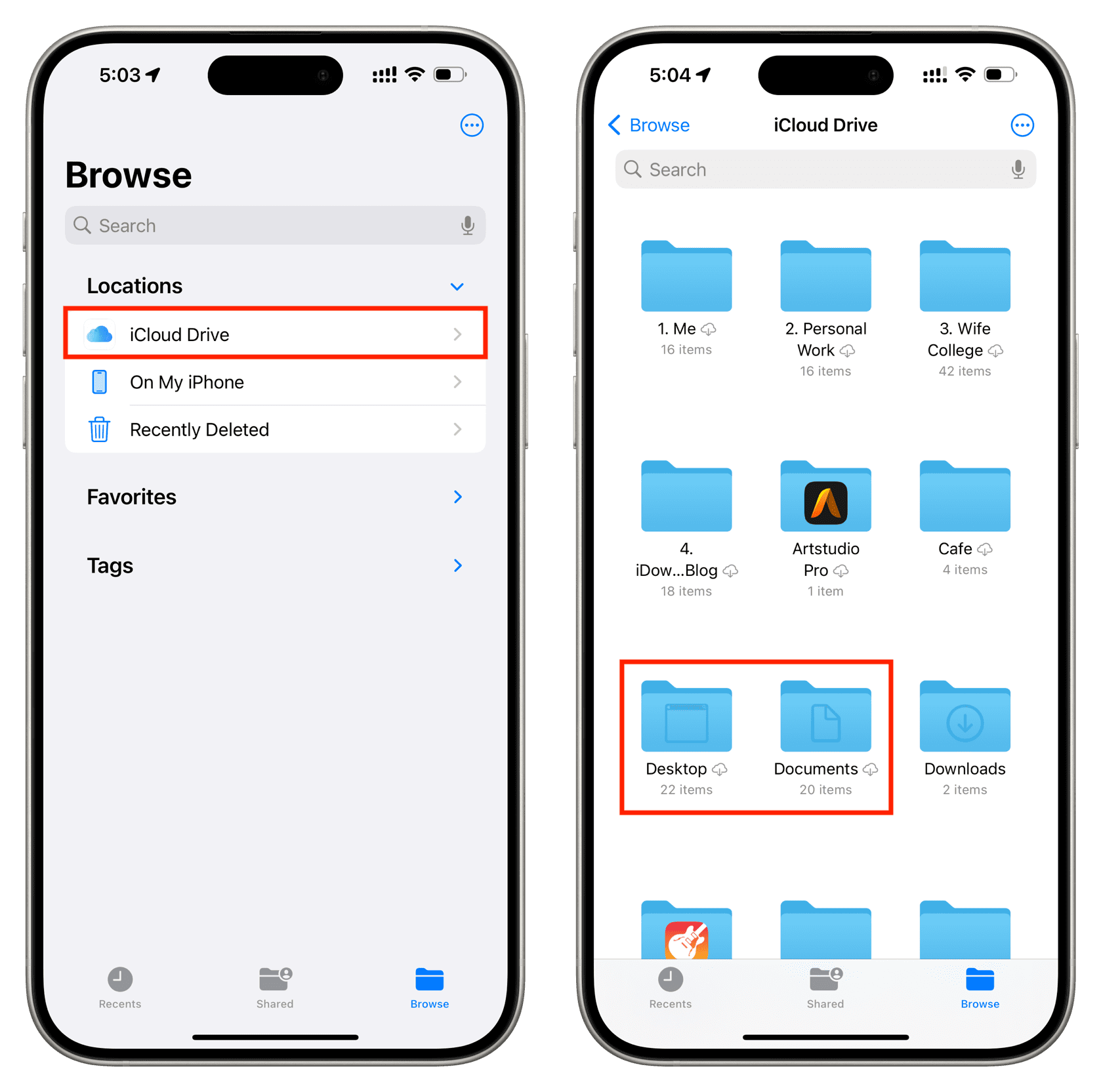
Open the Files app on your iOS device and tap iCloud Drive under the Locations heading. You’ll find two folders named Documents and Desktop. Go inside them to find files from your Mac.
In a web browser
Visit iCloud.com and log in with your Apple ID and password. Next, click Drive and go to Documents and Desktop folders to access your files.
On Windows PC
To access Mac’s Desktop and Documents folders on your PC, check out our dedicated guide on getting your iCloud Drive files on your Windows PC. Once set up, you can see and download Mac files in Windows File Explorer.

Turn off the Desktop and Documents Folders
Follow the above steps and turn off Desktop and Documents Folders in iCloud Drive settings.
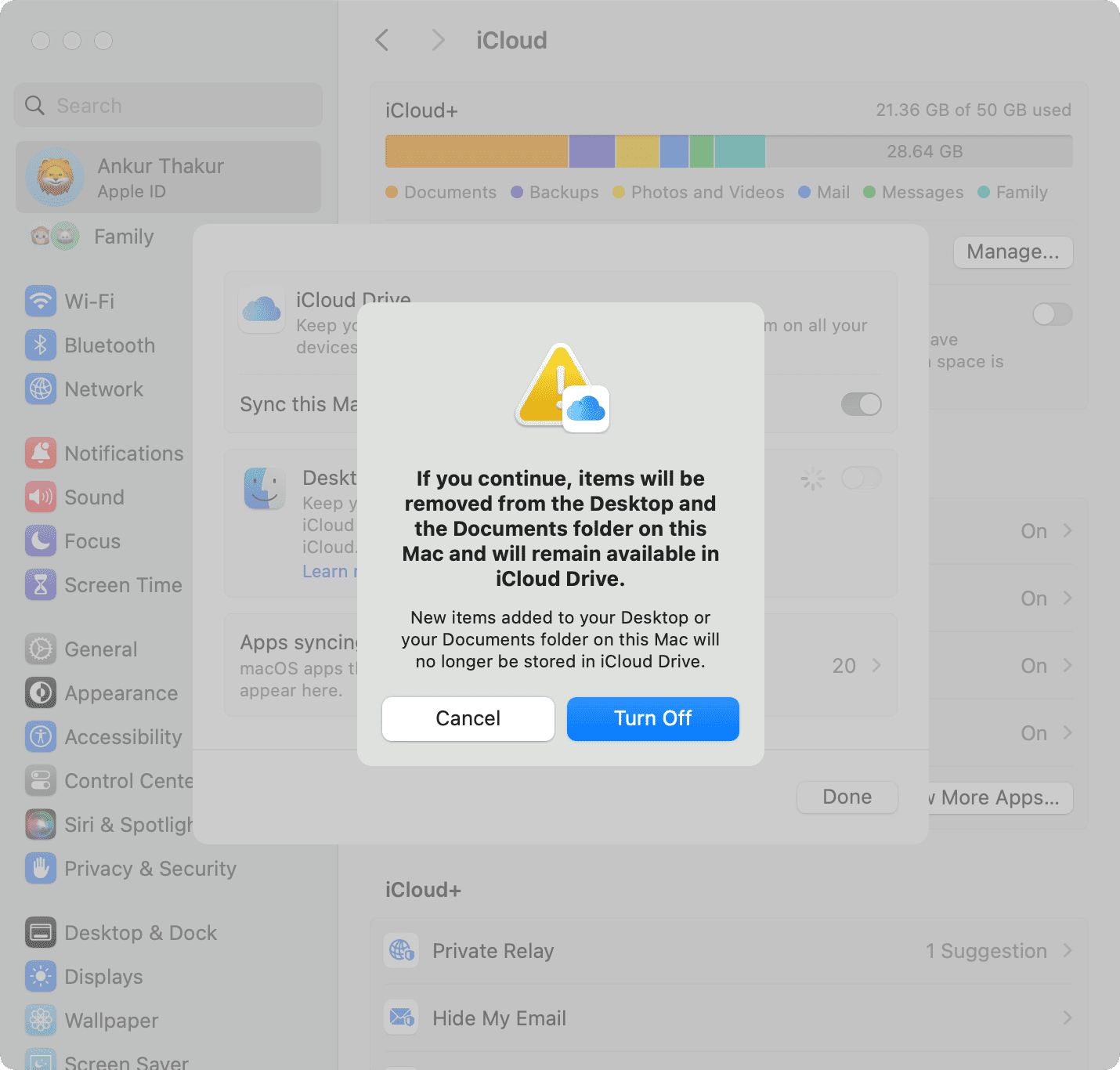
After this, your files will continue to stay in iCloud Drive and be available on all your devices, but your Mac will automatically create new Documents and Desktop local folders in the home folder.
You can start fresh or drag files from the Documents and Desktop folders in iCloud Drive to the new local Documents and Desktop folders or to any other Finder folder you want.
Check out next: