Figure out why your iPhone or iPad is displaying an incorrect date or time, and check out the solutions to resolve this issue.
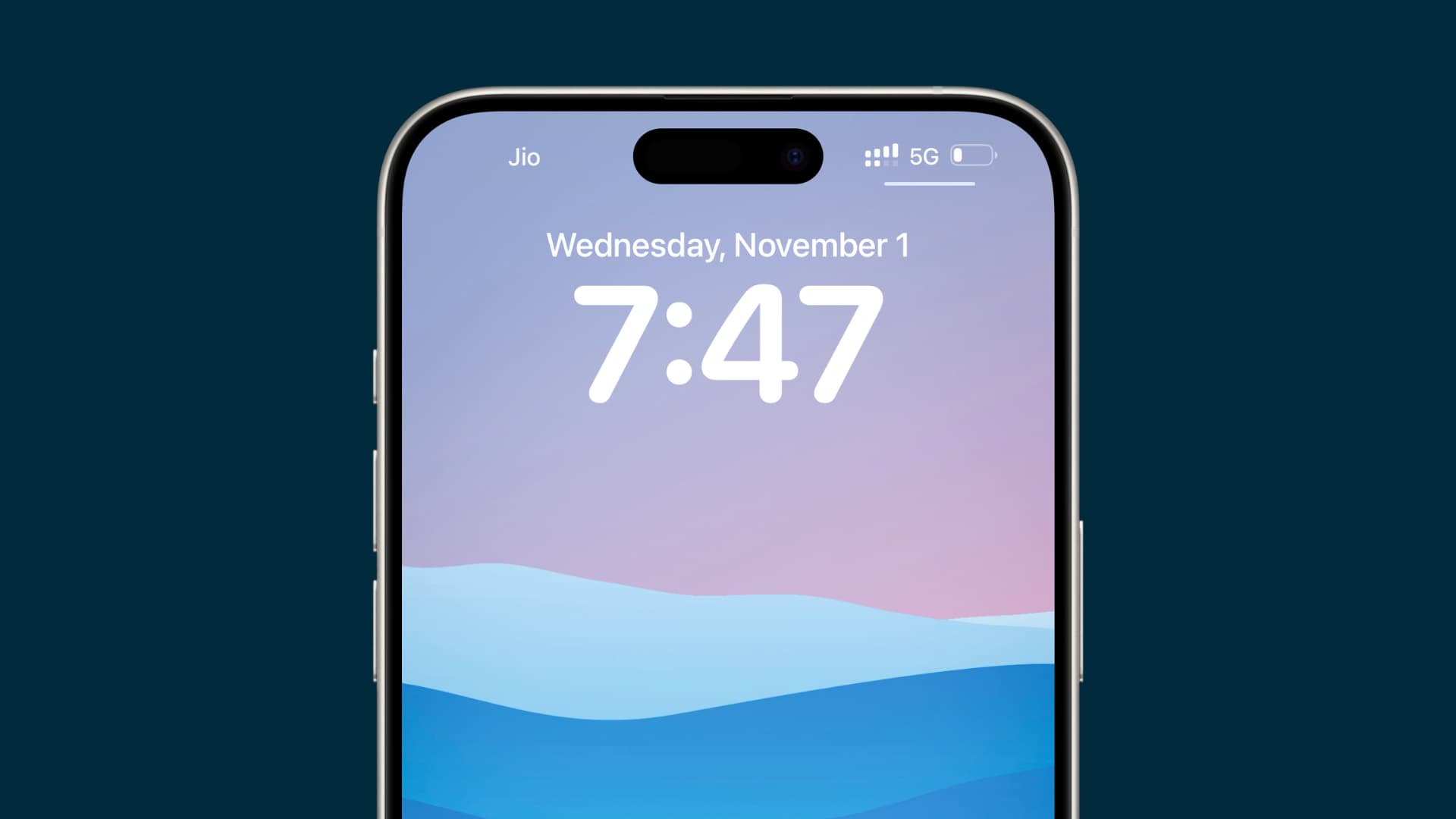
If your iPhone, iPad, or iPod touch has decided that it’s going to start showing you the wrong date or time, it can cause all sorts of issues. Apart from making you miss important appointments and misinforming you when you want to glance at the time, having the wrong time can also cause issues with App Store downloads and other functions that are critical for operating the iOS device.
Wrong date and time can also cause problems with FaceTime and iMessage activation, cellular data failing to work, location services showing incorrect data, and more.
Here’s how to fix this issue.
1. Time set manually? Change it to automatic
If you have set your iPhone time manually, rather than letting iOS do the timekeeping for you automatically, then it’s possible that the time was entered incorrectly or that the device hasn’t been maintained through daylight savings time changes.
Try letting iOS set the time automatically based on your location and see if the proper time is displayed after the change. To do this, go to the Settings app > General > Date & Time, and then turn on the Set Automatically option.
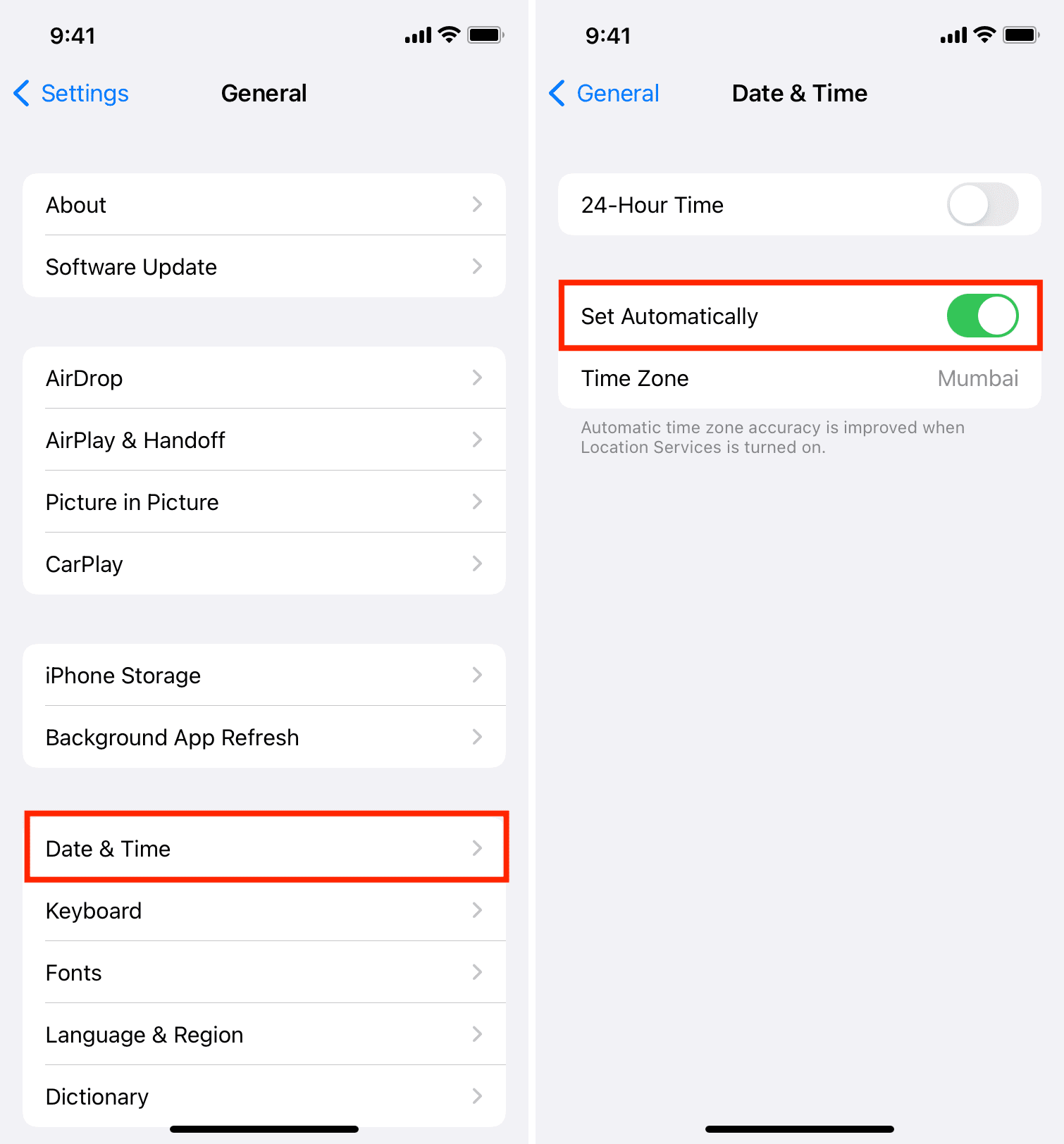
Now, iOS should automatically set your time straight after acquiring your location (an internet connection is required).
2. Time set automatically? Try changing it manually
In the converse of the explanation above, it’s possible that iOS is bugging out and is incapable of setting your time automatically because of poor location acquisition or a bug in the software.
If iOS is set to change the time automatically and displays the incorrect time with no real explanation, then the best action to take might be to set the time manually on that device (even if for a temporary period of time).
To do this, go to Settings > General > Date & Time and then turn the Set Automatically option to the off position. You’ll then have to choose the date and time yourself, as well as select your time zone.
After setting the time manually, restart your iPhone and set it back to update automatically.
3. Connect to the internet
After following the above two solutions, you must make sure your iPhone is connected to Wi-Fi or cellular data for the right time to update automatically on your device.
4. Restart your device
It’s very important that you turn off your iPhone and turn it back on if it shows an incorrect time on the Lock Screen or the top status bar. This should refresh the system and fix things.
5. Is your iOS version up to date?
This typically has almost nothing to do with the time, except for rare circumstances, but it’s a good idea to check and make sure your iOS firmware is up to date (unless you’re relying on a jailbreak).
Bugs in the past that have affected time display during daylight savings time have been fixed in recent iterations of iOS, so it’s a good idea to make sure you’re on the latest version of iOS possible. This will prevent or stop daylight savings bugs from displaying the incorrect time on your device now or in the future.
To check for a software update, open the Settings app and navigate to General > Software Update to see if there are any updates waiting to be installed.
6. Check the time of the computer you sync with
If your Mac or PC, which you use to sync with Finder or the Apple Devices app, has incorrect time settings, those settings may be transferred to your iOS device after a sync. This would, of course, result in the incorrect time being displayed on your iOS device as well.
On a Mac, you can check your date and time settings from:
- System Settings > General > Date & Time and turn on ‘Set time and date automatically’ and ‘Set time zone automatically using your current location.’
- If you’re on an older version of macOS, go to System Preferences > Date & Time and set it to update automatically.

After you’re satisfied with the date and time settings on your Mac, try to sync your iOS device with it again and see if this resolves the problem.
7. Contact your cellular provider
If none of the above steps worked in allowing your device to acquire your location and set the time automatically, then you may need to contact your cellular service provider or carrier. Not all carriers in all countries support the location services necessary to set your time automatically, and as a result, your time accuracy may suffer.
Of course, you could always override this problem by setting the time manually, but it never hurts to find out if this could be the reason behind your incorrect time, so you know for the future.

You can get help from your iPhone or iPad’s carrier by finding its support medium on Apple’s carrier support webpage.
8. Last resort – restore your device
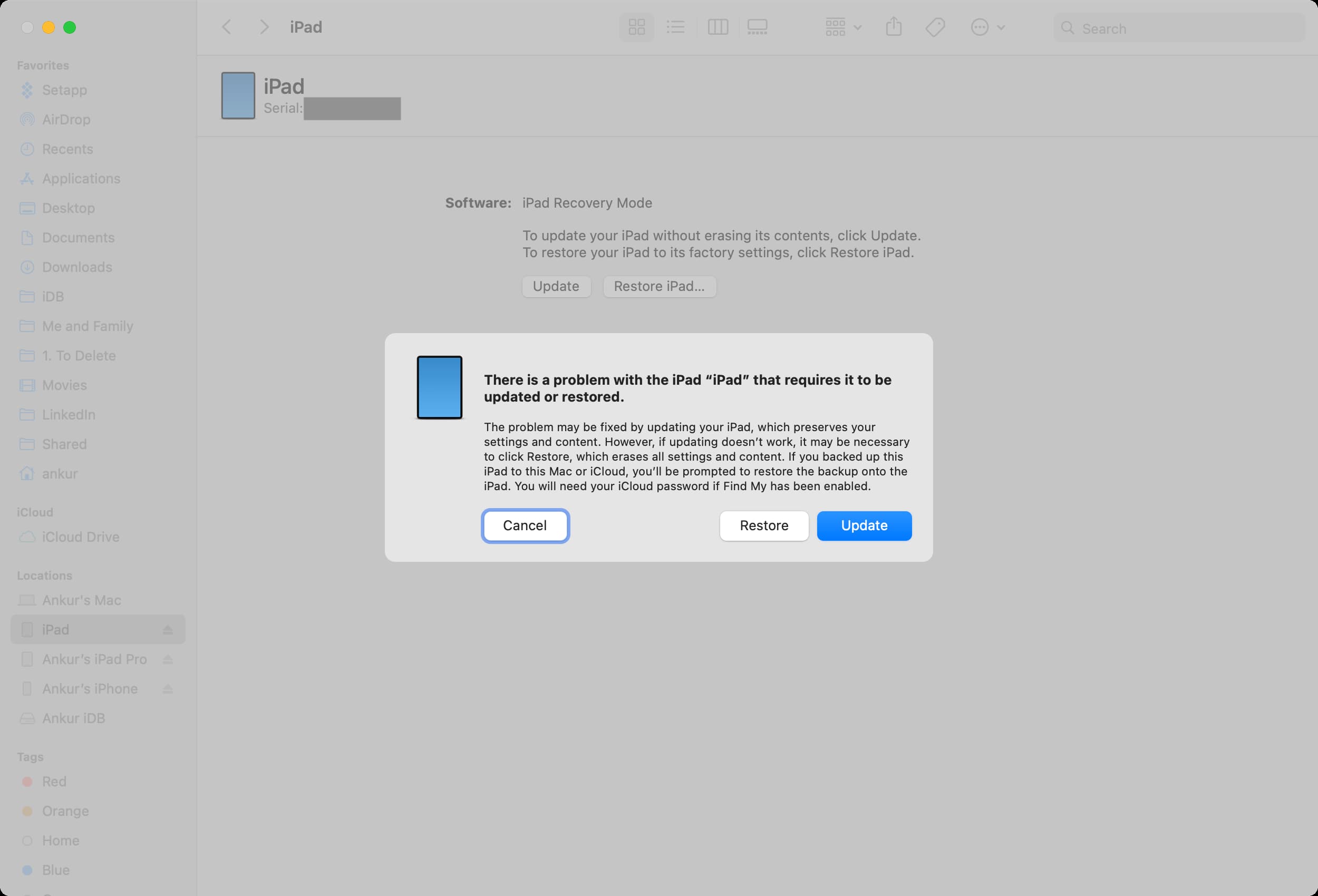
If you suspect that your device is not showing the correct date or time because of corruption in iOS or because you were tinkering with related files after jailbreaking your device, then you may need to restore your device to factory settings to get it to work again.
If you need help with this, we have a detailed tutorial on how to enter Recovery Mode on your iOS device and restore it with Finder or the Apple Devices app. This is the best way to do it, rather than using the “Reset” option built into iOS itself. As always, you’ll find any firmware files you might need for your device’s restore process from our downloads page.
Hopefully, after following the above steps, you were able to get your iOS device to show the proper time. Typically, unless you’ve deleted important system files, you can simply set the time manually to fix any problems related to automatic timekeeping.
Have any of your iOS devices ever displayed the wrong time before? Share in the comments and tell us how you fixed it.
On the same note: