Check out three quick ways to turn on Dark Mode on your Mac to make the screen easier on your eyes, especially at night.
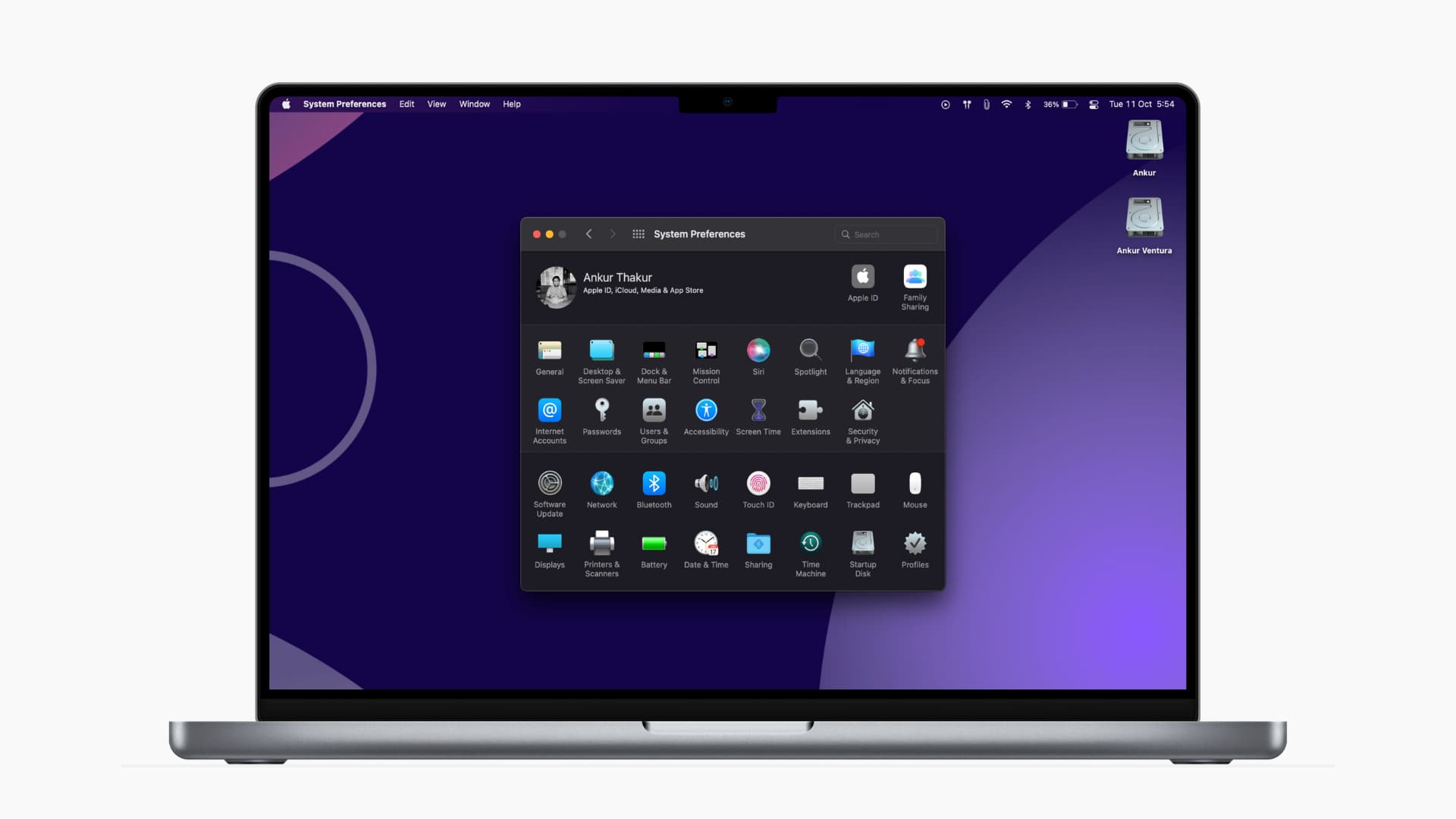
Method 1: Using Settings
- Open System Settings on your Mac. If you’re new, click the Apple icon in the top-left corner of the screen to see it.
- Select Appearance.
- Choose the Dark option.
- If you choose Auto, it will automatically switch to Light Mode during the day and Dark Mode at night.

If your Mac is running an older version of macOS:
- Click the Apple icon and choose System Preferences.
- Select General.
- Pick Dark next to Appearance to enable Dark Mode.

Method 2: Using macOS Control Center
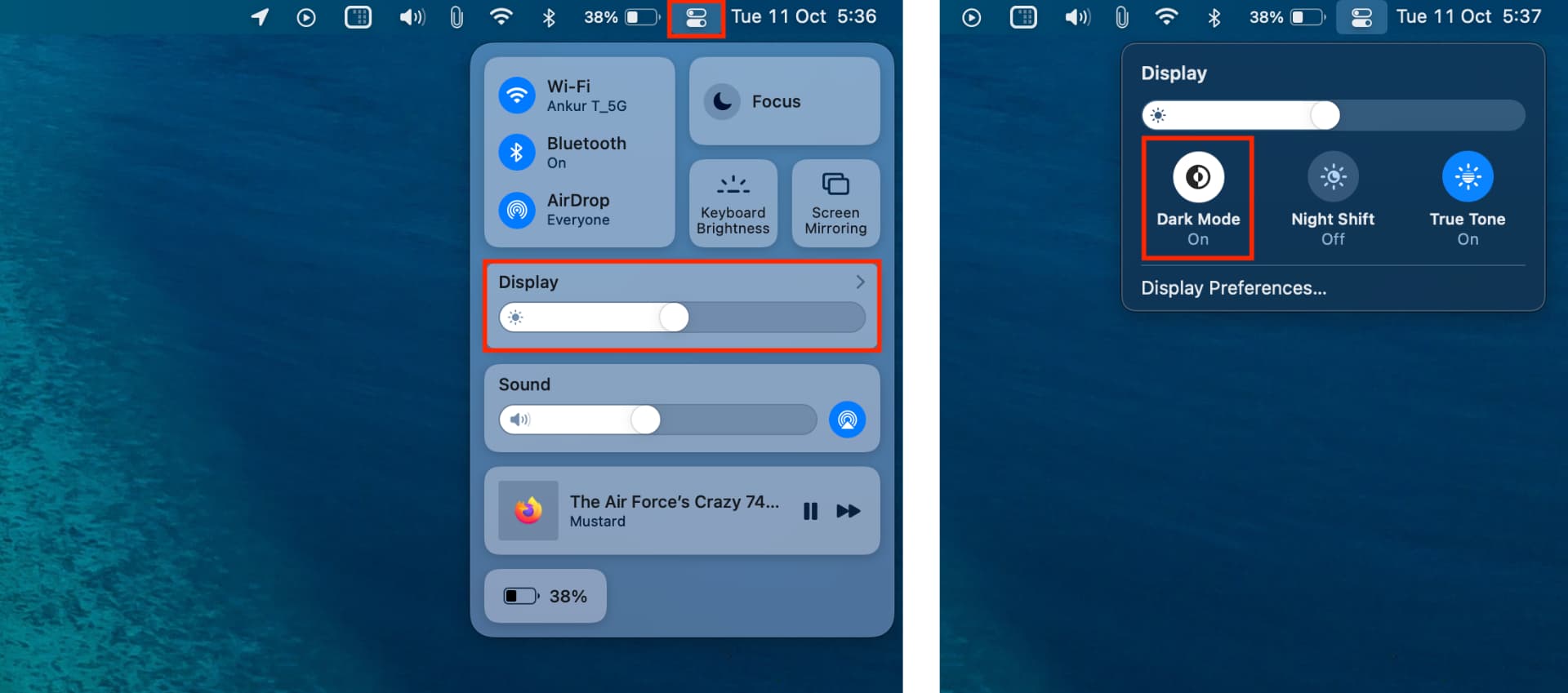
- Click the Control Center icon from the top menu bar on macOS Big Sur and later.
- Click the Display slider.
- Finally, click the Dark Mode button to turn it on.
- Alternatively, customize macOS Control Center to add a direct Dark Mode button there.
Method 3: Using Siri
- Summon Siri on your Mac by clicking the Siri icon in the top-right corner of the screen.
- Ask it to turn on Dark Mode.

Check out: How Dark Mode looks in various Mac apps
Special Light Mode option in some Mac apps
After you enable Dark Mode on your Mac, some apps may offer special customization options that let you set certain aspects of that app’s appearance to Light Mode. Here are a few examples:
Mail app
- Open the Mail app and click Mail > Settings from the top menu bar.
- Go to the Viewing section.
- You’ll see an option called Use dark backgrounds for messages. This is enabled by default when you turn on Dark Mode. But if you like to see the main body of your emails in a white (normal) background, you can uncheck the Use dark backgrounds for messages option.

TextEdit
- Open TextEdit.
- Click View in the top menu bar and uncheck “Use Dark Background for Windows.”

Notes
- Open the Notes app and click Notes > Settings from the top menu bar.
- Check or uncheck “Use dark backgrounds for note content” to set it as you like.

Maps
- Open the Maps app on your Mac and click Maps > Settings from the top menu bar.
- From here, use the “Always use light map appearance” option to set it to Light Mode or Dark Mode.

How to set Safari on Mac to show websites in Dark Mode
After you enable Dark Mode on your Mac, the websites you visit in Safari may automatically appear with a dark background if the administrator has set their website to honor the system Dark Mode. In case the website continues to be in Light Mode, try to find a button there to enable Dark Mode. And if you don’t find it, create a custom Safari extension or use Reader Mode, which will show the main textual parts of the website in Dark Mode.
Dark Mode and Dynamic Desktop
You can take advantage of an awesome feature that plugs nicely into Dark Mode called Dynamic Desktop. It automatically changes the desktop picture to match the time of day, as determined by your location.
Dark Mode in your favorite third-party Mac apps
Dark Mode works with built-in apps that come with your Mac. Third-party apps can implement Dark Mode by taking advantage of an official API from Apple. If your favorite app doesn’t switch to its own dark look after enabling Dark Mode, contact its developer and demand that they support Dark Mode using Apple’s AppKit framework.
Check out next: